Payer EDI Enrollment
Payer EDI Enrollment is an essential process of electronically exchanging Patient and healthcare services data between Provider and Payer systems. This process is different from Payer credentialing, also known as Payer Enrollment.
Enrollment is mandatory for all Payers to receive Electronic Remittance Advice (ERA).
For Claim submissions and Eligibility Inquiries, Practices can directly submit Claims and check eligibility without the Enrollment process. However, a few Payers may require you to complete the Enrollment for Claim submission (EMC) and Eligibility checks, such as Medicare and Medicaid, and a few commercial Payers like Michigan Blue Cross Blue Shield and Blue Cross Blue Shield - Pennsylvania [PABLS].
The Enrollment process differs depending on the Payer. One has to refer to the Enrollment agreement for each Payer and complete the Enrollment. This article helps you with the detailed steps of the Enrollment process.
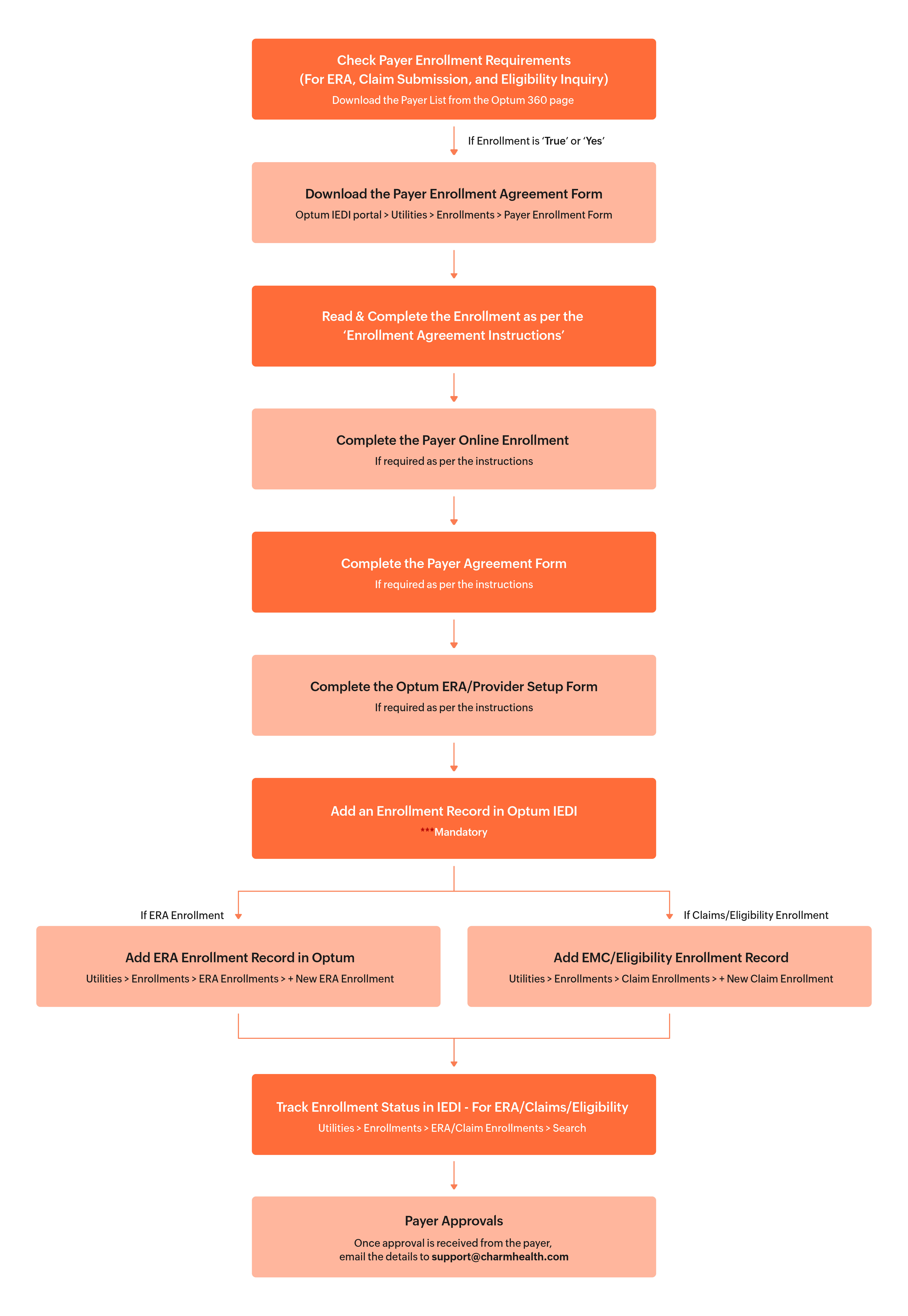
Payer EDI Enrollment- Instructions Overview
Main steps in the Enrollment Process
1. Prerequisites for Optum Clearinghouse Enrollment
- Access to the Optum IEDI Portal
- To manage the Payer Enrollments, the required Practices members should have an individual named account One Healthcare ID (OHCID) in the Optum IEDI portal. If not available, create a new One Healthcare ID for the required members using the below instructions.
- Creating a One Healthcare ID
- Access the Optum IEDI portal and click 'Create One Healthcare ID'.
- Enter the required details, complete the verifications, and set up the Multi-factor Authentication.
- Send the following details to support@charmhealth.com to provision your account to your Practice’s Optum Clearinghouse account:
- First Name
- Last Name
- Registered Email
- One Healthcare ID (OHCID)
2. Check Payer Enrollment Requirements
Access the Optum-supported Payer List for each transaction (ERA, Claim Submission, and Eligibility Inquiry) to know whether a Payer requires Enrollment. Refer to the steps below.
- You can access the Optum Payer Lists at https://business.optum.com/en/support/payer-lists.html under 'Optum Revenue Cycle Payer Lists'.
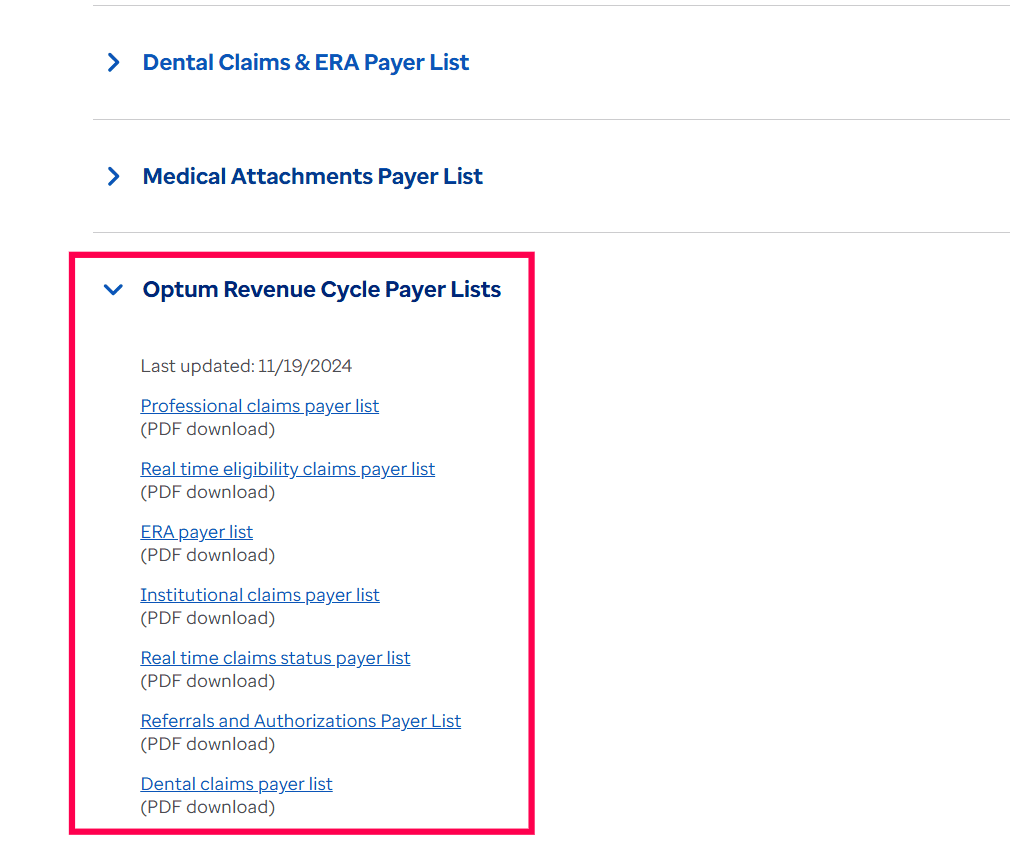
- Download the Payer list for ERA, Claim Submission, and Eligibility.
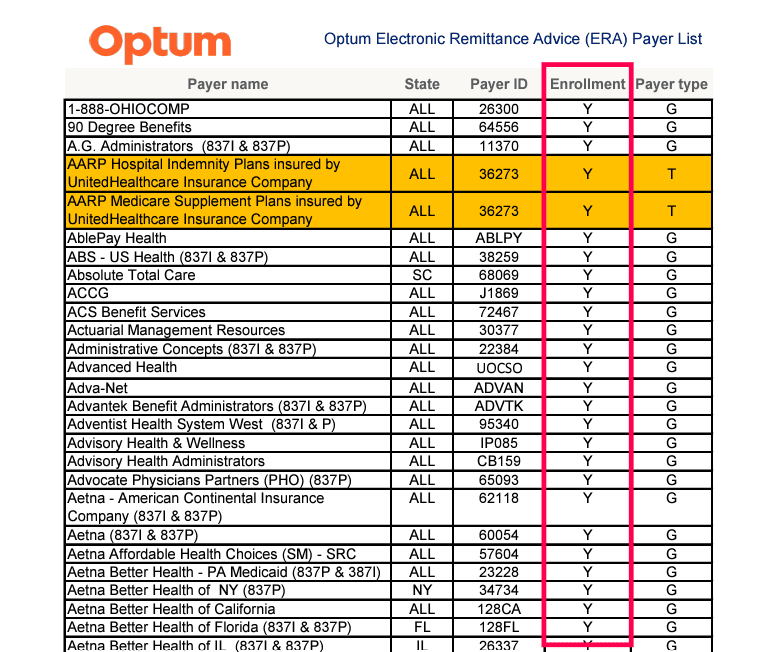
- Search for the Payer you need to enroll with.
- If the Payer is available in the specific Payer list, it indicates that the Payer is supported for that transaction via Optum.
- To check if the Payer requires Enrollment, verify the 'Enrollment' column of the Payer list. If the 'Enrollment' is marked as 'TRUE' or 'Yes' against the Payer, then Enrollment is required for the Payer.
3. Download the Payer Enrollment Agreement Form
To download the Payer Enrollment Agreement form, follow the steps below.
- Login to the Optum IEDI portal with your One Healthcare (OHCID) credentials.
- Navigate to 'Utilities > Enrollments'.
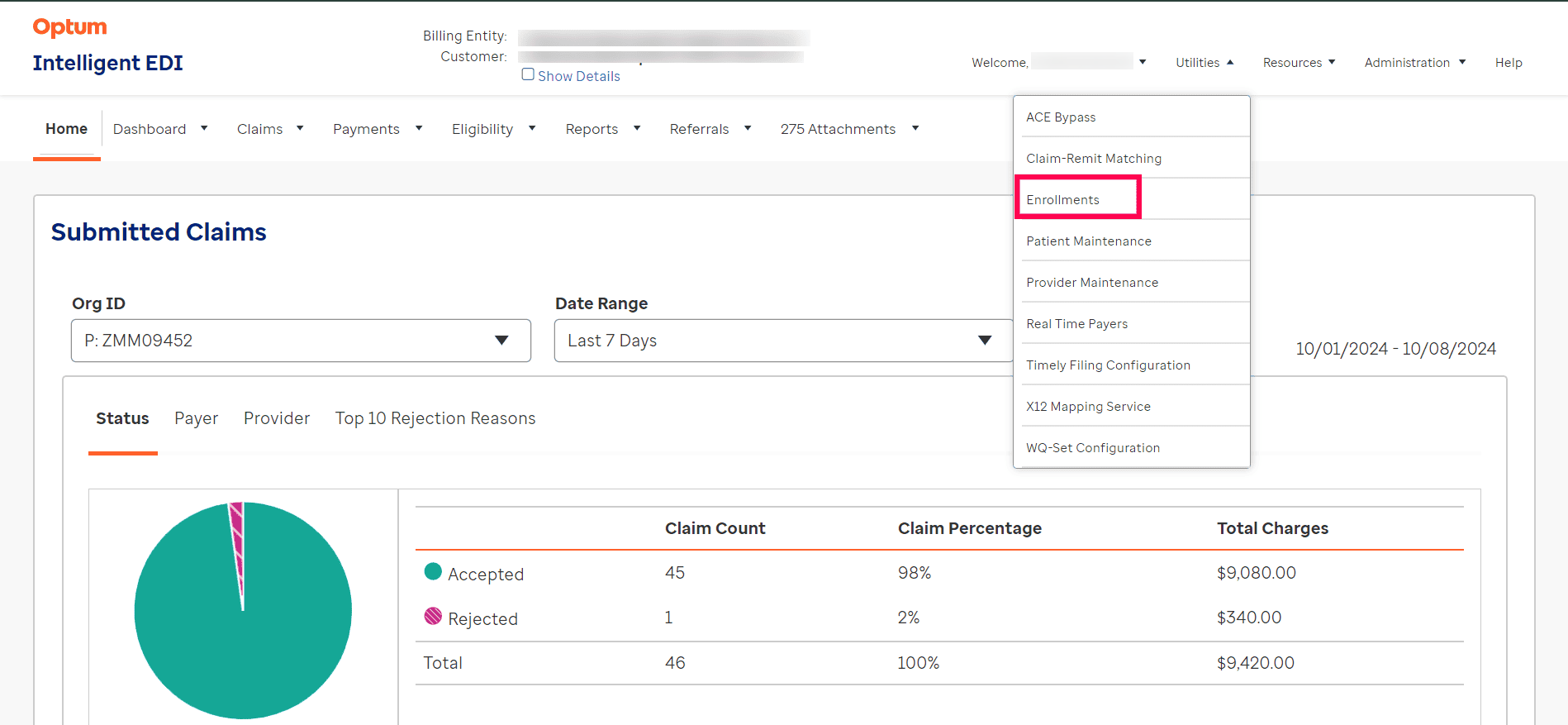
- Select the 'Payer Enrollment Forms' section.
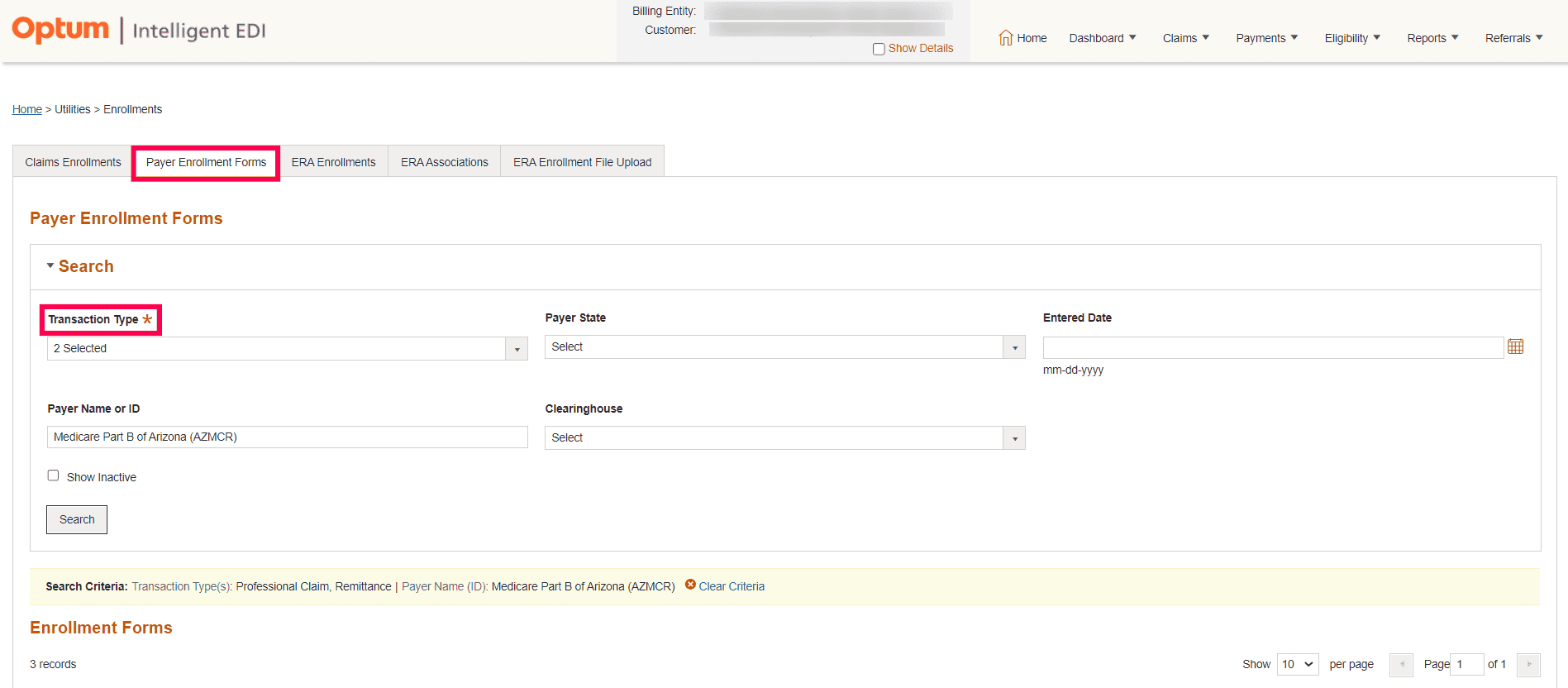
- Select the Transaction Type i.e., 'Remittance' (For ERA), 'Professional Claim' (For Claim Submission), or 'Eligibility' (Eligibility Inquiry).
- Enter the Payer name or Payer ID you want to search for. IEDI will automatically suggest matching Payers, and you can select the correct one from the list.
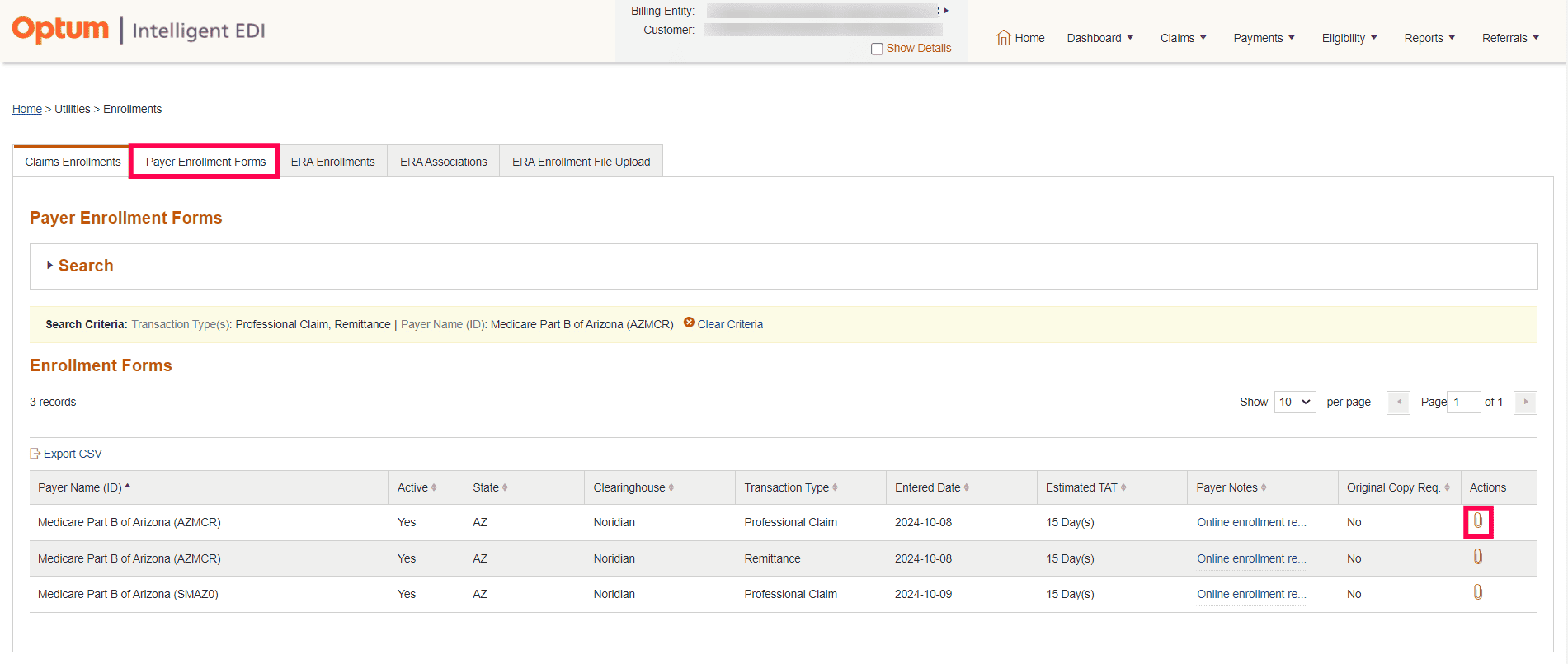
- Click the 'Attachment' icon against the Payer to download the Enrollment Form.
4. Complete the Enrollment as per the 'Enrollment Agreement Instructions'
Practice should complete the EDI Enrollment as per the instructions provided in the agreement in order to seamlessly connect with the Payer via Optum.
Completing a Payer Enrollment involves the following steps.
a) Read the 'Enrollment Agreement Instructions' Carefully
- Review the Enrollment Agreement Instructions provided on the form's first page.
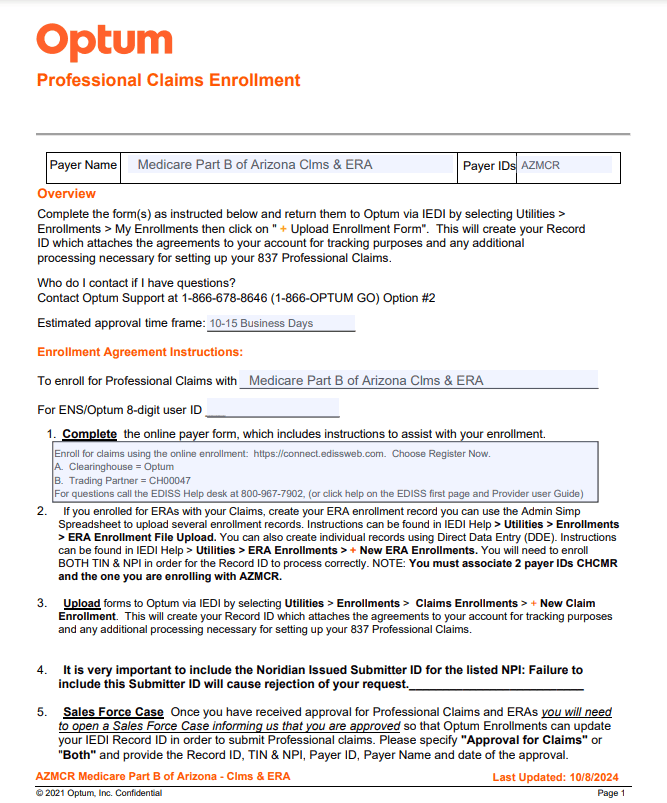
- Additional information required for completing the Enrollment might be found on the Instructions page (or) in subsequent pages.
- Read the Enrollment Agreement Instructions carefully to know whether
- The Payer requires any online Enrollment to be completed.
- The Payer requires any form to be completed.
- The completed form(s) has to be sent to the Clearinghouse and/or Payer via Mail/Fax/Email.
- Any ticket has to be created as part of the Enrollment creation.
- Completed Enrollment agreement to be uploaded while adding the Enrollment record.
- The Payer sends any approval to the Provider which required to be submitted to Optum by creating a support case.
- On verifying the above information, proceed to the next step.
b) Complete the Payer Enrollment (If required)
The Provider may be required to complete the Enrollment using the Payer portal or by submitting the completed payer form(s) through Fax, Mail, or Email to the Payer.
For online Payer Enrollment, the portal URL and necessary registration details are provided on the instructions page or in subsequent pages. Refer to the actual values given in the agreement and enter the same during the online Enrollment.
The agreement may contain the additional information required for the Enrollment along with the other necessary details.
- Clearing House Name
- Clearing House Vendor ID / Submitter ID / Trading Partner ID
- Clearing House Contact Person Name
- Clearing House Contact Person Email Address
- Clearing House Contact Person Phone Number
- Clearing House Contact Person Mailing Address
Based on the above details, Practices can complete the Payer Online Enrollment.
Note: Some Payers might generate an identifier after the online Enrollment. Remember this identifier as it may have to be entered in the Optum agreement form and/or while creating the support case with Optum.
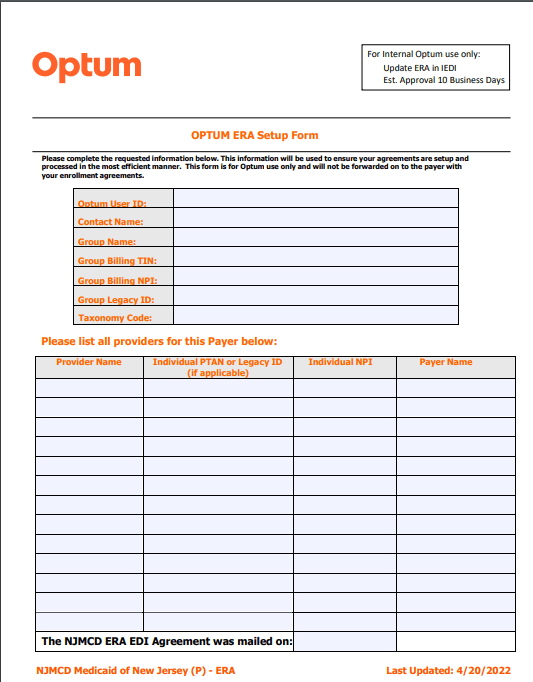
c) Complete the Optum Form (If required)
As part of the Enrollment requirement for Optum Clearinghouse, certain Payers may be required to complete the 'Optum Provider Setup'.
Steps to Complete the Optum Form
- Check the 'Enrollment Instructions Agreement Form' provided by the Payer.
- Confirm if the 'Optum' form is mandatory for the Payer.
- Fill out the form accurately with all necessary information.
- Follow the submission instructions provided in the Enrollment Agreement Instructions - Email, fax, or upload to the designated portal.
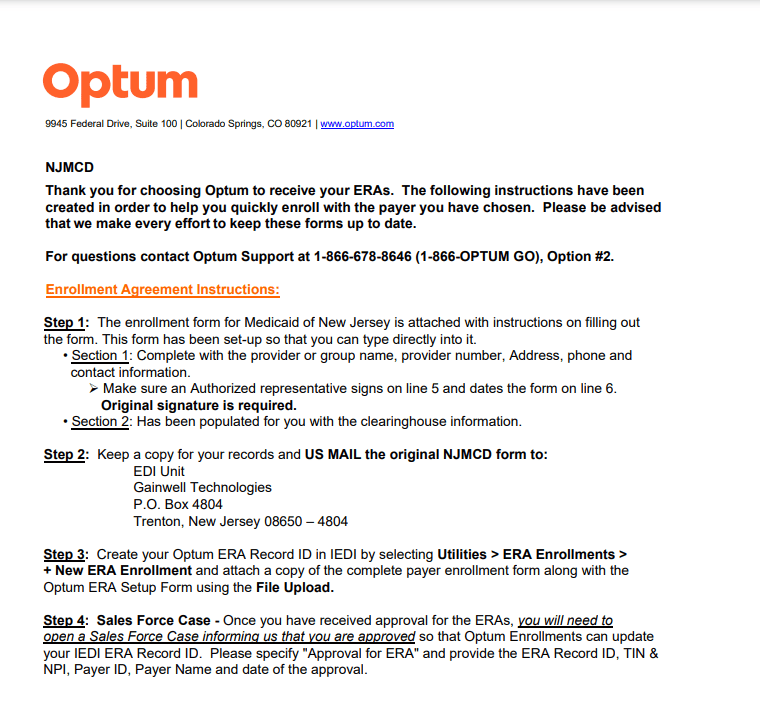
5. Add an Enrollment Record in Optum IEDI
Adding an Enrollment record is a MANDATORY step for each Payer Enrollment and transaction type to ensure Optum can process the Enrollment. Upon adding the Enrollment, a Record ID will be generated.
a) Add ERA Enrollment Record
To add the ERA Enrollment for your Practice, follow the steps below.
- Visit the Optum IEDI portal and log in with your One Healthcare (OHCID) credentials.
- Navigate to 'Utilities > Enrollments'
- Select the 'ERA Enrollments' section.
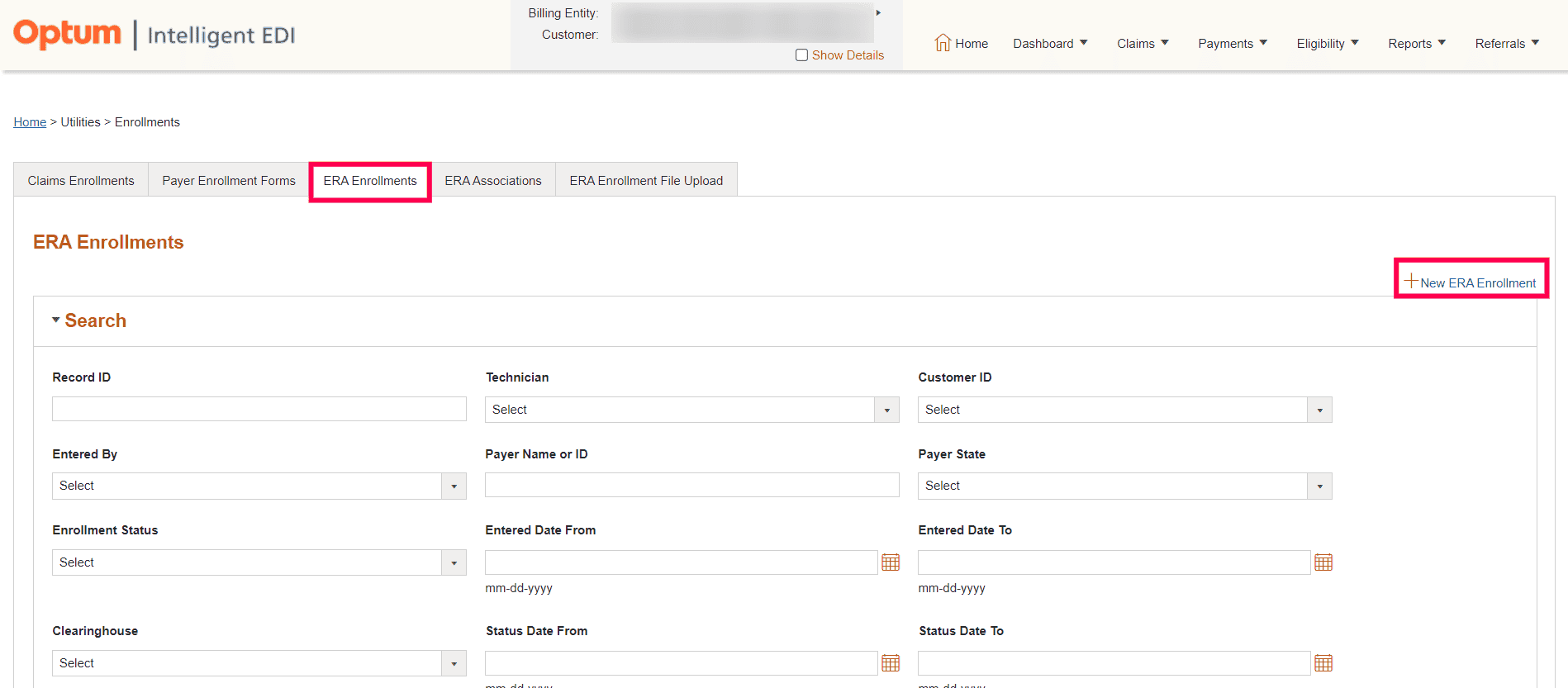
- To begin a new Enrollment, click the '+ New Enrollment' option.
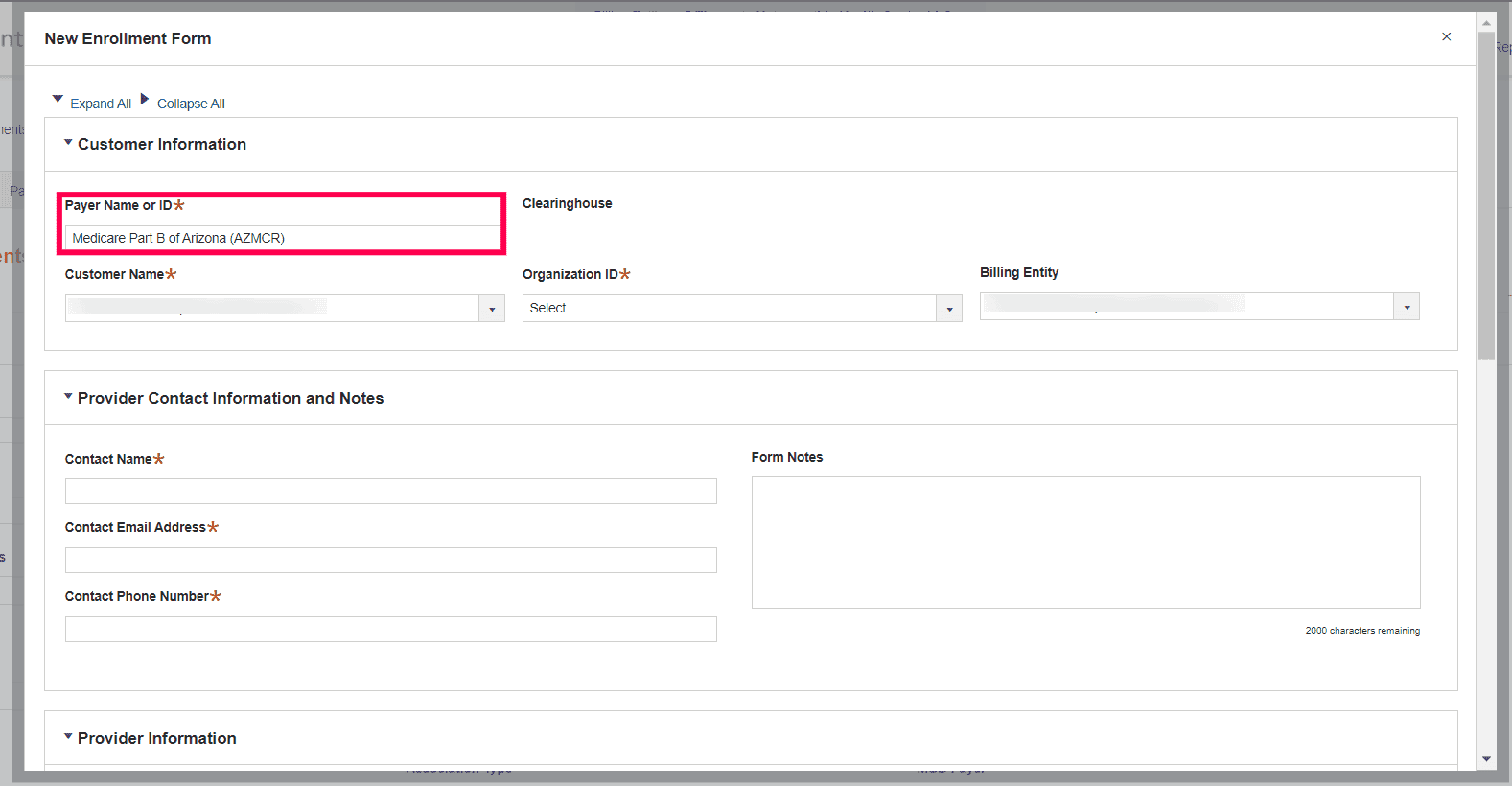
- In the New Enrollment dialogue, choose the Payer for which you need to add the ERA Enrollment.
- Fill in the Provider Contact Information. This contact information may be used by Optum if they need to reach your Practice regarding the Enrollment.
- Input the Provider's Tax Identification Number (TIN) and National Provider Identifier (NPI) that are mandatory to complete the Enrollment. Missing one of them can result in rejection. Enter the Group NPI if the provider is credentialed under a group, or the Individual NPI if they are credentialed individually.
- If there is a completed Payer and/or Optum Agreement Form, upload it under the 'File Upload' section using the 'Select Files' button.
- Review the information and save the Enrollment record. This will create a new ERA Enrollment Record ID.
b) Add EMC/Eligibility Enrollment Record
EMC (Claims) and Eligibility Enrollment are essential for efficient Claim processing and eligibility verification for your Practice. To complete the EMC/Eligibility Enrollment, follow the steps below.
- Access the Optum IEDI Portal.
- Navigate to 'Utilities > Enrollments'
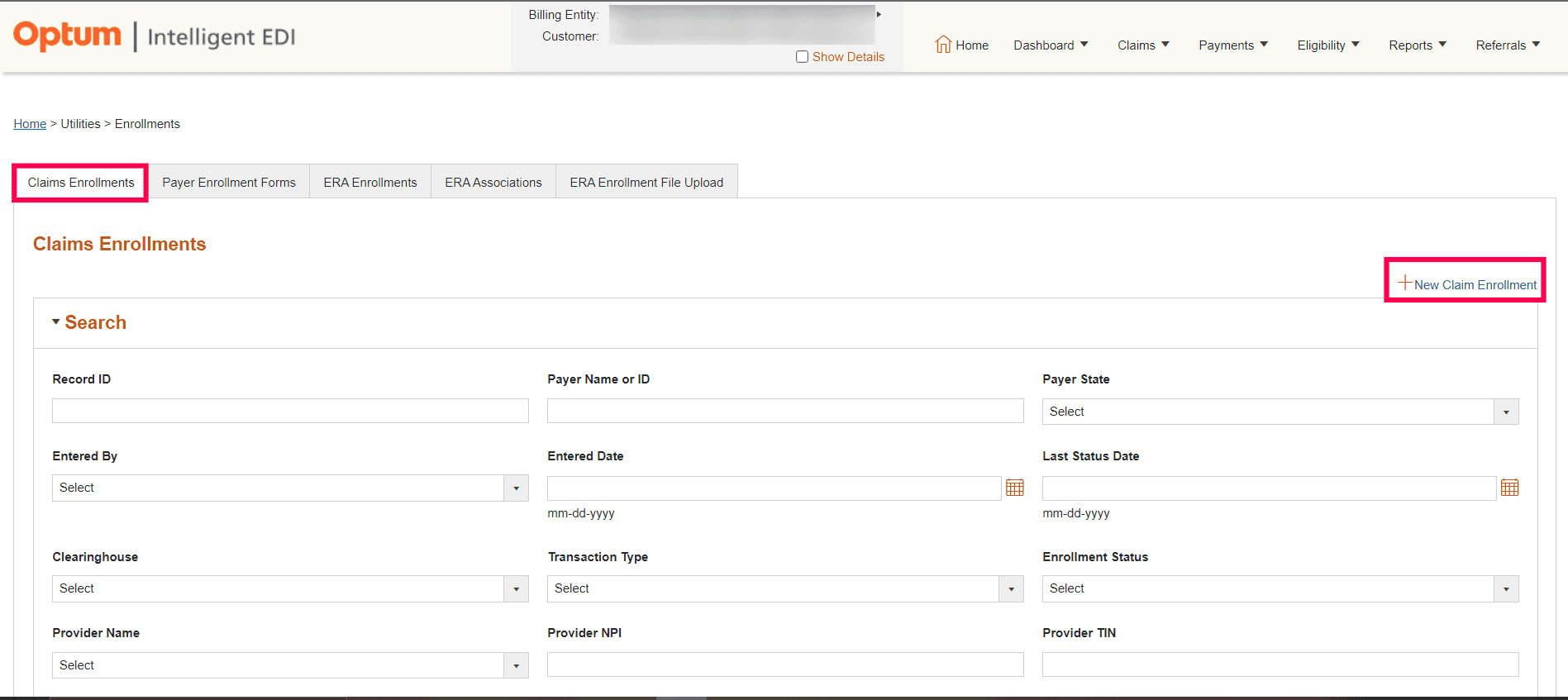
- Under the 'Claims Enrollment' section, click the '+ New Claim Enrollment' option.
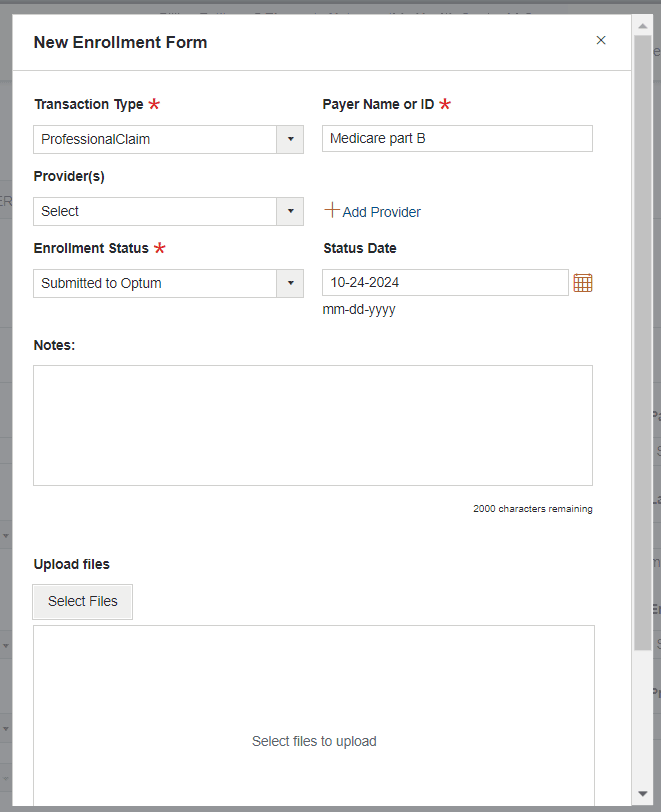
- Choose the required option for the below.
- Transaction Type: Select the type of transaction that applies to your Enrollment (Professional Claim or Eligibility).
- Payer: Search and select the appropriate Payer from the list.
- Provider: Select the Provider associated with this Enrollment. If the Provider is not listed, click the '+ Add Provider' option to enter the new Provider details (either Person or Entity), provide the Name, NPI, and Tax ID, and save the information. Now, in the Provider selection, choose the added Provider.
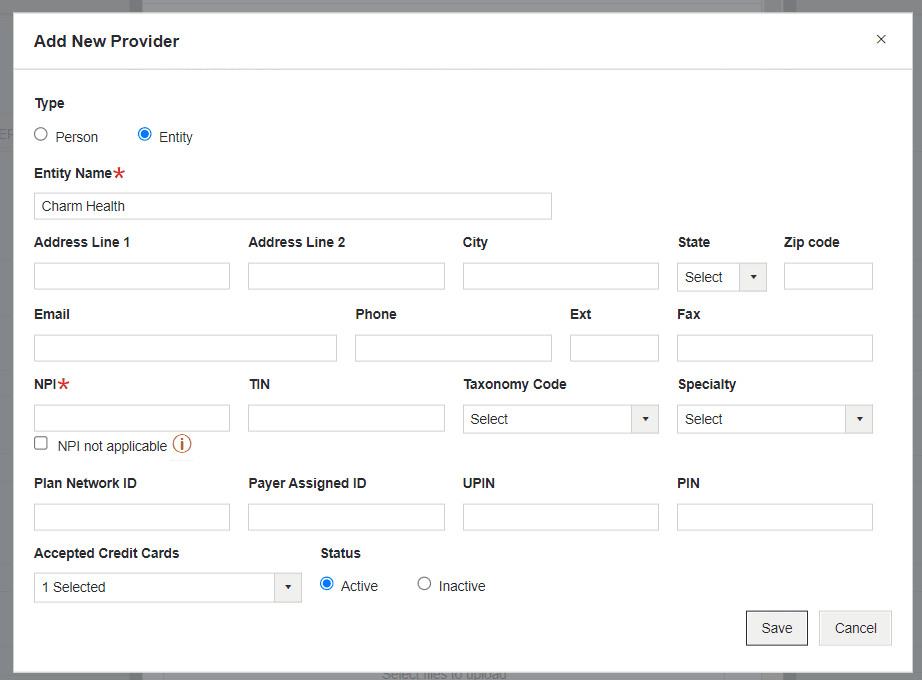
- In the Enrollment Status drop-down, select 'Submitted to Optum'. Selecting any other status, such as 'Approved' or 'Rejected' from the list, may invalidate the Enrollment.
- Enter the Status Date as the current date to reflect when the Enrollment was submitted.
- Enter the notes regarding this Enrollment, if required.
- If there is a completed Payer and/or Optum agreement form, upload the form using the 'Select Files' button and click 'Save'.
a) Track ERA Enrollment Status
After submitting your ERA enrollment, it is essential to check its status to ensure that your Practice is set up correctly to receive ERAs. Follow the steps below to check the status of your ERA enrollment.
- Log in to the Optum IEDI Portal.
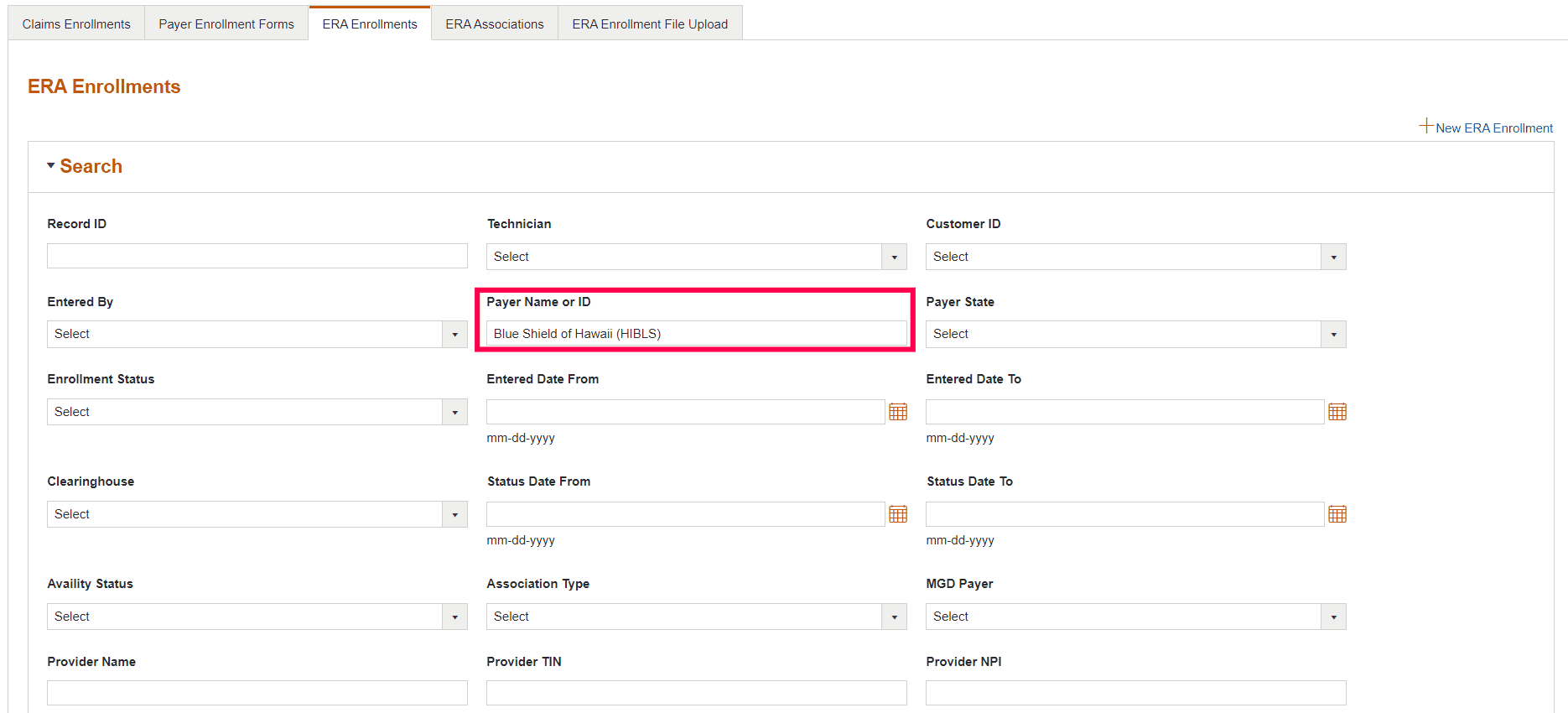
- Navigate to 'Utilities > Enrollments > ERA Enrollments'.
- Click the 'Search' button in the bottom-left to view the ERA enrollments of all payers or use the 'Payer Name or ID' field to check the ERA Enrollment Status of a particular payer.
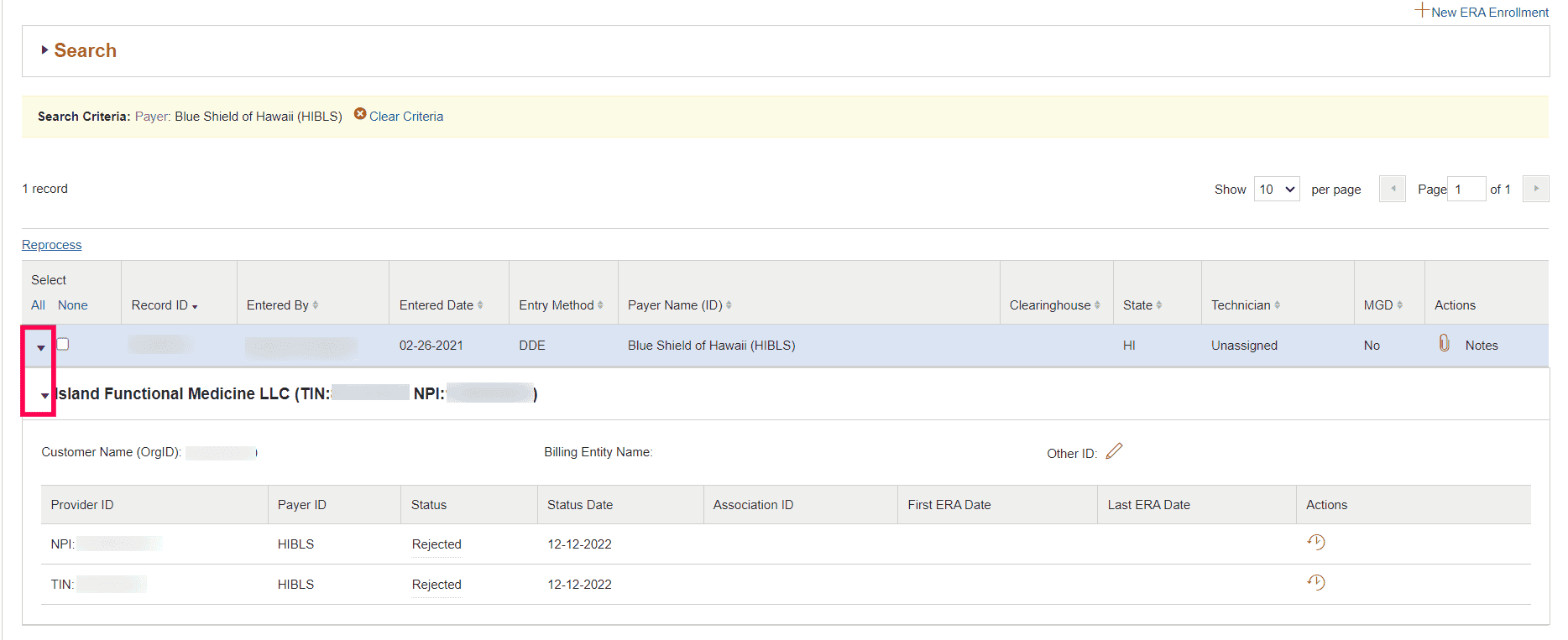
- Select the enrollment entry.
- Click the 'Provider Name' to view the individual enrollment entries, including the enrollment status and effective date. Here, you will see the status of your ERA enrollment (e.g., Pended, Approved/Enrolled, To Payer, Associated, or Rejected).
| Status | What does it mean? | What should you do? |
|---|---|---|
|
To Payer |
Enrollment received for processing. |
1. Refer to the Enrollment Agreement Instructions to check if the enrollment form must be uploaded along with the Record ID. 2. Check if the filled enrollment form has to be faxed or emailed to the payer. 3. Once completed, check if you have received the Payer Approval from the insurance and share the same with CharmHealth support. 4. Ensure that both the NPI and TIN are provided for the Record ID. If either one is missing, enrollment will not be processed by Optum. 5. If an enrollment form is not required for the payer, check the estimated TAT. If the TAT has been exceeded, share a copy of the recently received EOB/remittance via the secure link and send an email to support@charmhealth.com |
|
Pended |
The same payer is already enrolled or active with another Clearinghouse. |
To move the enrollment back to Optum, contact support@charmhealth.com |
|
Associated |
Enrollment is in progress. |
Allow the estimated turnaround time (TAT) mentioned in the Enrollment Agreement Instructions for the enrollment to be processed. |
|
Previously Enrolled / Logged in error |
Duplicate enrollment found with the same NPI and TIN. |
Check the original entry for the enrollment status. |
|
Enrolled / Approved |
Enrollment approved, and you are now set to receive ERAs. |
If you are not receiving ERAs, even after your enrollment has been approved: 1. Check for the estimated turnaround time (TAT) mentioned in the Enrollment Agreement. 2. Ensure that the NPI and TIN used in the claims are the same as those provided for the ERA enrollment. 3. If the TAT has been exceeded and the above details are confirmed, share a copy of the recently received EOB/remittance via the secure link and send an email to support@charmhealth.com |
|
Rejected |
Enrollment was rejected. |
Hover over the Rejected Status or click 'Notes' to view the rejection reason. Take the suggested action or email support@charmhealth.com |
b) Track EMC/Eligibility Enrollment Status
On adding the EMC/ Eligibility Enrollment form to the Optum, the status of the Eligibility can be viewed by following the steps below.
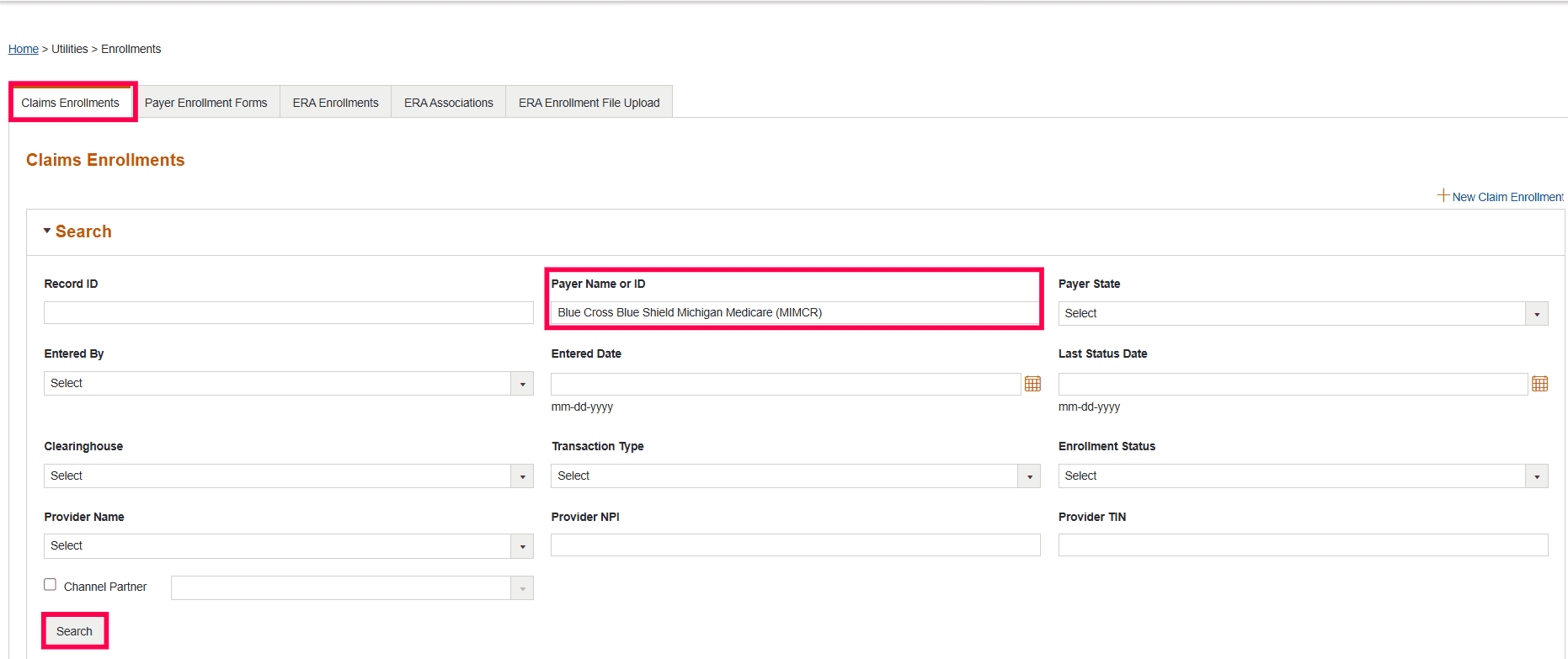
- Log in to the Optum IEDI Portal and navigate to 'Utilities > Enrollments > Claim Enrollments'.
- Click the 'Search' button in the bottom left-hand to view the status of your submitted EMC/Eligibility Enrollments or use the 'Payer Name or ID' field to check the Enrollment Status of a particular Payer.
7. Payer Approvals
If any Enrollment is submitted via the Payer portal or Fax or Email, the Payer may send an approval to the Practice.
Consider an example where a Practice submits an Enrollment form to BCBS of Kansas with all the necessary details for approval. After verifying the information, the Payer, BCBS of Kansas, approves the Enrollment and sends an approval message via Email. Refer to the screenshot below for a sample.
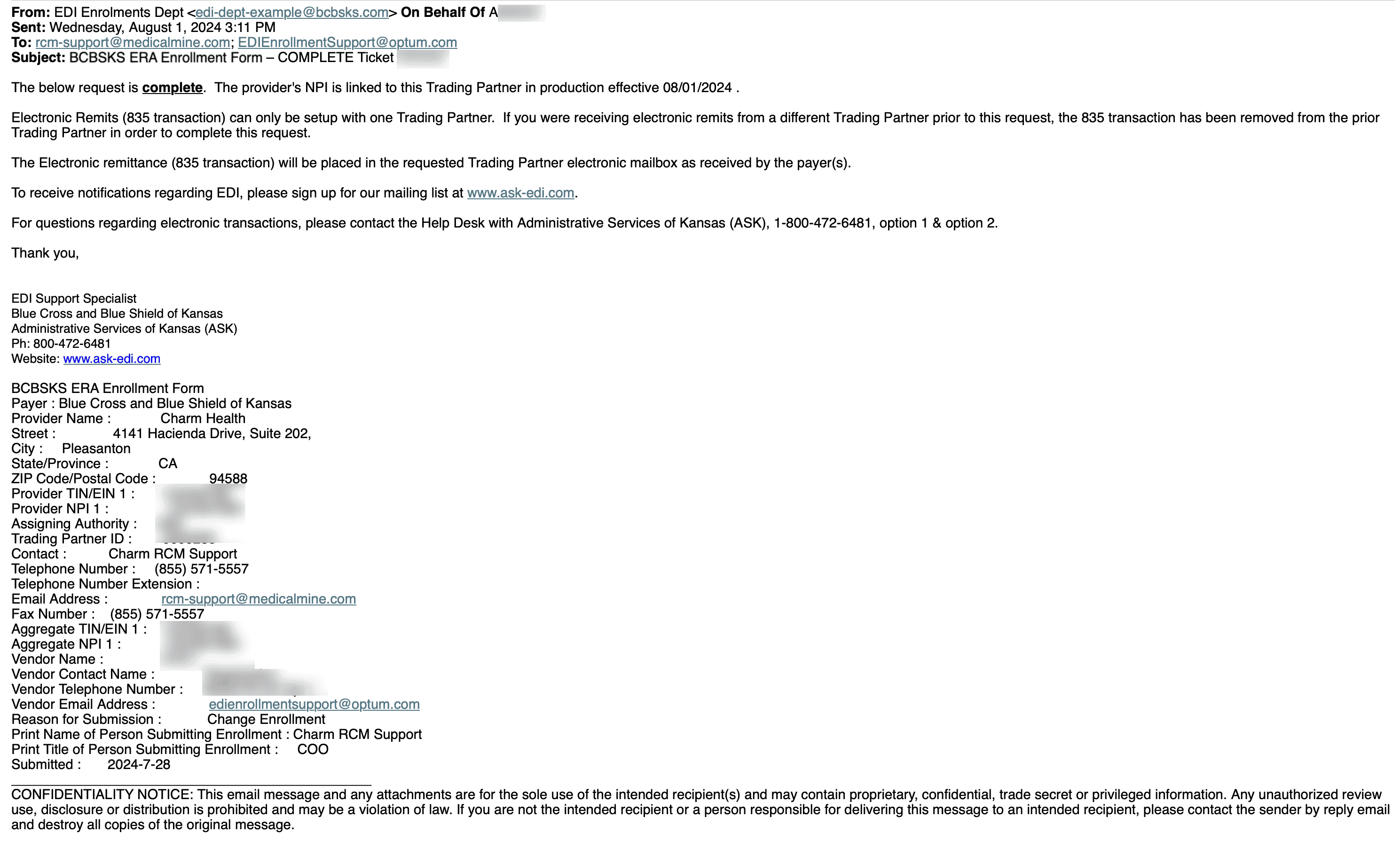
Upon receiving the approval from the Payer, Practices need to contact support@charmhealth.com with the approval. Our support team will be raising a Salesforce ticket to Optum on behalf of the Practice or Provider to complete the Enrollment.
By following the outlined steps and ensuring all requirements are met, you can submit claims electronically and receive ERAs seamlessly through Optum and CharmHealth.