Prior Authorization Tracking
Prior Authorization is an insurance pre-approval required before delivering certain healthcare services. These authorizations can be based on either the number of Visits or a specific CPT quantity (units) allowed that vary by Payer.
Prior authorization tracking ensures that services provided to Patients stay within the limits approved by the Payer. Each time a service is rendered to a Patient, the system checks the authorization and updates the remaining visits or CPT quantity.
This tracking helps Practices:
- Prevent overuse of services beyond payer approval.
- Request additional approvals when needed.
- Reduce Claim denials due to exceeded limits.
Prior Authorization Setup and Claim Population
Practices can add the Prior authorizations received from the Payers to the Patient Insurance section. These details include the prior authorization number, total number of visits or CPT quantity allowed, Provider-associated, validity dates, and authorization type.
When a Claim is generated for the Patient, the applicable prior authorization number will be automatically populated on Box #23 of the CMS1500 Claim form.
To add Prior authorization details, follow the steps given below.
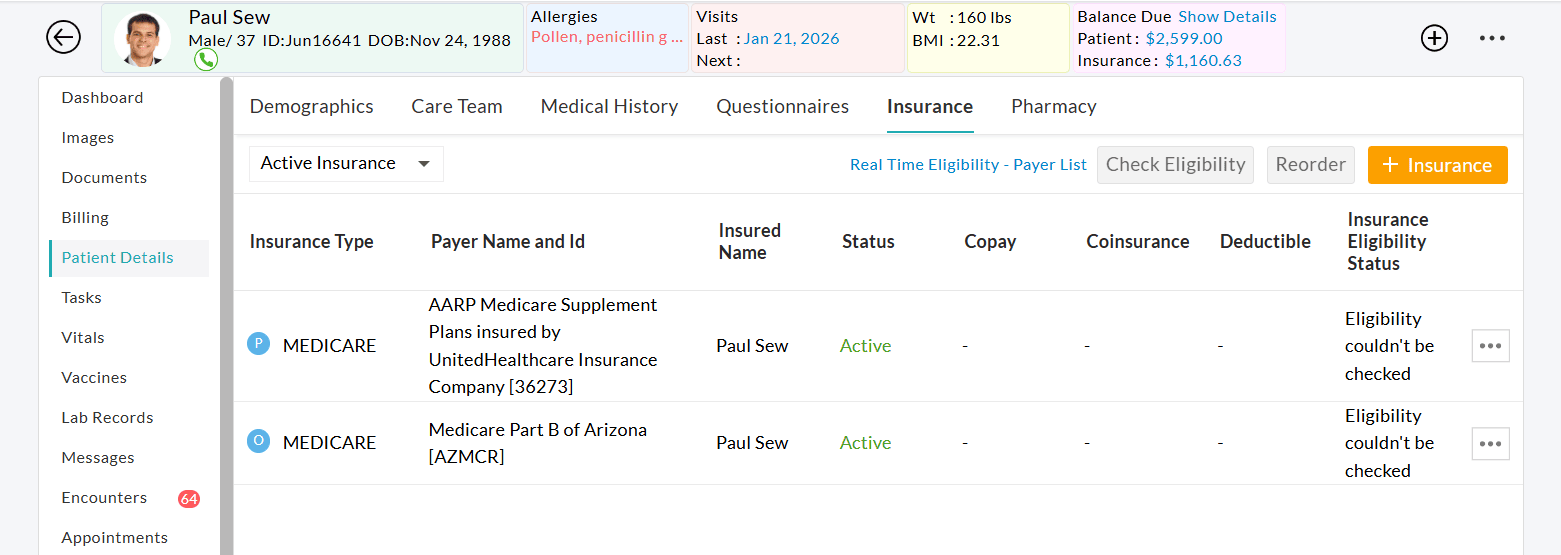
- Go to 'Patient > Patient Details > Insurance'
- Click the '+ Insurance' button to add a new Insurance.
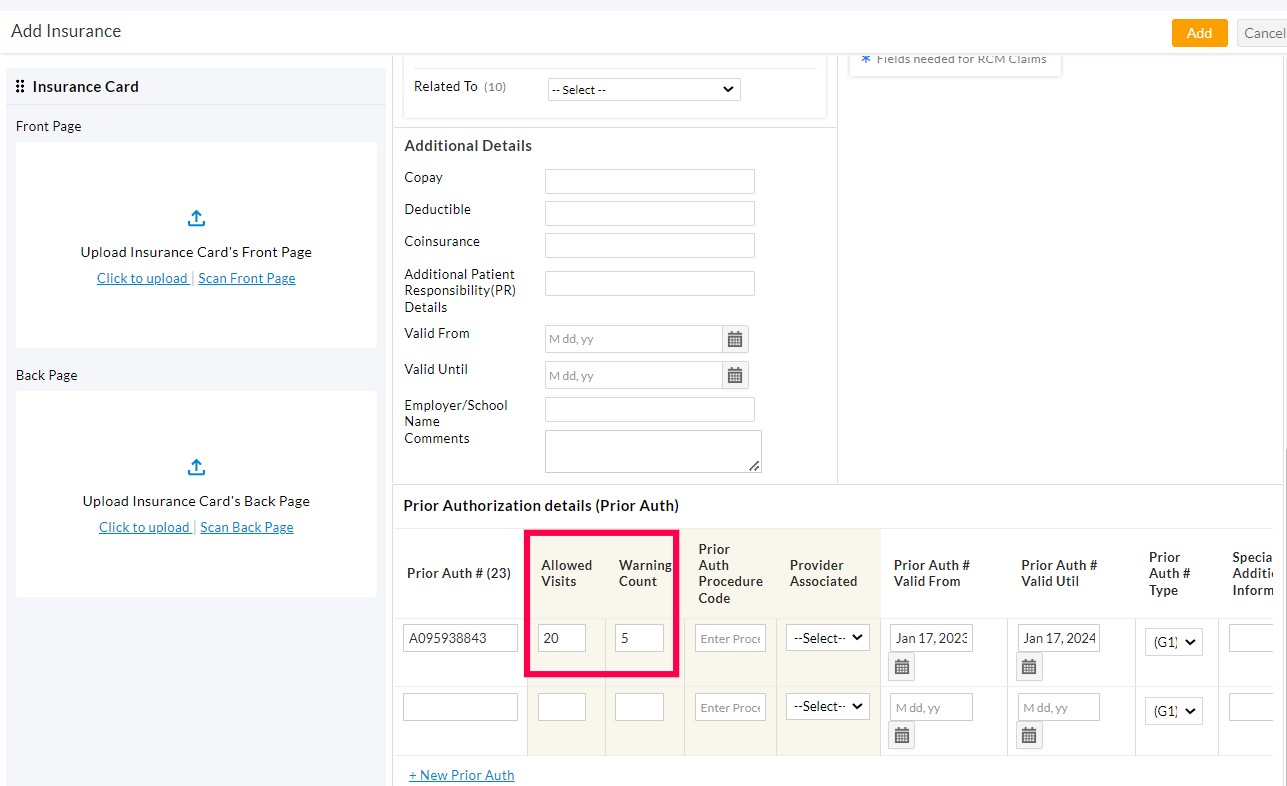
- Go to the 'Prior Authorization details (Prior Auth)' section to add the Prior Authorization details. Prior Authorization can be added either for a combination of factors, such as Provider, Procedure Code, and Allowed Visits or CPT quantity, or it can be applied to each element individually.
- Add Prior Authorization specific to a Provider - CharmHealth allows the user to add Prior Authorization specific to a Provider. This helps track the Patients' visits based on a specific Provider.
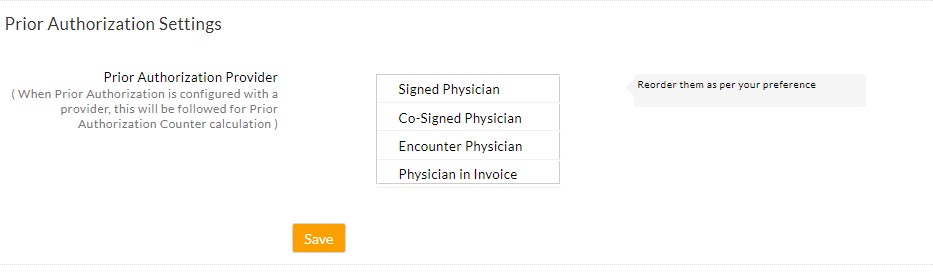
When a Prior Authorization gets configured for the Provider, the order of the Providers arranged in the 'Prior Authorization Provider' setting under the 'Settings > Billing-Claims - Insurance Settings' section will be followed for Prior Authorization counter calculation. The Practice can re-order the Providers as per their preferences.
- Add Prior Authorization Specific to CPT: When the Prior authorization is for a specific procedure, you can add it under 'Prior Auth Procedure Code'. Under 'Count Basis', choose how the authorization should be tracked based on the number of Visits or the Invoice CPT Quantity.
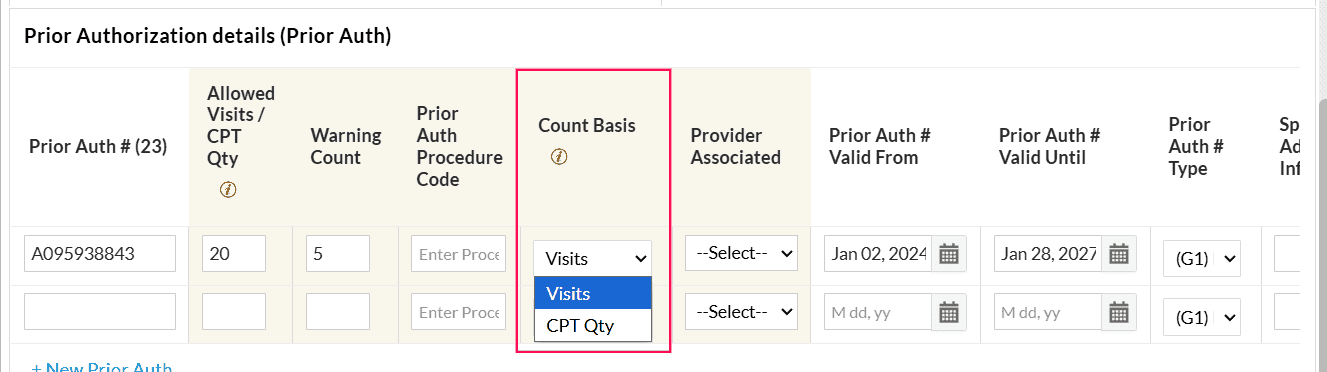
Enter the 'Allowed Visits/CPT Qty' that represents the total number of visits or the Invoice CPT quantity approved under the authorization.
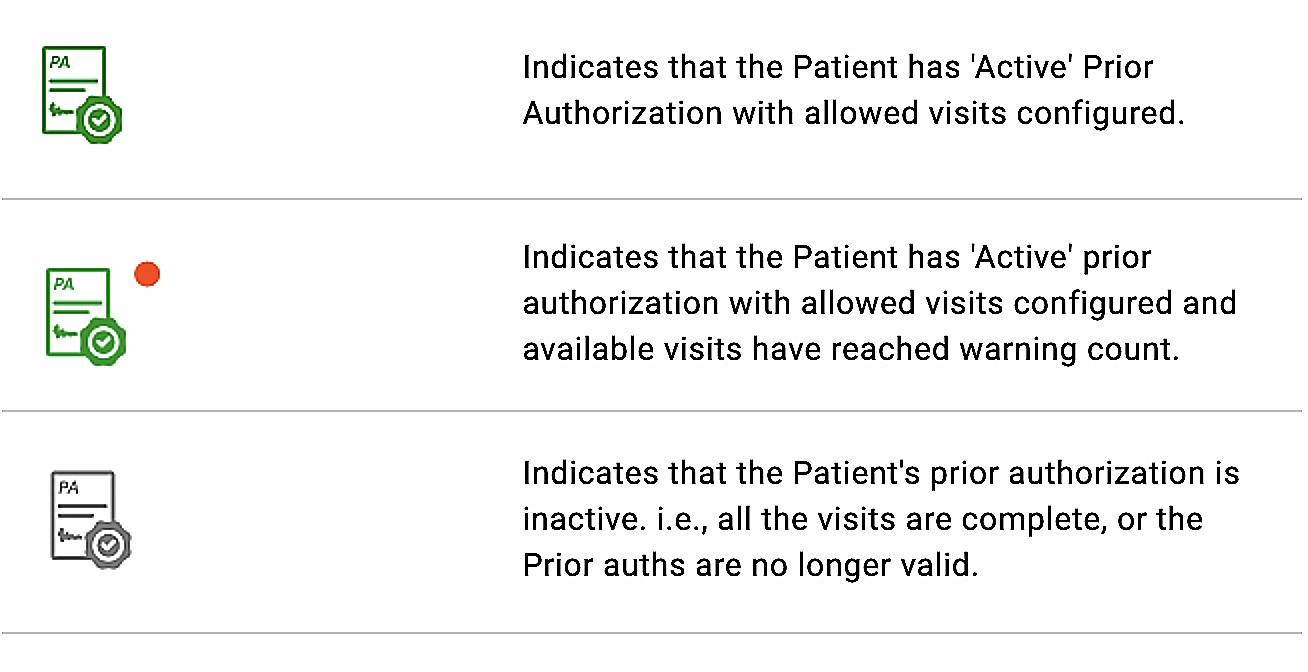
You can also configure a Warning Count. When the remaining visits or CPT quantity reaches this threshold, a warning indicator is displayed next to the Prior Authorization icon in the Patient Dashboard and Appointment view. This alerts the Practice that the authorization limit is nearing completion.
- Add Prior Authorization without Prior Auth # - This is used to track visits of Patient health plans without a Prior Authorization number. When configuring Allowed Visits, ensure you provide the From and To dates.
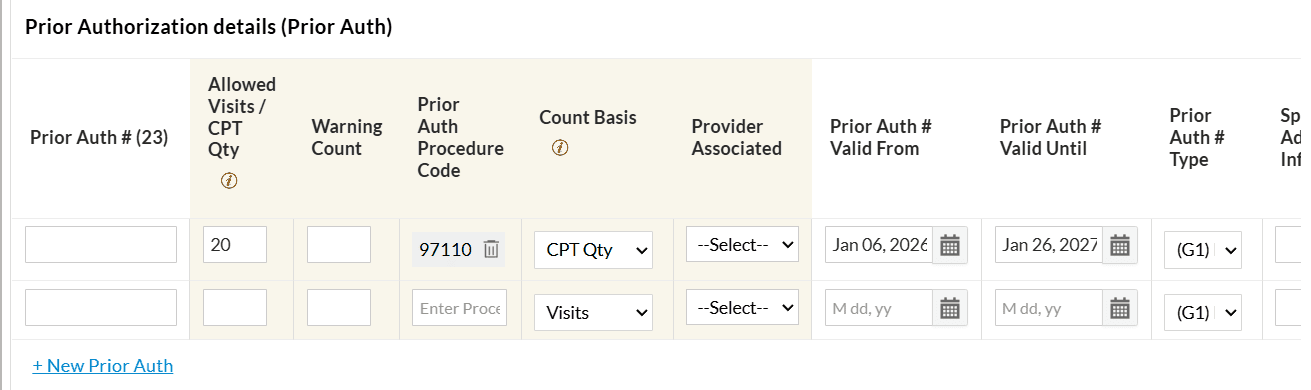
- Add Prior Authorization specific to a Provider - CharmHealth allows the user to add Prior Authorization specific to a Provider. This helps track the Patients' visits based on a specific Provider.
- When a Prior Authorization is added, the system automatically maps previous visits (if any) based on the Prior Authorization’s Date Range, Procedure Code, and Provider.
Tracking Methods
When authorized services are provided to a Patient, CharmHealth automatically tracks the Prior authorization usage and updates the remaining approved count. The Prior authorization tracking follows one of the tracking methods, as mentioned below, based on how the authorization is configured.
- Visit-Based Tracking: Each Patient Encounter counts as one visit, regardless of the quantity of CPT codes billed during that Encounter.
- Invoice Quantity-Based Tracking: The system tracks the authorization usage based on the total CPT quantities billed in the Invoice.
How It Works
The system automatically links the correct prior authorization to the Patient Encounter or Invoice by matching the following criteria.
- CPT Codes – Procedure codes covered under the authorization
- Date Range – The authorization's validity period
- Provider – The authorized rendering or billing Provider
- Available Count – Remaining approved visits or Invoice CPT quantity
When an Encounter or Invoice is created, the system links it to the applicable prior authorization and automatically reduces the remaining visit count or CPT quantity based on the selected tracking method.
A Warning Count can be configured in the Patient insurance section to alert the Practice when the remaining visits reach this threshold.
Use Case Examples
Visit-Based Tracking
Scenario: A speech therapy clinic receives prior authorization from Cigna for 8 visits.
During one therapy session, the Provider bills a single CPT code (e.g., speech therapy treatment) for 2 units to reflect the extended duration of the session.
Even though the CPT code was billed for 2 units, the system deducts only 1 visit from the authorization.
The remaining count of 7 visits will be left on the authorization.
This method is common in rehabilitation services where the Payers approve the number of visits, and each encounter counts as one, regardless of how many units are billed.
Invoice Quantity-Based Tracking
Scenario: An infusion center receives prior authorization from Aetna for 20 CPT units of chemotherapy infusion.
The Patient undergoes one infusion session, billed under a single CPT code (e.g., chemotherapy administration), but for 4 units to reflect the duration/quantity of the service.
The system deducts 4 units from the authorization, even though only one CPT code was used.
The remaining count of 16 units will be left on the authorization.
This method is common in infusion therapy, radiology, and lab services, where Payers approve a specific number of CPT units rather than visits.
Flow Diagram
The flowchart shows how prior authorization is tracked across different workflows in CharmHealth EHR.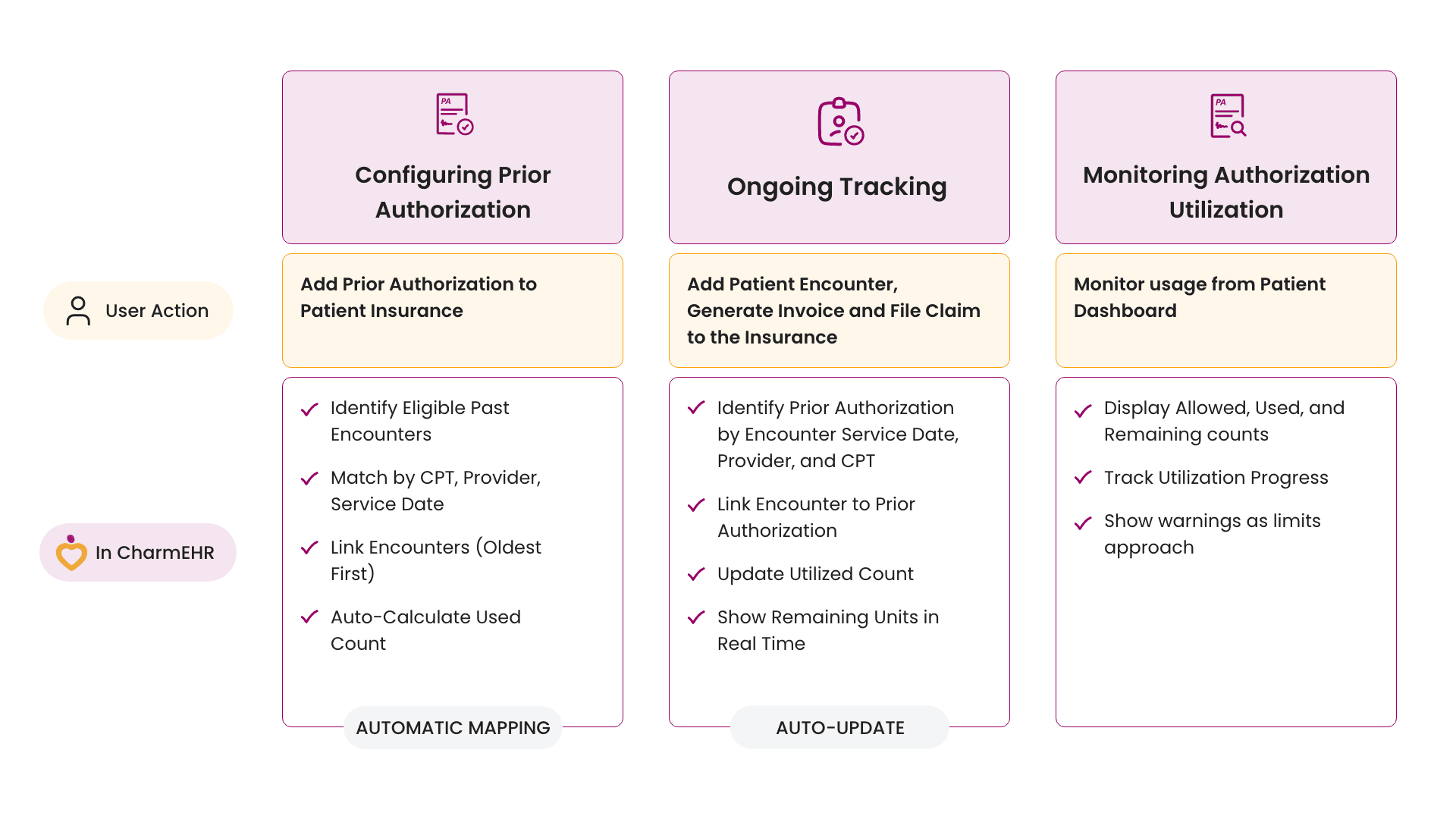
Prior Authorization View
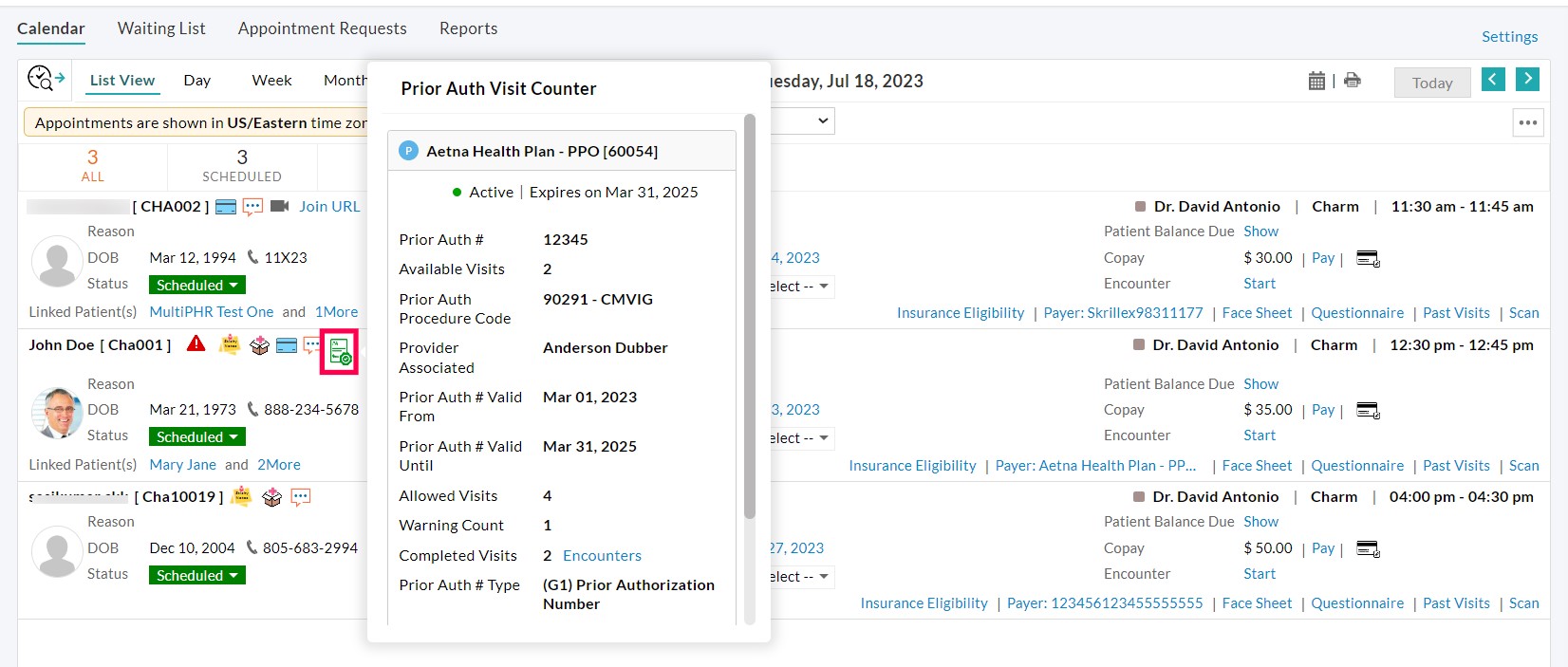
The authorized number of visits or CPT quantity is tracked automatically, and the allowed count gets reduced automatically when the Patient visits the Provider. All Prior authorization details are shown in a separate icon in the Patient Dashboard and Appointment section when the visits are configured for the Patient's Prior Authorization. The icon color will change based on the 'Available Prior Authorization Count'.
Prior authorization details as shown on the Patient Dashboard
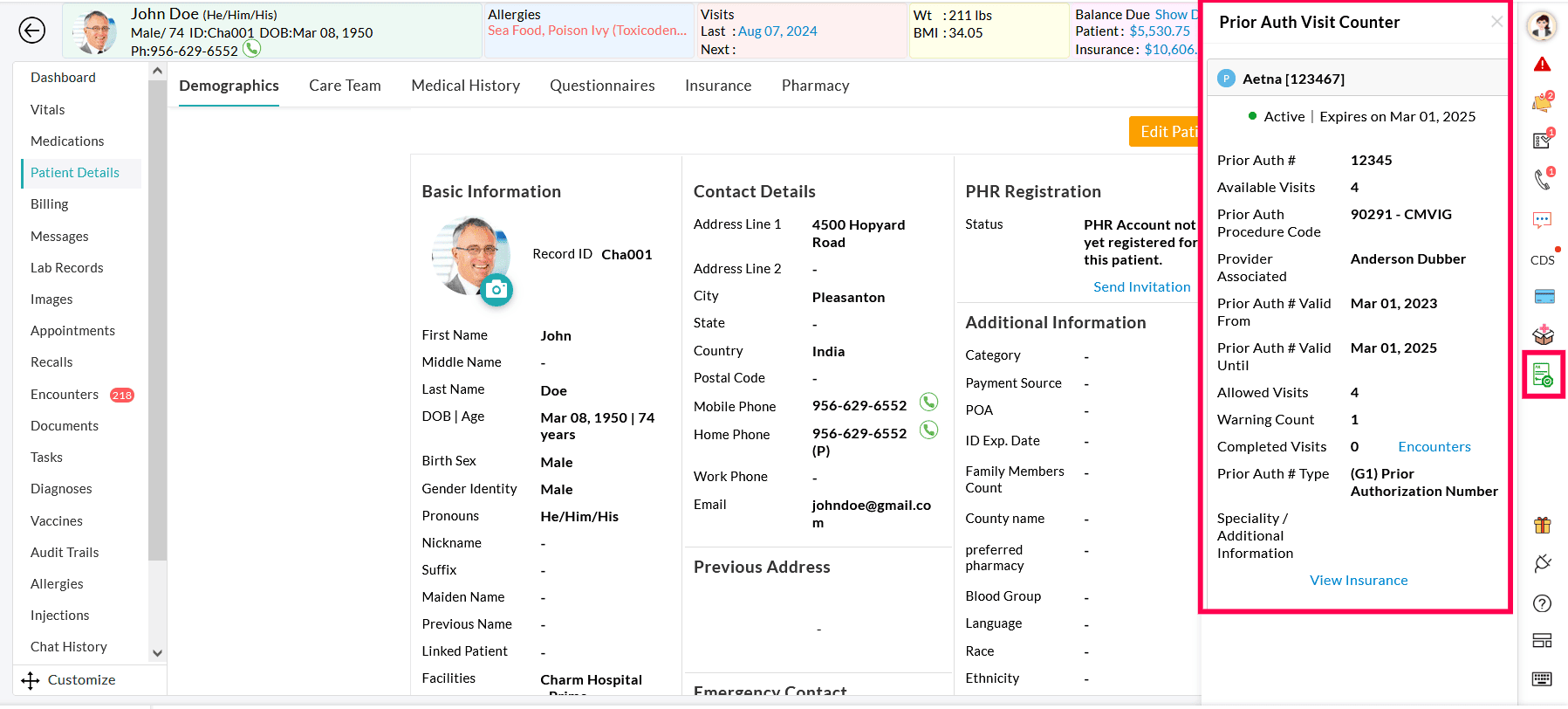
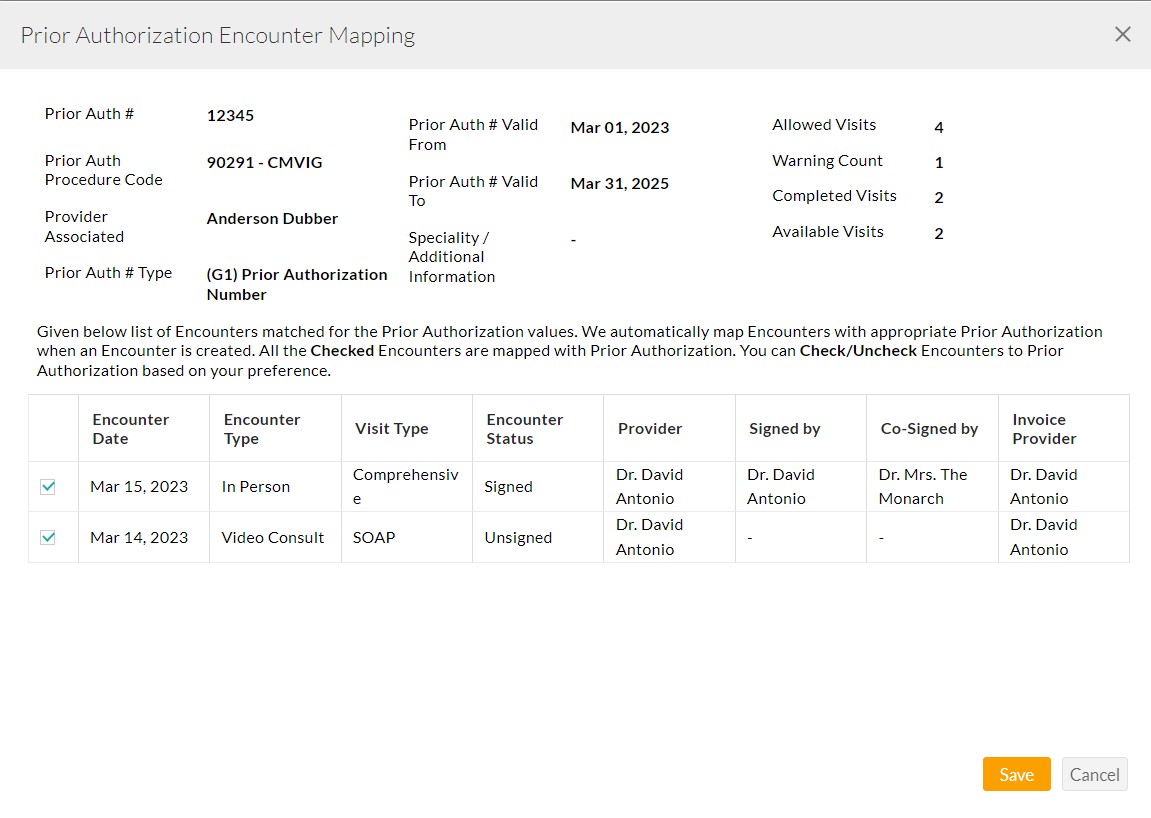
You can view the list of Encounters based on the Prior Authorization Date range, Procedure Code, and Provider. Select/unselect the visits to be considered in the Prior Authorization.
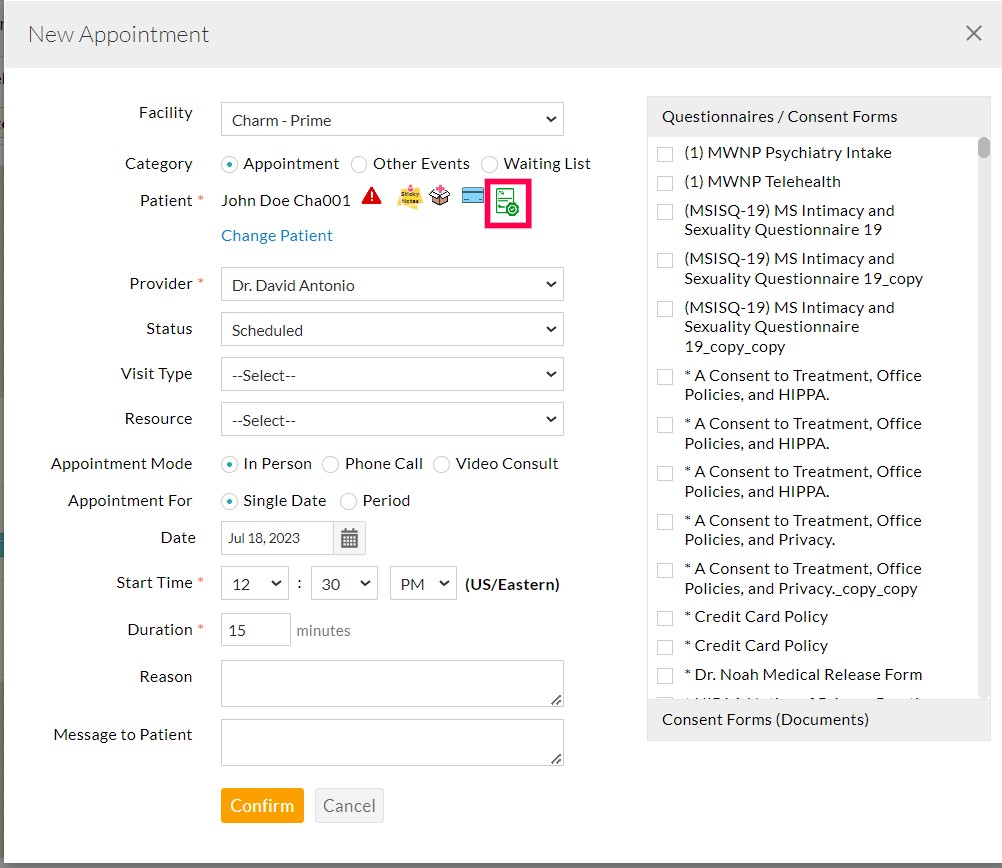
Prior authorization details in Create New Appointment view
When the available number of visits reaches the 'Warning Count', it will be shown with a special icon in the Patient Dashboard and Appointment view. Practice can request approval for additional visits when 'Available Visits' reach the 'Warning Count' based on the Patient's condition. The icon color will change based on the 'Available Prior Authorization Count'. Refer to the screenshot below.
Prior Authorization Report
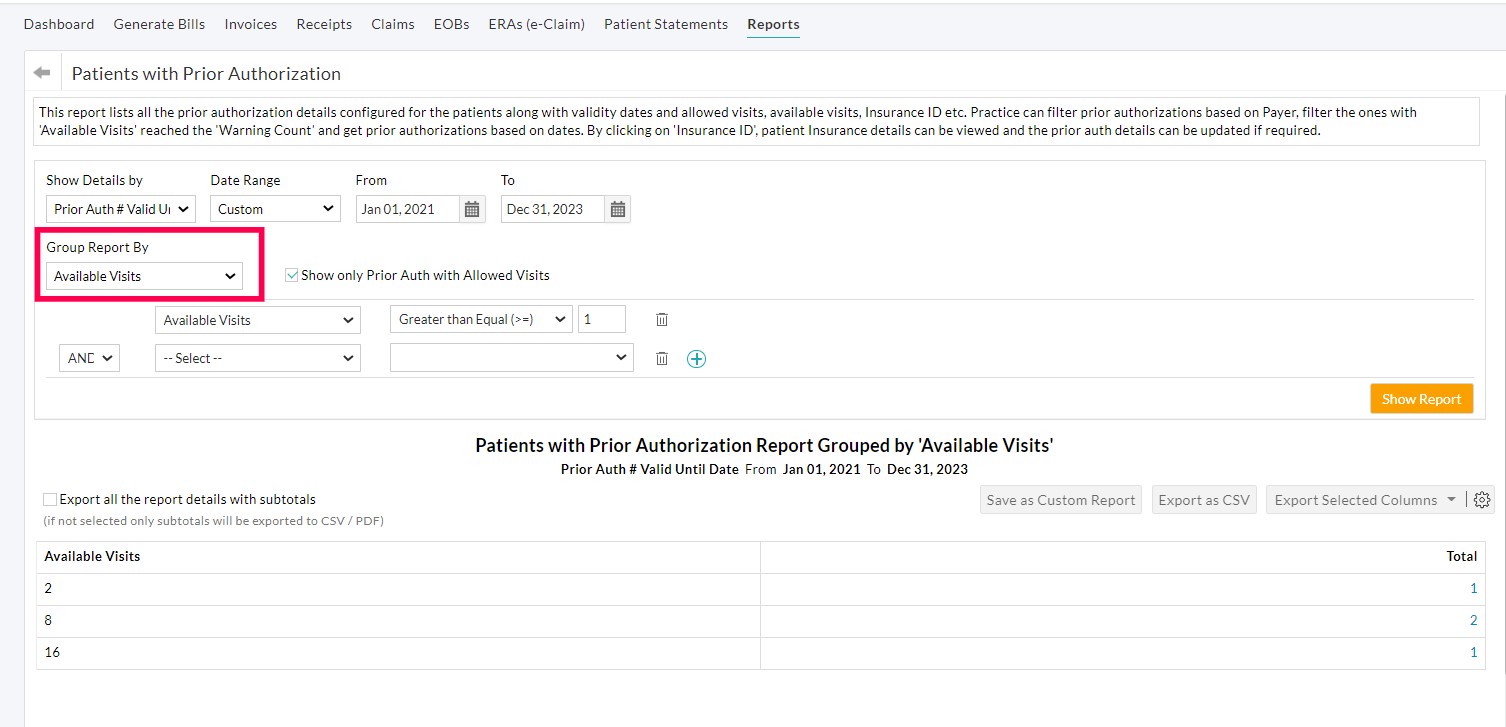
To manage all Prior Authorizations, you can use the report under the 'Billing > Reports > Patient Reports > Patients with Prior Authorization' section that lists all Prior authorizations added to the Patients under the 'Insurance' section.
This report lists all prior authorization details configured for the Patients along with validity dates and allowed visits/CPT quantity, available visits/CPT quantity, Insurance ID, etc.
Practices can filter Prior Authorizations by Payer, identify authorizations where the available visits or CPT quantity have reached the Warning Count, and refine the results using a selected date range.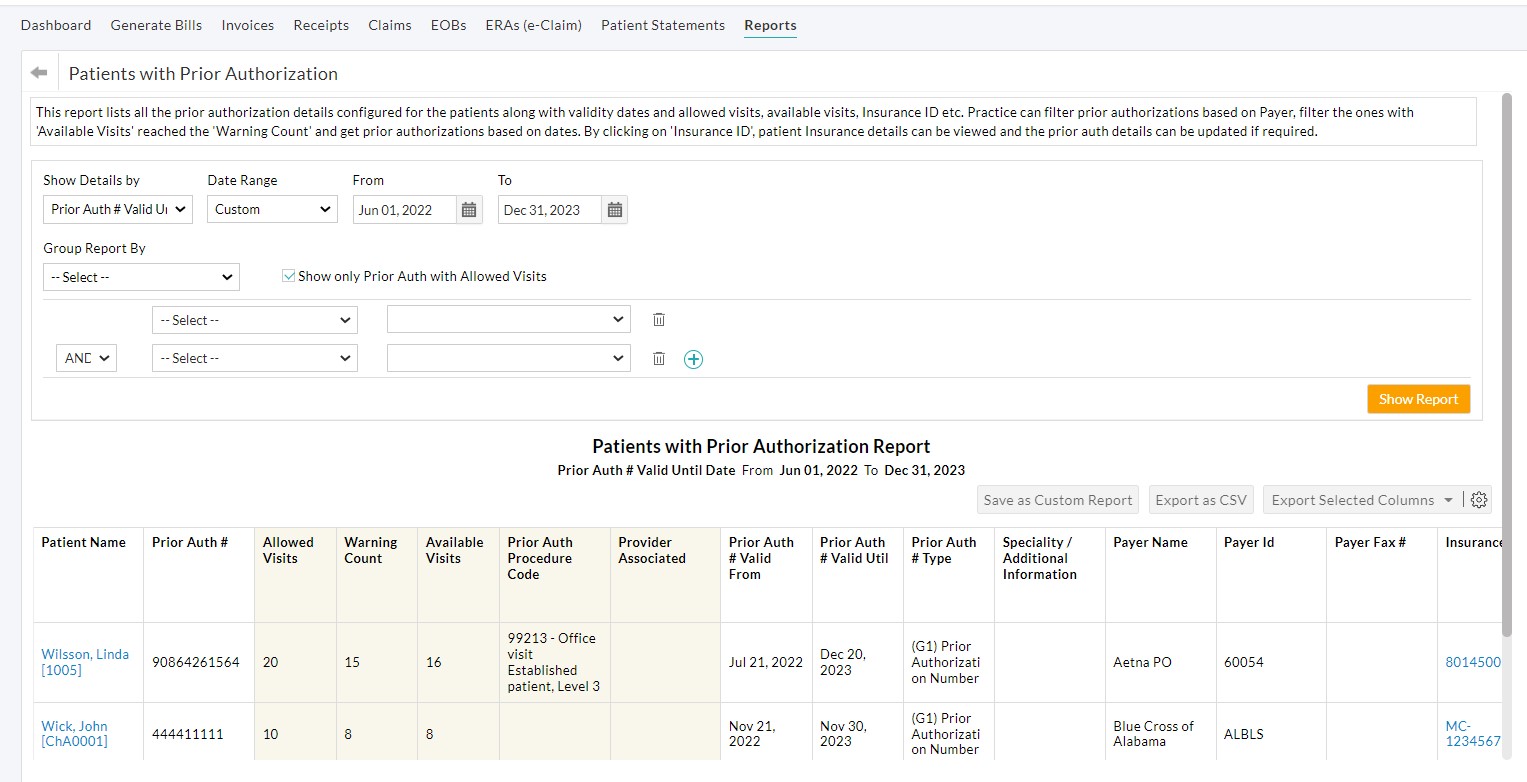
By clicking on the 'Insurance ID', the Patient's Insurance details can be viewed, and the Prior authorization details can be updated if required.
For example, when a warning count is configured for prior authorization, and Practice members need to identify authorizations that have reached the warning limit for additional visit approvals, they can refer to the example below.
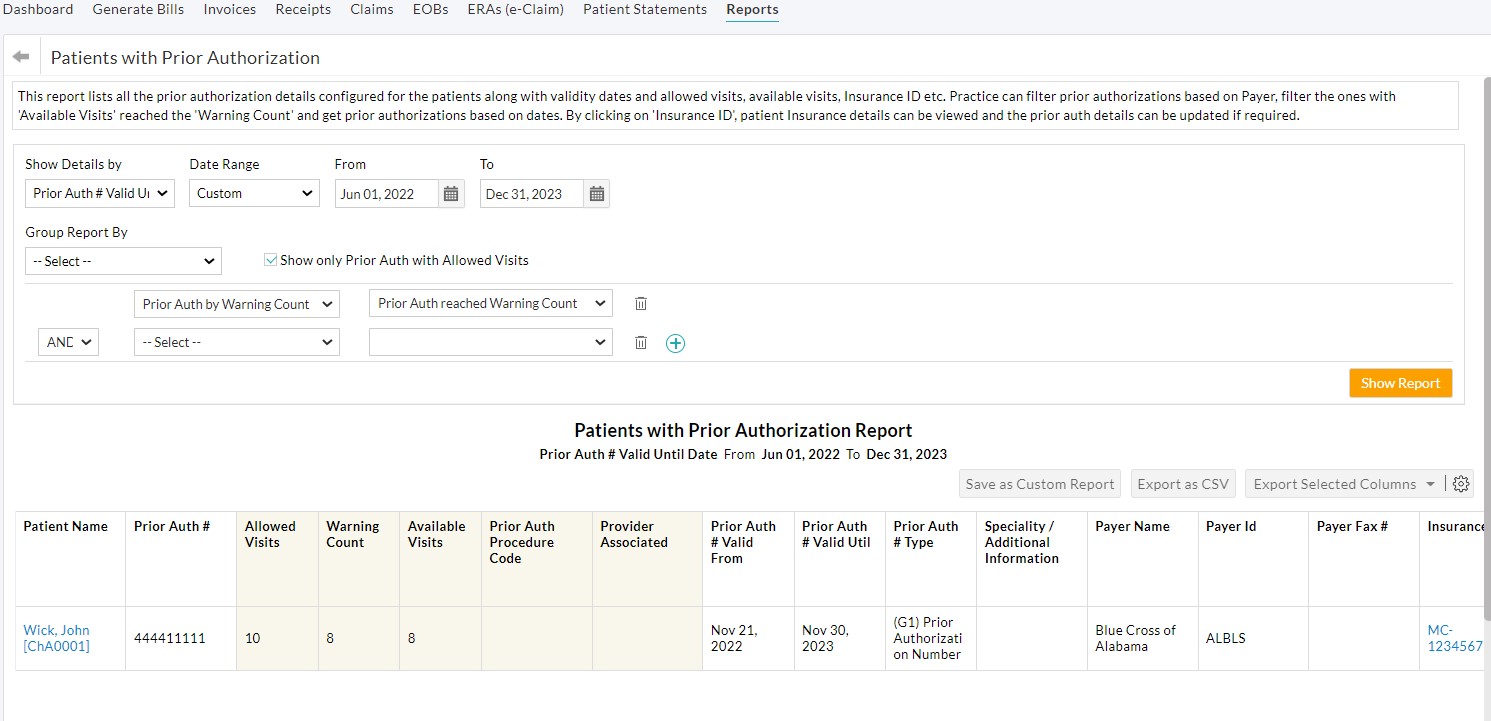
When the Practice needs to group prior authorization based on the Available Visit/CPT quantity, select the 'Available Visit/CPT Qty' option under the 'Group Report By' drop-down menu. A detailed report can be seen by clicking the respective total values.