We are thrilled to introduce a few enhancements to the Claims module. This includes Claim Denials—a centralized place to manage Denials and an improved Secondary Claim Generation process that automatically populates primary claim details from manual EOB (Explanation of Benefits) payments.
The Claim Denials feature offers a centralized workspace to monitor, track, and manage all denied Claims.
It provides clear insights into denial patterns, enabling Practices to:
- Identify recurring denial trends.
- Take timely corrective actions.
- Reduce repeat denials and improve reimbursement efficiency.
To access this feature, navigate to 'RCM Actions > Claim Denials'.
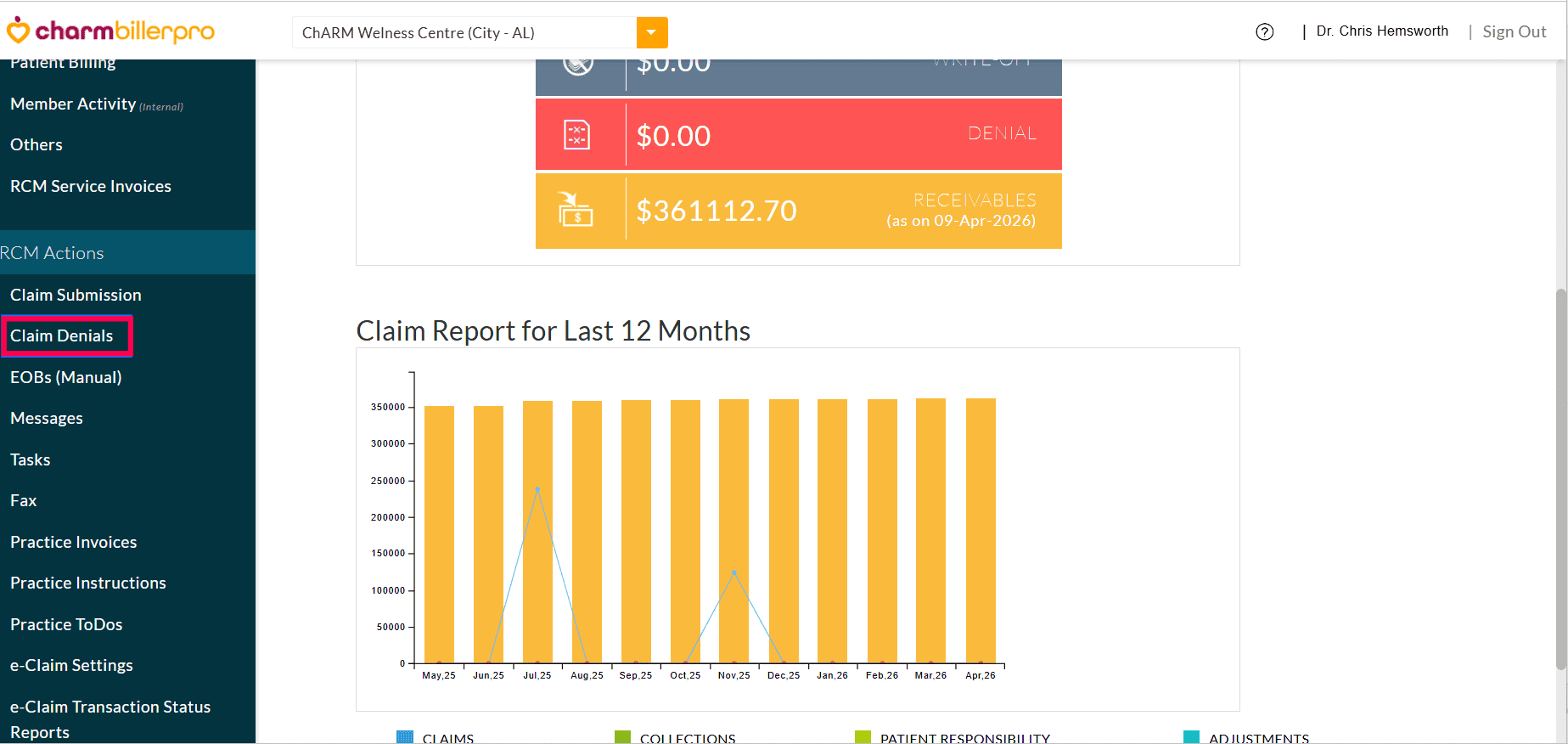
Practices can filter the Claims by:
- Claim Denied Date
- Claim Updated Date
- Encounter Date
- Claim Submission Date
The Denial Watchlist provides a quick summary of denial activity, including:
- Total number of denied Claims
- Total denied amount
- Number of denied and resubmitted Claims
- Number of denied but not resubmitted Claims
- Number of partially denied Claims
- Number of fully denied Claims
Click on any widget to access a detailed Claim list view of the corresponding denial activity.
All denied Claims are now automatically grouped by Denial Category, making analysis easier and intuitive.
For each Denial Category, Practices can view:
- Total Number of denied Claims
- Number of resubmitted and not resubmitted Claims
- Number of denied CPTs
- Total denied amount
- Average number of CPTs denied in the Category
Selecting a category automatically applies the Denial Categories filter and displays the related Claim details for that specific denial category, as shown in the screenshot below.
Click on the 'View' option next to a category to display the list of Claims denied under that category. You can review, edit, and manage these Claims as needed from the Claims List View.
In this section, Practices can view a complete list of denied CPTs with descriptions and denial reason codes
The Denied Claims section displays all denied Claims along with their associated denial details, including:
- Invoice ID and Encounter details
- Denial date and Claim status
- Payer details
- Number of denied CPTs
- CPT-level denial codes and comments
Click 'Edit' to view the Claim and make required corrections or resubmissions.
Practices can now view Denials for specific Claims in the right pane of the Claim view, including the reasons and codes for each denial.
During Secondary Claim Generation, the system now automatically populates primary claim adjudication details from both ERA and EOB (Explanation of Benefits) payments. This enhancement requires no additional configuration.
Previously, adjudication details were auto-populated only when payments were received via ERA. With this update, Practices can seamlessly generate Secondary Claims even when primary payments are recorded manually through EOB, ensuring greater flexibility.
EOB Payment Details
Primary Claim EOB Details during Secondary Claim generation
We hope the above enhancements will help streamline Claims management by providing better visibility into denials and reducing manual effort during Secondary Claim generation.
If you have any queries, please reach us at support@charmhealth.com.
We are thrilled to announce enhancements to the Claim Generation Settings, along with the provision to generate Claims automatically in Charm BillerPro, helping Practices reduce manual effort and streamline Claim processing.
- Claim Generation Settings - Additional Options
- Payer-Specific Auto-Claim Generation Rules
- Automatic Claim Generation
We have added additional settings to simplify the Claim generation process. These settings will be selected automatically while generating the Claim.
You can configure these settings under the 'RCM Dashboard > Settings > Claim Generation Settings' section.
- Claim Secondary Insurance Selection Choose the Insurance to be selected as the Secondary
Insurance in the Claim. By default, the Patient's active Secondary
Insurance will be selected. If you choose 'Select', no Secondary Insurance will be applied to the Claim.
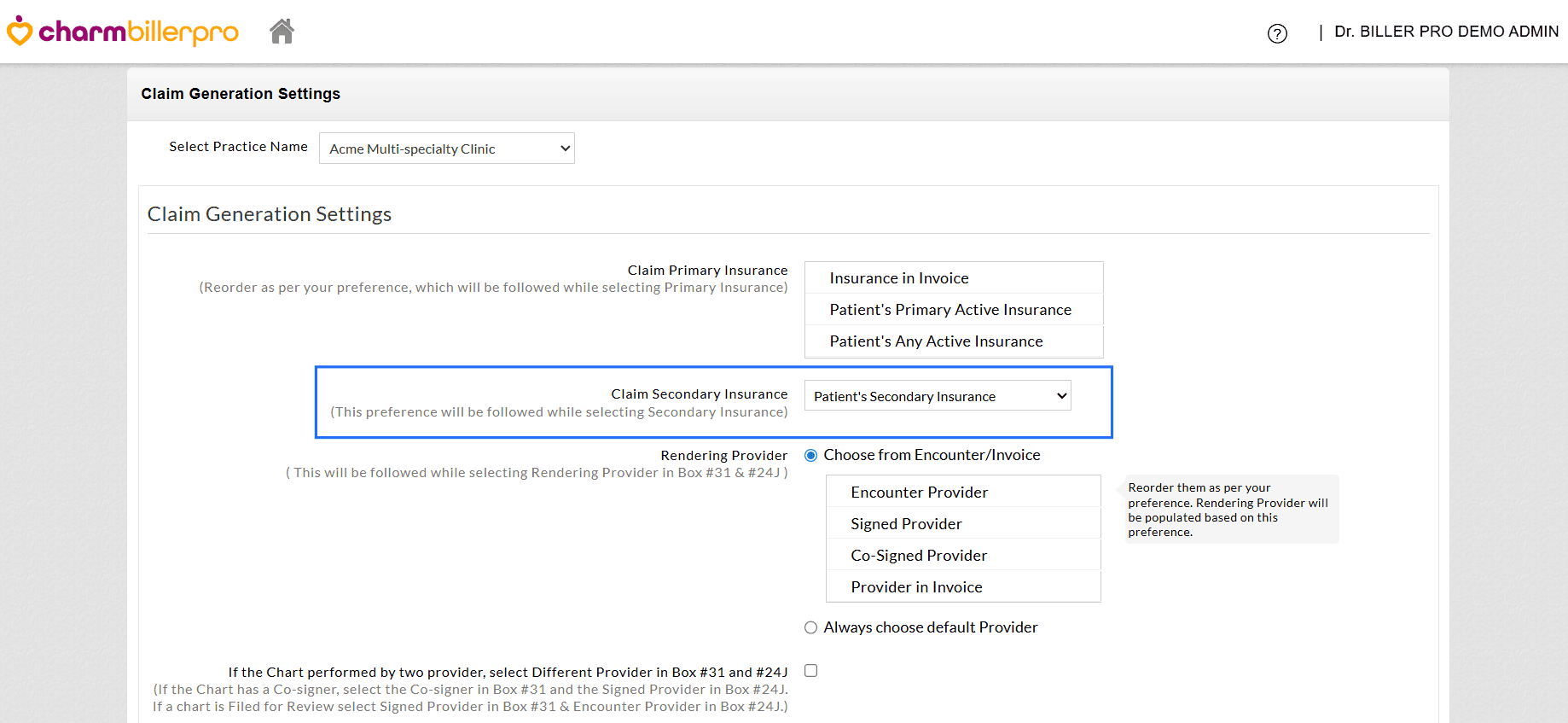
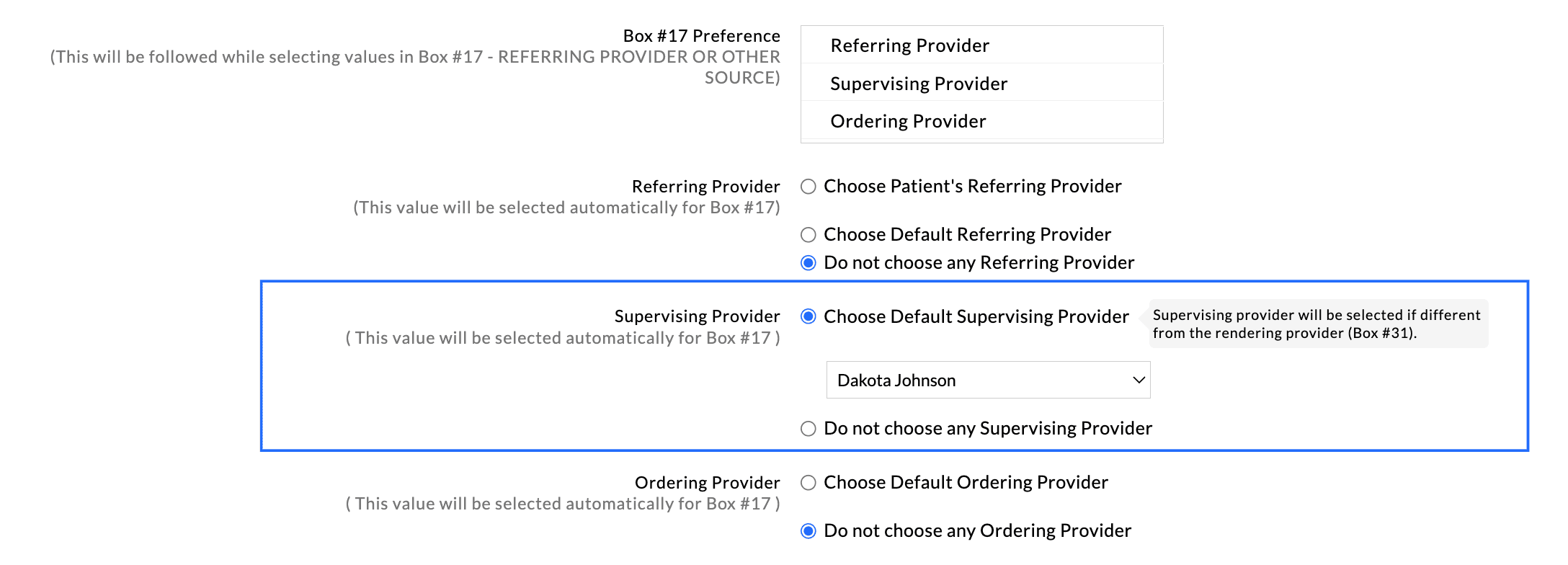
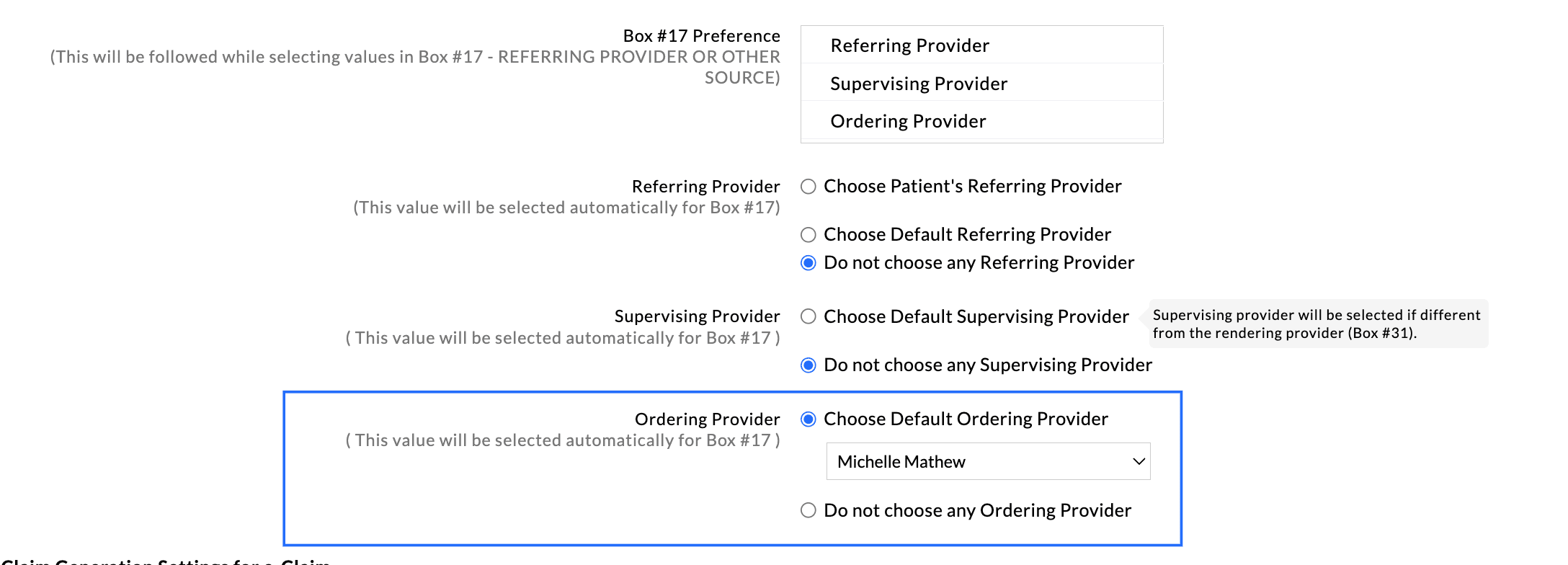
- Box #17 Preference Define the priority for populating Box #17 by selecting
either the Referring Provider, Supervising Provider, or Ordering
Provider. This setting can also be configured at the Payer-level.
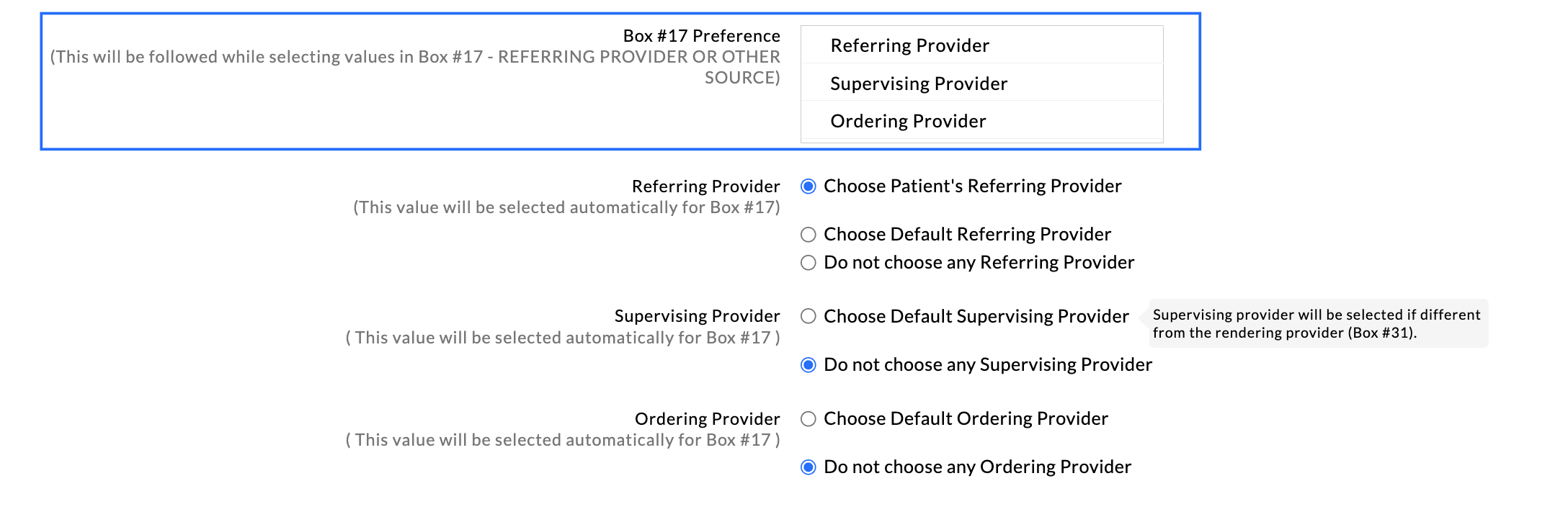
- a. Referring Provider Box #17 If the preference for Box #17 is selected as Referring Provider, you can choose from the three options below.
- Patient's Referring Provider - Selecting this option will populate the Patient's Referring Provider in Box #17.
- Default Referring Provider - Choose any specific Provider to be populated by default.
- Do not choose any Referring Provider - You may choose to exclude the Referring Provider when generating Claims.
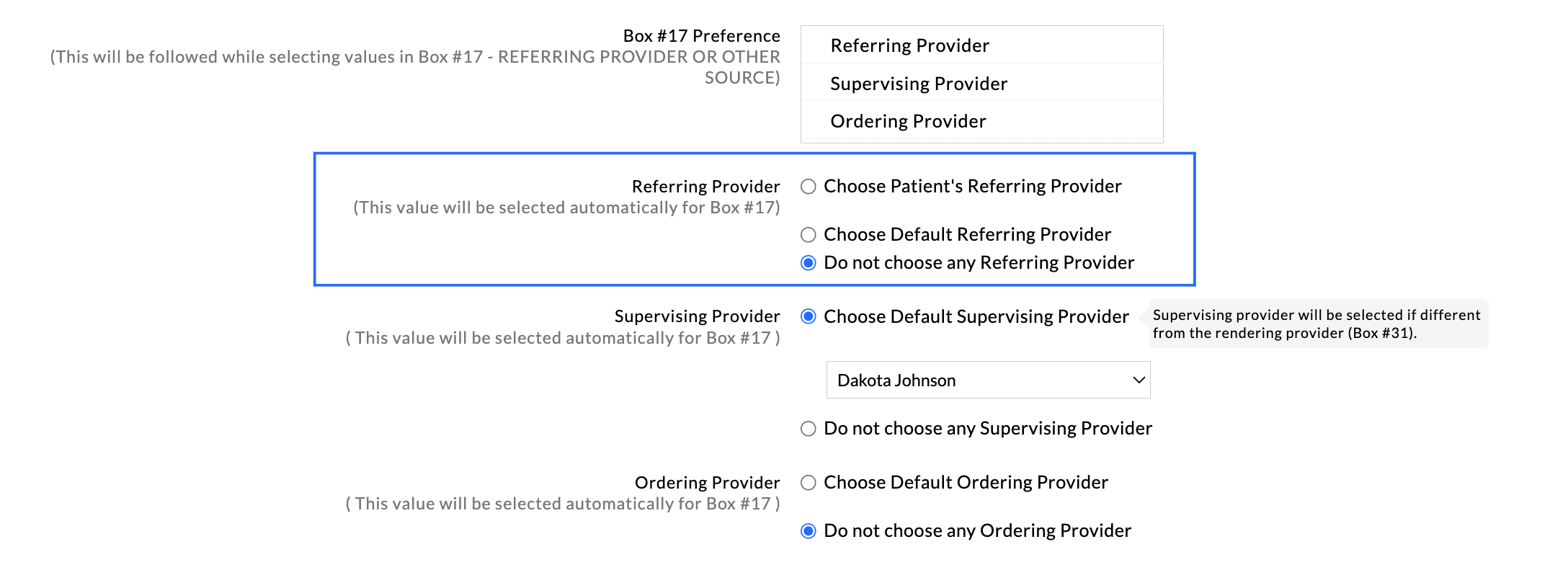
- b. Supervising Provider You can choose to populate the Supervising Provider in
Box #17 automatically if it is different from the Rendering Provider
(Box #31), or opt not to select any Supervising Provider.
- c. Ordering Provider If the preference for Box#17 is selected as Ordering
Provider, you can either set the default Ordering Provider to be
populated automatically or opt not to choose any Ordering Provider.
- a. Referring Provider Box #17 If the preference for Box #17 is selected as Referring Provider, you can choose from the three options below.
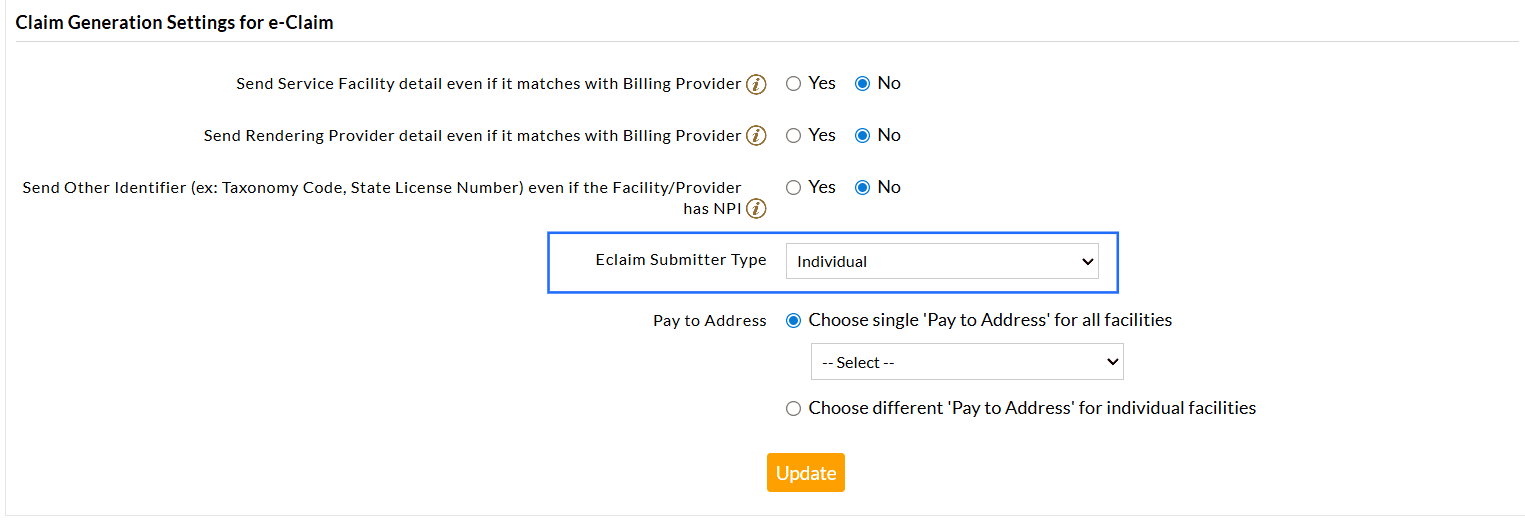
- E-Claim Submitter Type Choose an individual consulting Provider or the Claim
Facility as the default Submitter. By default, an individual Provider
will be selected. You can also configure this setting at the
Payer-level.
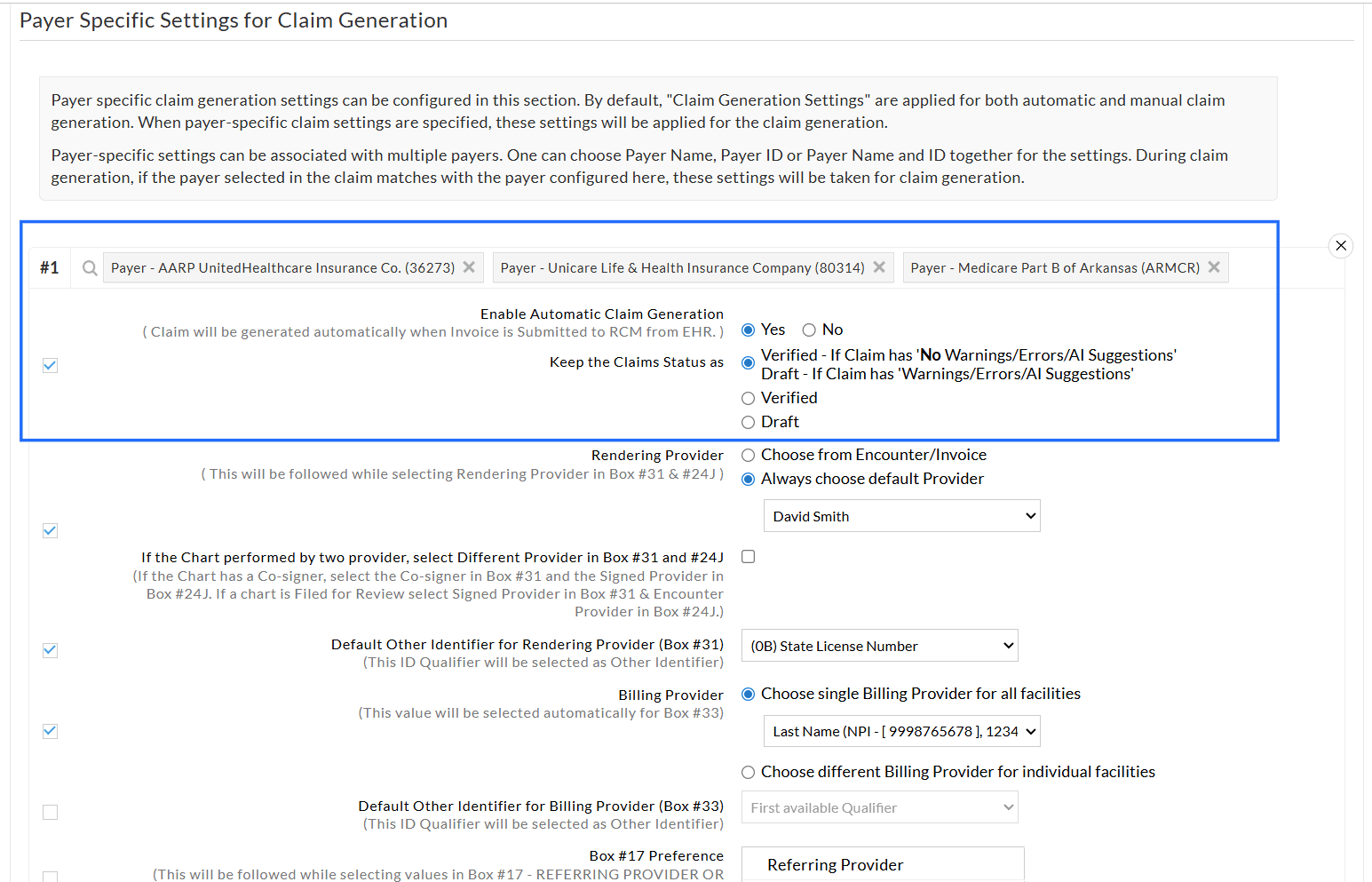
In addition to the existing Payer-specific settings for manual Claim generation, Practices can now configure Payer-specific rules for automatic Claim generation.
- Practices can define different Claim generation rules for specific Payers.
- Payer-level settings override Practice-level configurations for the selected Payers.
- You can select one or more Payers and apply the same configuration to all selected Payers.
During automatic Claim generation, if the Payer selected in the Claim matches the Payer configured, these settings will be applied automatically.
Practices can now enable automatic Claim generation based on predefined rules, reducing the manual effort.
When enabled, the Claims are generated automatically as soon as the Invoices or Encounters are submitted to RCM from CharmHealth EHR.
Practices can then view, filter, and manage these Claims with ease under the 'RCM Actions > Claim Submission > Generated Claims' section.
To enable automatic Claim generation, follow the steps below.
- Navigate to 'RCM Actions > Settings > Claim Generation Settings'.
- Set 'Yes' for 'Enabled Automatic Claim Generation'.
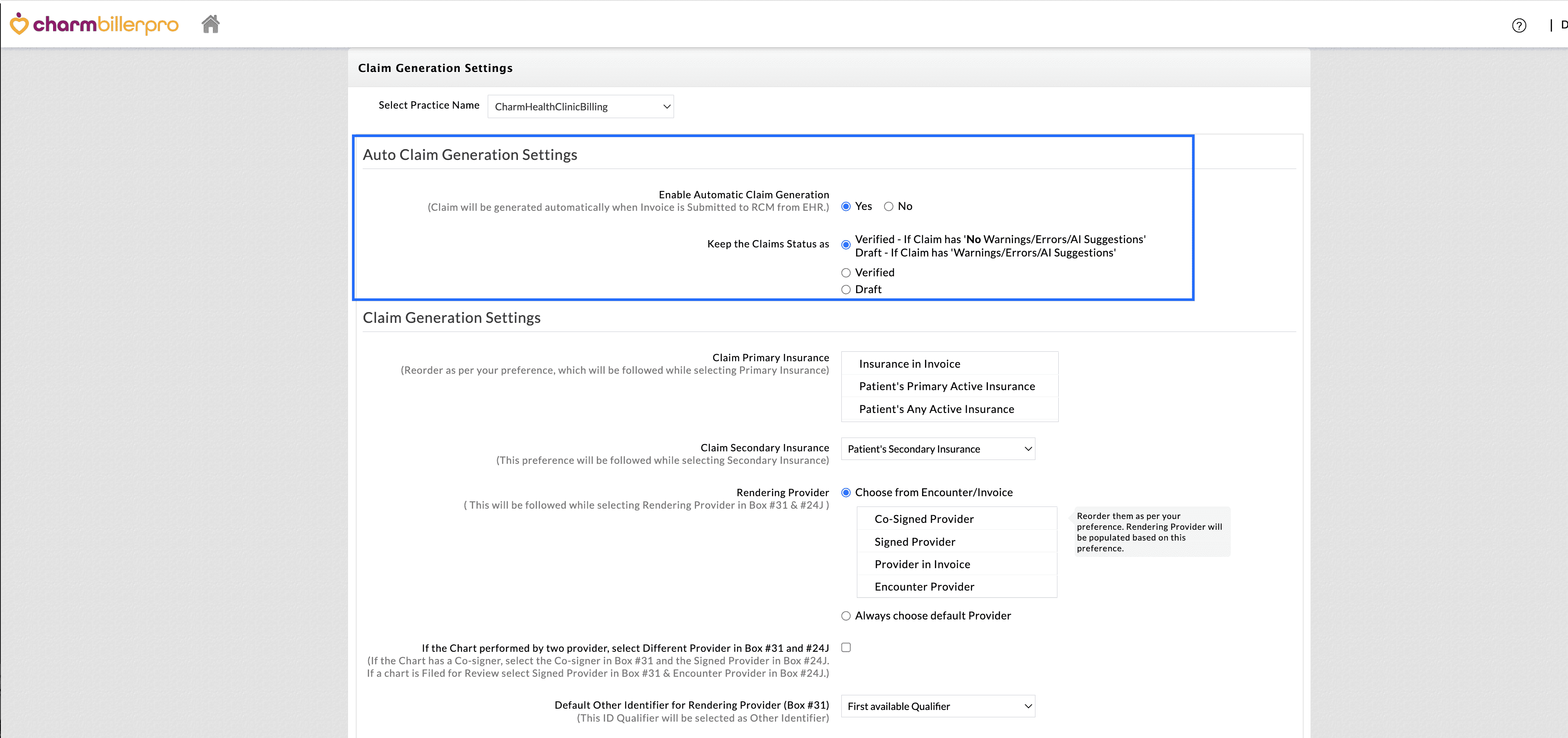
- Choose the Claim Status to be applied after the Claims are generated automatically from the options below.
- Mark Claims as Verified, which has No Errors/Warnings/AI Suggestions
- Clean Claims (without warnings or errors) are marked as 'Verified'.
- Claims with validation errors or warnings are marked as 'Draft'.
- It reduces review time for error-free Claims.
- Ensures problematic Claims need attention before submission.
- Verified
- All auto-generated Claims are marked as 'Verified', regardless of validation results.
- Fast processing for high-confidence Practices.
- Draft
- All auto-generated Claims are saved as 'Draft'.
- Recommended for Practices that require manual review before validation.
- Mark Claims as Verified, which has No Errors/Warnings/AI Suggestions
We hope that these enhancements will help Practices optimize their Claim generation process.
Have any doubts or suggestions? Drop us an email at support@charmhealth.com.
December 22, 2025
We are excited to introduce enhancements to the Claims module in Charm BillerPro, a HIPAA-compliant medical insurance billing solution for billing companies and independent billers.
These enhancements are designed to simplify and tailor the Claim generation process based on the Payer's needs and streamline electronic claim submission across multiple Facilities.
The updates include:
- Claim Generation Settings
- Payer-Specific Claim Settings to Generate Claims
- Option to Submit Electronic Claims for 'All Facilities'
Practices can now configure how claims are generated, either manually or automatically, with customized default values that make the process faster and more consistent.
Navigate to 'RCM Actions > Settings > Claim Generation Settings'.
Configure the options below to set the default values while generating Claims.
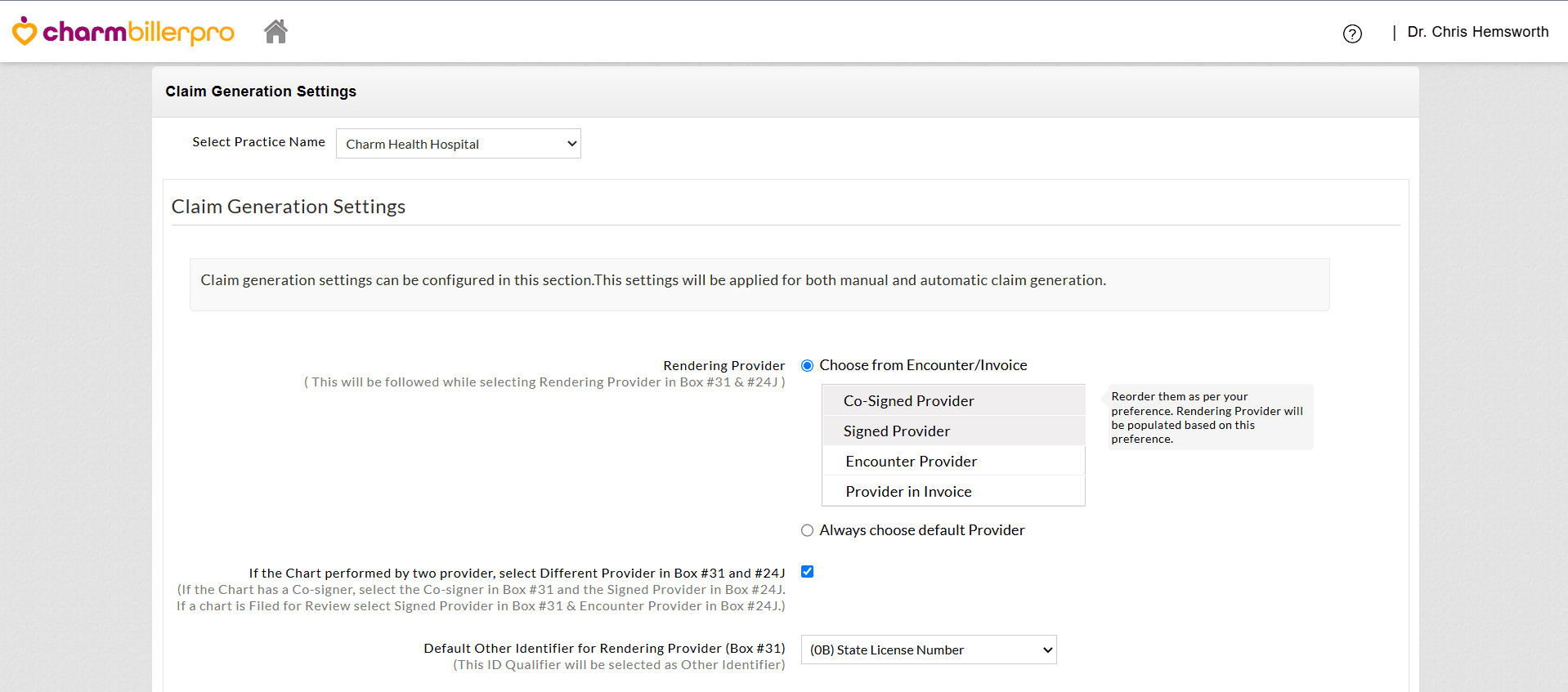
a. Rendering Provider (Box #31 & #24J)
- Choose the Provider to be populated as the Rendering Provider in Box #31. You can either set a priority ( e.g., Co-signed Provider > Signed Provider > Encounter Provider > Provider in Invoice) or select a default Provider.
- If
two different Providers sign the encounter, enabling this option will
automatically populate one Provider in Box #31 and the other in Box
#24J. For example,
- If the Chart has a Co-signer and Signed Provider, the Co-signer will be selected in Box #31 and the Signed Provider in Box #24J.
- If the Chart is Filed for Review, the Signed Provider will be selected in Box #31 and Encounter Provider in Box #24J.
- Configure the default Other Identifier for Rendering Provider to be selected automatically in Box #31 (e.g., State License Number) if required by the Payer.
b. Service Facility (Box #32)
- Set the default Service Facility to be selected for Box #32. You can select either the Facility of the Encounter or choose any required Facility.
- Select the default Other Identifier for Service Facility to be selected in Box #32.

c. Billing Provider (Box #33)
- Select the default Other Identifier for Billing Provider (Box #33). This additional identifier will be populated automatically alongside the primary National Provider Identifier (NPI) for the Billing Provider
- This option allows the Practices to select either the default Billing Provider for all Claims generated across the Practice or configure a unique Provider for each Facility.

d. Claim Primary Insurance Selection
Reorder the Primary Insurance to be selected as per the Practice's preference from the following: Patient's Active Primary Insurance, Patient's Any Active Insurance, or Insurance in Invoice.

e. Pay to Address
Set a default 'Pay to Address' for all Facilities or select a unique address for each Facility.

f. Electronic Claim Generation Settings
Practices can decide how the Electronic Claims are transmitted to the Payers.
These settings focus on generating Electronic Claims for efficient submission and faster processing.
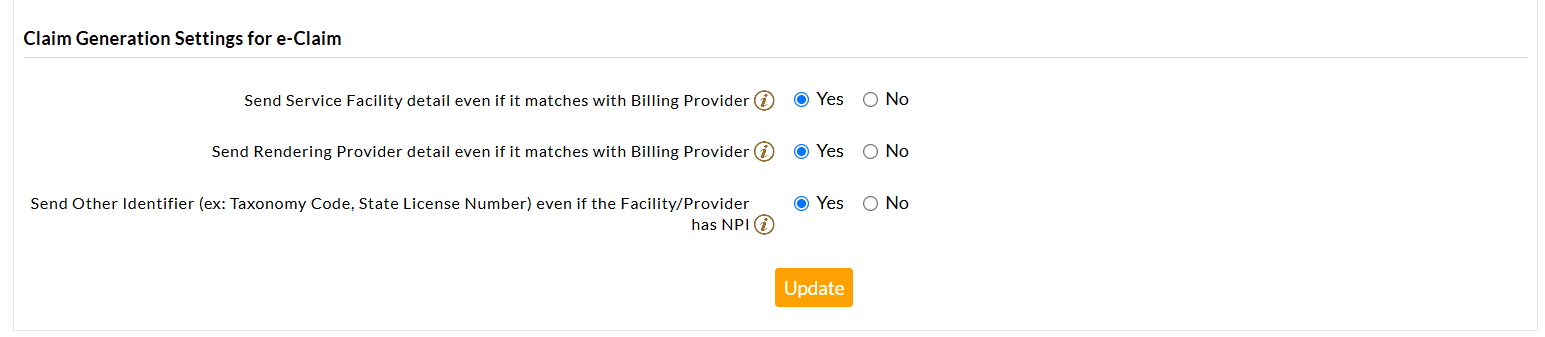
Send the Service Facility detail, even if it matches the Billing Provider
- As per the ANSI 5010 specification for Electronic Claim Submission, if the Billing Provider and Service Facility Identifiers are the same, then the Service Facility details should not be sent as part of the Claim.
- By default, CharmHealth will not send Service Facility details in the Claim if it is the same as the Billing Provider.
- However, a few Payers require Service Facility details for processing the Claims, even if it is the same as the Billing Provider.
- In such cases, the user should select this option to send the Service Facility details in the Claim.
Send Rendering Provider detail even if it matches with Billing Provider
- As per the ANSI 5010 specification for Electronic Claim Submission, if the Billing Provider and Rendering Provider Identifiers are the same, then the Rendering Provider details should not be sent as part of the Claim.
- By default, CharmHealth will not send Rendering Provider details in the Claim if it is the same as the Billing Provider.
- However, a few Payers require the Rendering Provider details for processing the Claim, even if they are the same as the Billing Provider.
- In such cases, the user should select this option to send the Rendering Provider details in the Claim.
Send Other Identifier (ex: Taxonomy Code, State License Number) even if the Facility/Provider has NPI
- As per the ANSI 5010 specification for Electronic Claim Submission, if a Facility or a Provider (i.e, Billing Provider/Rendering Provider/Referring Provider/Supervising Provider/Ordering Provider) has an NPI, then any other identifier (ex: State License Number) of that Facility/Provider should not be sent as a part of the Claim.
- By default, CharmHealth will not send additional identifiers if NPI is available for that Facility/Provider.
- However, a few Payers require additional identifiers for Claim processing even if the NPI is available.
- For such Payers, the user should select this option to send an additional identifier in the Claim.
- The Electronic Claim form allows any of the five qualifiers in the Claim, namely:
- State License Number [0B],
- Provider UPIN Number [1G],
- Provider Commercial Number [G2],
- Location Number [LU]
- Taxonomy Code [ZZ].
Practices can now tailor Claim generation settings for specific Payers. These settings streamline the automatic Claim generation process, minimize manual intervention, and facilitate faster Claim processing.
- By default, the system uses the general 'Claim Generation Settings' for both manual and automatic Claim generation. However, when you create Payer-specific configurations, these settings override the general settings for the selected Payer during Claim generation.
- Practices can create multiple Payer-specific configurations and choose values or options to address the specific Payer requirements.
- Payer- specific settings can be associated with multiple Payers, allowing users to choose either the Payer Name, Payer ID, or a combination of both.
During Claim generation, if the Payer selected in the Claim matches the Payer configured, these settings will be applied automatically.
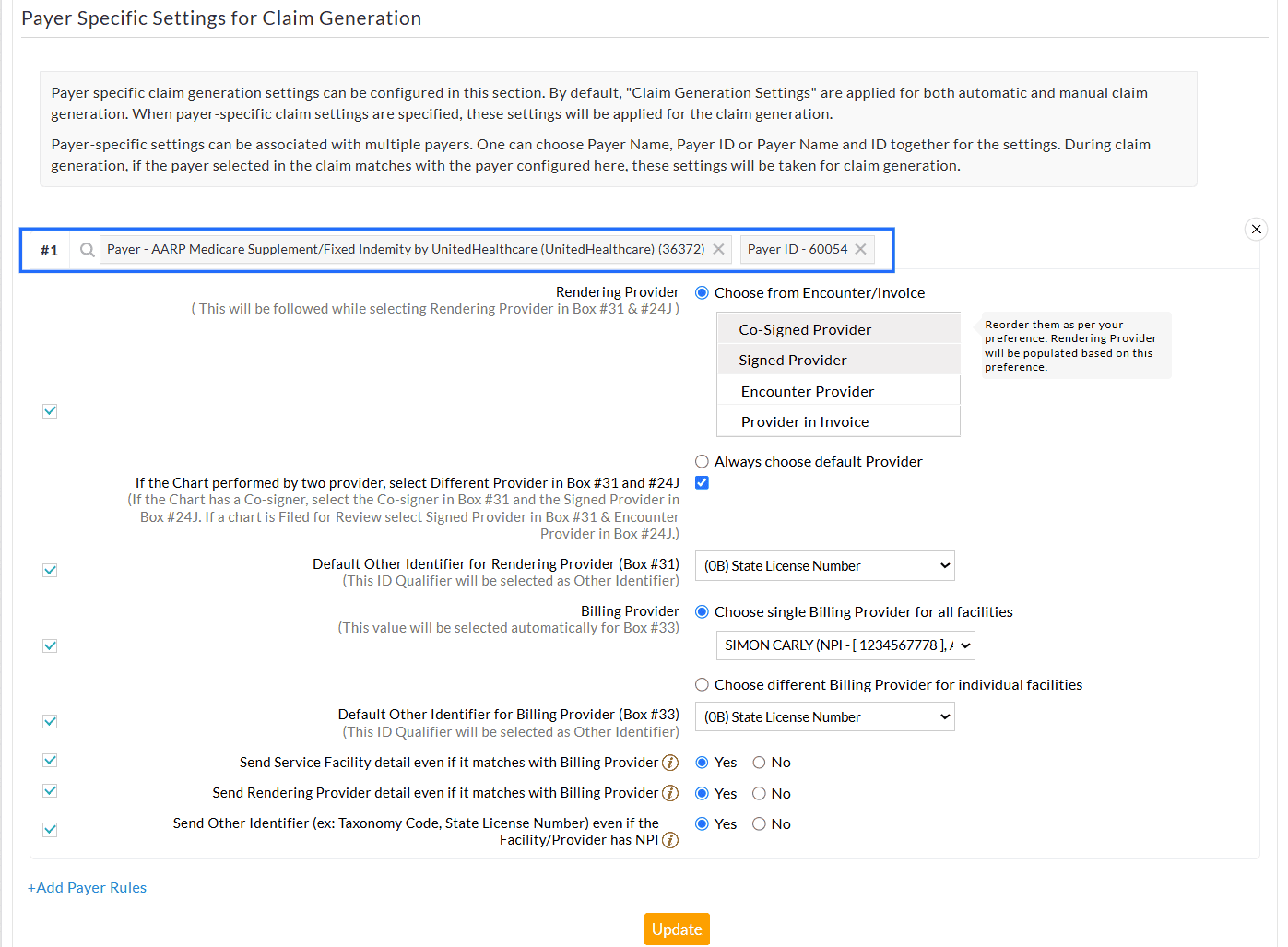
To configure the Payer-Specific Claim Generation settings, follow the steps given below.
- Navigate to the 'Payer Specific Settings for Claim Generation' section.
- Click the '+ Add Payer Rules' option.
- Search and select the relevant Payers to configure the settings.
- Enable the checkbox for appropriate settings and select the required option for each setting to meet the Payer's requirements.
- To add more Payer configurations, click the '+ Add Payer Rules' option.
- Click the 'Update' button to save the settings.
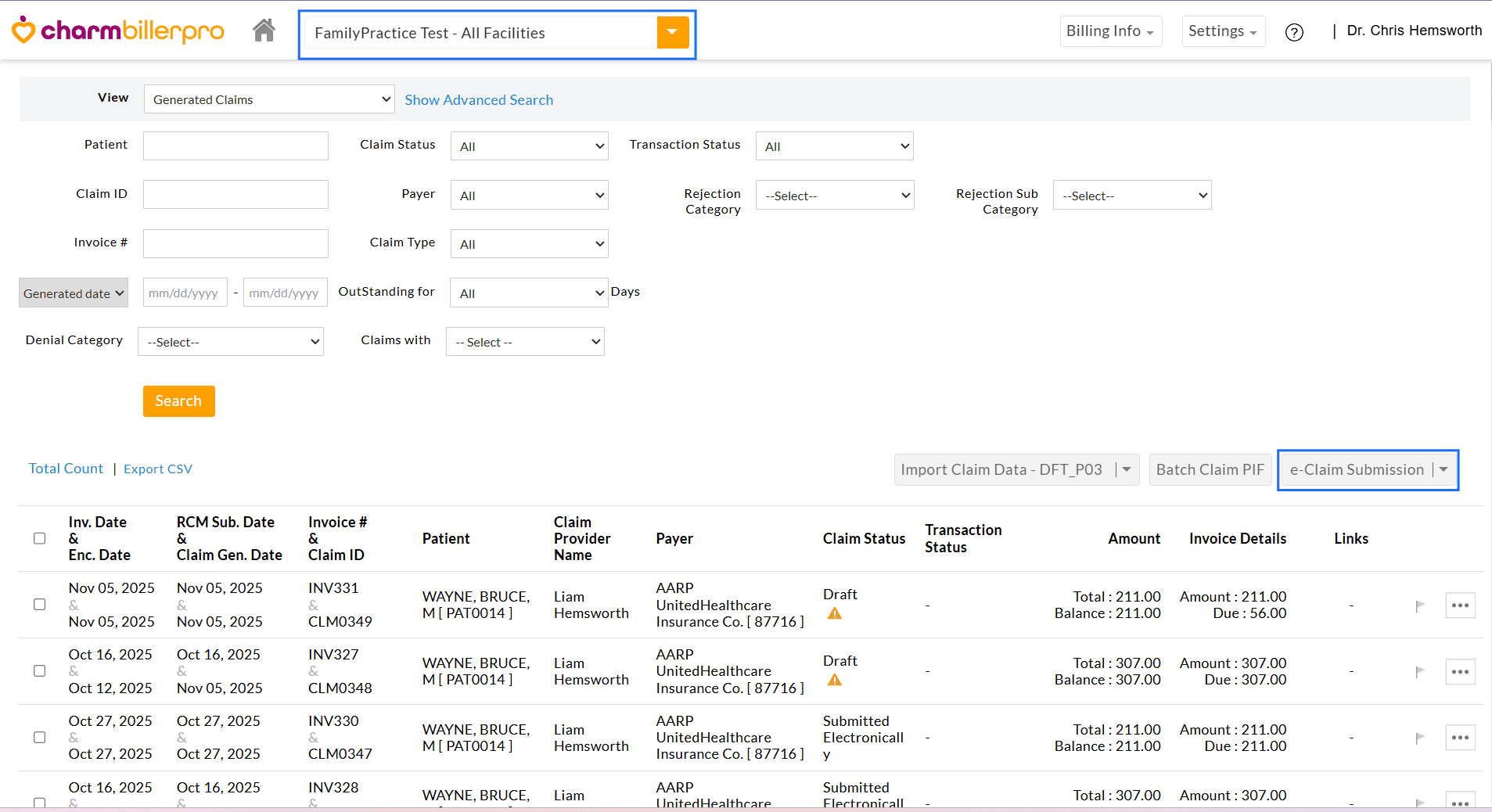
Previously, Practices with multiple Facilities could only submit Claims electronically at the facility level. Now, we have introduced the ability to submit Claims electronically for all Facilities from a single consolidated view, eliminating the need to switch between the systems.
- Select 'All Facilities' from the RCM Dashboard.
- Navigate to 'RCM Actions > Claim Submissions' and click on the 'e-Claim Submissions' button.
- By
default, all Claims that are ready to submit electronically across the
Facilities will get listed. You can use the dropdown to filter by an
individual or an active Facility if needed.
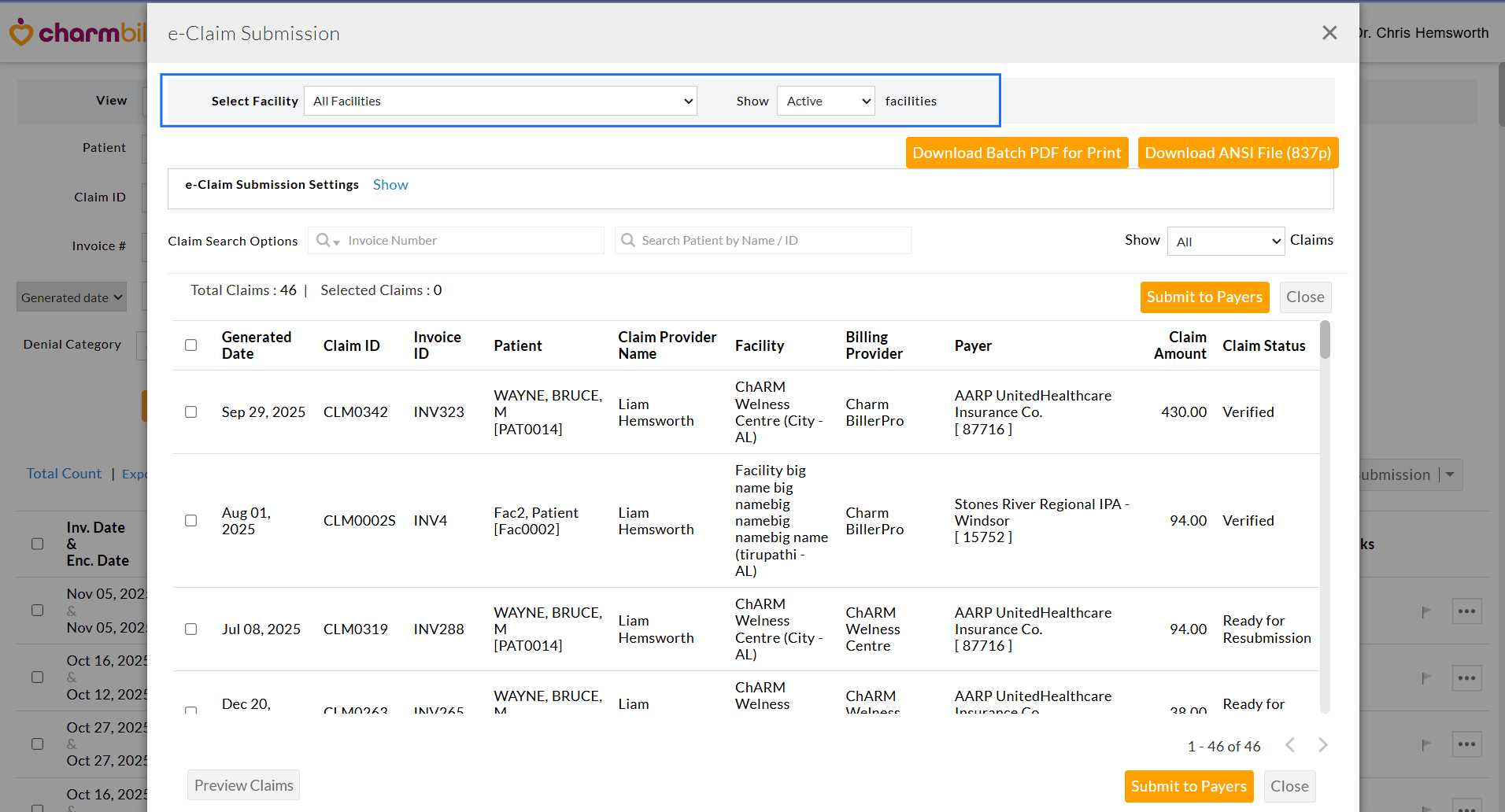
- Select the Claims to be submitted and click 'Submit to Payers'.
We hope these enhancements will streamline and enhance the Claim generation and submission process.
Visit our Resource Center for more details.
Have any questions or feedback? Drop us an Email at support@charmhealth.com