Electronic Claims Overview
The Electronic Claims (E-Claims) add-on enables Practices to submit Claims electronically, verify Patient eligibility in real-time, and receive ERAs through Optum Clearinghouse. This guide outlines the steps to request the add-on, understand prerequisites, and begin electronic billing after activation.
1. Introduction
The Electronic Claims add-on includes the following features:
- Real-time Eligibility Inquiry
- Automatic Eligibility Inquiry
- Electronic Claim Submissions
- ERA & Payment Posting
CharmHealth is integrated with Optum Clearinghouse, and the Electronic Claims add-on is available only to Practices registered with Optum Clearinghouse. CharmHealth handles Optum account creation.
2. E-Claims Add-on: What Practices Need to Know
To enable E-Claims, CharmHealth must create an Optum clearinghouse account for the Practice. This may take 8 to 10 business days.
The Practice needs to know the following:
- Verify the list of Payers supported by Optum.
- The Practice is responsible for Payer Enrollments, including ERA, EMC, and Eligibility Enrollments.
- Once the Optum account is created, CharmHealth will enable the E-Claims add-on for your Practice and share the required details with the Practice.
CharmHealth - E-Claims Pricing
Pricing for the E-Claims add-on is based on the number of transactions processed by the Practice.
For complete pricing details, refer to the CharmHealth Pricing page.
Supported Payers
Practices must verify the list of Payers supported by Optum. Refer to the Supported Payer List section for complete details.
Note:
Payer IDs given by the clearinghouse may differ from those with the Payer ID available on the Patient's insurance cards or those shared by the Payer directly.
Always use the Payer ID given by the Optum clearinghouse to ensure the correct routing of Claims and other transactions.
Payer EDI Enrollment - Practice is responsible
Enrollment is the process of notifying Payers that your Practice will submit Claims, receive ERAs, and perform eligibility checks through Optum Clearinghouse. It is the Practice's responsibility to do the enrollment process.
Refer to the Payer IEDI Enrollment section for detailed information.
Key points to know:
- ERA Enrollment
Most payers require ERA enrollment to deliver Electronic Remittance Advice to your Practice. - EMC Enrollment
Some payers accept electronic claims only after the Practice completes Electronic Media Claims (EMC) enrollment. - Eligibility Enrollment
Certain payers require enrollment before allowing real-time eligibility verification. - Practice Responsibility
Practice is responsible for completing these enrollments. All payer enrollments must be completed by the Practice through the Optum IEDI Portal.
3. E-Claims Add-on - Setup Overview
Submit E-Claims Add-on Request - By the Practice
To enable the Electronic Claims add-on, Practices can follow the steps below.
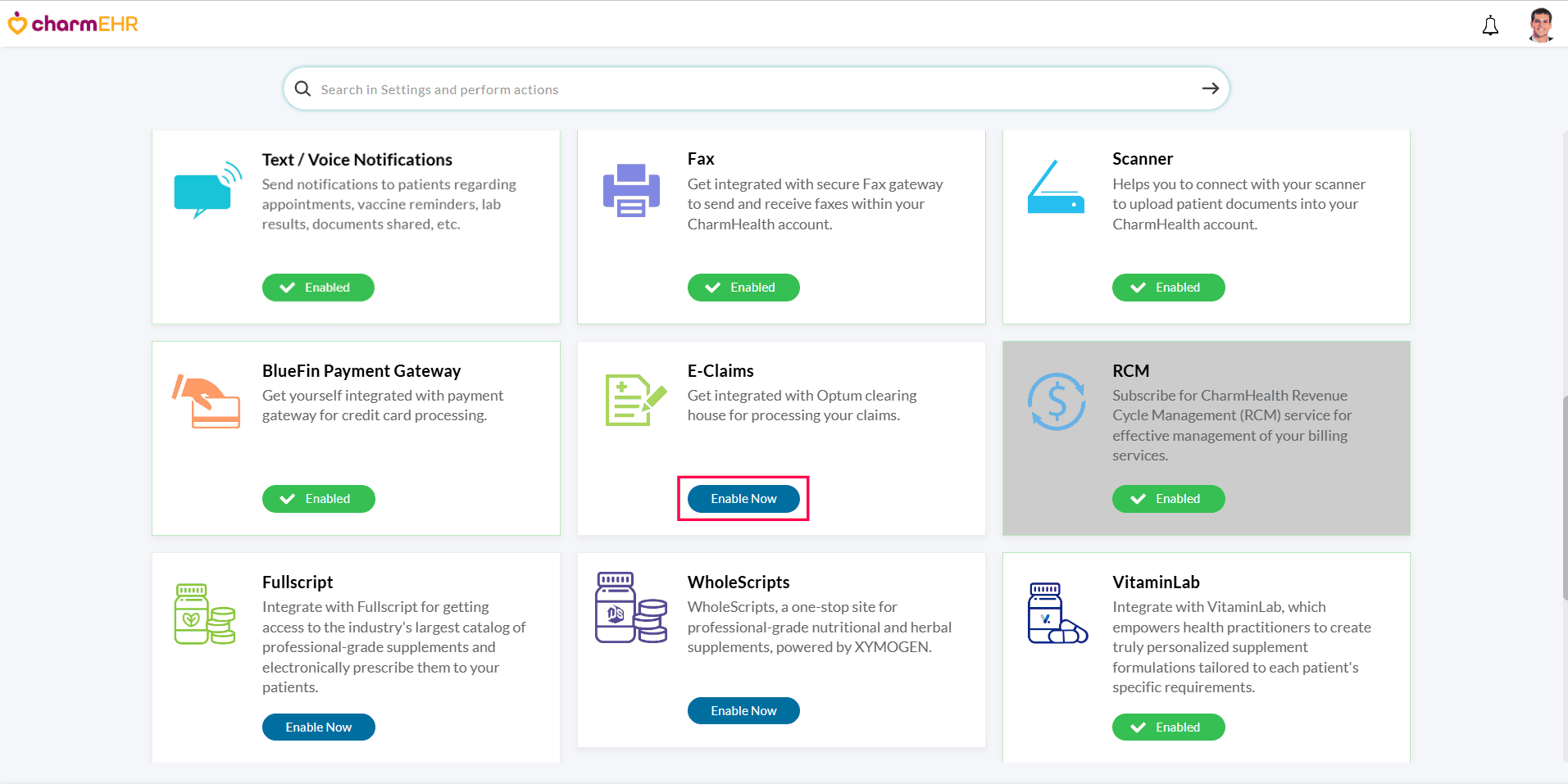
- Navigate to the 'Add-ons' page by clicking the 'Plug' icon.

- In the 'E-Claims' section, click the 'Enable Now' button.
- The E-Claims Request form will be displayed, and the details, such as Practice Name, Address, NPI, Tax ID, and Contact Person Number, etc., are populated automatically. Practices can verify these details and make necessary changes if required.
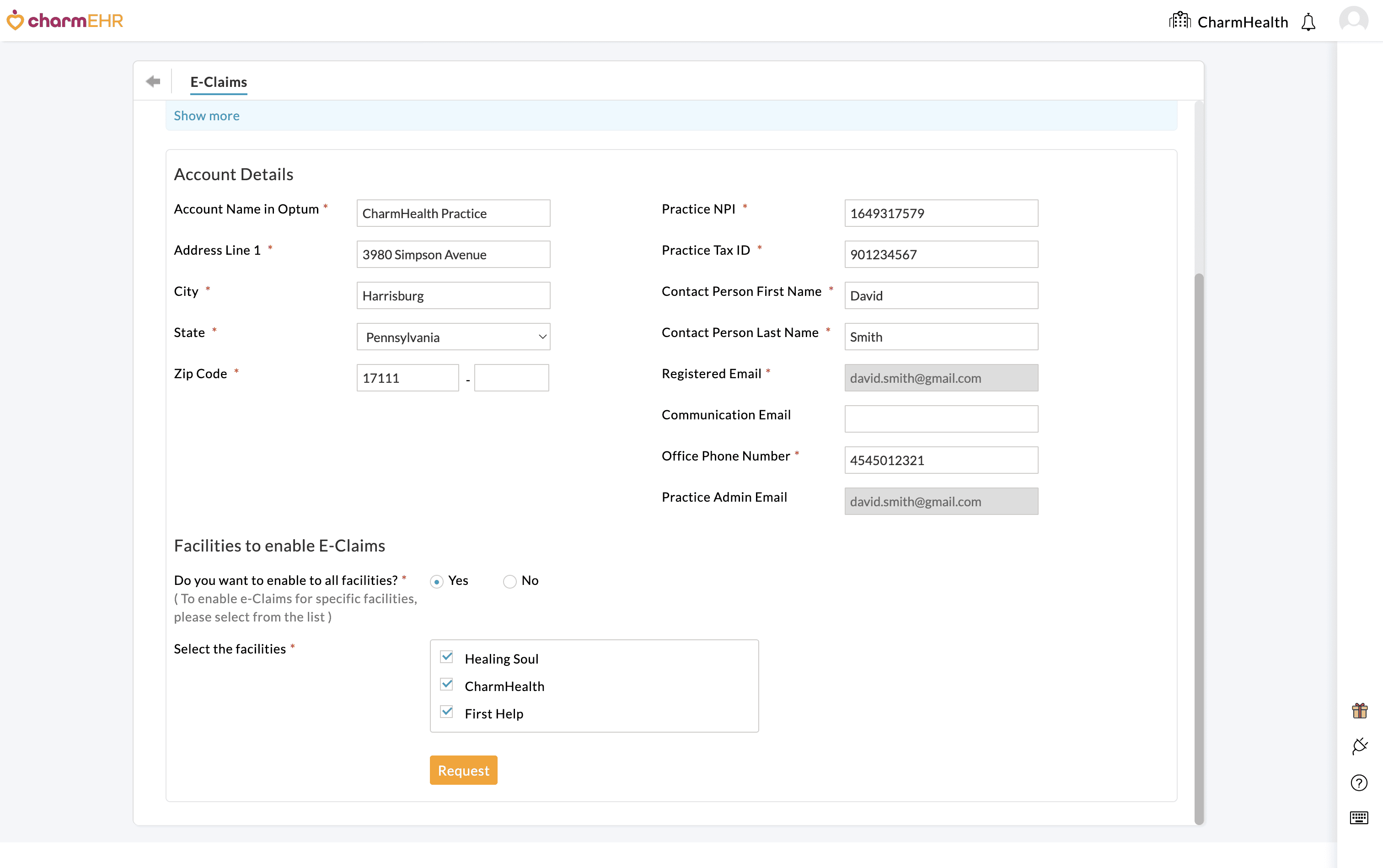
- To enable E-Claims for all active Facilities in your Practice, select 'Yes'. To enable E-Claims for specific Facilities, choose 'No' and then select only the required Facilities.
- Click on the 'Request' button to submit your activation request, and the activation status will be updated to 'Requested'.
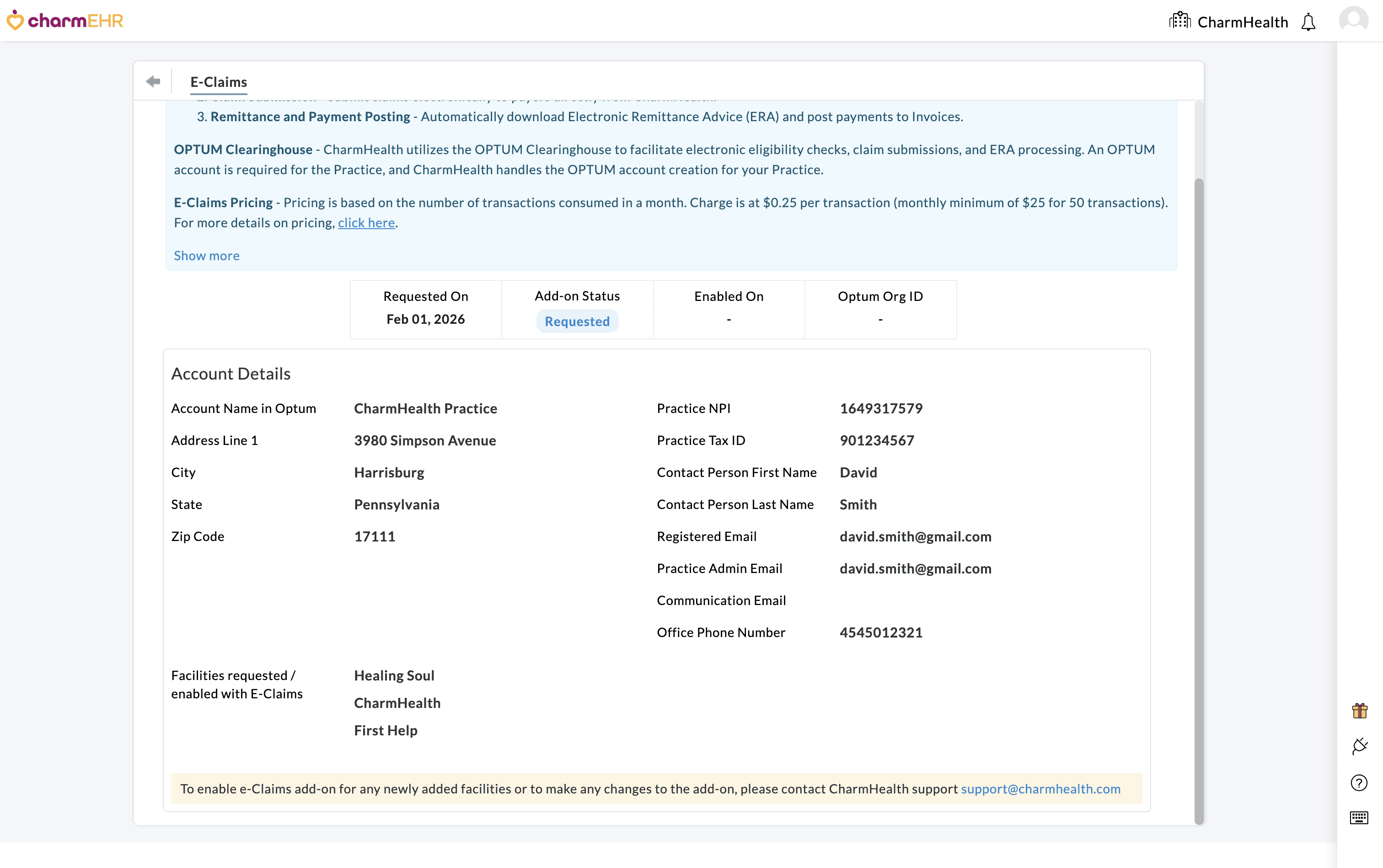
Clearinghouse Account Creation - By CharmHealth
Once the Practice submits the E-Claims add-on request:
- CharmHealth reviews the submitted information and initiates the process of setting up the Clearinghouse account. Practices can track the activation status under 'Add-ons > E-Claims'.
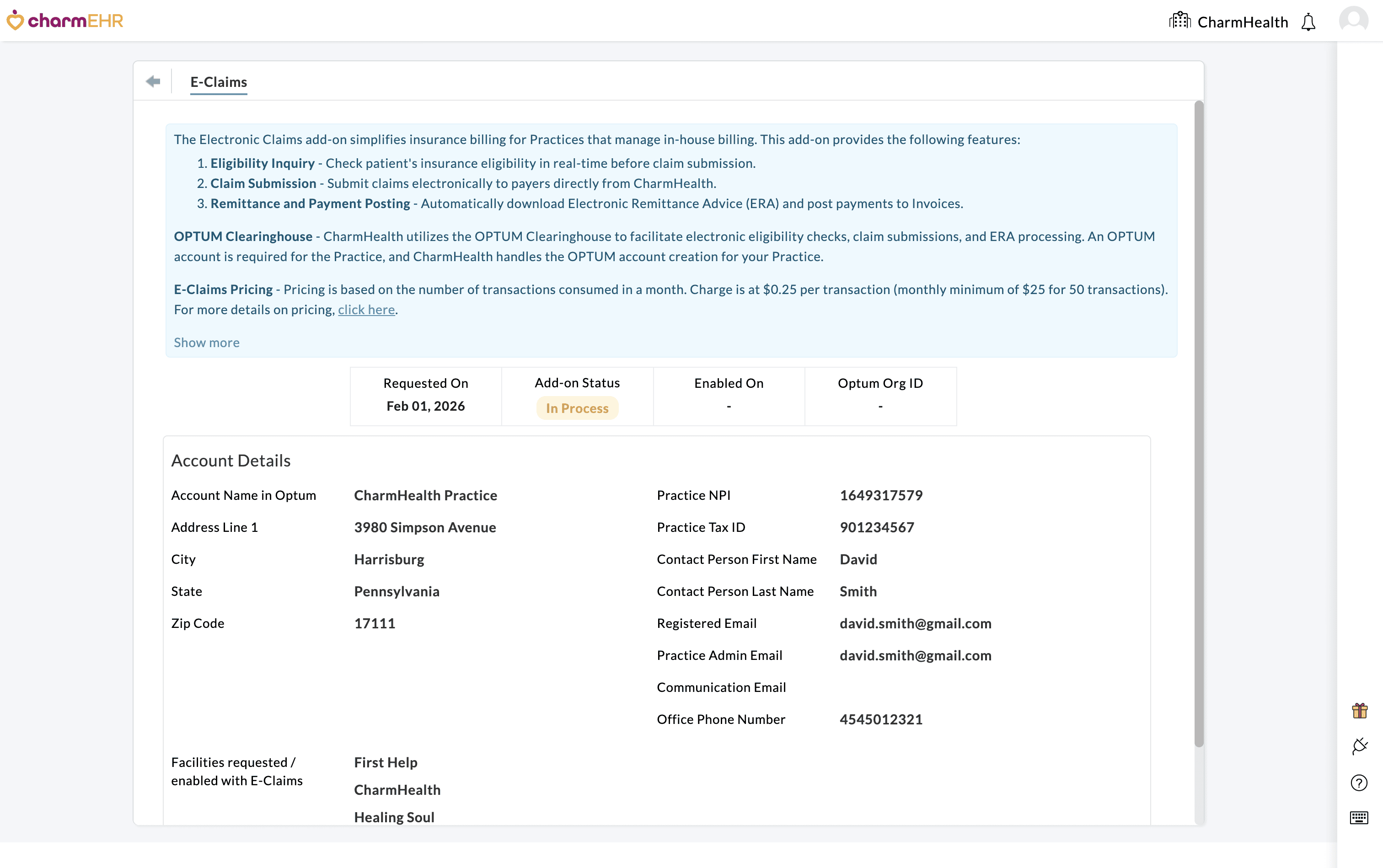
- Account creation typically takes from 8 to 10 business days.
- After the account is created, CharmHealth will enable the E-Claims add-on for your Practice and notify you via Email.
Once enabled, the activation status will get updated to 'Enabled' under the 'Add-ons > E-Claims' section. To get started with Electronic Claims, follow the instructions shared via Email or refer to the Guidelines to Get Started with Electronic Billing section.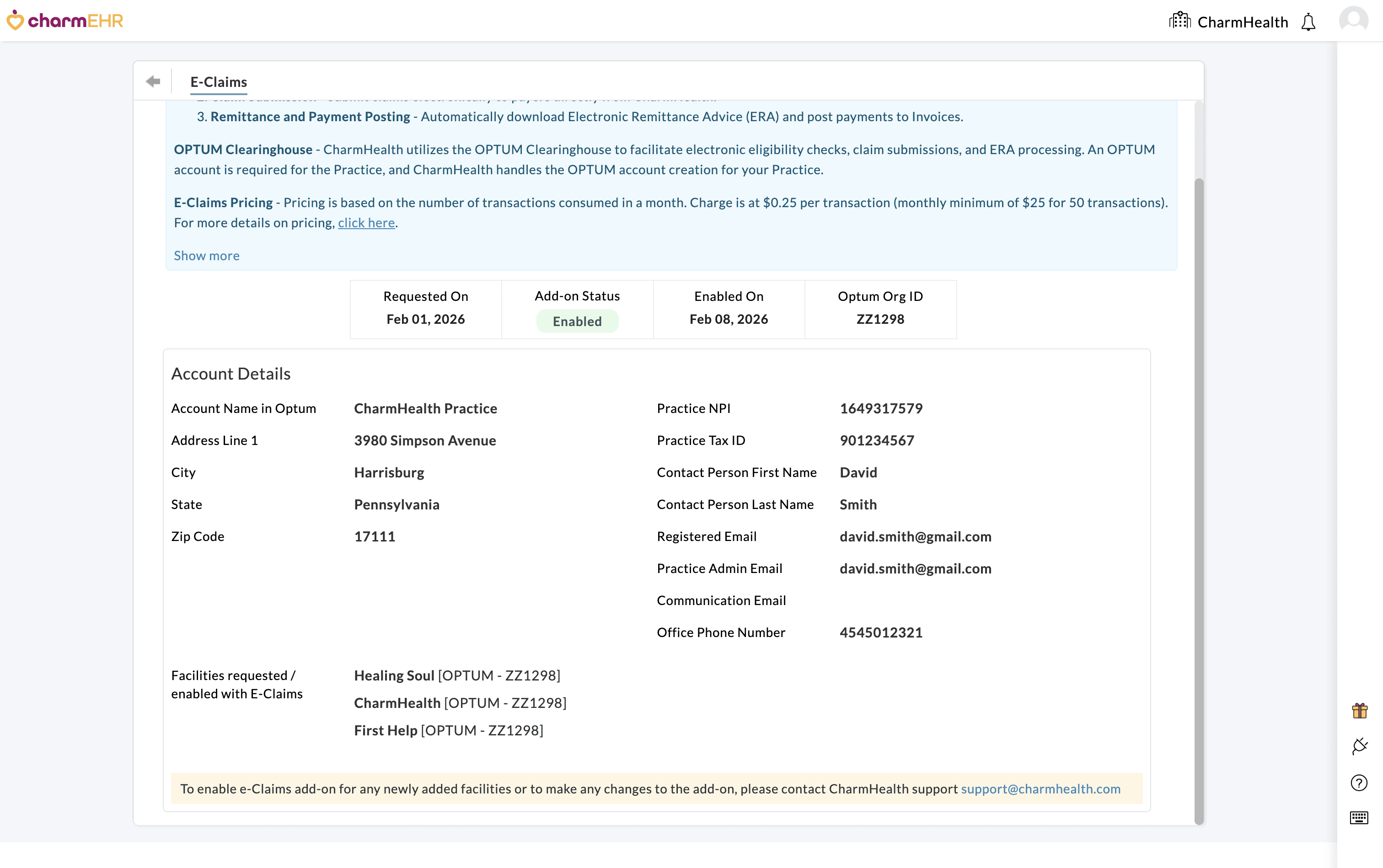
Create OPTUM One Healthcare ID (OHCID) Account - By the Practice (Multiple accounts can be created)
Once your Optum account is created and you receive the confirmation from CharmHealth Support, follow the steps below to create your Optum One Healthcare ID (OHCID) to begin the electronic billing.
- Go to: https://optumprovider.optum.com
- Click Create One Healthcare ID.
- Complete the form and verification steps for phone and email.
- Share the following details that were entered during the OHCID registration with CharmHealth Support. This is mandatory to get your account provisioned with your Practices' Optum Organization account.
- Optum One Healthcare ID
- First Name
- Last Name
- Email Address
Note:
- You can access the Optum IEDI Portal only after CharmHealth provisions your OHCID with your Practice’s Optum Organization Account.
- 'One Healthcare ID (OHCID)' is a named user account to access the IEDI portal.
- Each staff member can create their own Optum OHCID for portal access.
- The IEDI Portal is used for managing payer enrollments.
All Claim submissions, Claim rejections, ERA/EOB details, and denials can be checked inside CharmHealth.
4. Guidelines to Get Started with Electronic Billing
Review the Configured Payer IDs in CharmHealth
- Go to Settings > Billing > Payers.
- Update each Payer with the correct Optum Payer ID by verifying the 'Optum Payer Lists' available on the Optum website. To learn how to update the Payer in CharmHealth, refer to the Managing Payer List of the Practice section.
Note: Use the clearinghouse Payer ID, not the one on insurance cards.
Submit Claims Electronically - Manual Submission and Setup Automation
You can start submitting Claims electronically from CharmHealth as per the instructions given below. You can also automate the Invoice and Claim generation process.
- Generate Invoices for unbilled encounters under 'Billing > Generate Bills'
- To generate Claims for those Invoices, go to 'Billing > Invoices'.
- Go to 'Billing > Claims' and click on the 'e-Claim Submission' button. All Claims that are ready for submission (i.e, claims in Not Submitted status) will be listed.
- Select the Claims, and click on the 'Submit to Payer' button.
Payer EDI Enrollment - An Essential Step
Payer enrollment is mandatory for all Payers to receive ERAs. For submitting claims and eligibility checks, certain Payers may require enrollments.
- Complete required enrollments (ERA, EMC, Eligibility) through the Optum IEDI Portal.
- Enrollment requirements vary by payer.
- Practices are responsible for handling all enrollments.
For detailed steps on the Enrollment process, refer to the Payer EDI Enrollment section.
Handling Claim Rejections
Many Payers send acknowledgments for the submitted Claims. Subsequently, they may send acceptance or rejection reports as well. These are shown as Transaction Status against the Claims.
Practices should periodically review the rejections and take appropriate action.
Refer to Handling Rejections in CharmHealth for steps on identifying and resubmitting rejected claims.
Managing Claim Denials
- After the Claim is submitted to the Payer for payment, the Payer evaluates it and denies it for various reasons. CharmHealth captures the denial details that are shared by the Payer via Explanation of Benefits (EOB) or Electronic Remittance Advice (ERA).
- Practices should routinely review these messages, correct issues when necessary, and resubmit the Claims.
- In certain cases, the Practice may need to contact the payer for clarification.
Refer to the Managing Denials section for guidance on resolving denied claims.
E-Claims Training - Weekly Webinar
CharmHealth hosts a Weekly Webinar on E-Claims to onboard new users in electronic billing and offer a review for current users.