ABHA Documentation
Introduction
The Ayushman Bharat Digital Mission (ABDM) is a flagship initiative launched by the Government of India to create a comprehensive digital health ecosystem. Its primary aim is to make healthcare more accessible, efficient, and transparent by leveraging technology.
CharmHealth has Partnered with the National Health Authority (NHA) to integrate with the Ayushman Bharat Digital Mission (ABDM). CharmHealth EHR integration with ABDM, allows us to create/link patient's ABHA number through CharmHealth EHR. A Patient's medical health reports from other EHRs can be viewed within CharmHealth EHR with the patient's consents. Visit notes created in the CharmHealth system can be linked to the ABDM ecosystem so patients can view them from their ABHA-enabled mobile app. Doctors using other EHRs can also view the CharmHealth Reports through this ecosystem for better patient care.
ABDM Stake Holders
- Patients: ABDM allows patients to quickly register during health visits, access health records from any facility, and share their health information with consent. An ABHA address will serve as their unique identifier.
- Health Professionals: Doctors, nurses, lab technicians, and other professionals must register in the Health Professional Registry (HPR) to obtain an HPR ID, verify their credentials, and enabling participation in ABDM.
- Health Facilities: Hospitals, clinics, labs, and pharmacies are required to register with the Health Facility Registry (HFR) to obtain an HFR ID. Additionally, they must use ABDM-compliant software, such as CharmHealth EHR, for generating health records linked to ABHA.
Note - Clinics and Doctors are required to obtain HPR and HFR ID to be recognized as ABHA-registered healthcare providers. Click here to learn more.
Integration Benefits
- Secure Medical Records: Patients can store and access their prescriptions, diagnostic reports, and discharge summaries securely.
- Efficient Sharing: Easy sharing of medical records with healthcare providers ensures appropriate treatment and follow-up.
- Informed Decision-Making: Patients gain access to accurate information, empowering them to make informed health decisions.
- Enhanced Provider Access: Healthcare professionals can access patients’ medical histories, leading to better prescribing practices.
- Improved Continuum of Care: The integrated system supports seamless care transitions for patients.
Configure the ABHA Integration
Pre-requisites for Clinics
- Doctors and Clinics are required to register with ABHA and obtain HIP and Facility ID. Click here to learn more.
The Clinic should configure the Facility QR code for generating tokens from the EHR Settings page as mentioned below.
The Practice Admin/Office Manager can enable the ABHA Integration and configure the settings using the following steps.
- Go to the 'Settings > ABHA Services' section.
- Click the 'Subscribe' button. CharmHealth will enable the integration for your Clinic within 1 - 2 business days.
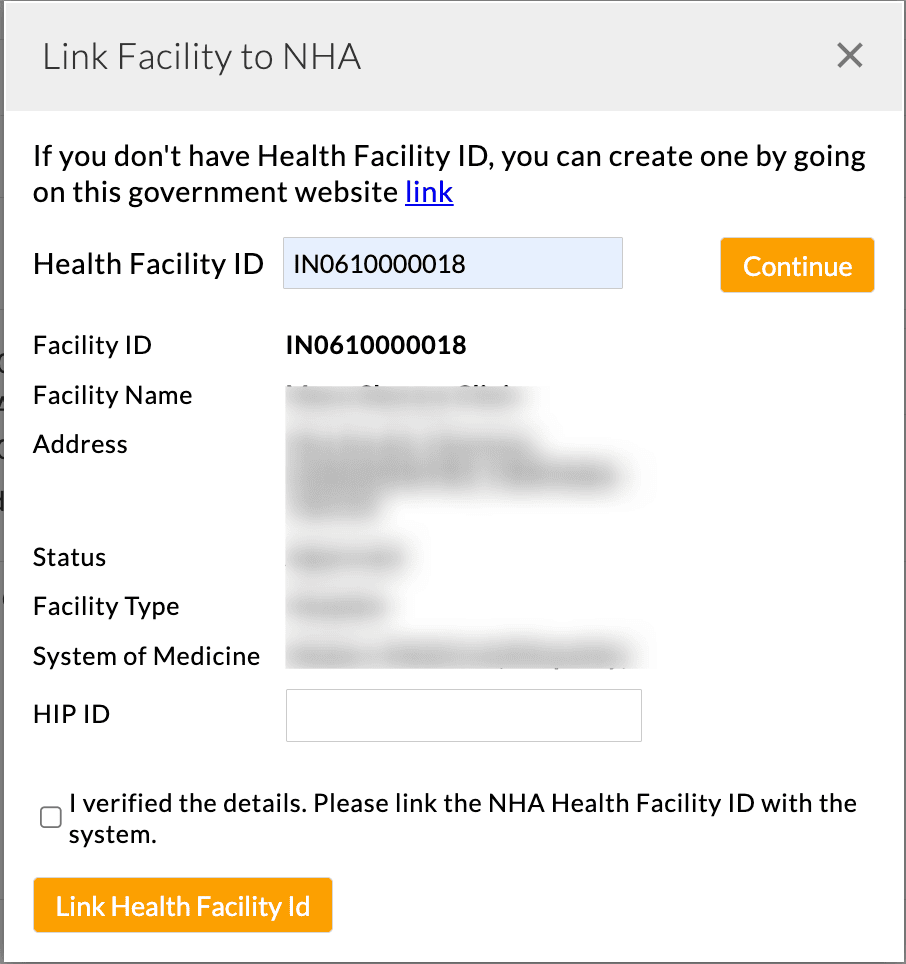
- Once done, enter your Facility ID registered with ABHA and click the 'Search' button.
- Enter the facility manager's HIP ID, then check the box to verify the facility details.
- Click 'Link Health Facility ID' to complete the configuration.
- Next, configure the counter numbers to allow patients to book appointments using the ABHA-enabled PHR app by following the steps below:
- Enter the counter name without spaces (We support alphanumeric characters).
- Print the QR code and paste it at a visible location near the counter for patients to scan.
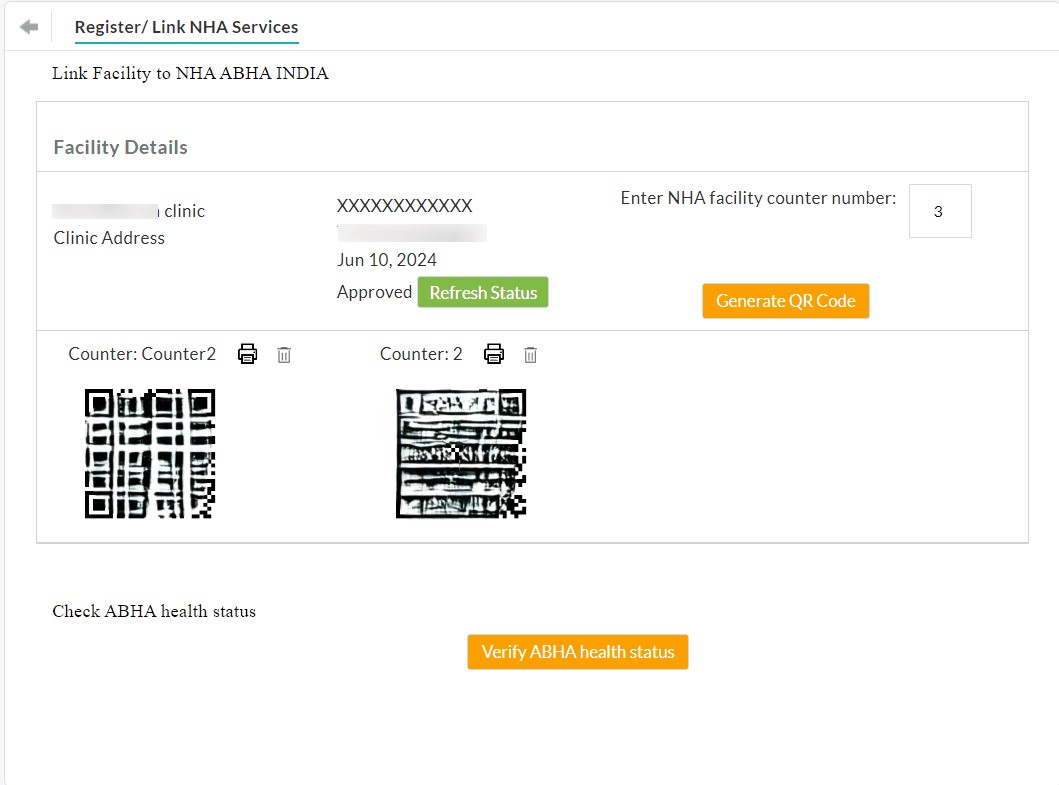
Note - You can add a maximum of 5 counters.
Role Privileges
Members with the required role privileges can register/link patients with ABHA or raise NHI consent requests. The Admin can grant the role privileges using the below steps:
- Go to the 'Settings > Facility > Role Privileges' section.
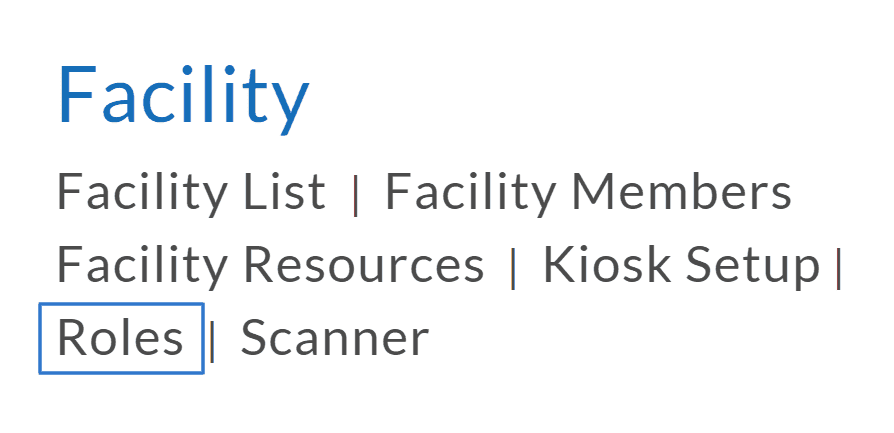
- Create or Edit an existing member role.
- Enable the following role privileges under 'ABHA'.
- Register/Map - To allow Practice Members to create and link Patient profiles to ABHA.
- NHA Consents - To allow Practice Members to view or raise NHA Consent requests and share care contexts.
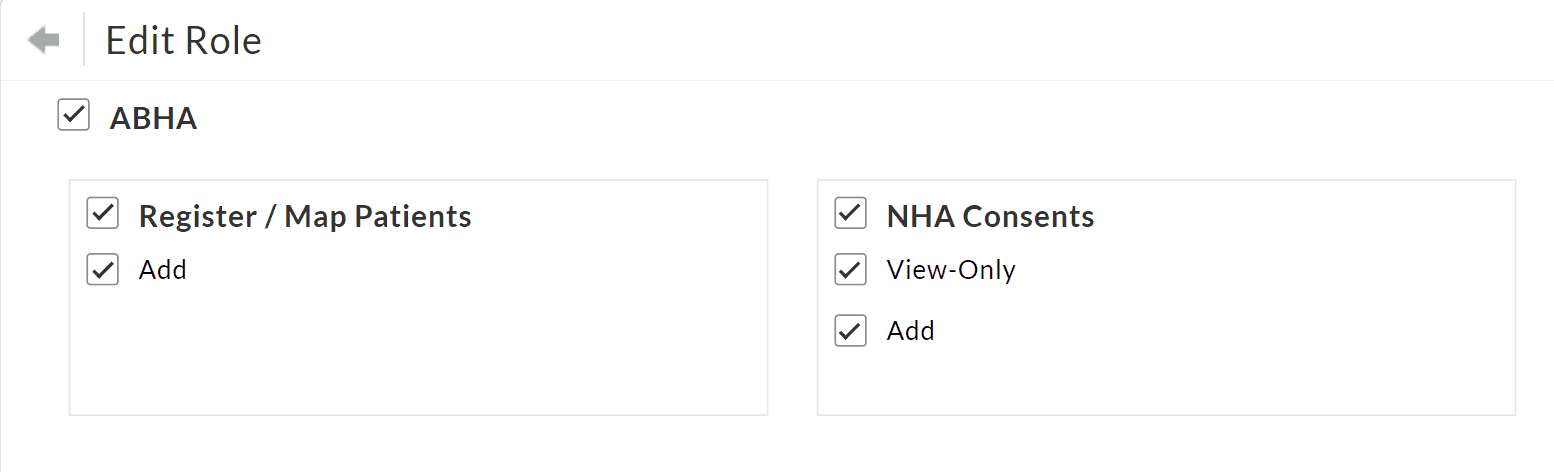
- Click the 'Save'/'Update' button.
Register/Link ABHA for New Patient
Members with the role privilege can follow the steps below to register/link patients with ABHA in CharmHealth EHR.
- Login to the EHR Dashboard and navigate to the 'Patients' tab.
- Click the 'Register/Link ABHA Number' button.
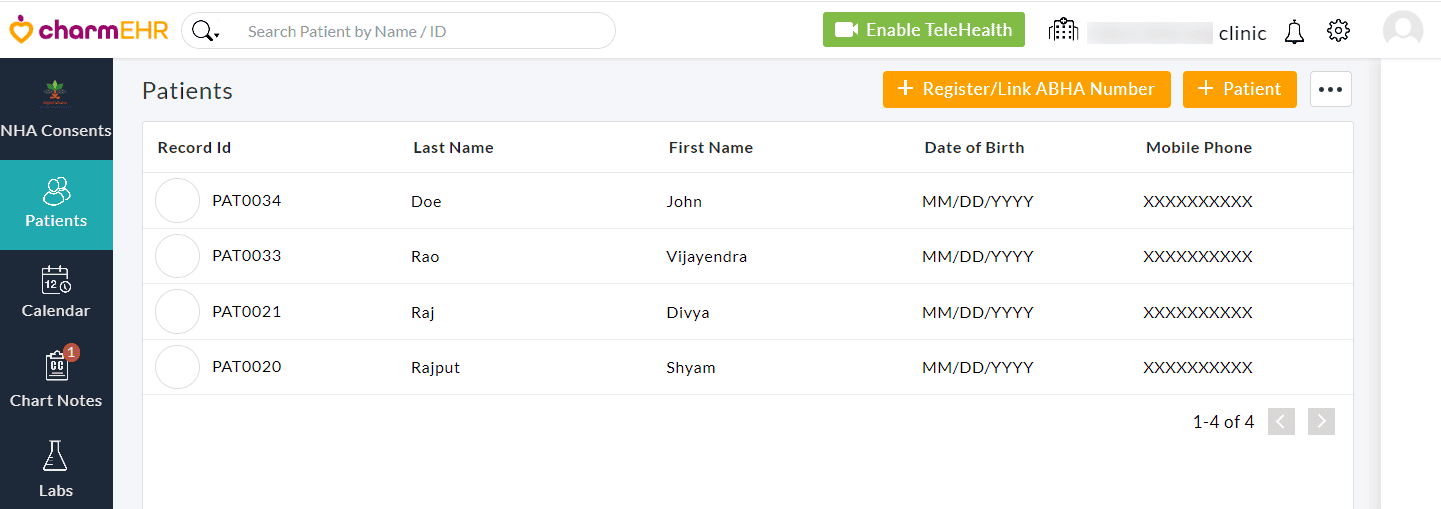
- Read the Declaration to the Patient and enable the checkboxes on their behalf. Click the 'Next' button.
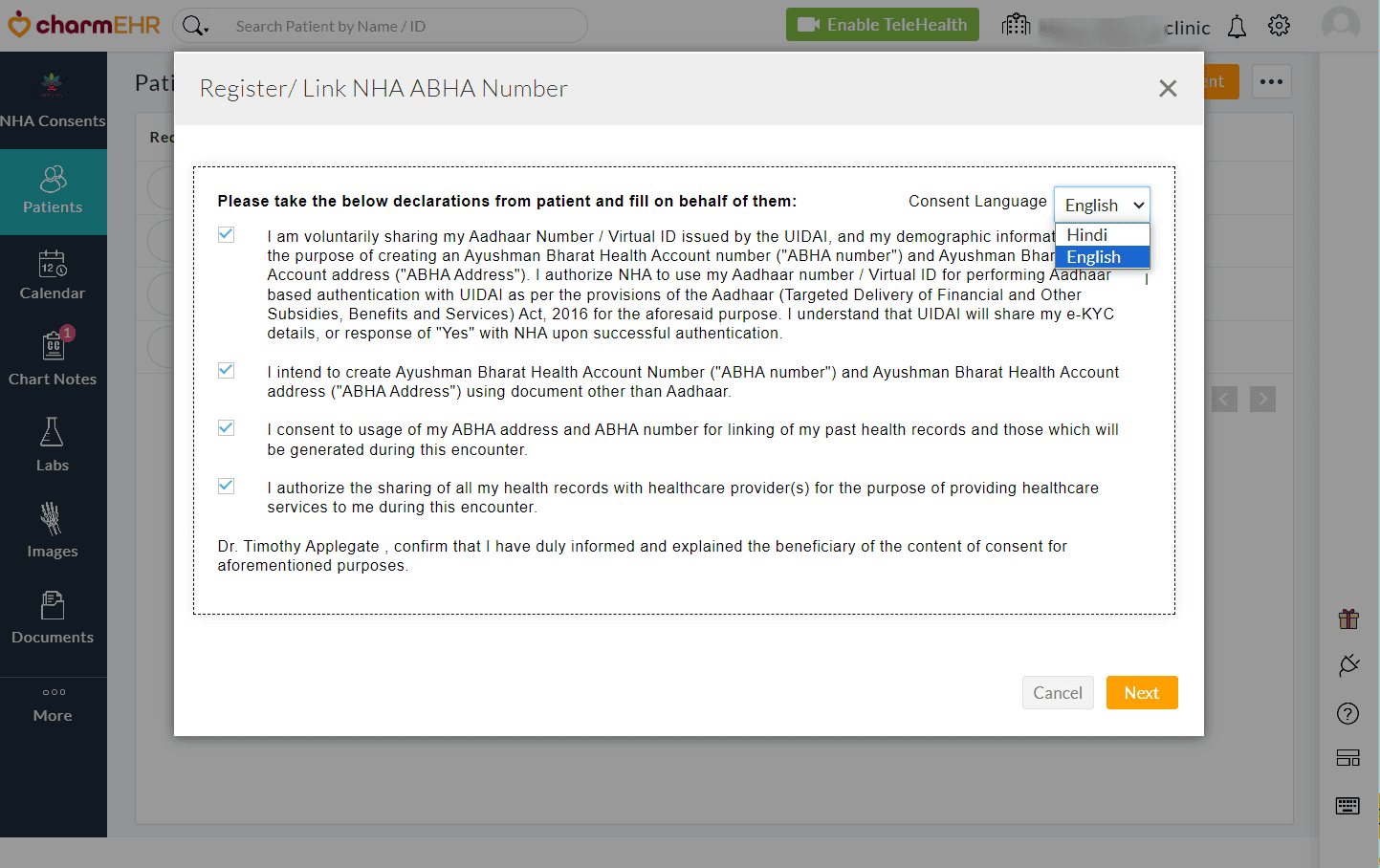
Note - You can change the Consent Language from English to Hindi using the drop-down.
- Now, you can choose any one of the following methods to proceed:
- Aadhaar Number
- ABHA Number
- ABHA Address
- Mobile Number
- Scan ABHA Card
- Upload ABHA Card
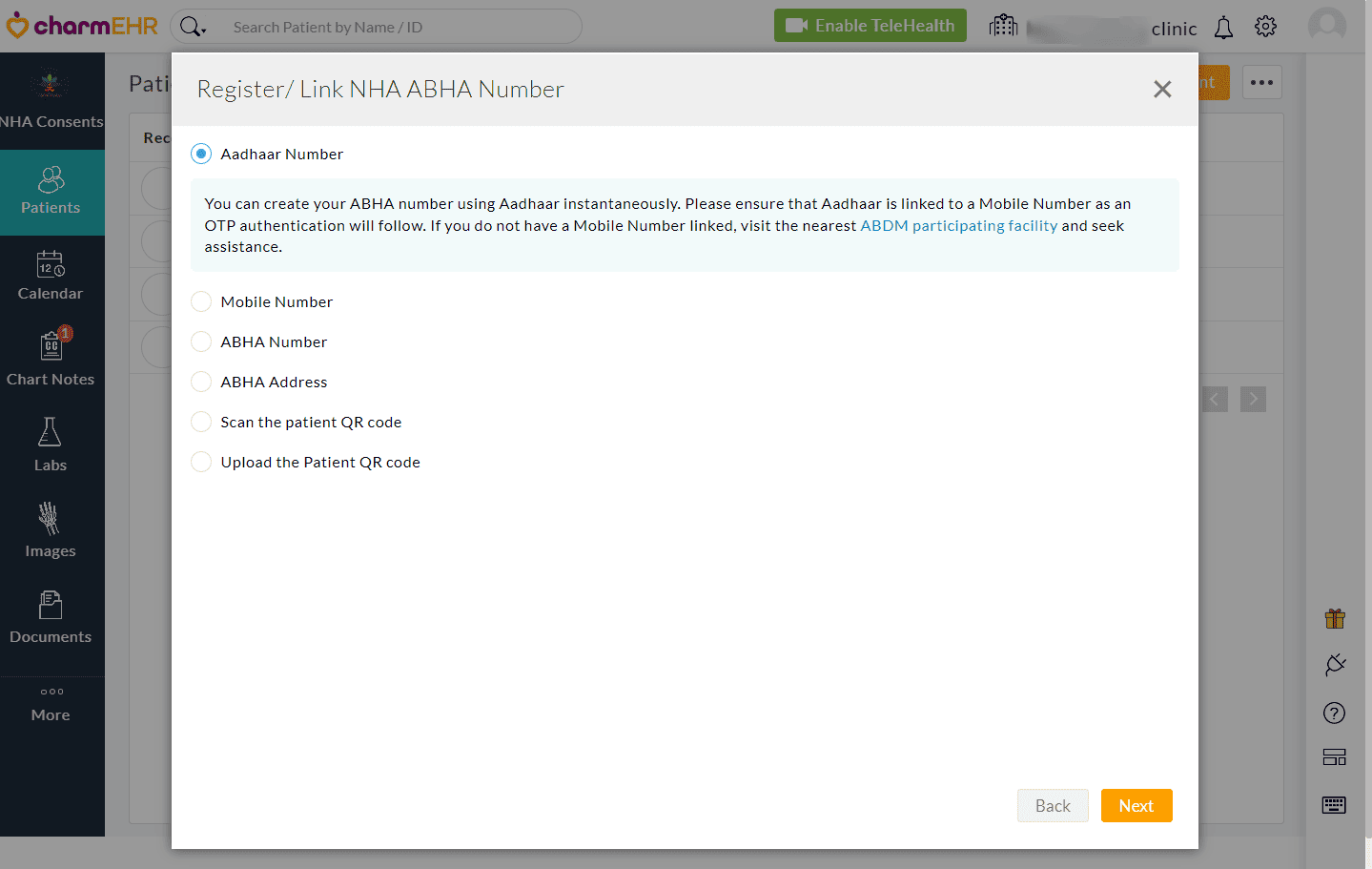
Note: Ensure you have the Aadhaar-registered phone number ready for OTP Authentication.
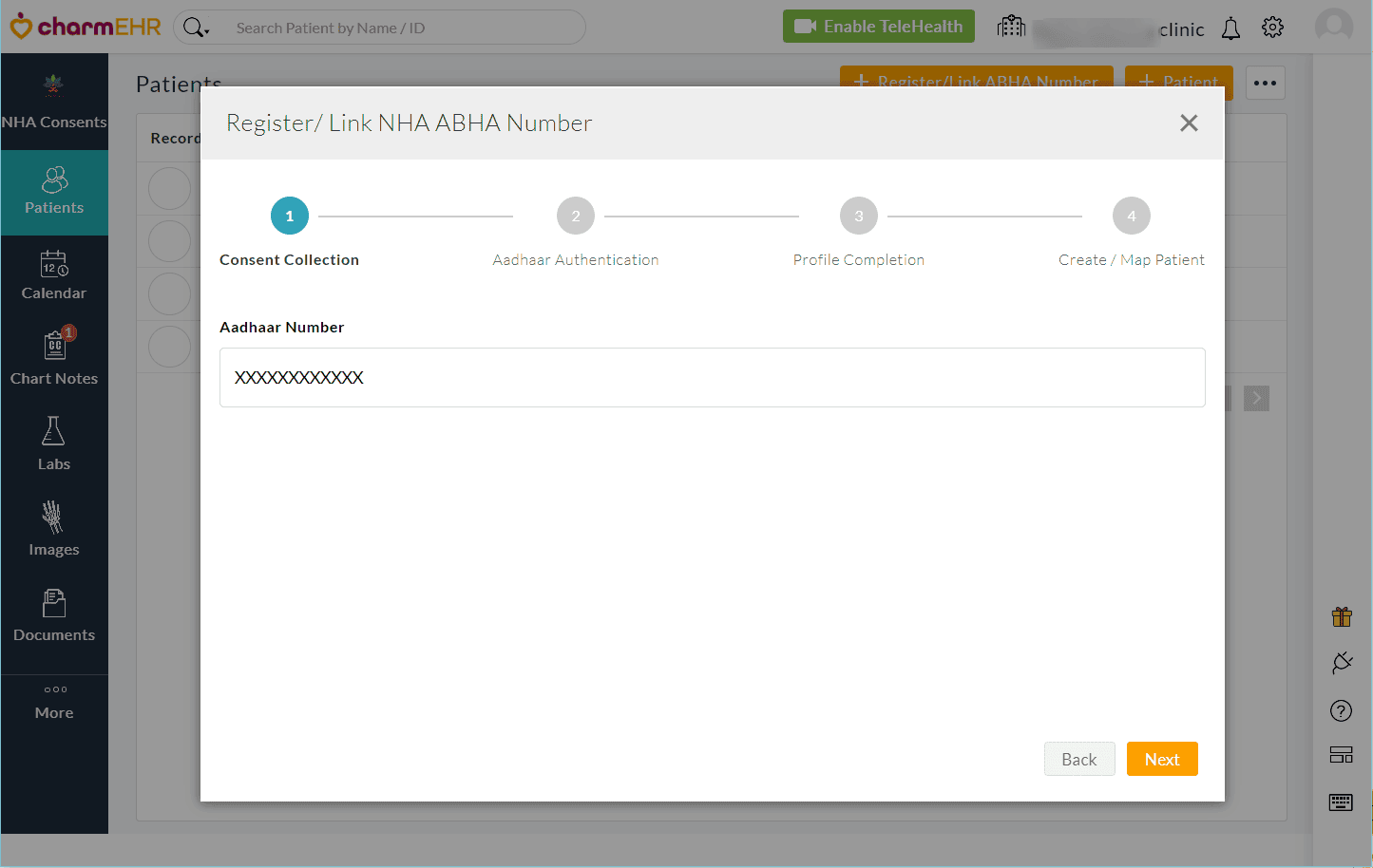
For example, we have chosen to register/link ABHA using the patient's Aadhaar Number by following the below steps:
- Enter the patient's Aadhaar Number and click 'Next'.
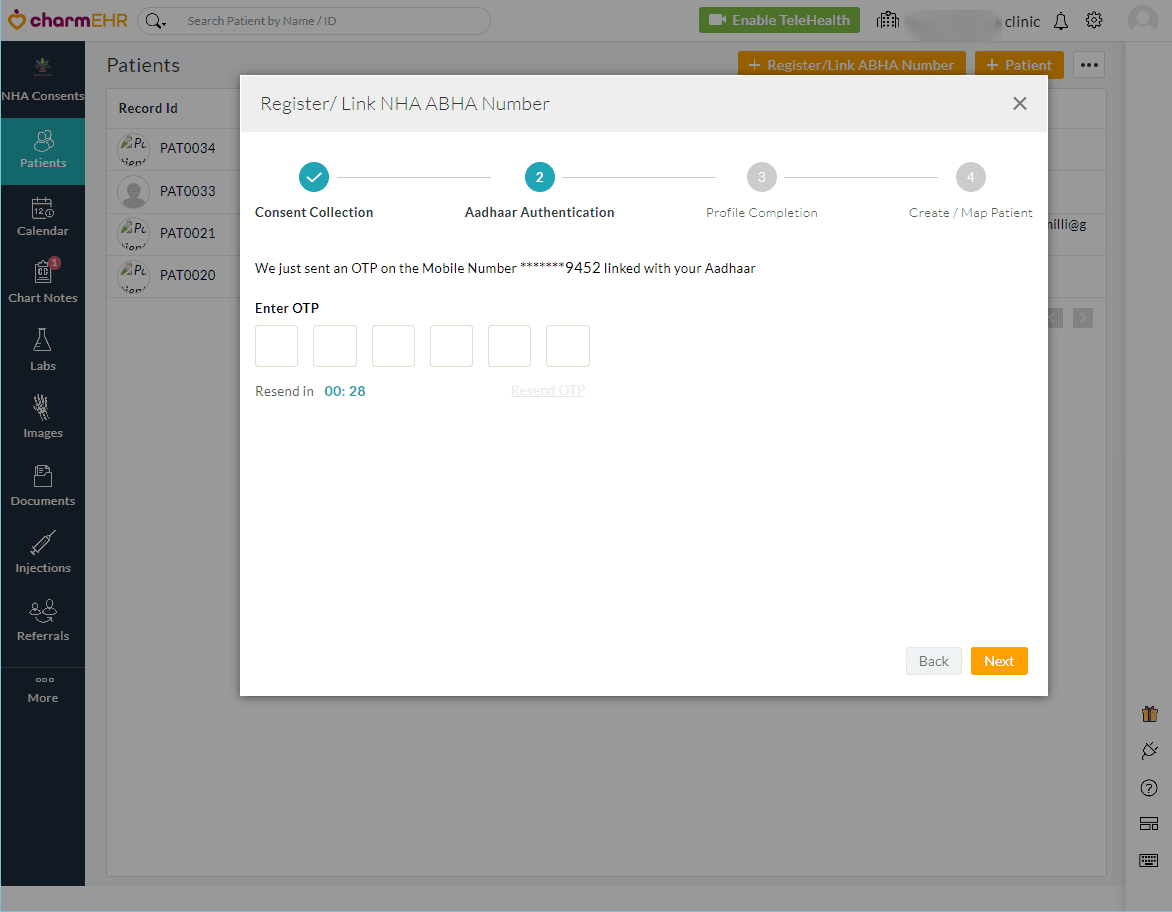
- Enter the OTP received in the Aadhaar-registered phone number and click 'Next'.
- Fill in the patient's mobile number for linking with ABHA and click 'Next'.
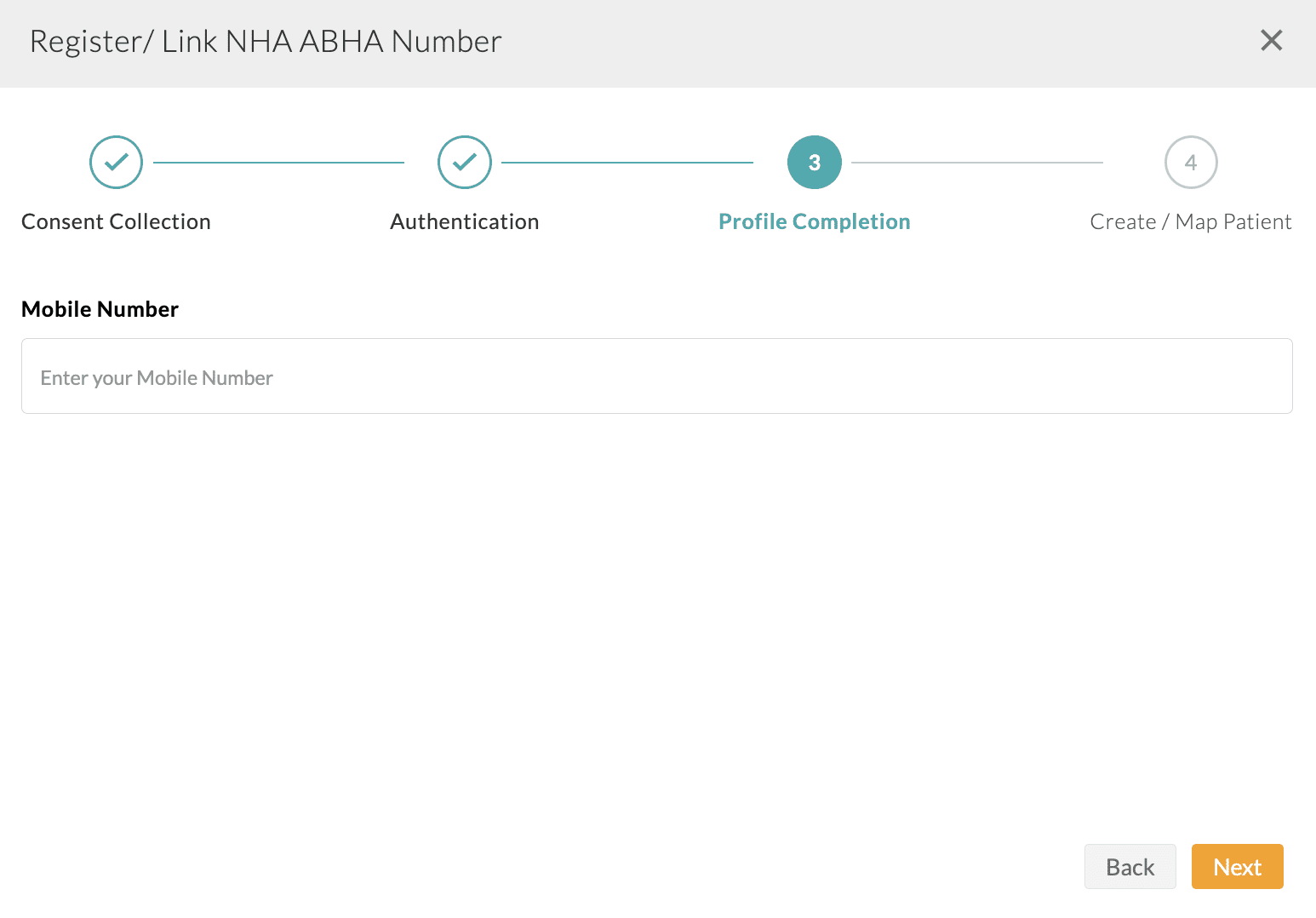
Note - It is recommended to use the phone number linked with Aadhaar. If a new phone number is used, authenticate it with the newly received OTP.
- Review the patient's demographic details displayed.
- Now, you can either choose to proceed with any of the suggested ABHA Addresses or click the 'Create and Link' option to create a new address.
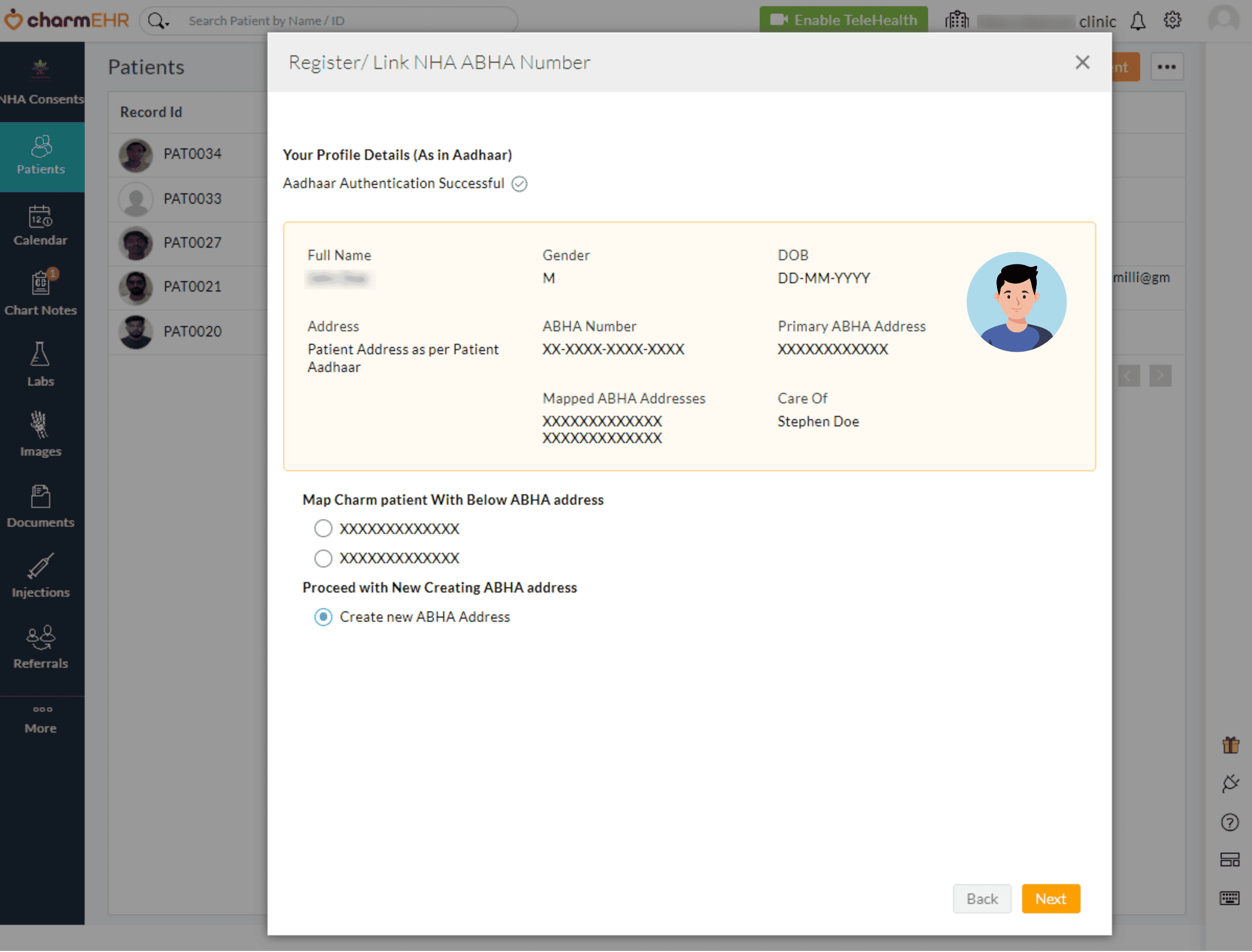
- If you choose to create a new ABHA address, manually enter a new address of your patient's choice. Then, click the 'Link ABHA Address' button.
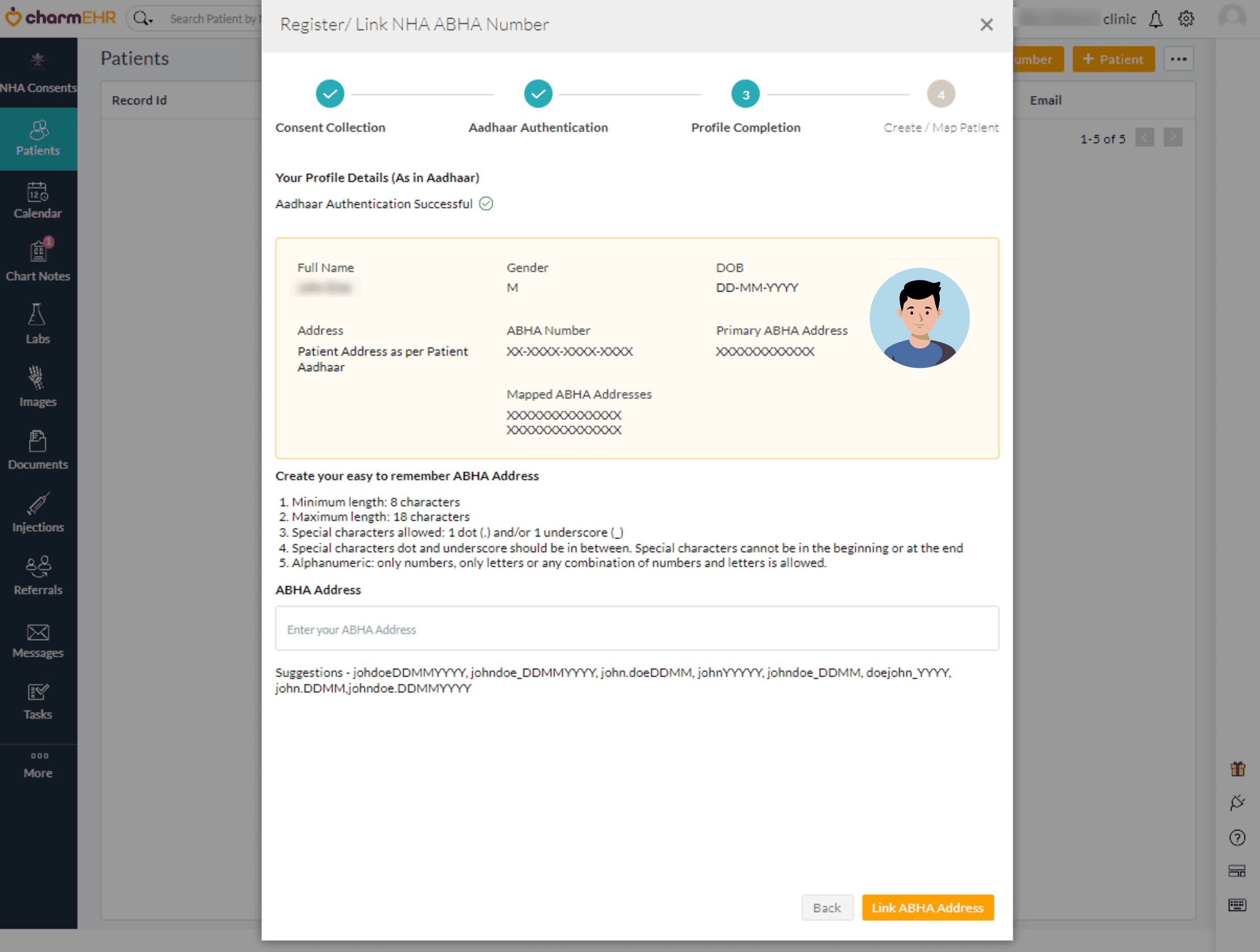
- Review the newly added ABHA address and click the 'Add Patient' button to register and link a Patient.

Similar to Aadhaar registration, patients can be linked/registered with ABHA using their Mobile Number ABHA Number, ABHA Address, Scan or Upload the ABHA. Then, continue to authenticate and verify the patient demographics to complete the process.
For Existing Patients
In the case of registering/linking ABHA for patients already registered in CharmHealth EHR, follow the same steps as above. In the last step, CharmHealth displays the patient records matching the demographics or Aadhaar number entered. Click the Map button against a patient record instead of the Add New Patient button.
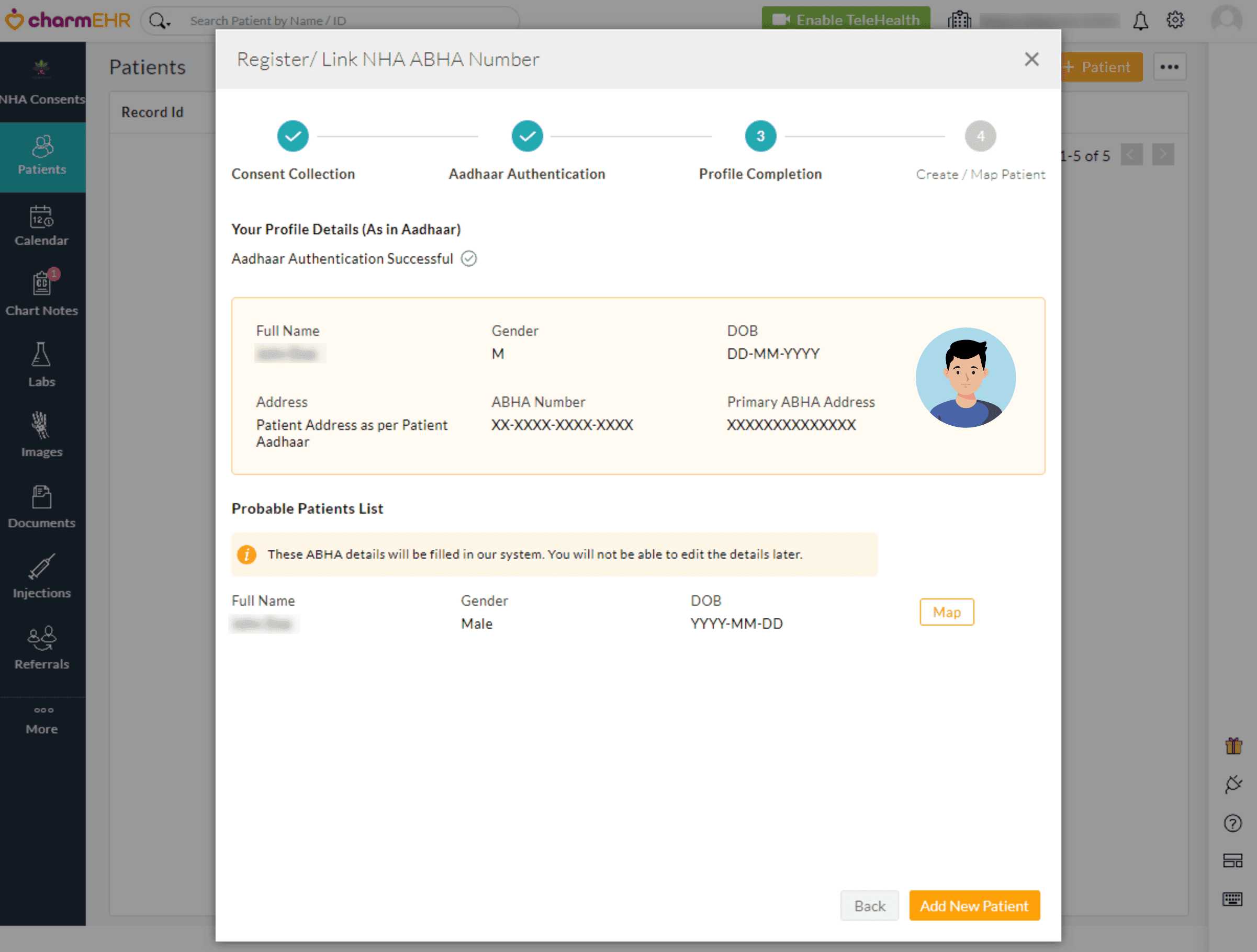
Then, proceed to review the patient details and click Update and Map.
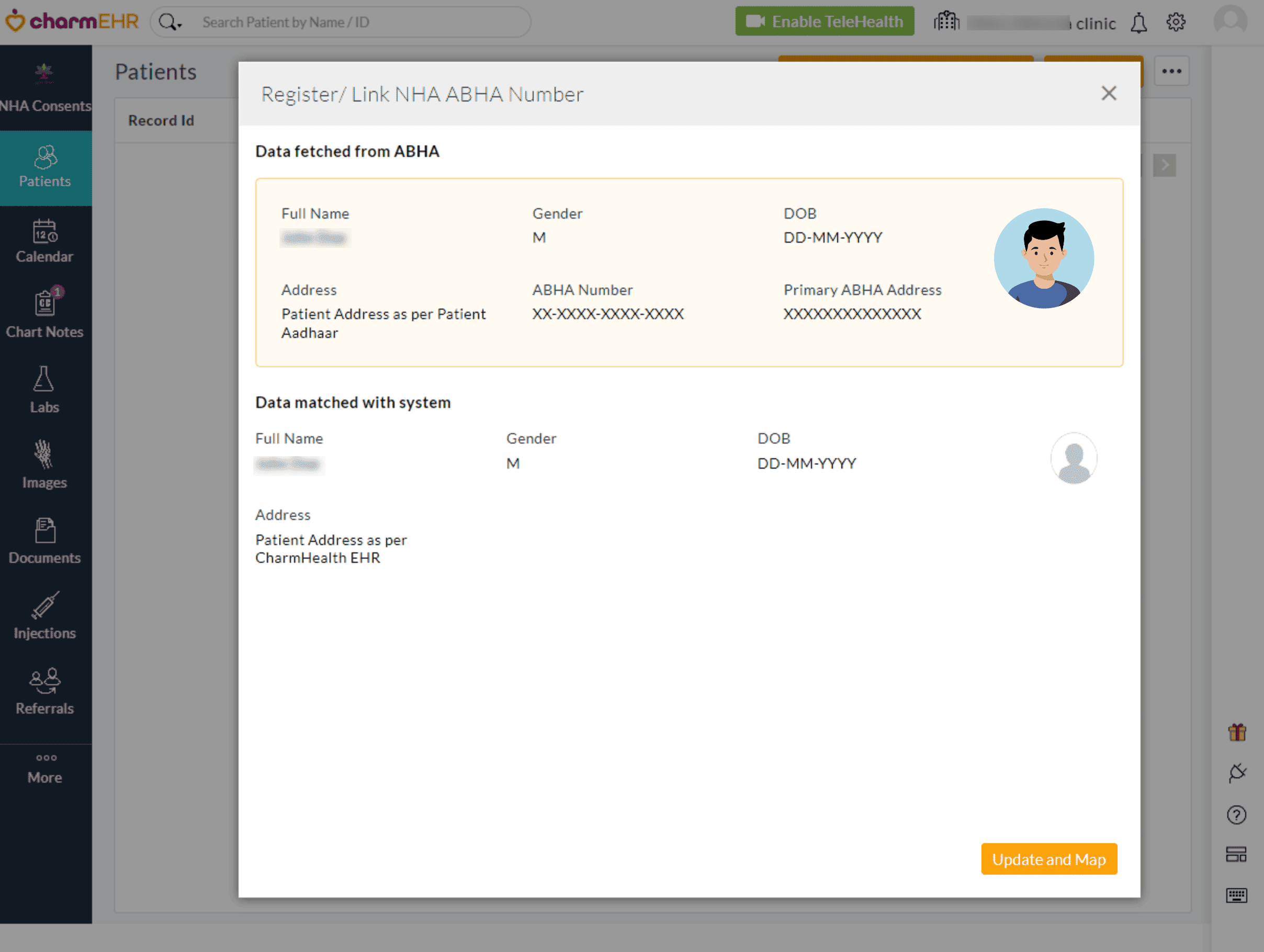
View/Download ABHA Details
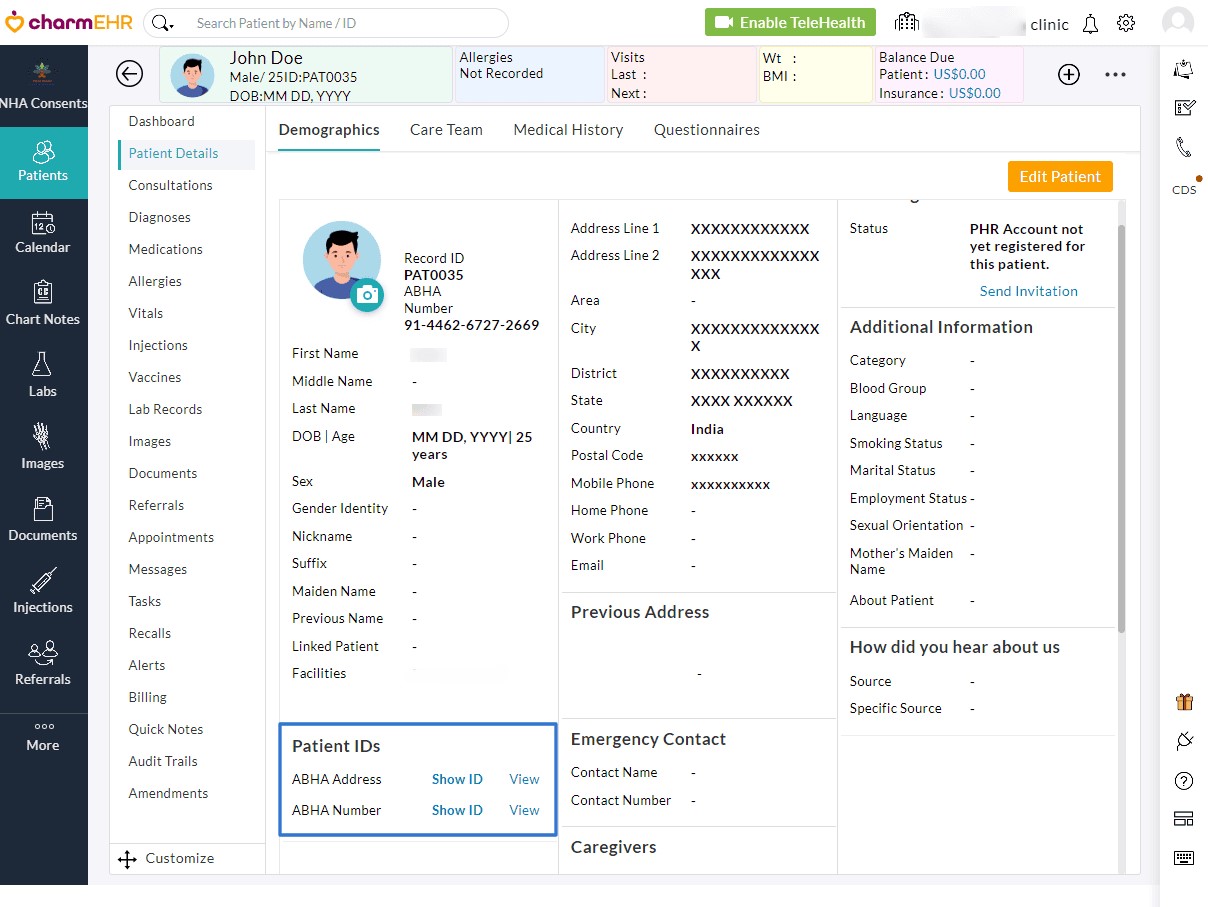
Once the patient's ABHA Card is registered, Navigate to the 'Patient > Patients Details > Patient Demographics' section. Under the 'Patient ID' section, click the 'Show ID' or 'View' links to view the associated Aadhaar and ABHA details.
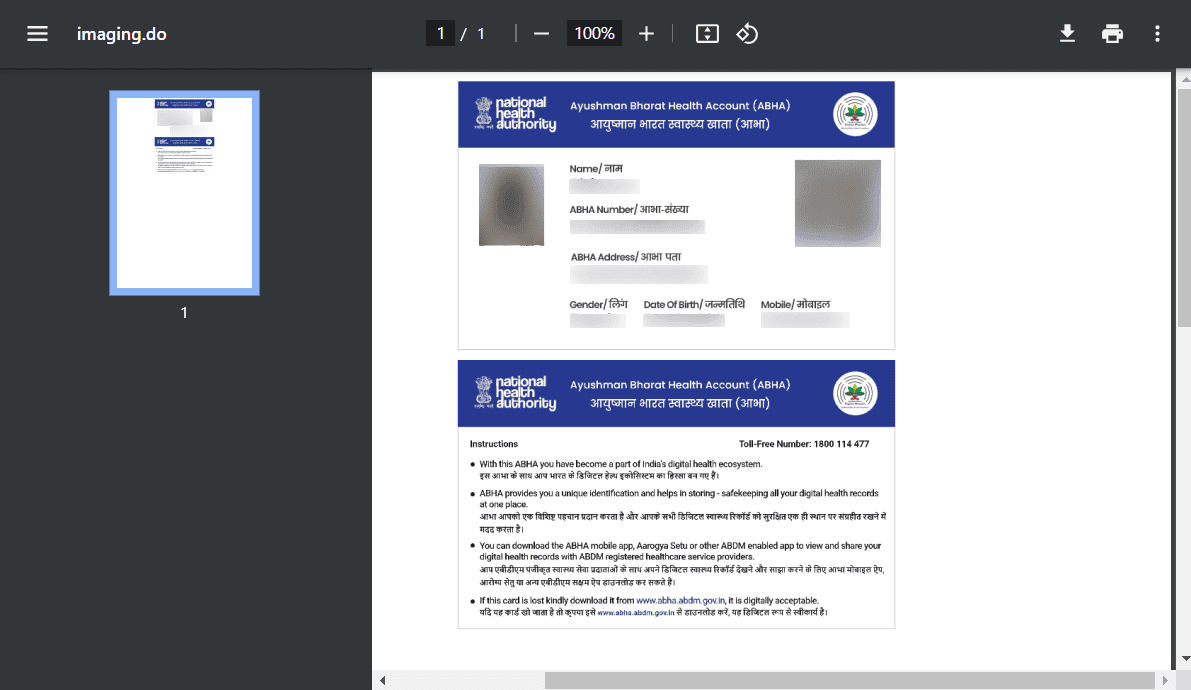
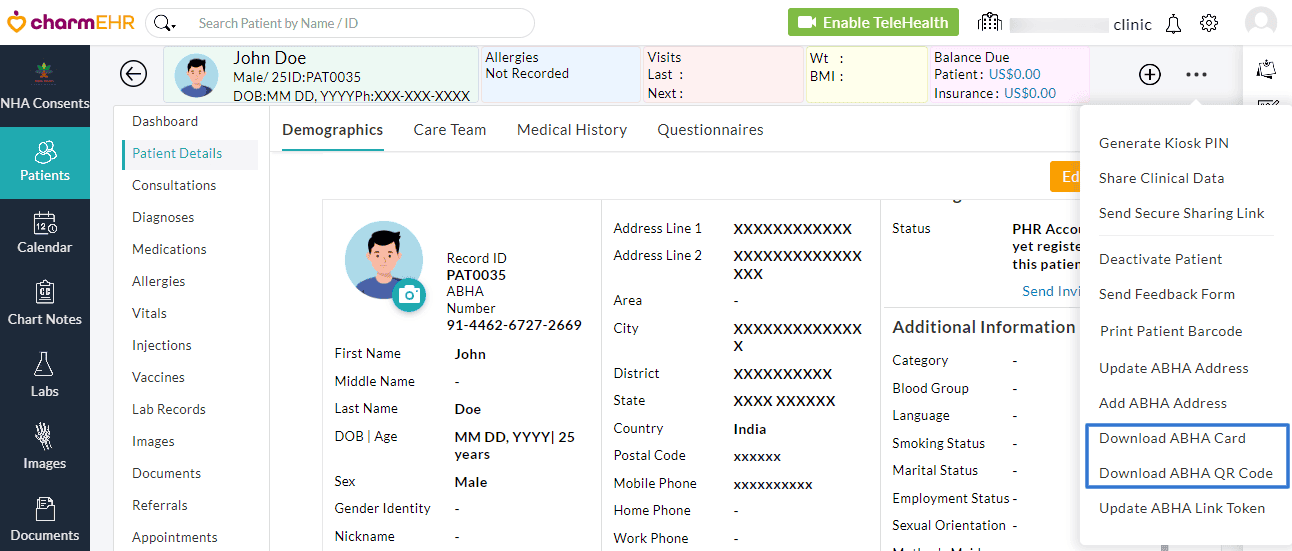
Additionally, click the 'More Options' icon (3 dots) on the top-right corner and choose the 'Download ABHA Card' or 'Download ABHA QR Code' option.
Create and Manage Visit Tokens
Pre-requisite for Patients
The patients are required to download the ABHA PHR app.
Patient Workflow for Creating Visit Tokens
When Patients visit the Clinic, they can generate their visit tokens from the ABHA PHR App by the following steps
- Login to the ABHA PHR app.
- Click the 'Scan QR Code' icon available in the top-right corner. Scan the Facility QR code available against the respective counter.
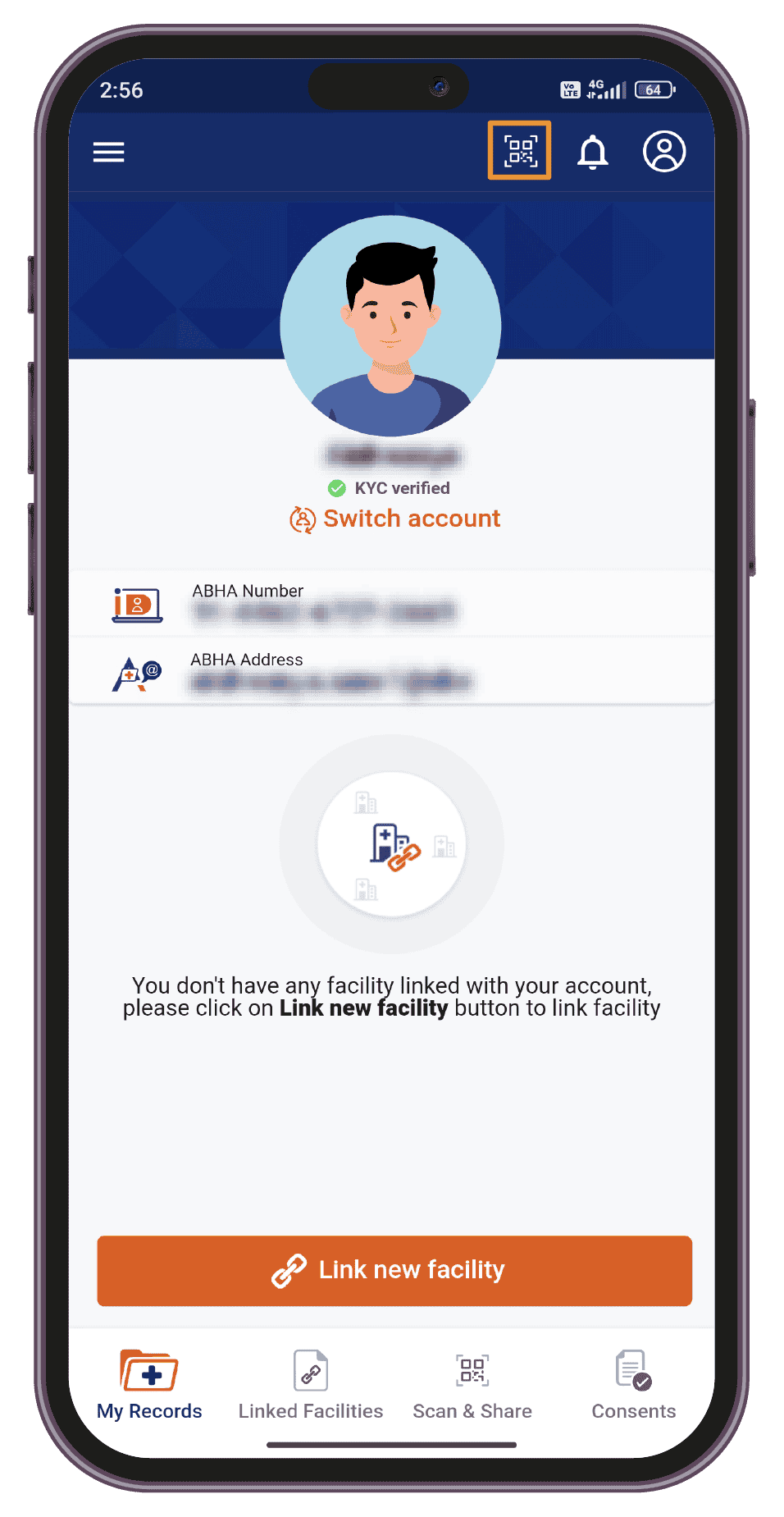
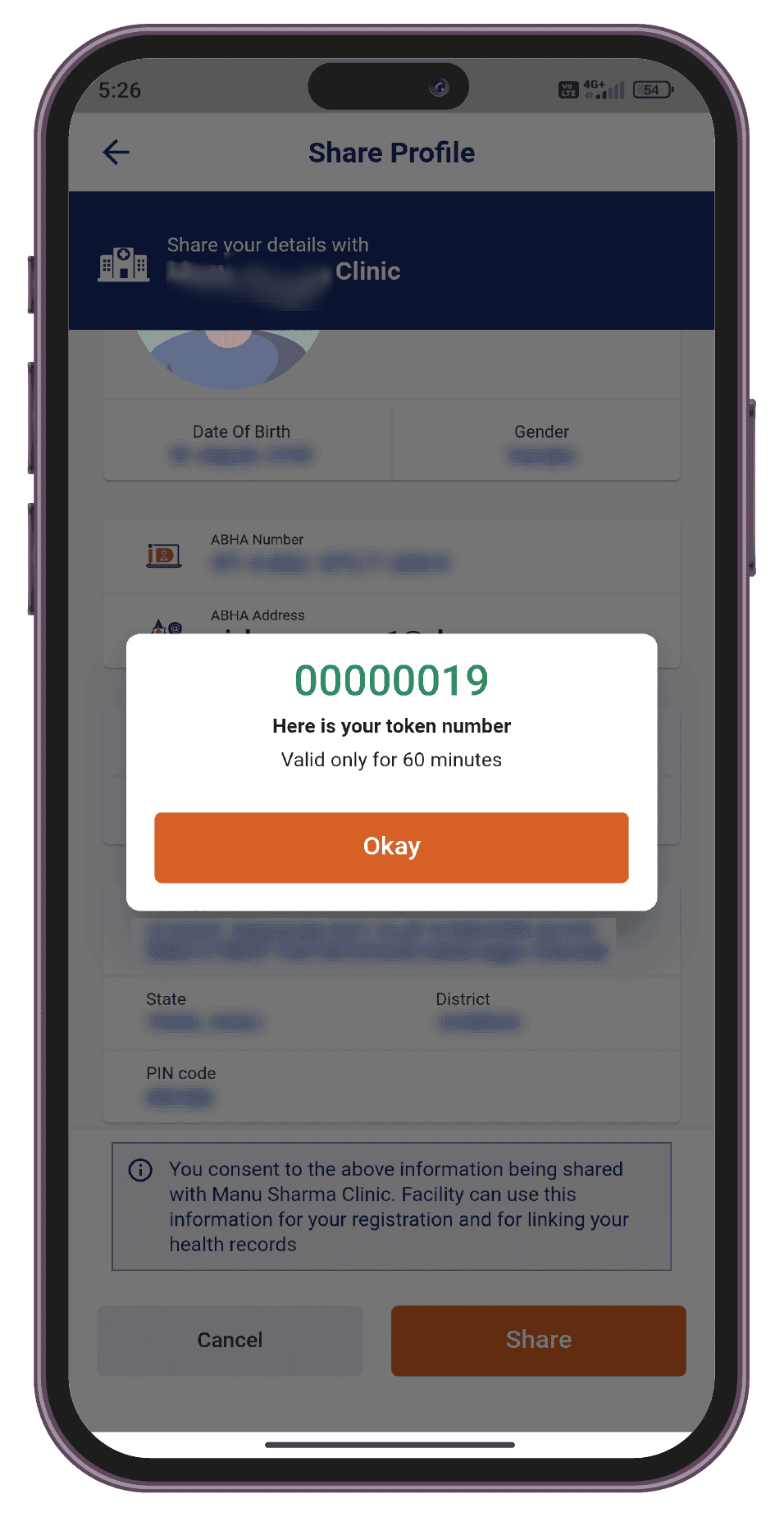
Note - The Facility is required to configure the QR code from the EHR settings page and paste a copy on the counters beforehand.
Once done, the Patient will receive a token number that is valid for 2 hours, and the Clinic will be notified about the patient's visit.
After the Patients create visit tokens, the Clinic counter staff can navigate to the 'ABHA Consents > Register Request Patient Details' section to view and manage the tokens.
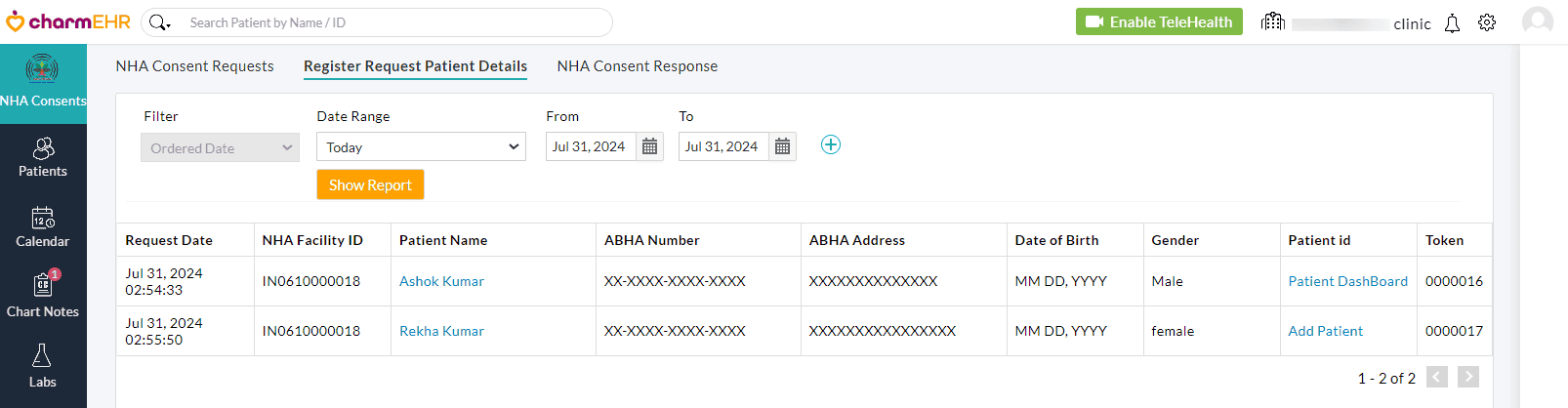
For existing patients, click the 'Patient Dashboard' link to auto-fetch their EHR profile. If a patient is new, the counter in charge can click the 'Add Patient' link available here to register them. It walks you through the register/link patient workflow as described earlier.
Raise NHA Consent Request
The ABHA app's privacy policy states that the patient's consent is required for the collection, use, or disclosure of personal health data.The ABHA ecosystem acts as a consent manager allowing healthcare professionals to raise requests and patients to grant access.
Doctors/Clinics can raise a NHA Consent request for the following reasons:
- To fetch records of existing patients from other clinics
- To fetch records of new patients from other clinics
Members with the appropriate role privileges can initiate NHA consent requests for both existing and new patients by following the below steps.
- Go to the 'NHA Consents > NHA Consent Request' tab and click the '+NHA Consent Request' button.
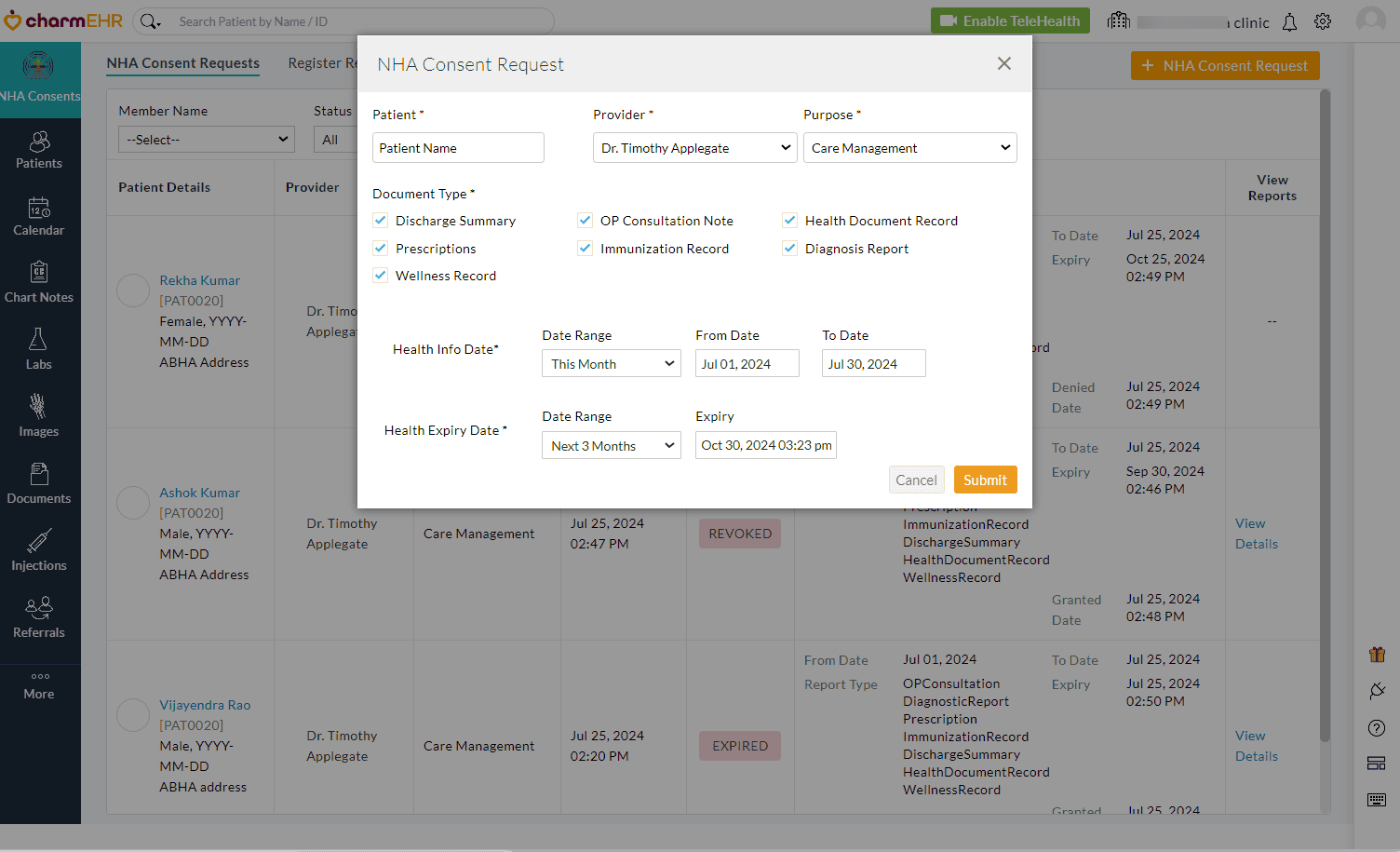
- Choose the 'Provider', 'Patient', and 'Purpose' from the respective drop-downs.
- Select the required checkboxes under 'Document Type'
- Use the 'Health Info Date' field to choose the medical history period you want to access.
- Next, configure the 'Health Expiry Date' based on how long you want to access the shared health data.
- Click the 'Submit' button.
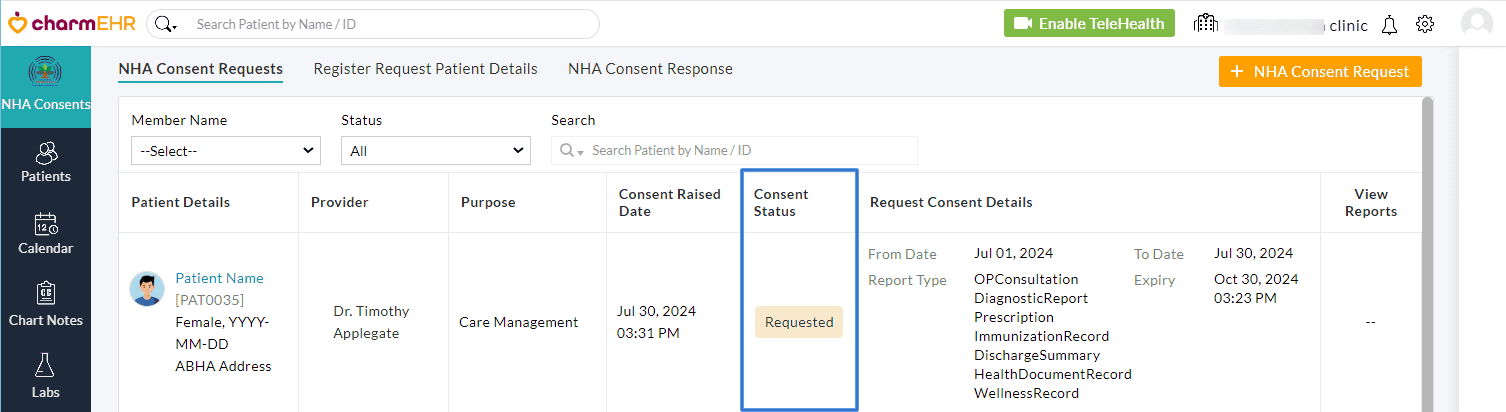
Once the NHA consent request is raised, the patient will get notified through their ABHA PHR app. The request Status updates can be viewed under the 'Consent Status' column.
Patient ABHA-PHR Workflow
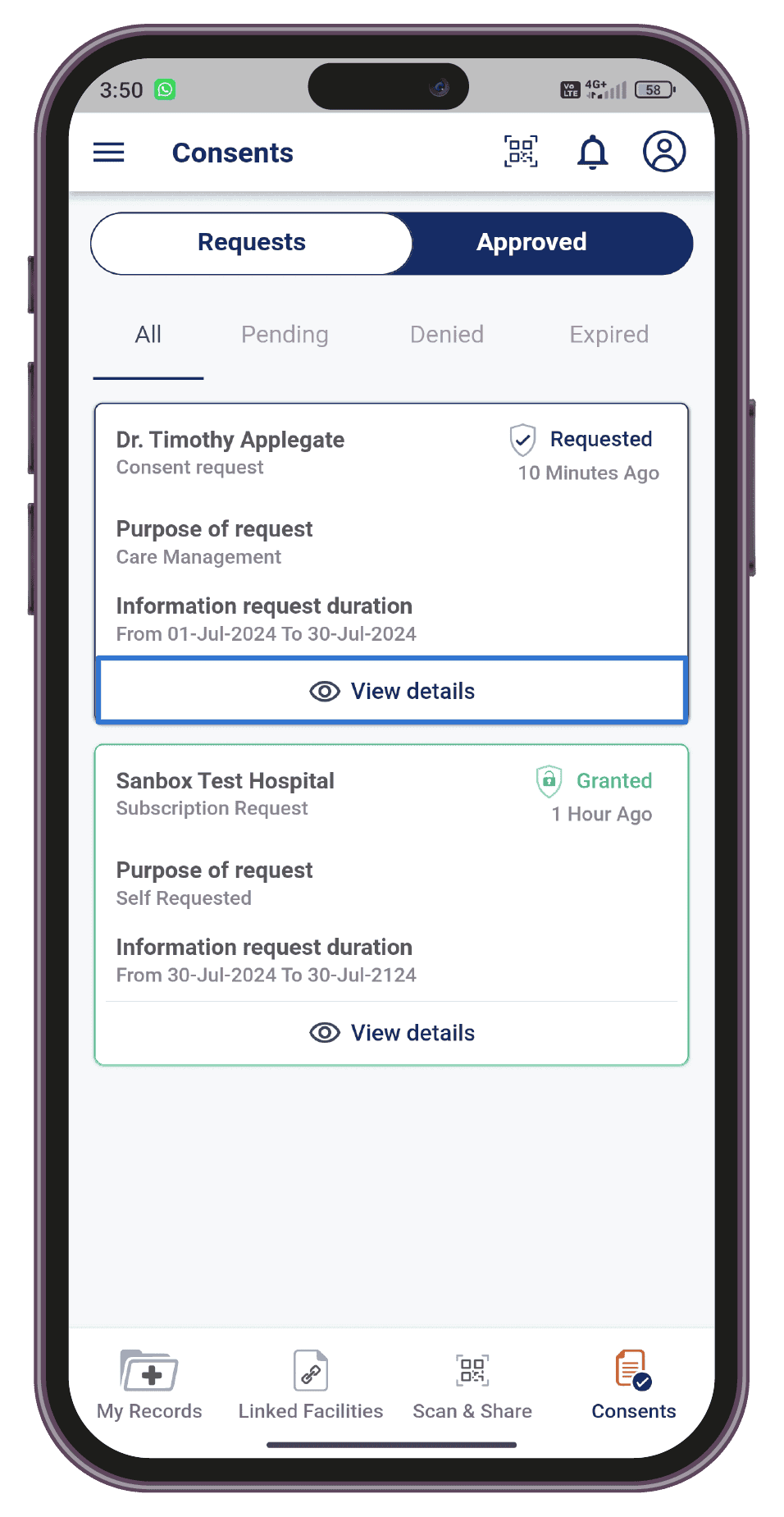
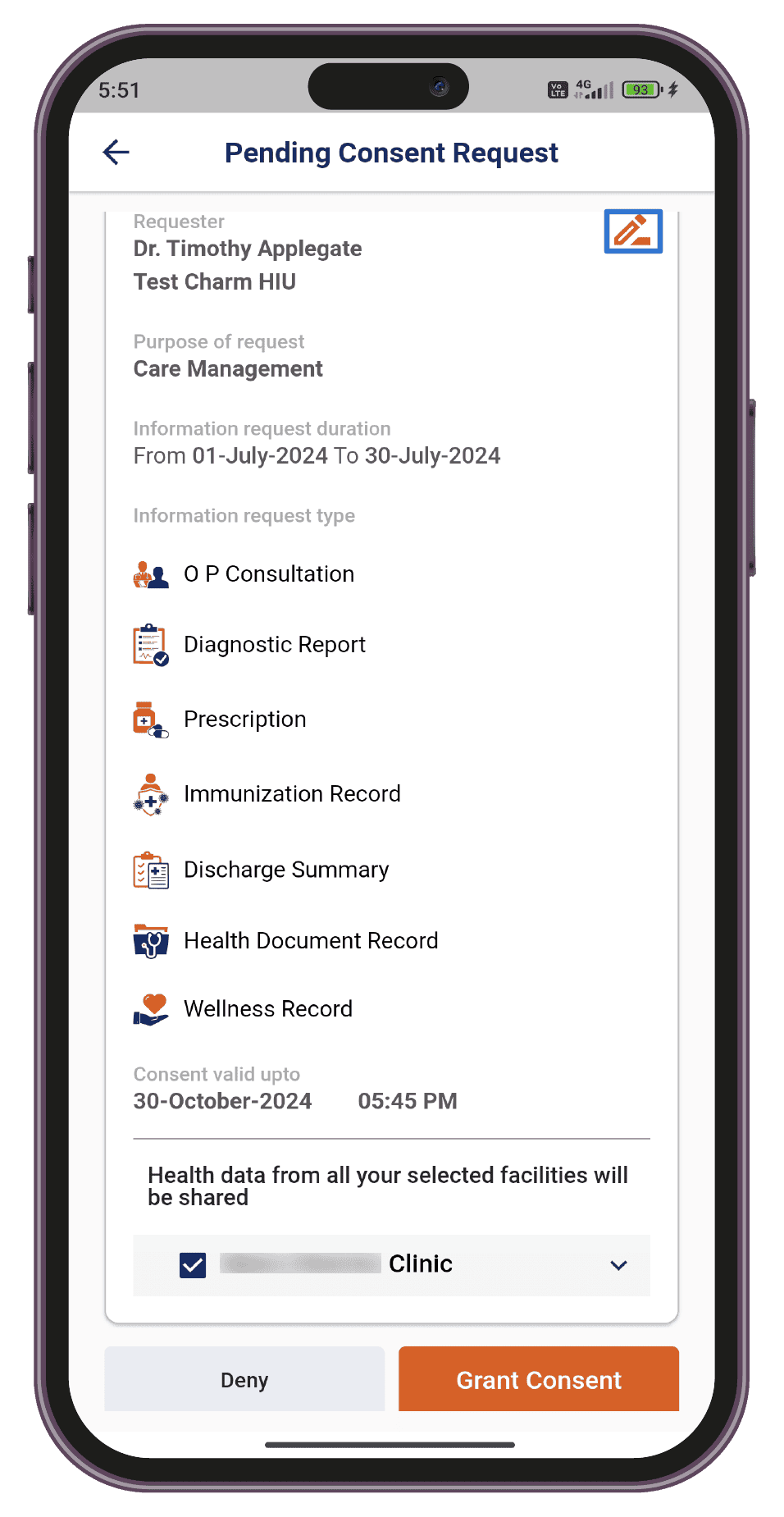
The Patient can grant, deny, or modify the documents, medical history period, and access duration requested by the Clinic using the ABHA PHR App as shown in the images below.
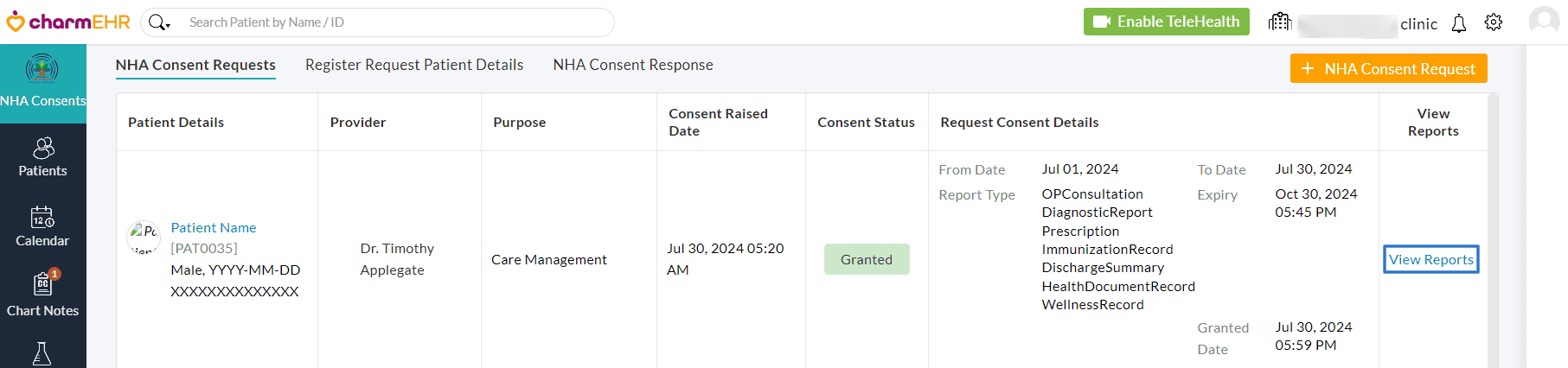
Clinic members can view only the patient health data they have been granted access to. After access is granted, click 'View Reports' to see records from various clinics.
Then click 'Pull Records' to view data from specific clinics. You will be notified on the EHR dashboard when the data is received, and you can view detailed information by clicking any report link.
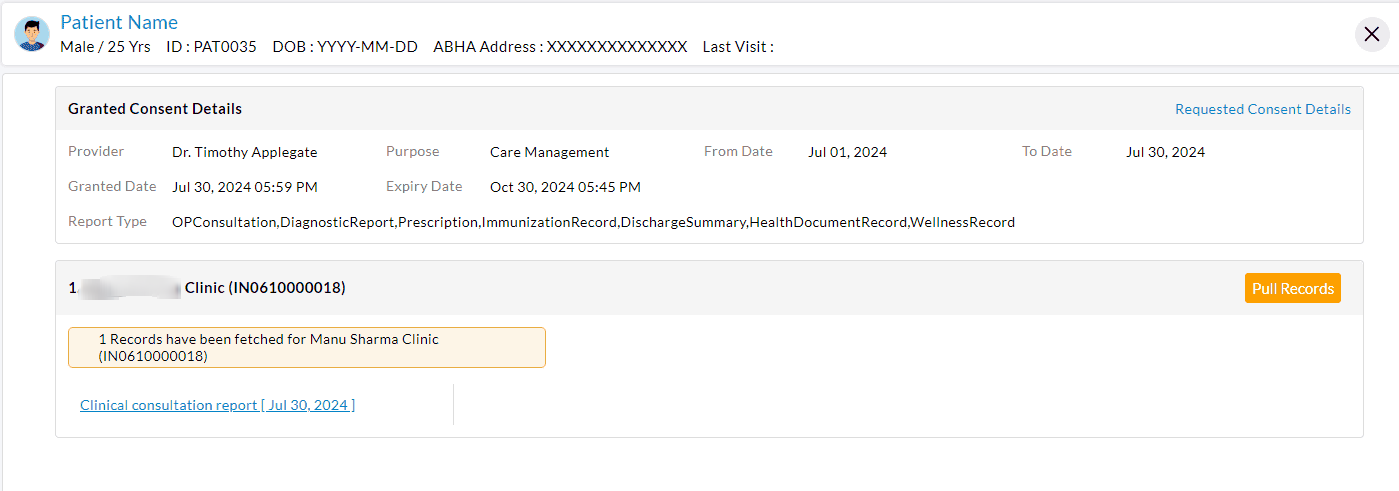
Click any one of the report links to view the detailed Patient data from a particular clinic.
Note - The Clinic cannot access the health data shared, post the expiry period. Additionally, the Patient can revoke access anytime after granting consent if needed. This again restricts the Clinic from accessing the shared data immediately.
Share Chart Note to ABHA
Once a patient is registered and their health records are accessed through the NHA consent request, the doctor can begin the consultation. After the consultation, the doctor can directly link/share the chart note information to the ABDM ecosystem by following the steps below:
- Start a consultation, fill in the necessary information, and 'Sign'.
- Click the 'Share to ABHA' button.
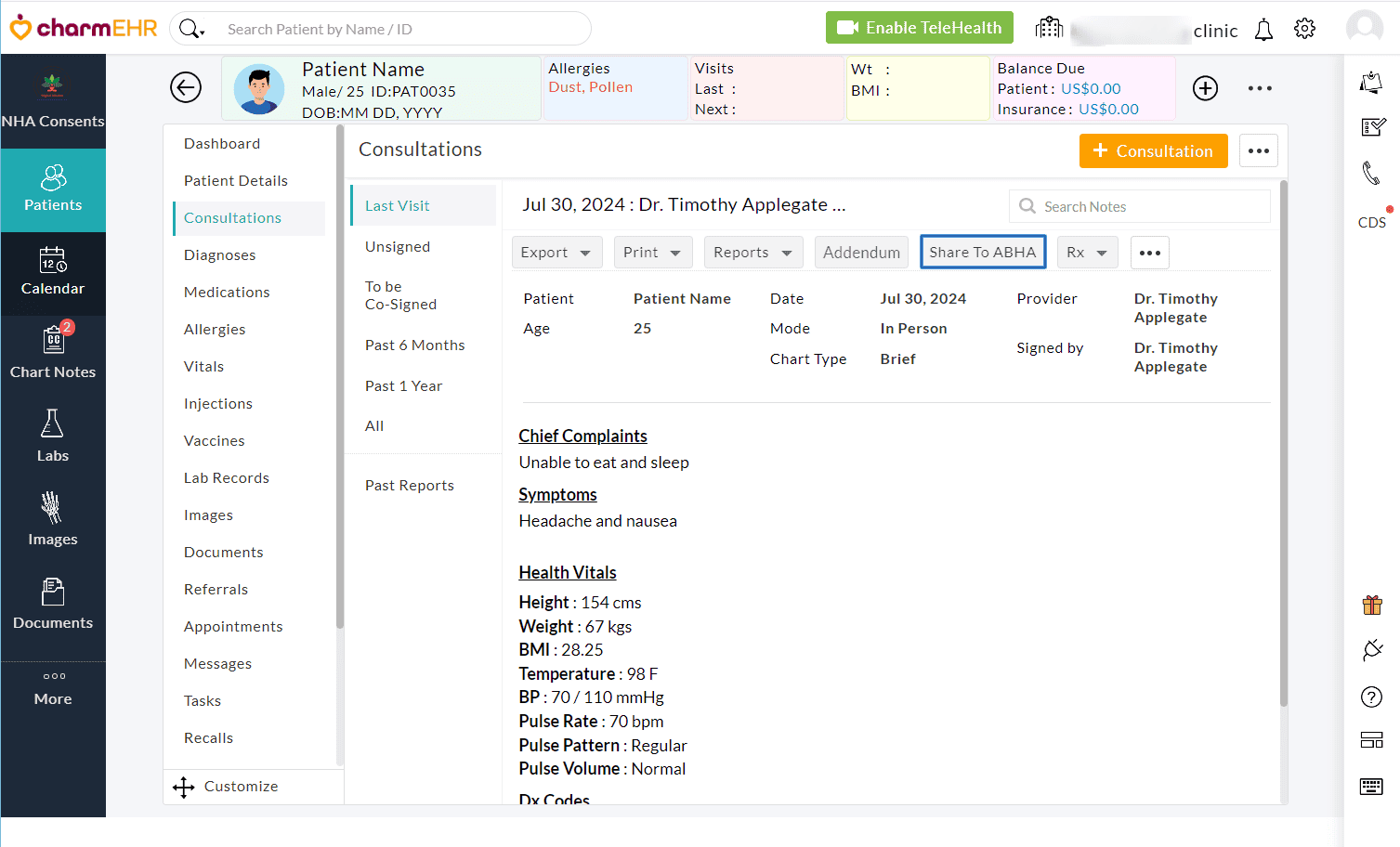
- Then, choose any one of the following options:
- Default ABHA Address using Demographics: This option links the consultation created in CharmHealth EHR with the ABHA ecosystem.
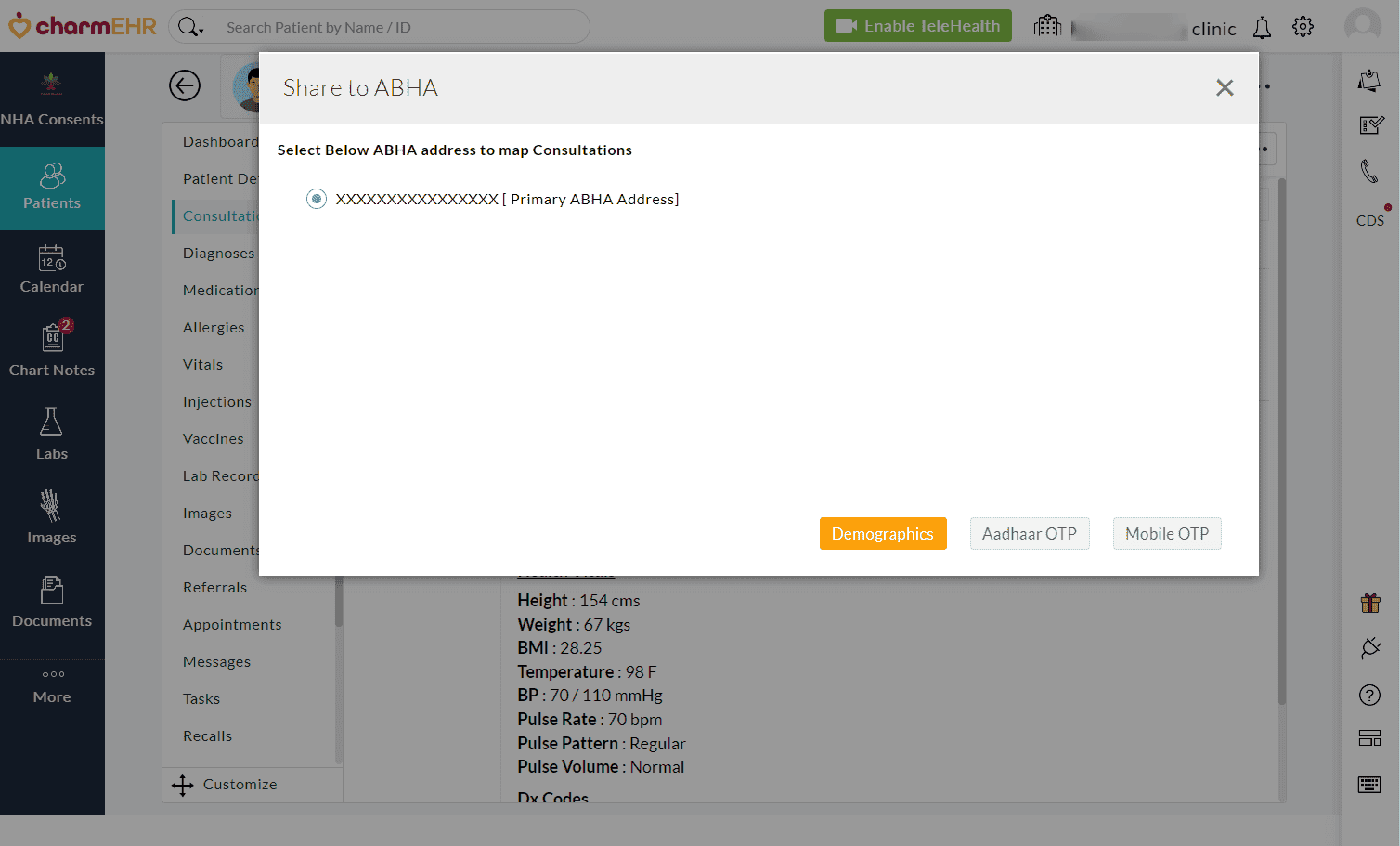
- Aadhaar OTP: This option requires OTP authentication from the Patient's Aadhaar-registered phone number for linking the consultation with the ABHA ecosystem.
- Mobile OTP: This option shares the care context with the patient's ABHA address after OTP authentication through the entered phone number.
- Default ABHA Address using Demographics: This option links the consultation created in CharmHealth EHR with the ABHA ecosystem.
Share Consultation with Unregistered Patient
If the patient is not registered with ABHA or their ABHA details aren't linked to their EHR profile, click the 'Share to ABHA' button. ABHA sends an SMS notification to the patient's phone number configured in your CharmHealth Practice account.
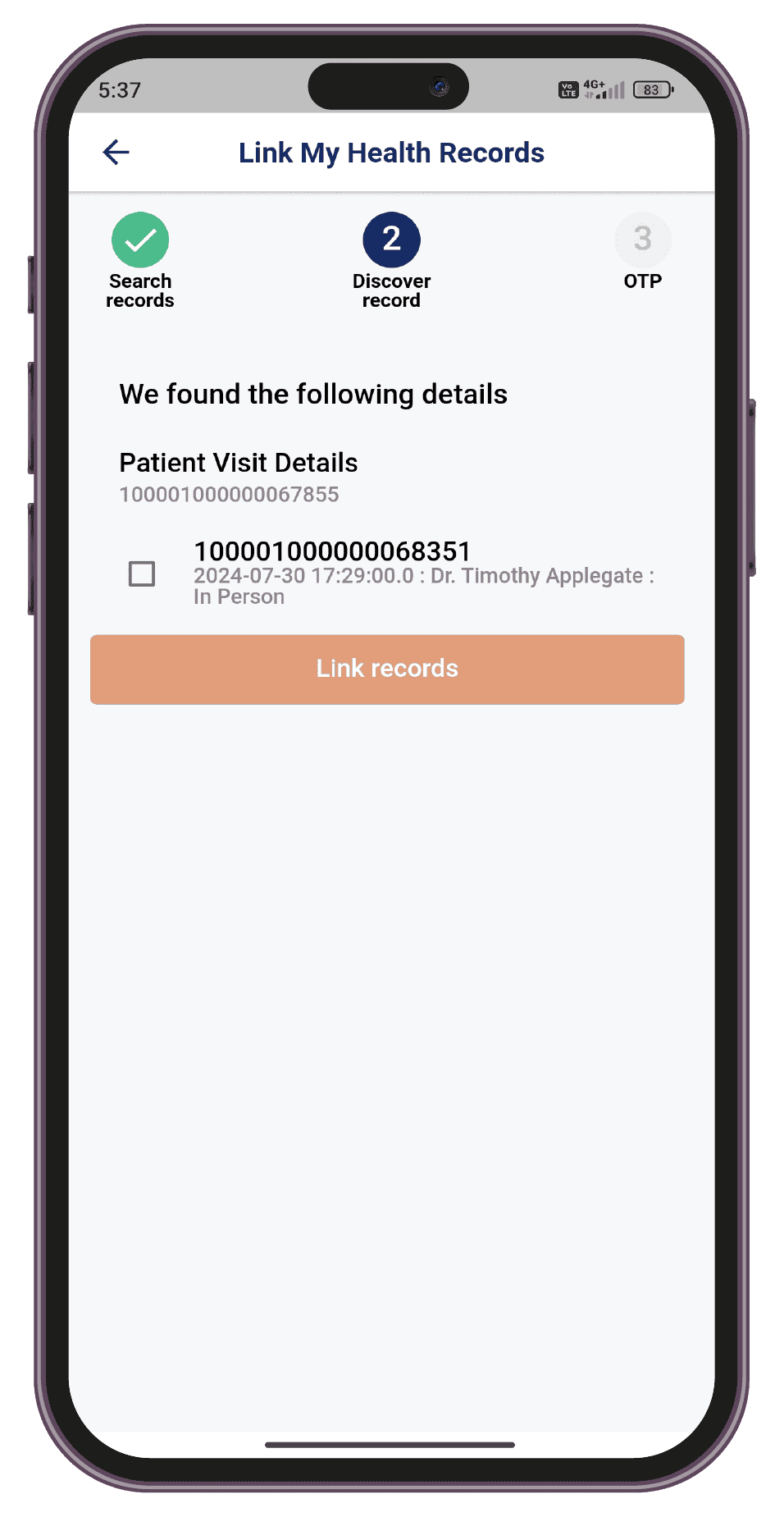
The patient can either create a health account or log in to ABHA to view the shared care context.
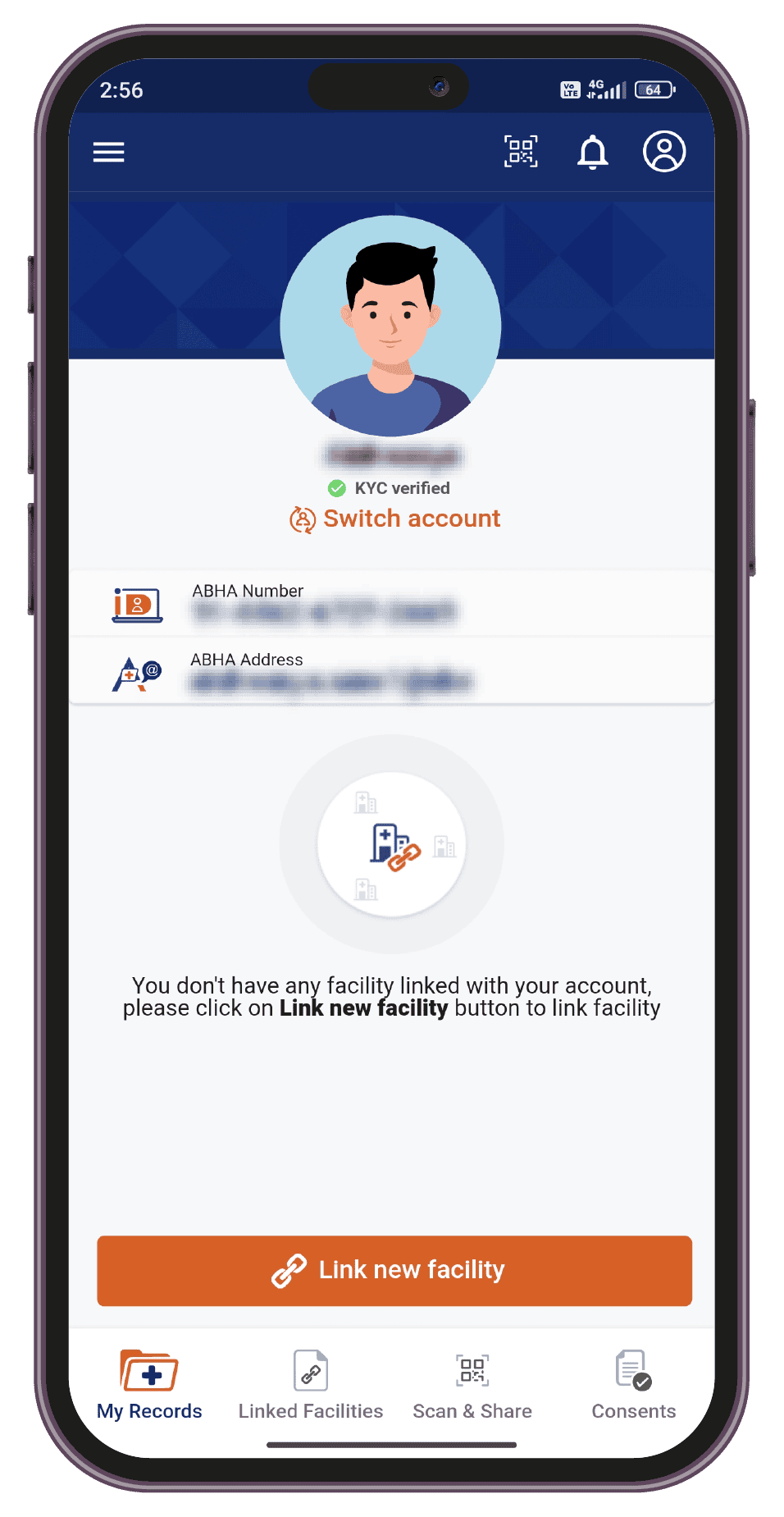
Note - If the facility is not linked, the Patient can click on the 'Link New Facility' button to search and select the facility, and complete the authentication to link the facility for accessing their records.
History of Records Shared from CharmHealth Account
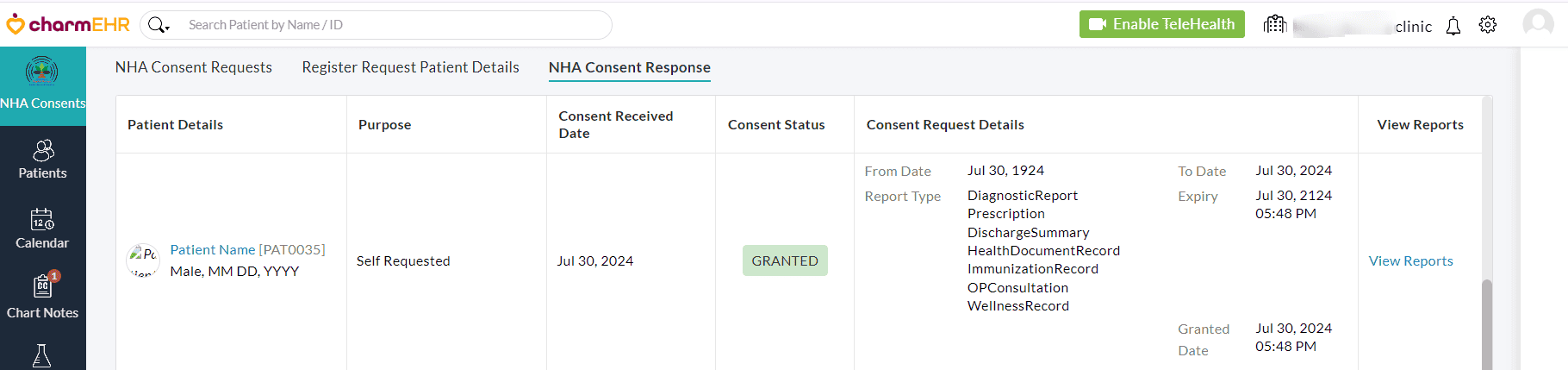
Similar to you, other clinics can also raise NHA consent requests to access the health information of a patient available in your clinic. In such cases, the ABHA ecosystem fetches the data from your records and shares it as soon as the patient grants consent. The 'NHA Consents > NHA Consent Response' tab displays the consent status as and when it gets updated along with the reports shared from your clinic through the ABHA ecosystem.