Welcome to CharmCopilot
CharmCopilot is an AI-native, interactive clinical assistant built into the CharmHealth EHR, empowering clinicians and staff to streamline workflows, reduce burnout, and accelerate clinical documentation. CharmCopilot integrates intelligence into your daily workflow, moving you closer to a prompt or voice-driven EHR.
Note: AI-generated content may contain inaccuracies/errors
With CharmCopilot, you can:
- Nurse Triage - Automatically captures Nurse–Patient interactions into actionable medical records for documentation.
- Patient Summarization - Generates comprehensive patient history summaries with key insights and abnormal trends for clinical decision-making.
- Charting Assistant - TAI-powered, real-time clinical support that assists with charting, assessments, diagnoses, and treatment recommendations during encounters.
- Interactive Copilot - Conversational AI interface provides instant answers, clinical guidance, and workflow assistance during patient care.
Watch the video to explore how CharmCopilot streamlines documentation in real time.
This guide provides an overview of how to enable and use CharmCopilot effectively in CharmEHR workflows.
- CharmCopilot Subscription Plans
- Enabling and Setting Up CharmCopilot
- Nurse Workflow
- Provider Workflow
- Interactive Copilot
- CharmCopilot Resource Bot
CharmCopilot Subscription Plans
CharmCopilot is available in two tiers, allowing practices to choose the level of functionality based on their needs:
- CharmCopilot Free - includes essential capabilities for basic usage within the practice. This plan provides access to the following modules:
- Charting Assistant (2 Encounters per day)
- Text-Based AI Assistant
- Resource Bot
- CharmCopilot Professional - Includes unrestricted access to all Copilot modules and advanced capabilities, enabling comprehensive workflows without usage limitations.
For a detailed comparison of Copilot's pricing and features, or to schedule a demo, refer to the CharmCopilot Page.
Enabling and Setting Up CharmCopilot
The Practice Admin or Office Manager can follow the steps below to subscribe and enable CharmCopilot for the practice:
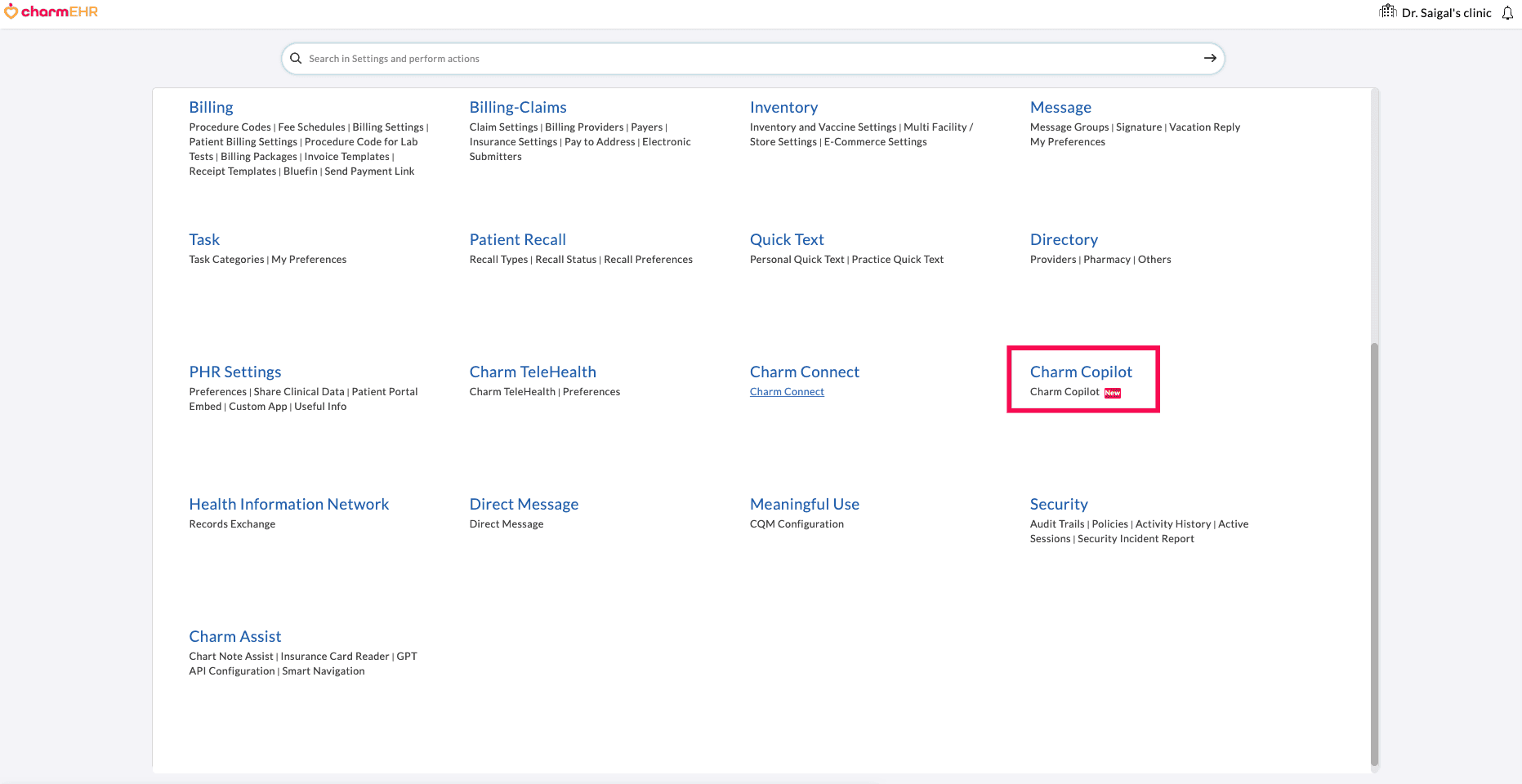
- Navigate to 'Settings > CharmCopilot'
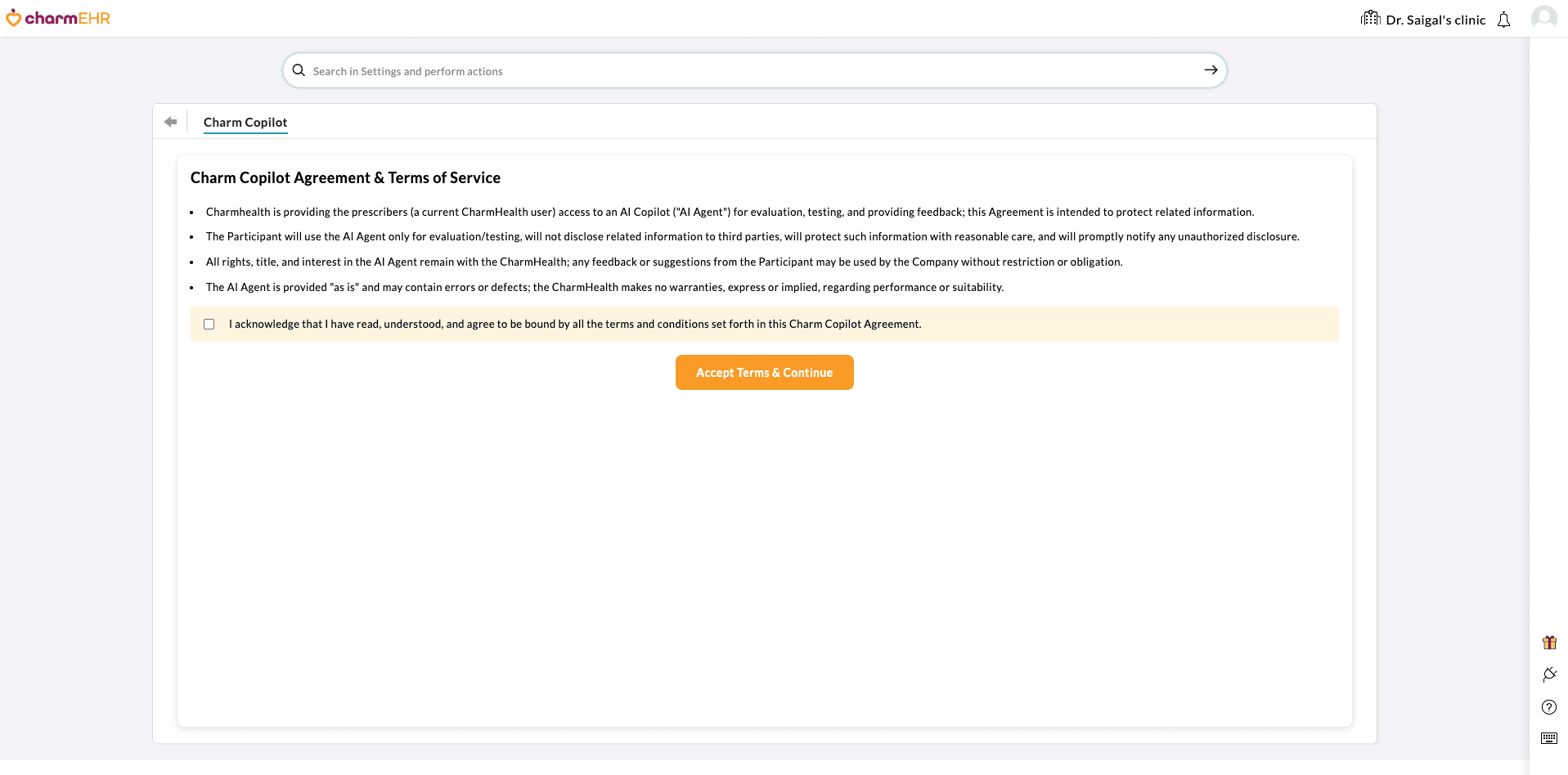
- Review and acknowledge the 'CharmCopilot Agreement', then click on
the 'Accept Terms' button to continue.
- Enable the 'Copilot Free plan for all' option to provide 'Copilot Free' tier access to all practice members.
- You can customize settings for individual members by clicking on the
'Customize Copilot for Members' button.
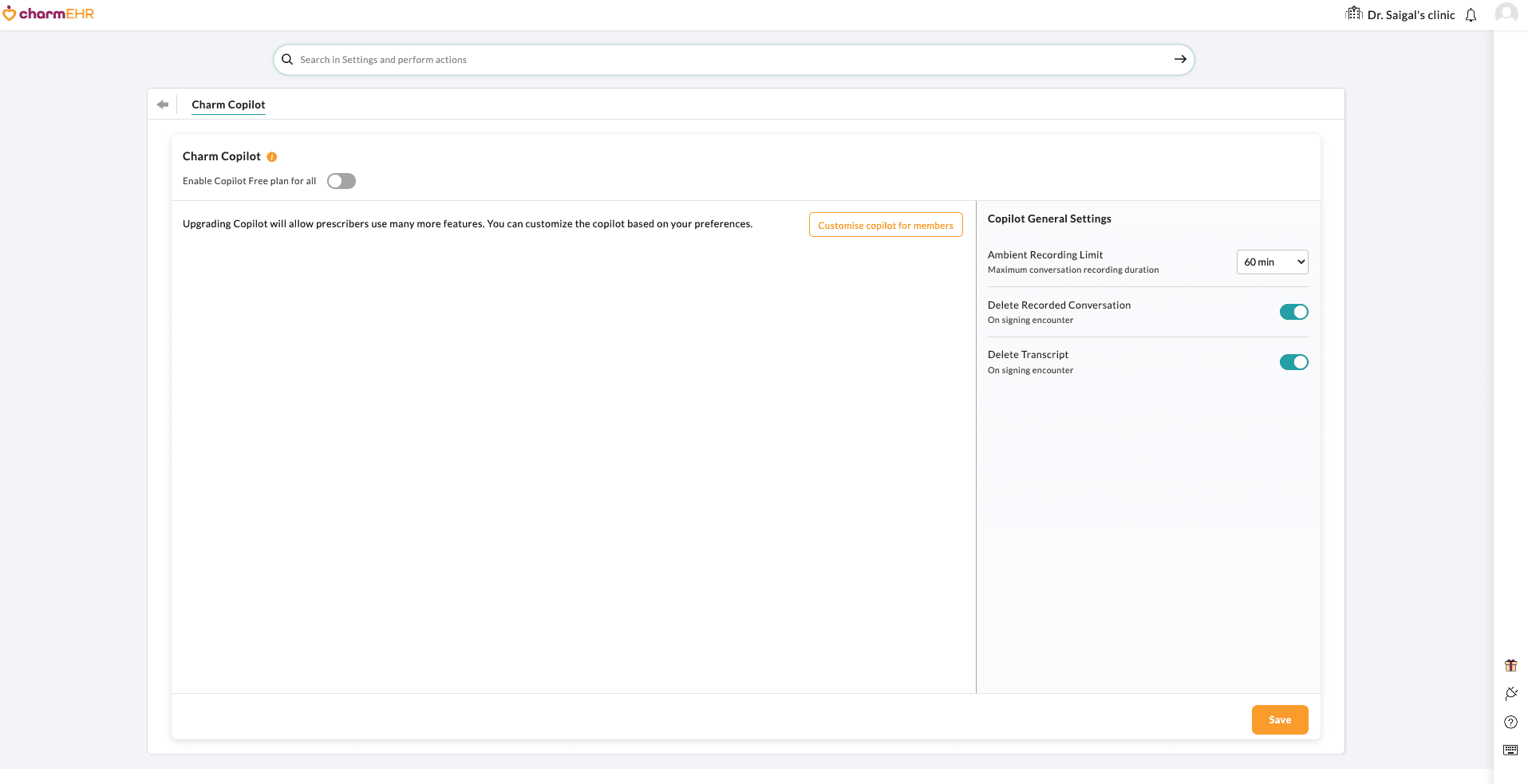
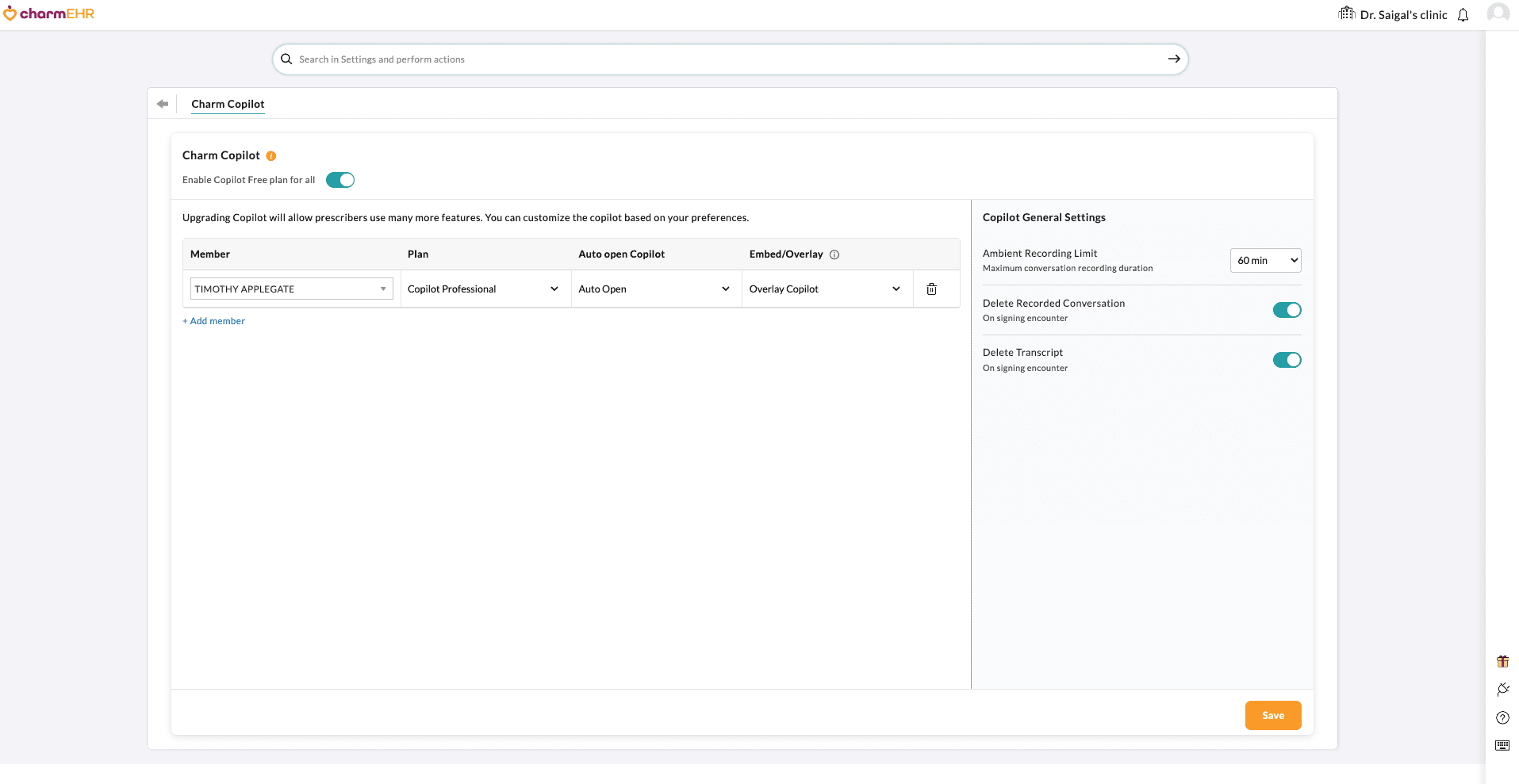
- Click on 'Add member' to add Copilot users.
- For each member, configure the following options:
- Plan - Select Copilot Free or Copilot Professional
- Auto Open Copilot - Choose whether Copilot opens automatically when an encounter is opened.
- Embed/Overlay - Choose Copilot's placement within the encounter.
- For each member, configure the following options:
- Configure general Copilot settings for the practice:
- Ambient Recording Limit - Set the maximum conversation recording duration (15-90 minutes)
- Delete Recorded Conversation - Enable automatic deletion of recordings upon signing the encounter
- Delete Transcript - Enable automatic deletion of transcripts upon signing the encounter
-
Click the 'Save' button to update the configurations.
Nurse Triage
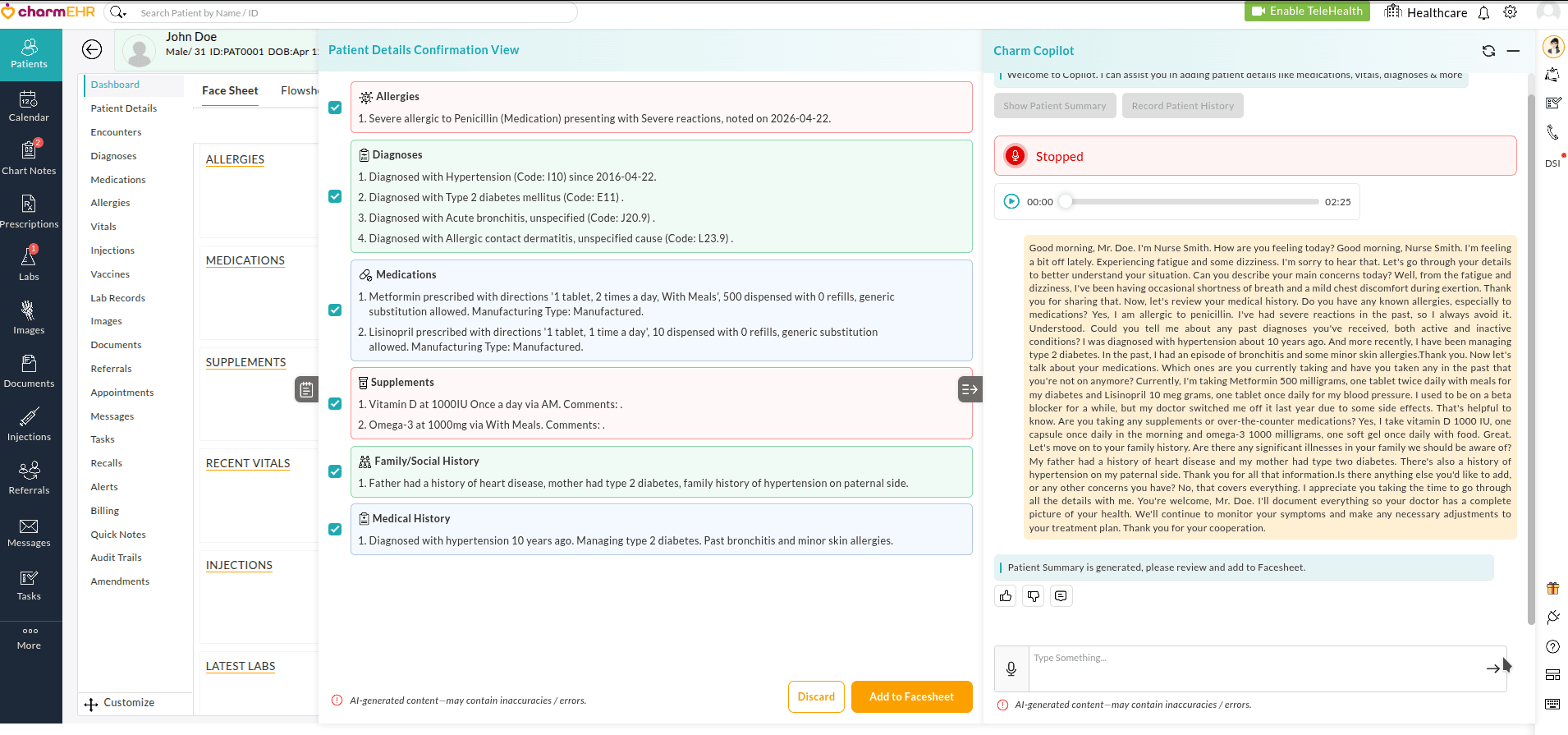
CharmCopilot automatically derives medical history from Nurse-Patient conversations and enables Nurses to review and add patient information (such as vitals, medications, allergies, and medical history) directly to the Patient Dashboard before the encounter.
Nurse Triage supports the following workflows:
Recording Patient History
Follow the steps below to record and summarize Nurse-Patient conversations to a Face Sheet:
- Navigate to the respective Patient Dashboard.
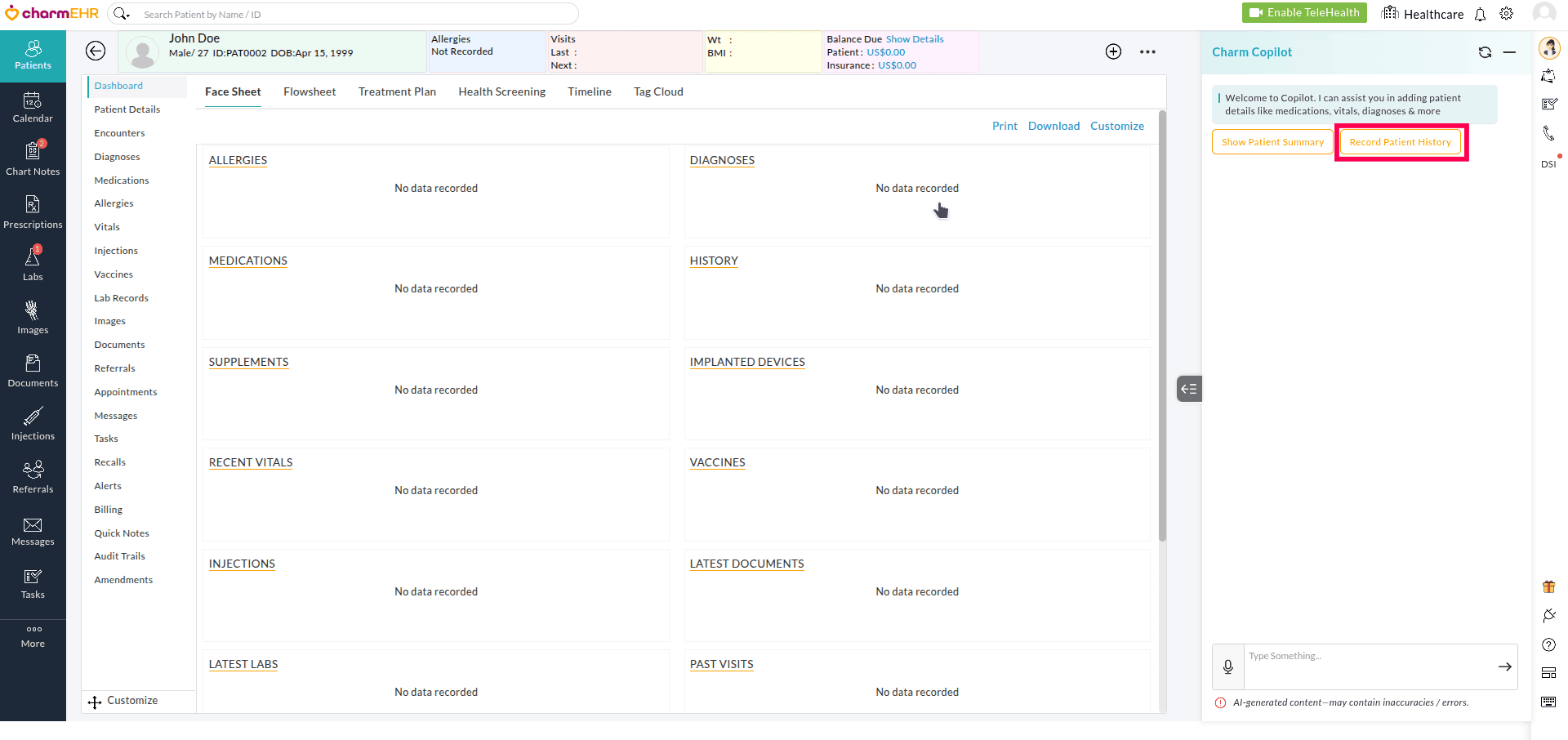
- Click on the 'CharmCopilot' icon.
- Click on 'Record Patient History'.
Note: Allow microphone access
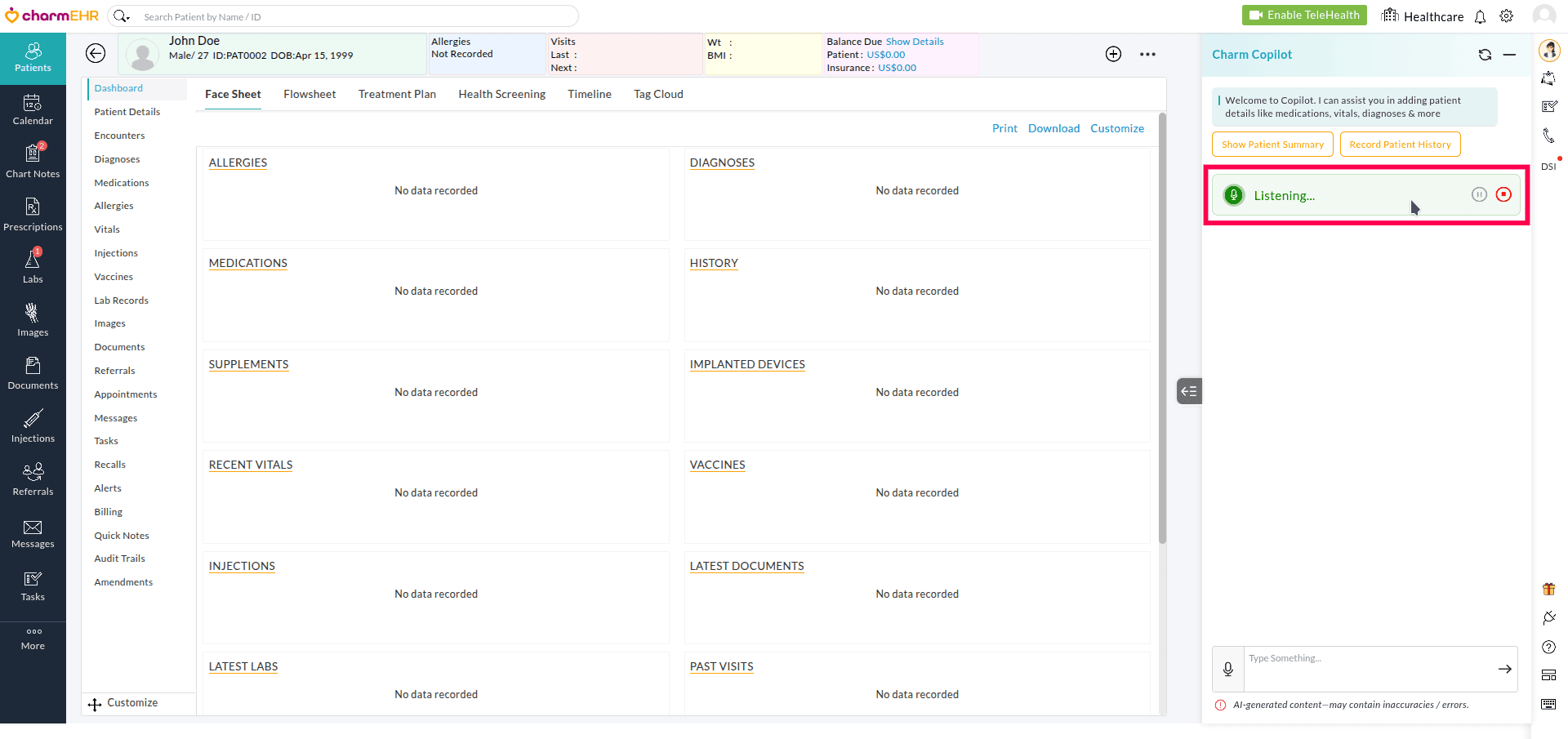
- Initiate your conversation with the Patient. Copilot listens and transcribes in real time.
- Use the'Pause' and'Resume' options as needed.
- Click on the 'Stop' icon to end the recording.
- Review the extracted details (for example, allergies, medications, and family history).
- All sections are included in the Face Sheet by default. Uncheck any section that you do not want to include.
- Click on the 'Edit/Delete' icon next to an entry to edit or delete it.
- You can also interact with Copilot to provide patient details as commands. CharmCopilot generates a patient summary that can be reviewed and added to the Face Sheet.
- Click on the 'Add to Face Sheet' button to update the patient history.
Creating and Updating an Encounter
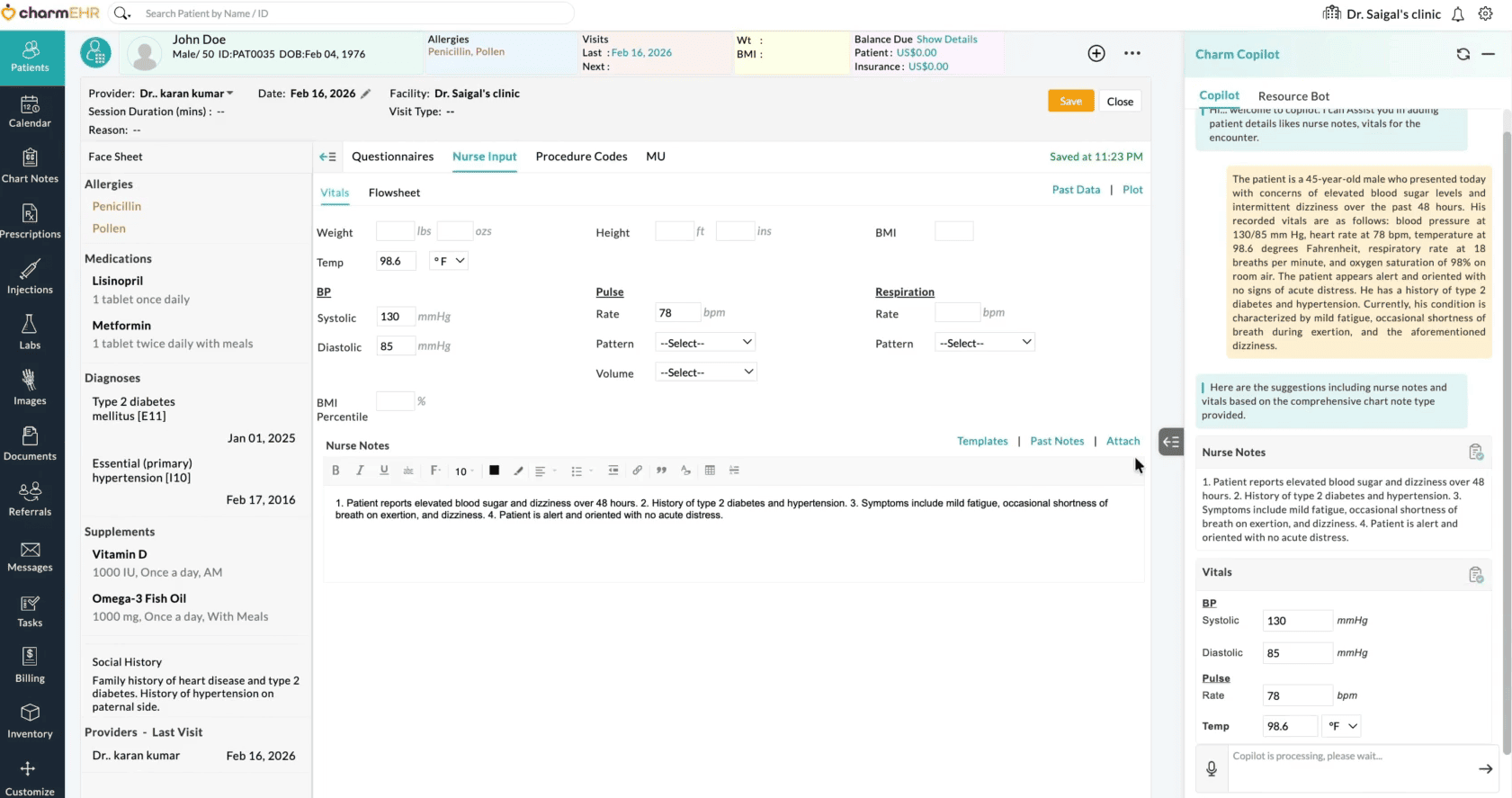
Once the Nurse completes the preliminary health assessment, an encounter is created in which Nurse Notes and Vitals can be documented via Voice Dictation.
- Navigate to 'Patient Dashboard > Encounters'.
- Click on the '+ Encounter' button and create a new encounter for the Patient.
- The CharmCopilot window opens by default to assist you in charting.
- Click on the Mic' icon in the Copilot window.
Note: Allow microphone access
- Dictate your assessment, including the Patient's vitals, chief complaints, and health history.
- Use the 'Pause' and 'Resume' options as needed.
- Click on the 'Stop' icon to end the recording.
- Click on the 'Send' icon.
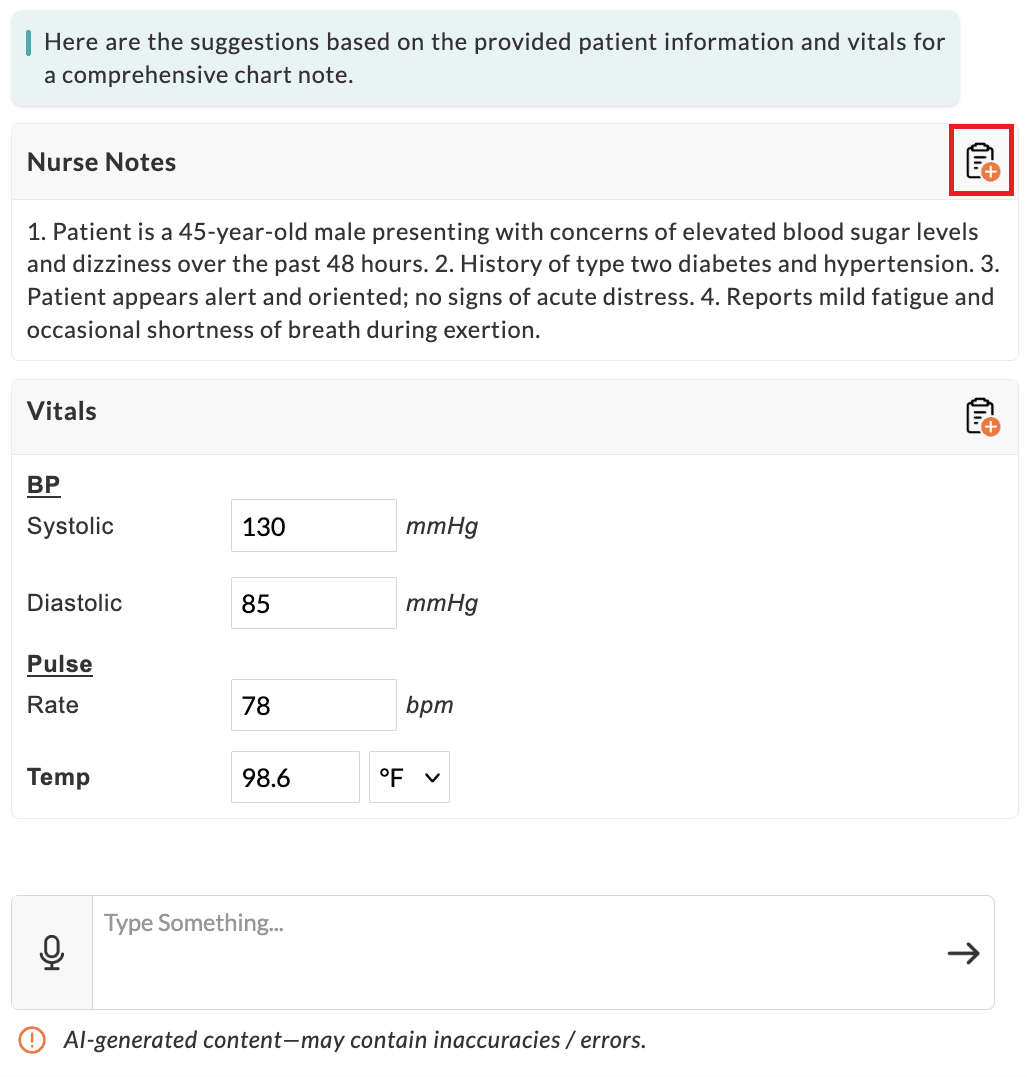
- CharmCopilot converts dictated input into structured sections such as Nurse Notes and Vitals.
- Click on the 'Add to Chart Note' icon next to each section to update the corresponding sections of the encounter.
Patient Summarizer
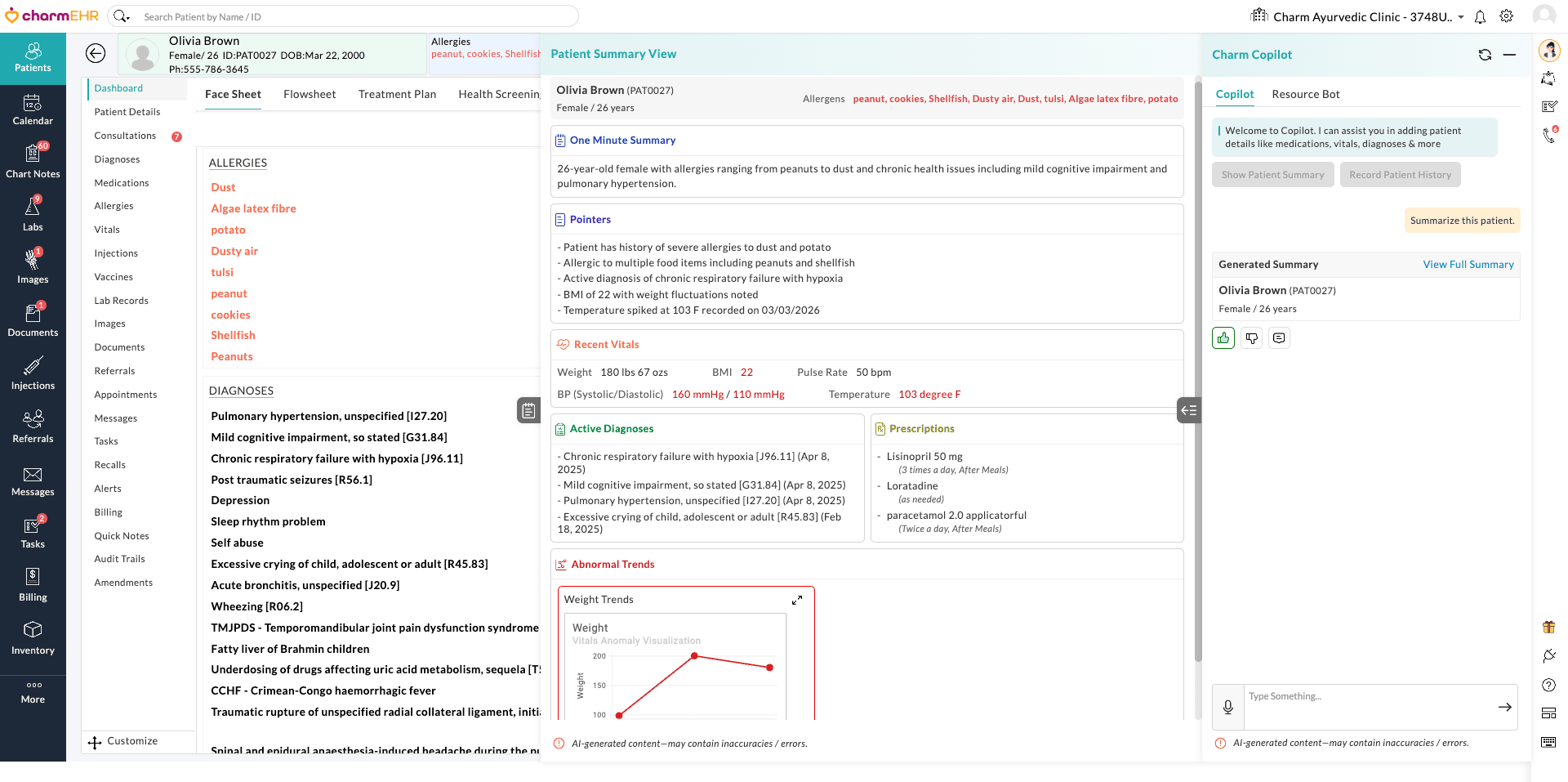
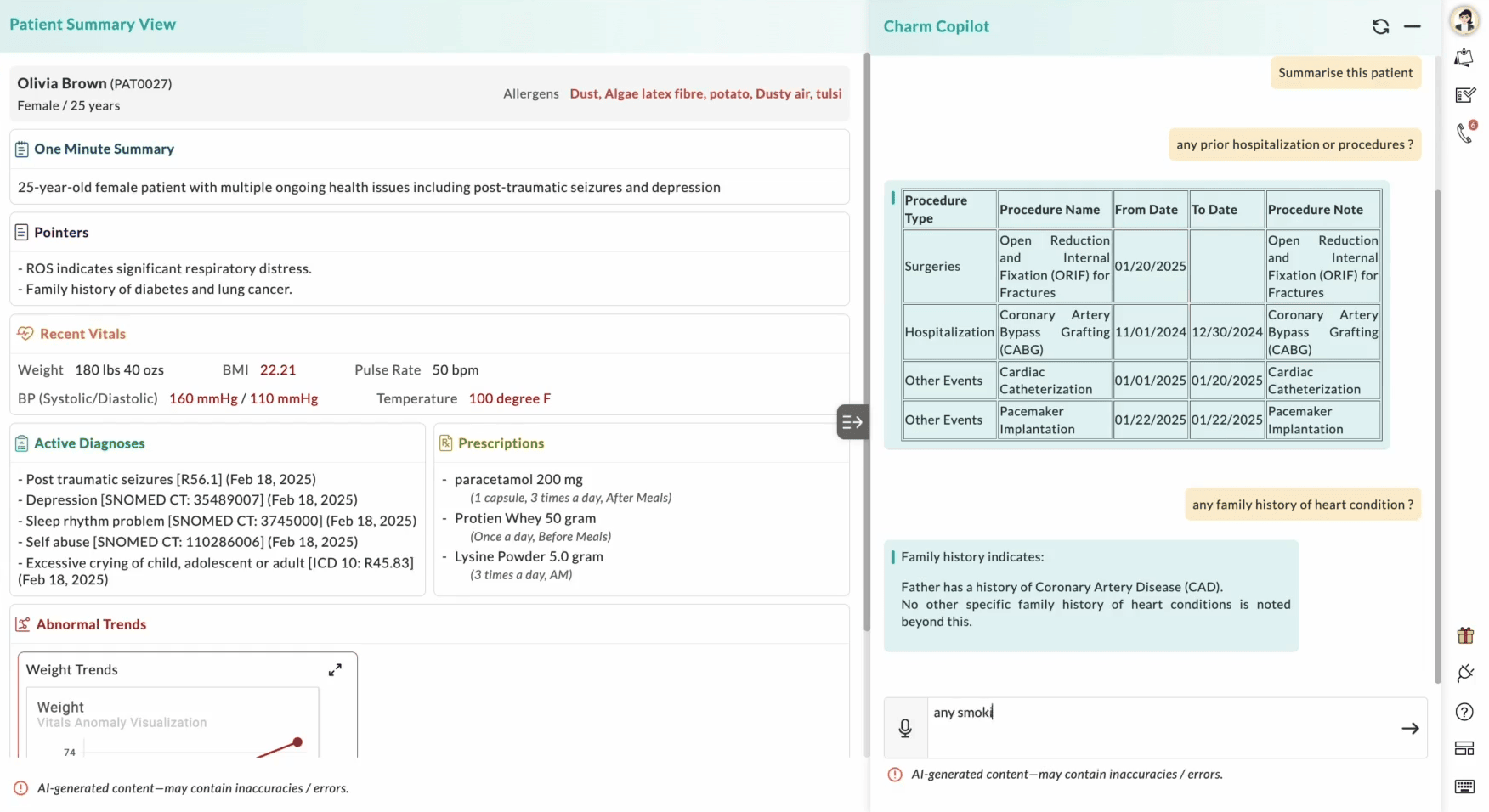
The Patient Summarizer generates comprehensive patient history summaries with key insights and abnormal trends to support efficient clinical care and decision-making. Providers can review the patient summary before starting the encounter to understand the Patient's key clinical details quickly.
- Navigate to 'Patient Dashboard'
- Click on the 'CharmCopilot' icon.
- Click on 'Show Patient Summary'.
- In the 'Patient Summary View' window, review the summary sections,
including:
- One Minute Summary
- Pointers
- Recent Vitals
- Active Diagnoses
- Prescriptions
- Review highlighted abnormal trends for quick clinical insights.
Charting Assistant
The Chart Note Assistant provides AI support for clinical charting. It listens in real time, extracts subjective and objective details, and generates assessments, diagnoses, and differential diagnoses with clear reasoning. It can also suggest treatment plans to support clinical decision-making while reducing documentation effort.
The Free plan supports up to two encounters per day.
- Navigate to the 'Patient Dashboard > Encounters' section.
- Locate the Chart Note with Nurse Notes from the 'Unsigned' chart status section.
- Click on the 'Edit' button to open the Chart Note.
- The CharmCopilot chart assist window opens by default to assist you in charting.
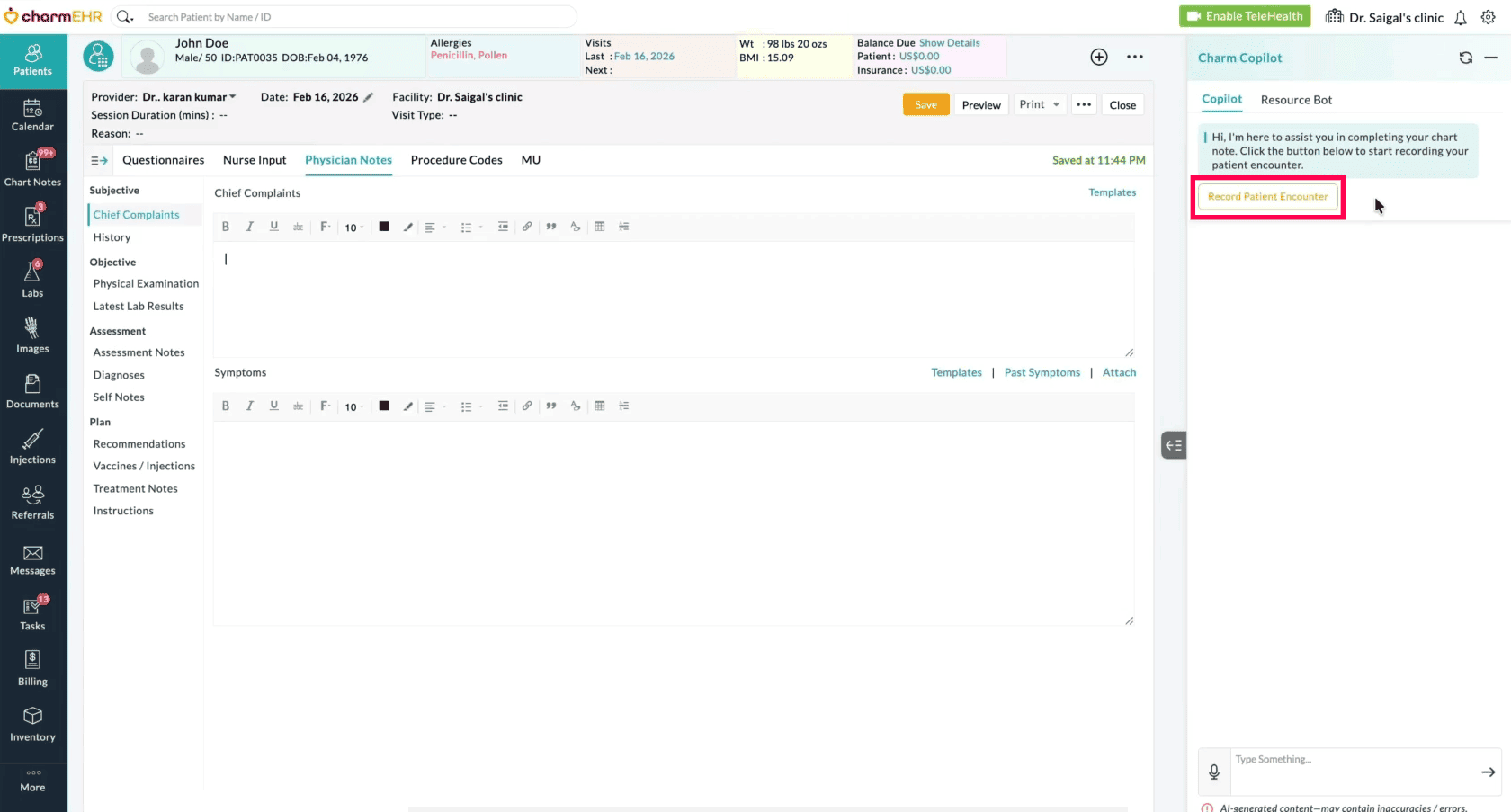
- Click on the 'Record Patient Encounter' and start your conversation
with the Patient.
Note: Allow microphone access
- Use the 'Pause' and 'Resume' options as needed.
- Click on the 'Stop' icon to end the recording.
Note: Copilot continues to listen and transcribe locally in the event of network issues. Click on the 'Resume Listening' icon to continue recording from where you left off in case of network instability or page refresh.
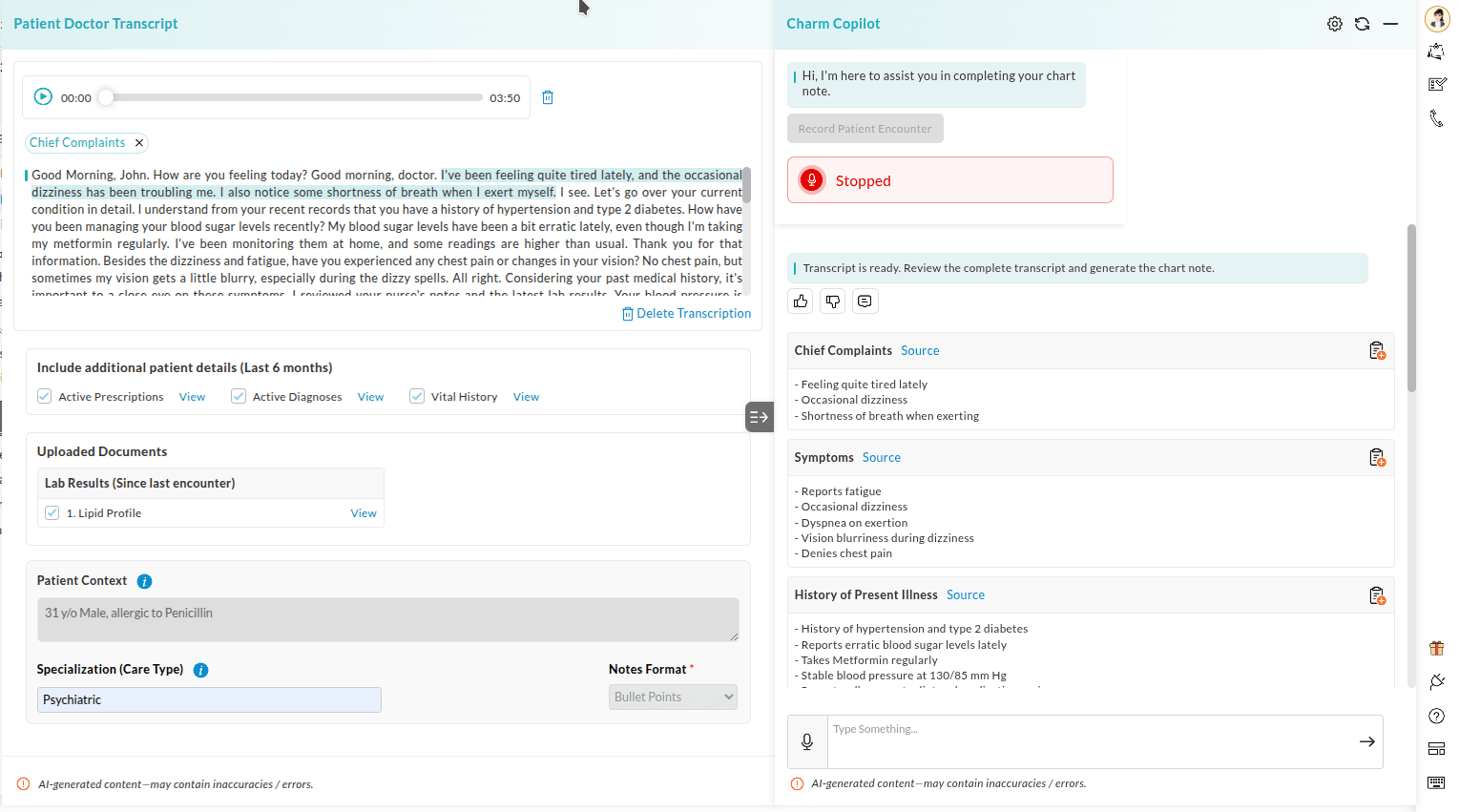
- The conversation is automatically transcribed in the left pane window and updates in real time. You can review and edit the transcript if required.
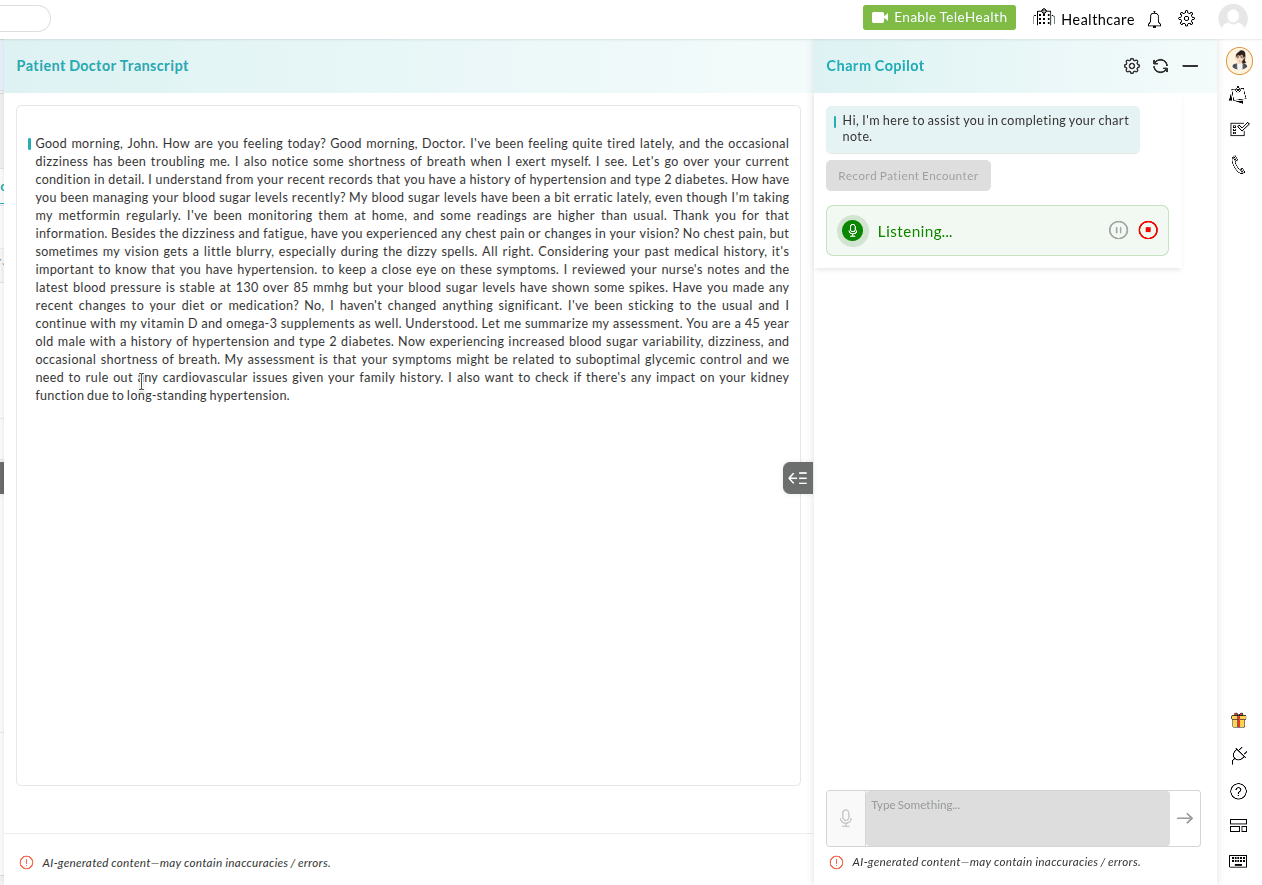
Note: The recording is automatically deleted after signing the chart note (if configured in CharmCopilot settings) or by default in 30 days
Generating Chart Notes
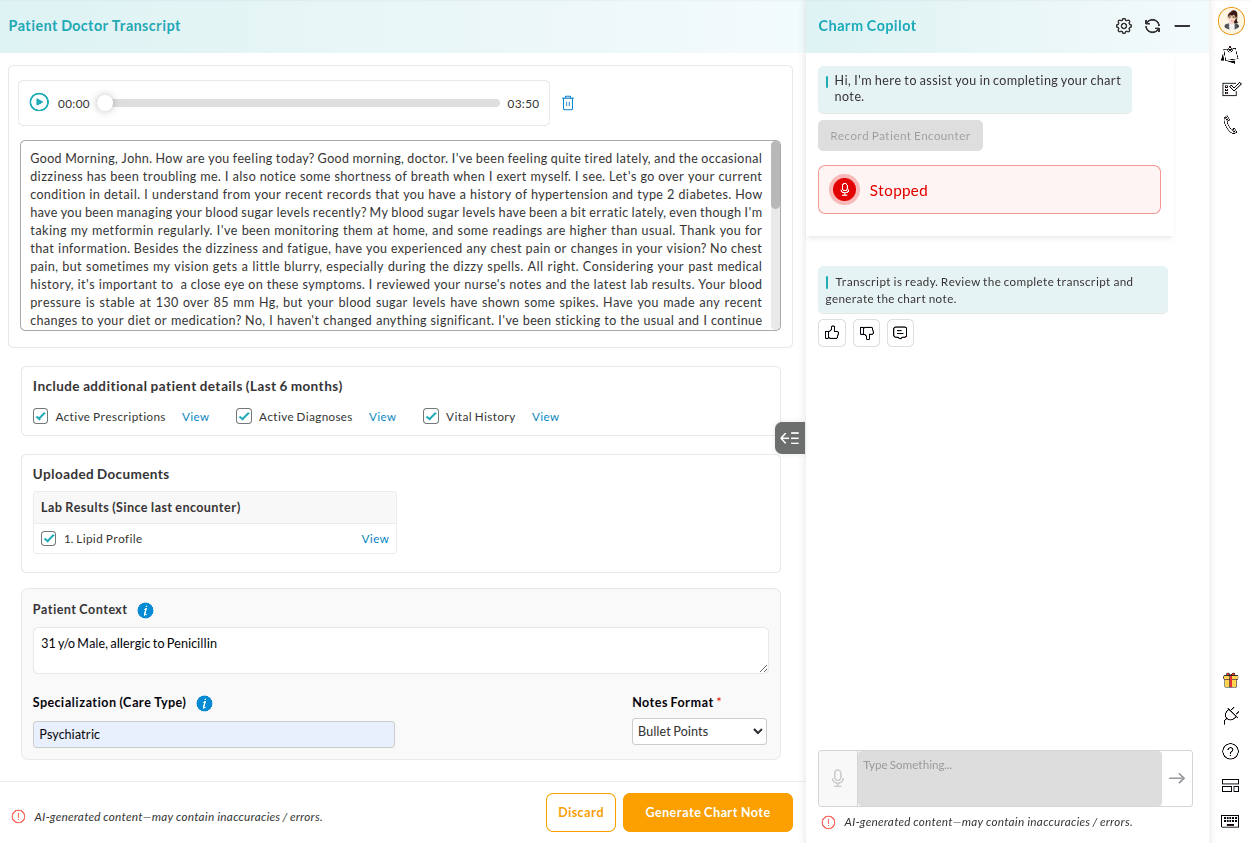
Before generating Chart Notes, Providers can customize Notes and include additional patient details:
- To include additional patient details from the past encounters (up to six months back), click the checkboxes for Active Prescriptions, Active Diagnoses, and Vital History. Use the View option next to each item to review past entries in detail.
- To include information from Uploaded Documents (such as lab results since the last encounter), enable the corresponding option.
- Enter Patient Context such as age, gender, pronouns, allergies, and visit-specific information.
- Enter a relevant Specialization (Care Type)to tailor the Chart Note to the Provider's area of care.
- Select the Notes Format (Bullet Points or Paragraph) based on
documentation
preferences.
To Generate and Add Chart Notes:
- Click on the 'Generate Chart Note' button.
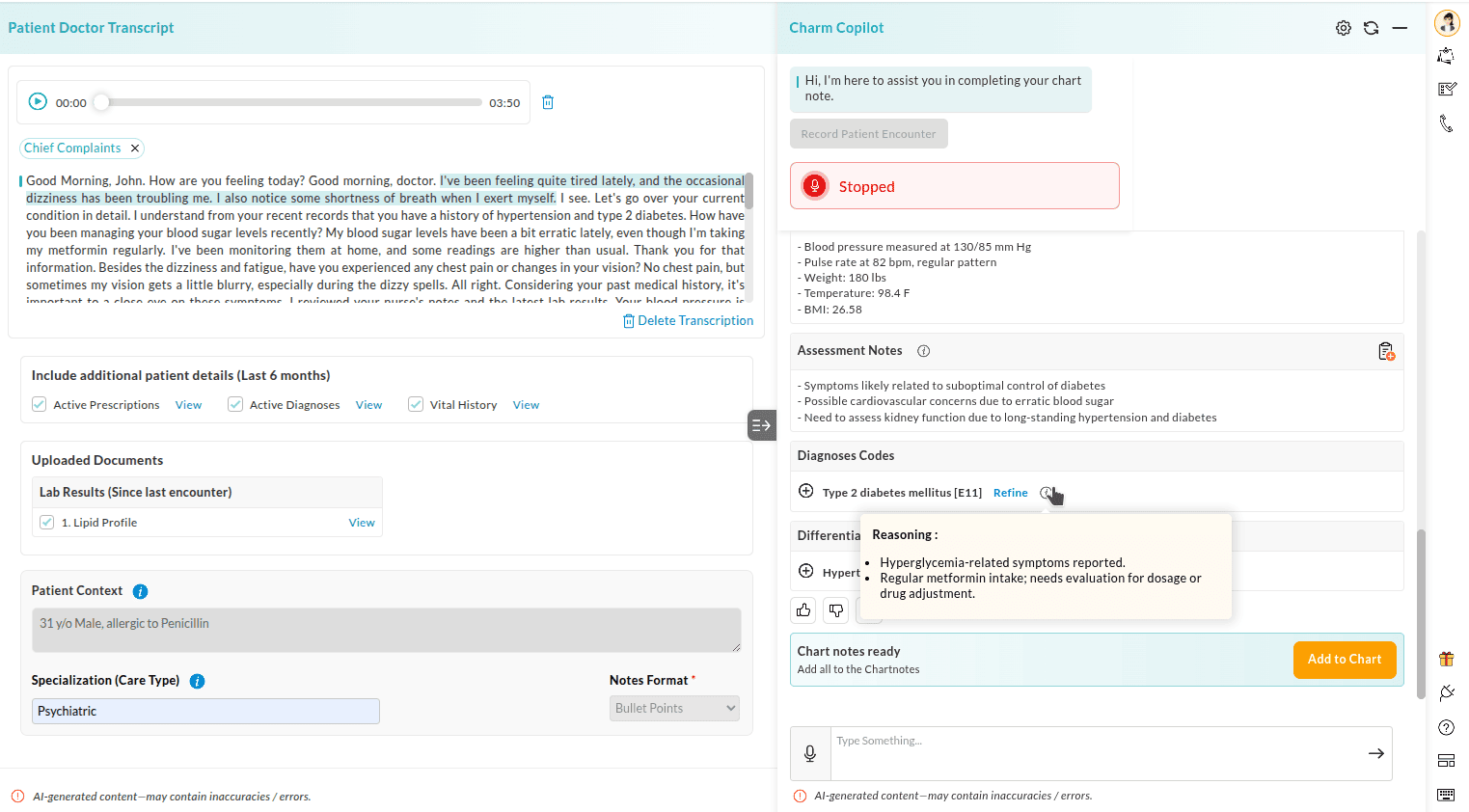
- CharmCopilot converts the transcription into structured sections, including Subjective, Objective, and Assessment Notes.
- Click on the 'Source' option next to each note to trace the corresponding source of origin from the transcript.
- Click on the 'i' (Information) icon next to the assessment notes and diagnoses to view the clinical reasoning.
- You can add notes individually as needed by clicking on the 'Add to
Chart' icon next
to each section, or click on the 'Add to Chart' button to add all
generated notes at
once.
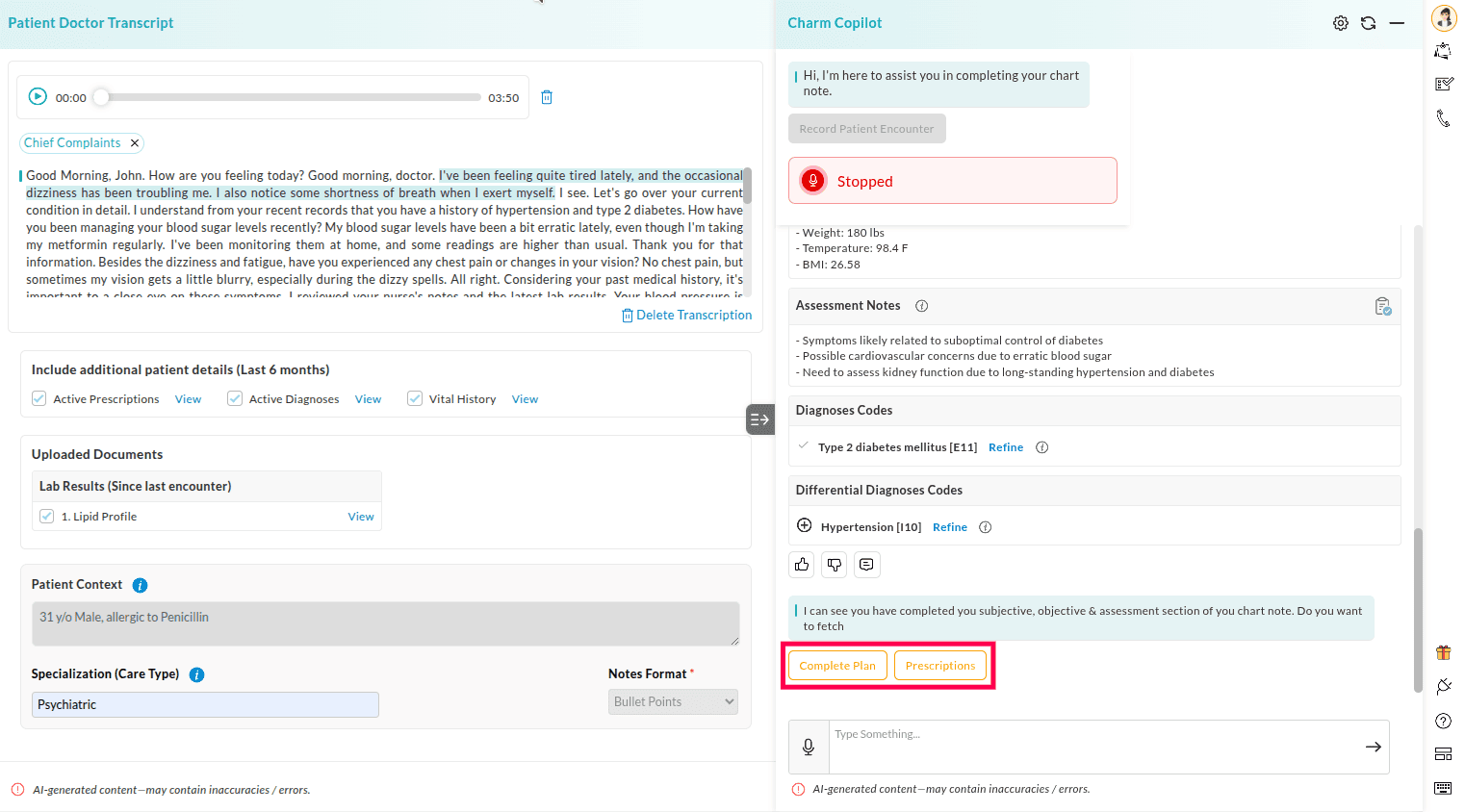
Note: Differential diagnoses are not added automatically
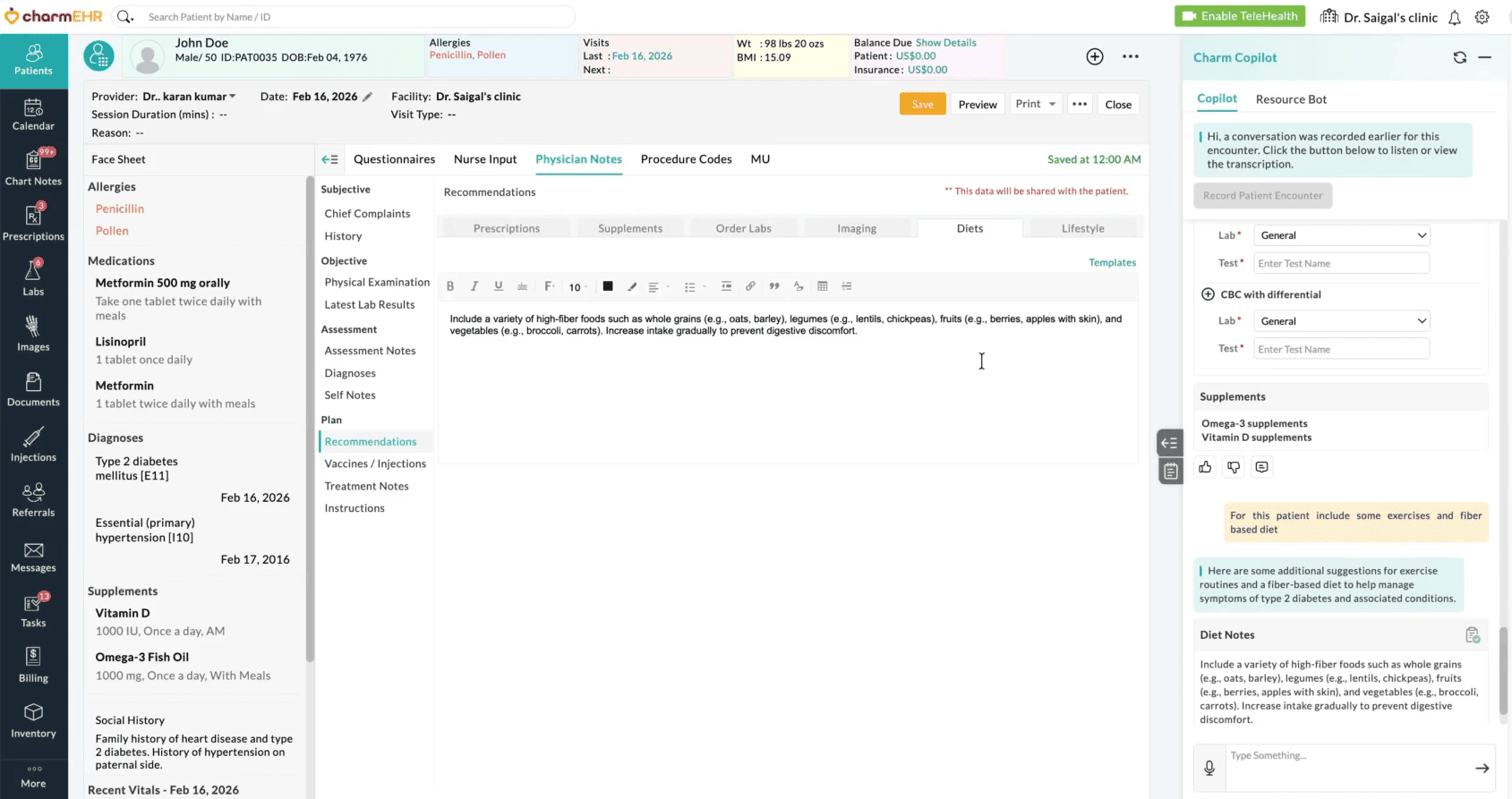
- Click on the 'Complete Plan' button to generate treatment plans such as patient notes, diet notes, labs, and prescriptions.
- Providers can interact with Copilot to add additional notes to the Patient's chart.
- Review and manually edit the Chart Note if required.
Telehealth Charting Assistant
CharmCopilot can also assist with transcribing and generating chart notes from TeleHealth video consultations.
Video Consultation via CharmHealth's Integrated Video Platform
- Click on the 'Camera' icon to start the video session.
- Once the Patient joins, click on the 'Record Patient Encounter' button from the CharmCopilot Window.
- CharmCopilot begins transcribing the conversation in real time.
Video Consultation via Zoom
- Click on the 'Camera' icon to start the video session.
- Zoom opens in a new tab. Join the meeting.
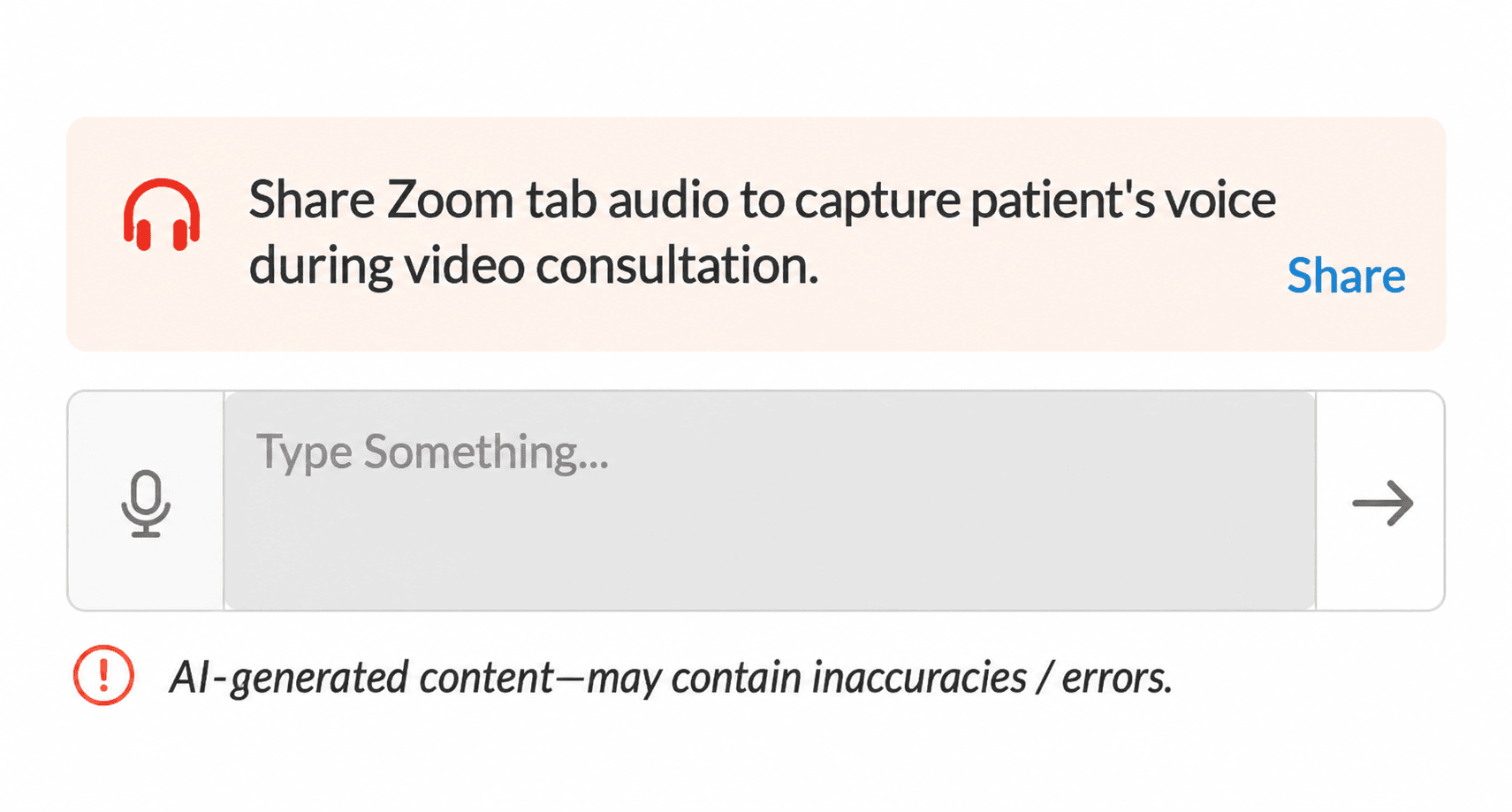
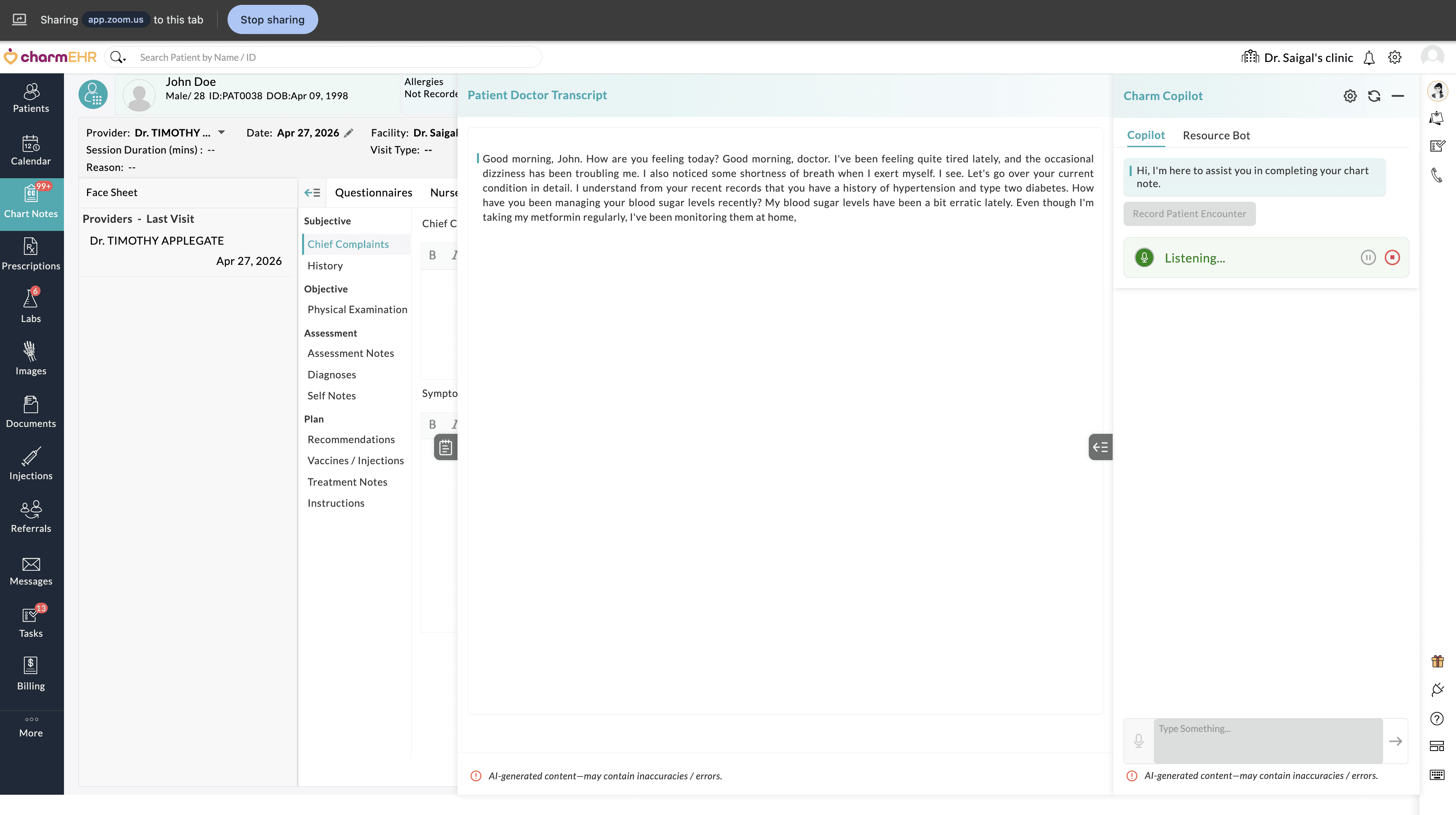
- If using a headset, click on the 'Share' option in the CharmCopilot window, share the Zoom tab, and enable the 'Also share tab audio' option to capture the Patient's voice.
- Once the Patient joins, click on the 'Record Patient Encounter' button from the CharmCopilot window.
- CharmCopilot begins transcribing the conversation in real time.
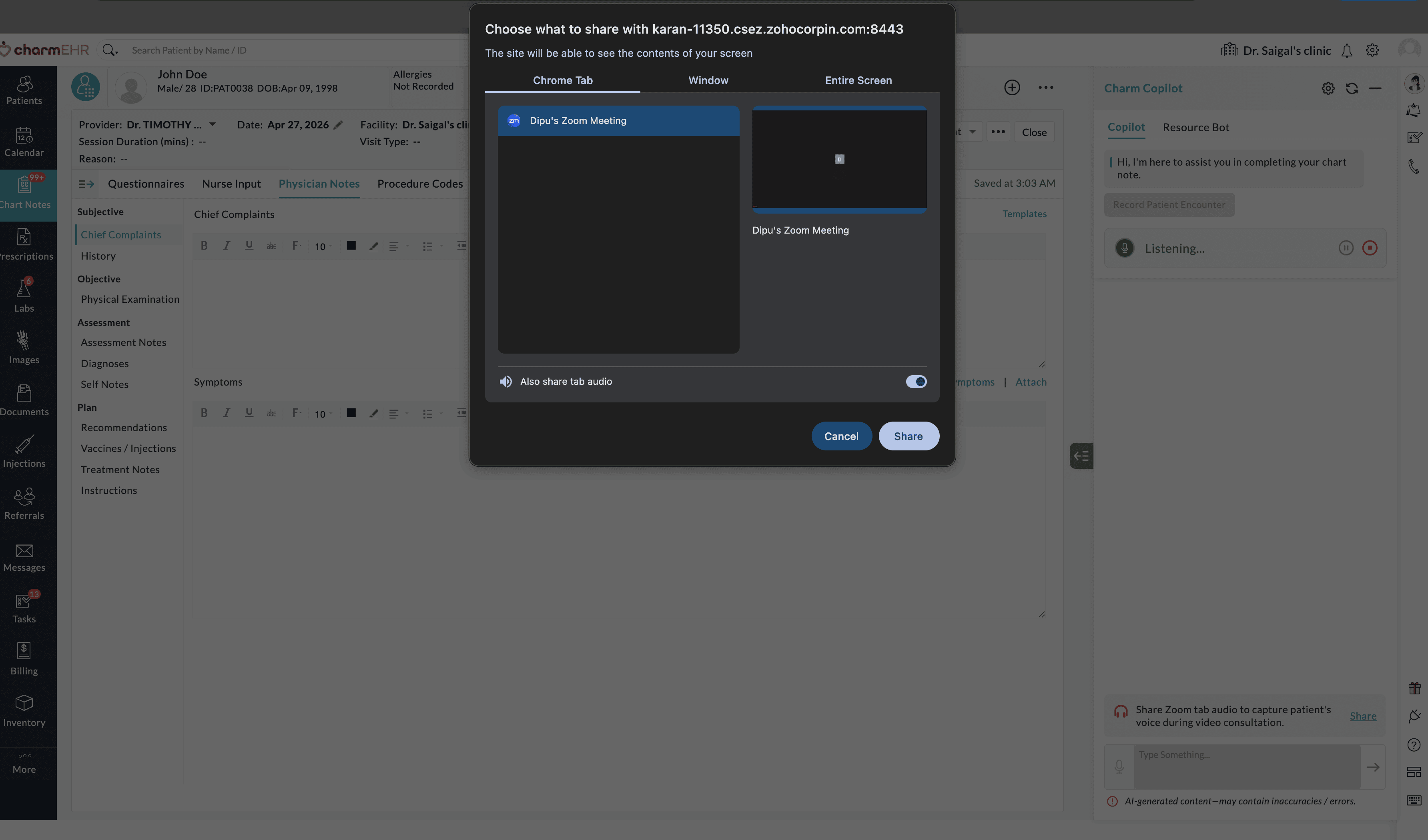
Note : This feature is only supported on the Google Chrome web browser
Interactive Copilot
Interactive Copilot provides an AI-powered reasoning chat interface for real-time answers and workflow guidance using natural language commands across multiple clinical workflows in CharmEHR.
Health and Medical Queries
Copilot can provide information on health topics, medical conditions, treatments, medications, and general wellness guidance.
Patient Information
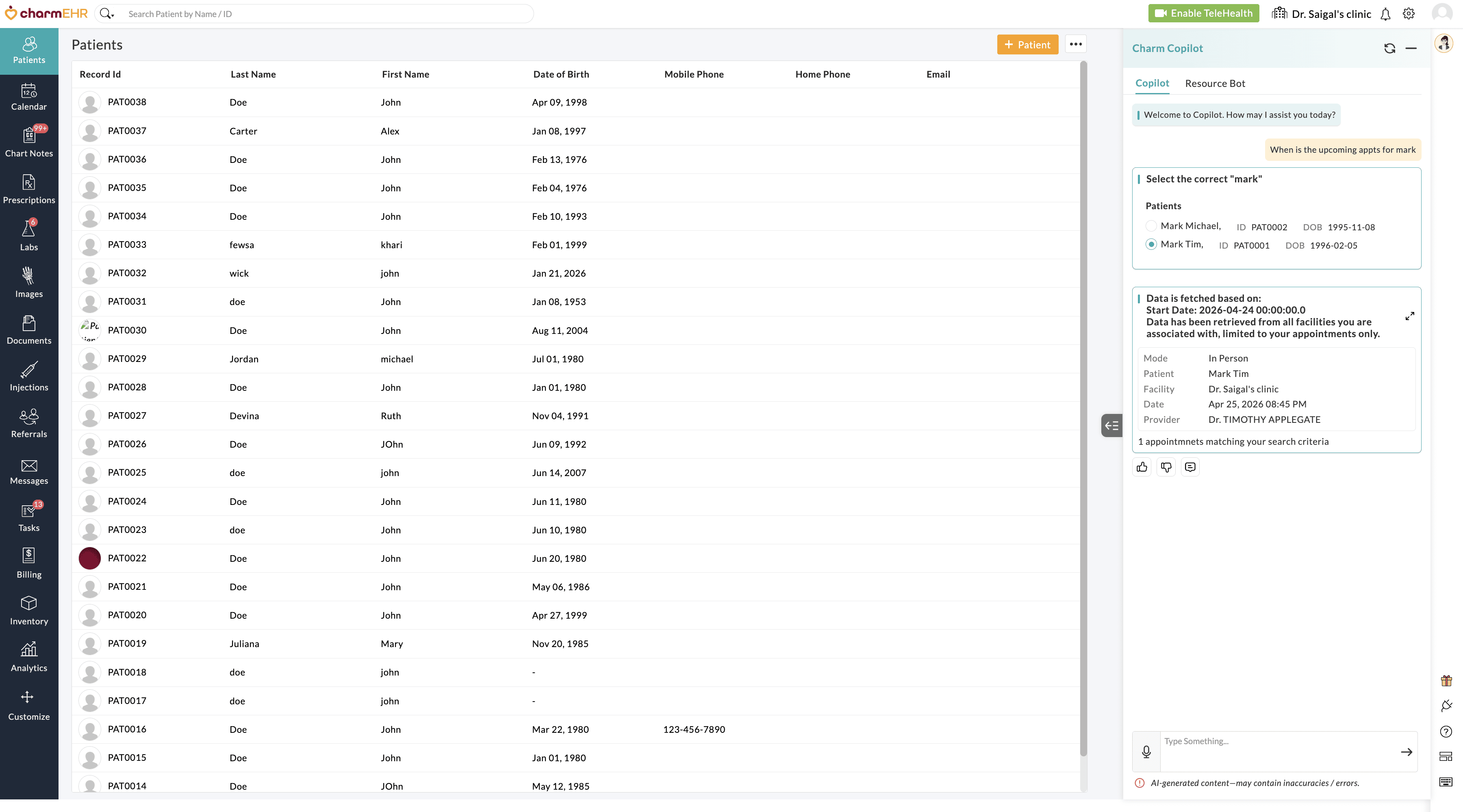
Copilot can retrieve patient information across modules, such as:
- Appointments, medical history, and social history
- Allergies, diagnoses, and vitals
- Alerts, medications, supplements, and more
Guidance on CharmHealth Features
Copilot can provide guidance on using CharmHealth features such as Telehealth, Patient Portal, Billing Settings, Appointment Scheduling, and more.
Back Office and Billing Support
Extends beyond clinical encounters to help billing and administrative staff navigate coding workflows, answer eligibility questions and documentation requirements more efficiently, and streamline operational processes.
Security and Account Management
Copilot can assist with navigating to account security sections, such as changing passwords, setting up two-factor authentication, and managing security questions.
Lab Opinion
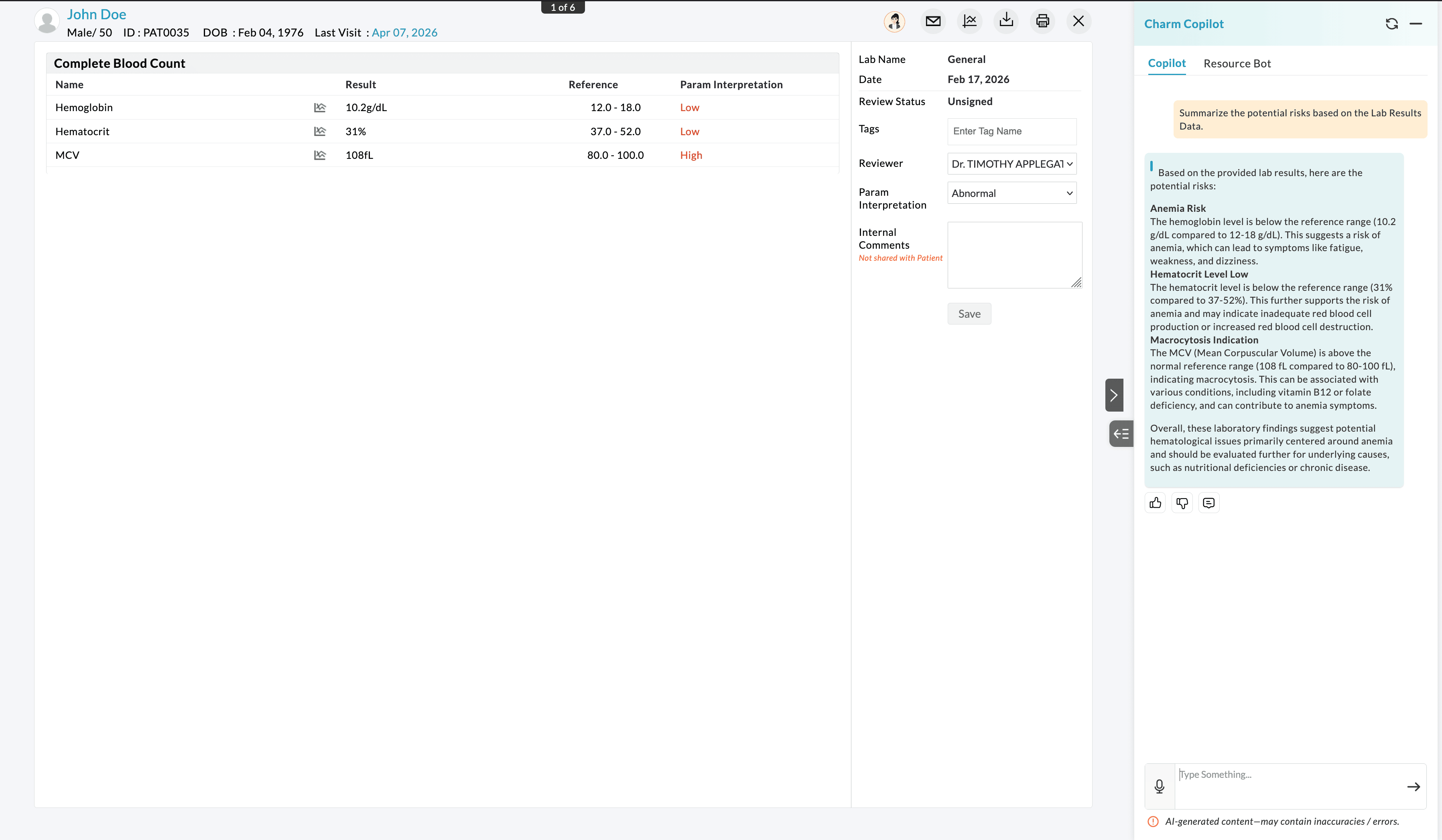
Navigate to 'Labs > Lab Results', select the relevant Patient's lab result, and click on the 'CharmCopilot' icon. Copilot analyzes and summarizes lab results, flags abnormal patterns, and enables follow-up questions to help clinicians interpret trends for review.
Auto Navigation
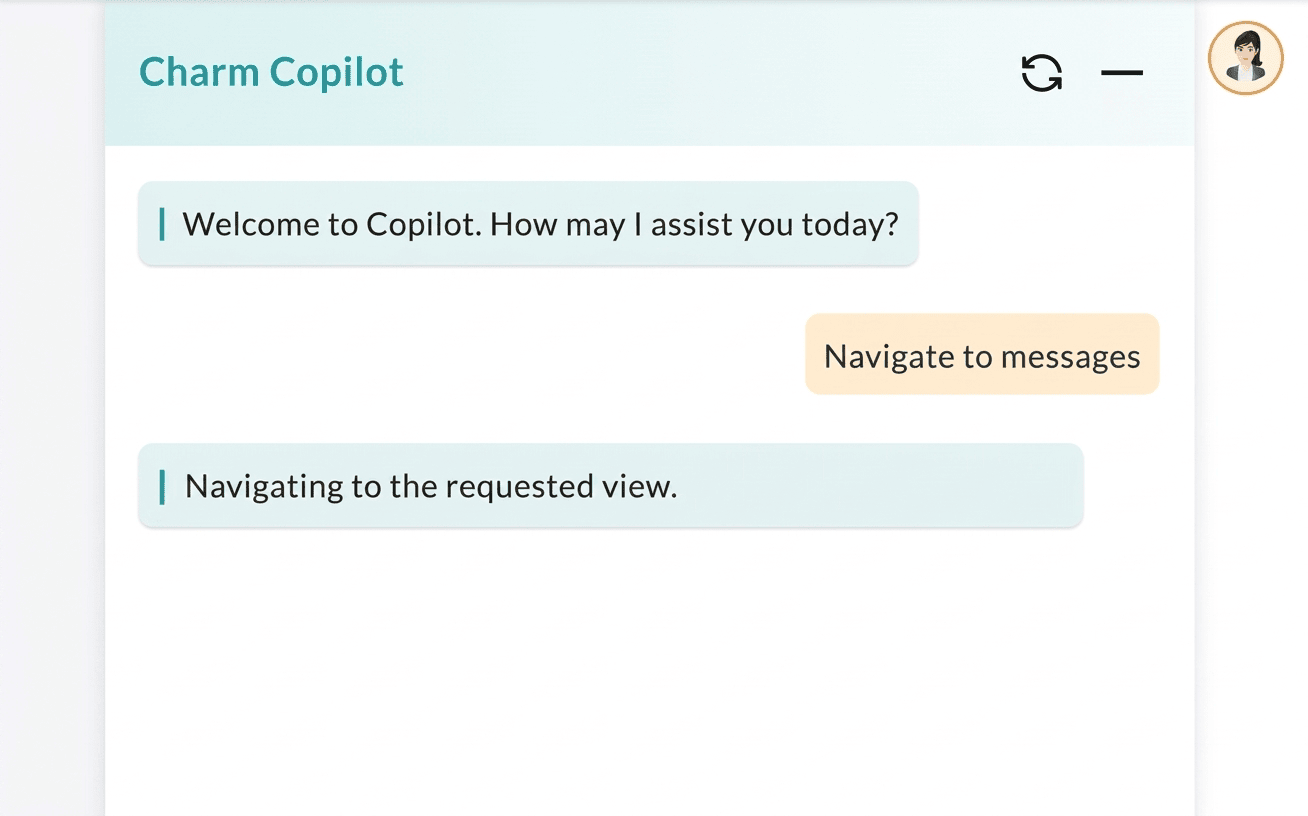
Copilot can help navigate to specific sections within CharmHealth using the Auto Navigate function, including encounters, prescriptions, lab results, tasks, messages, billing, analytics, calendar, and more. This can help reduce training time and improve efficiency for new users.
CharmCopilot Resource Bot
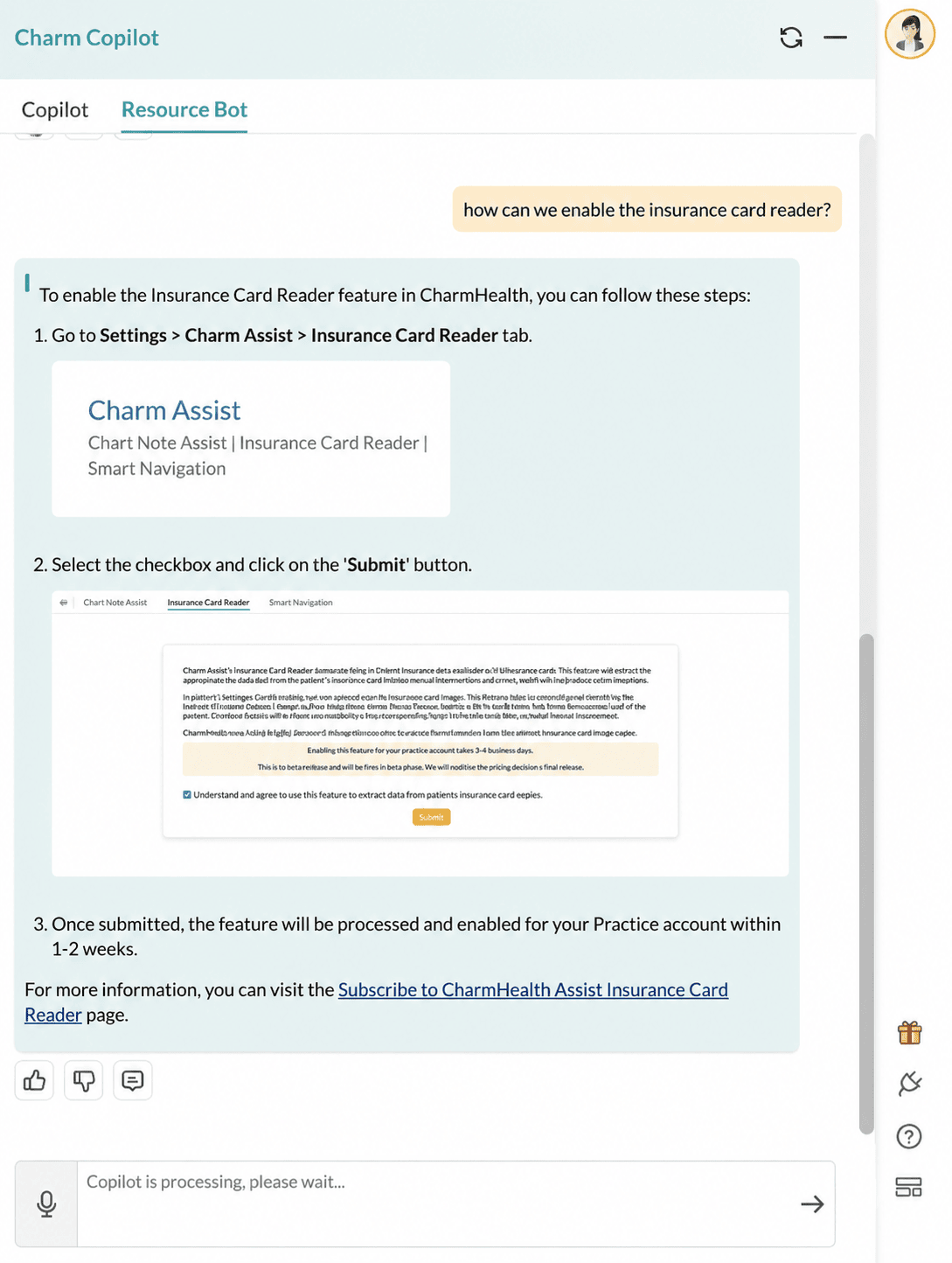
The Resource Bot is a conversational AI-powered chat interface that provides quick guidance on CharmHealth features, modules, and add-on services. It helps Providers find answers instantly without having to navigate multiple help resources, for more efficient care delivery.
When you ask a question, CharmCopilot searches the CharmHealth knowledge base and provides a concise answer.
For example, if you ask “How can we enable the insurance card reader?”, Copilot provides a brief explanation along with a link to the full resource page for detailed instructions.
Note : Searches can be performed using both text input and voice dictation
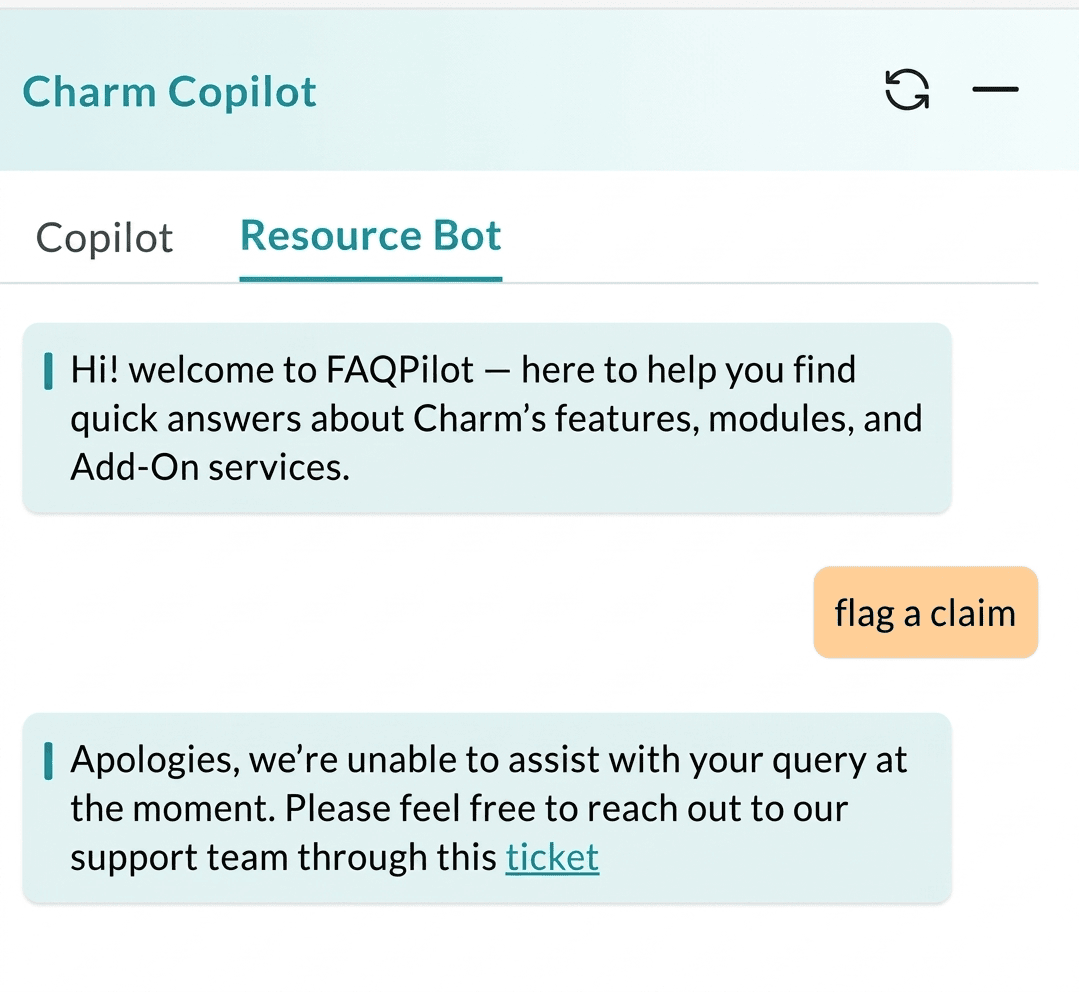
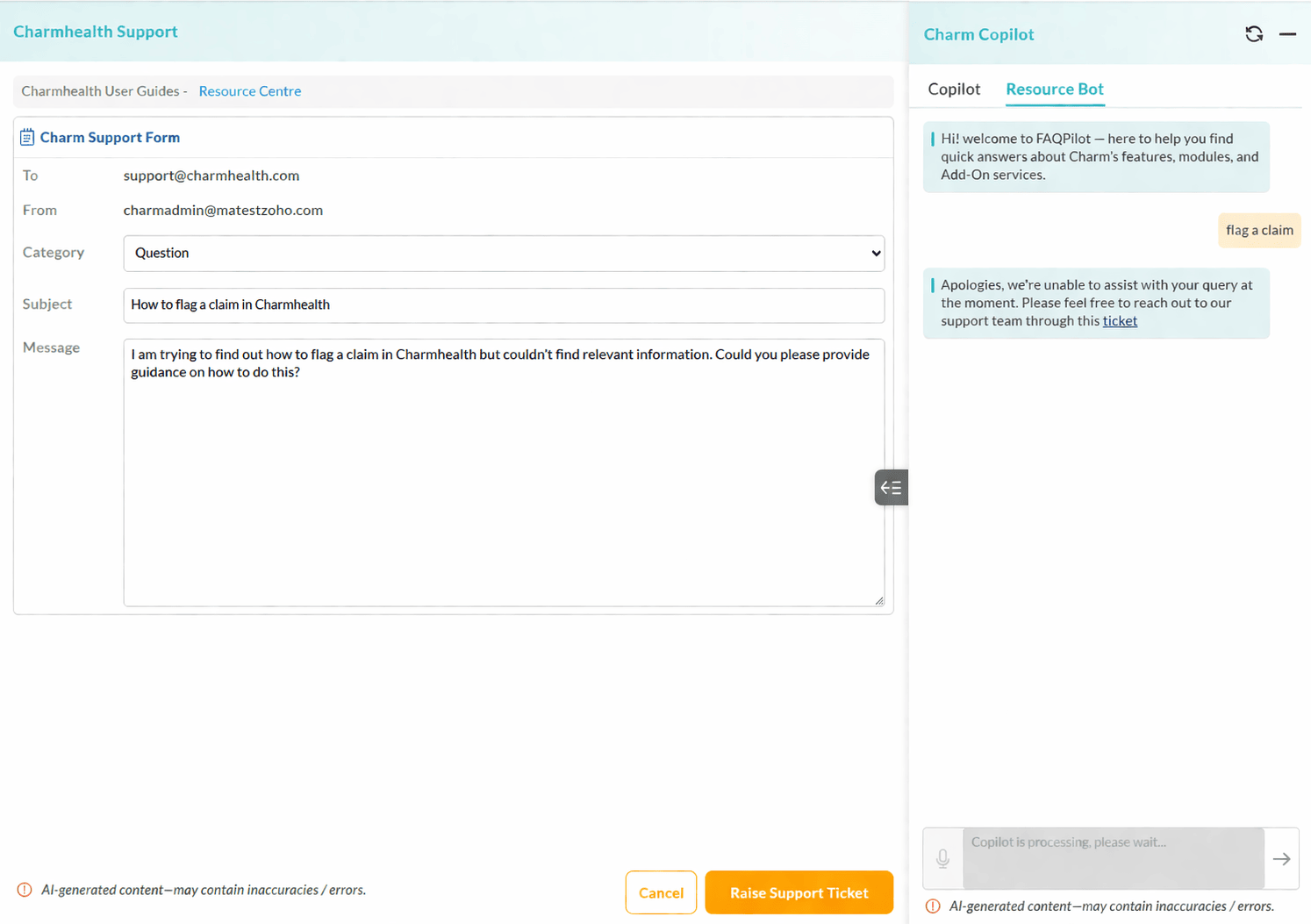
If CharmCopilot is unable to give you a relevant answer, it prompts you to contact CharmHealth Support through a ticket.
Raising a Support Ticket through CharmCopilot
- Click on the 'Ticket' prompt displayed in the CharmCopilot window.
- A CharmHealth Support window opens with your query prefilled.
- Enter additional details in the message field if required.
- If Copilot cannot provide a relevant answer, it prompts you to raise a support ticket.
- Click on the 'Raise Support Ticket' button to submit your request and receive assistance from CharmHealth Support.