Payment Collection from the Calendar section
The feature includes the ability to send a payment link to all Patients with Appointments and process payments using the stored card information for the scheduled Appointments.
This option can be used from the Calendar section, or this process can be automated from the 'Settings > Billing > Calendar-Payment Collection' section based on the Practice requirements. This will assist Practices in effortlessly collecting Copay well before the Claim processing and maintaining control over accounts receivable.
- Bulk Charge Card on Files from the Calendar section
- Bulk Send Payment Links from the Calendar section
- Automate Charge Card on file
- Auto-Charge Card on File for No-Shows and Late Cancelations
- Charging Patients with No-Show and Late Cancelations Manually
- Auto-send Payment Links
- Payment Preferences for Charge Card on File and Send Payment Link
- Option to Send 'Add Card on File' Link to Patients
- Role Privileges
- Enhancements to Calendar Reports - Payment Collection History
Bulk Charge Card on Files from the Calendar section
Practice can charge Card on Files in bulk using the 'Charge Card on File' option available under the 'Calendar > List View > More Options (...) icon' section.
Apply appropriate filters for the Appointments list view using the 'Filter by' option and then proceed to charge Card on Files.
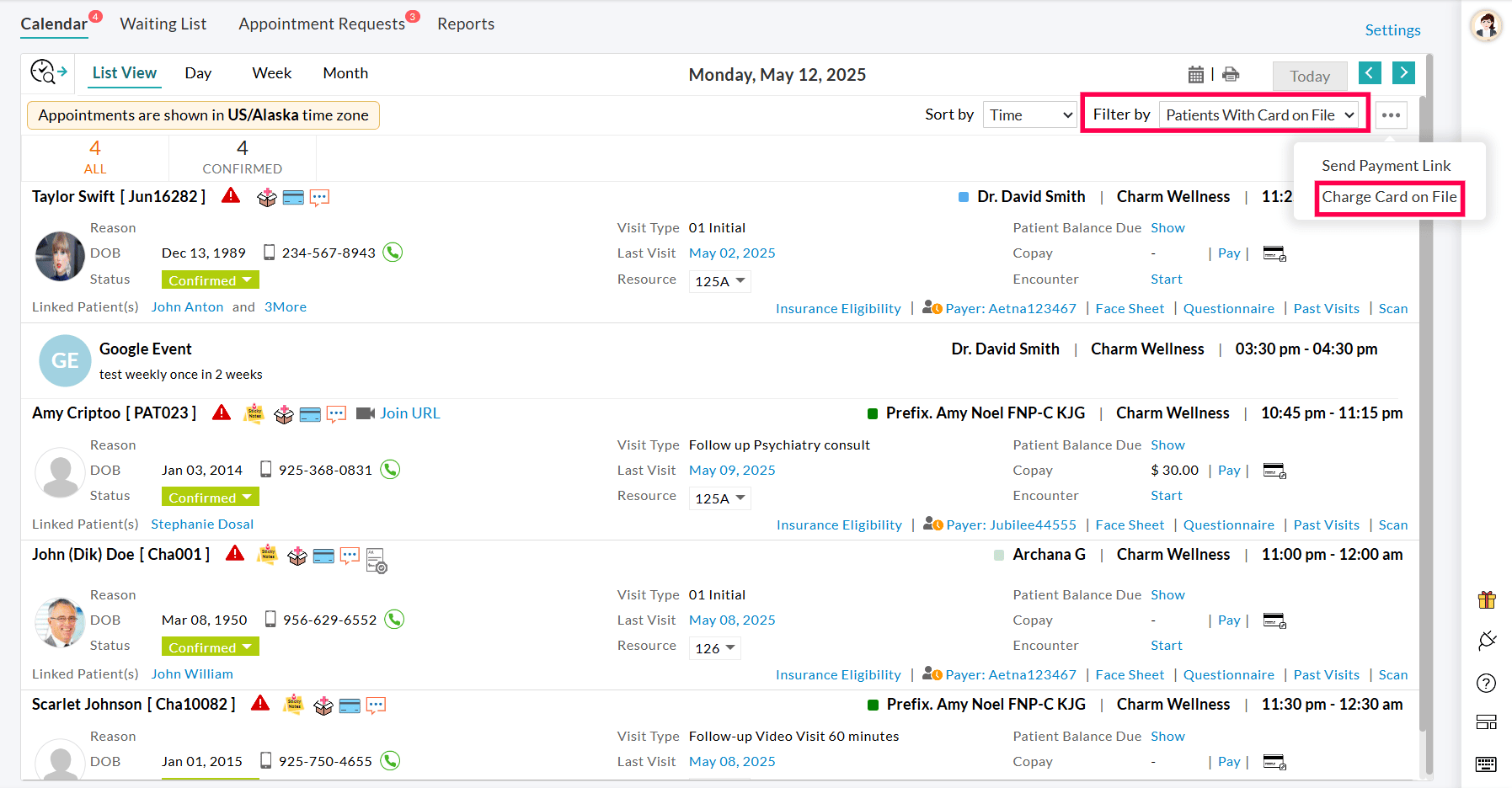
When the 'Charge Card on File' option is chosen, a list of all Appointments with Patients who have a saved Card on File will be displayed for payment processing.
Click the 'Payment Preference' option to determine how the Patient payments should be processed.

You can enable or disable specific preferences using the toggle switch and arrange them in your desired order using drag-and-drop. To learn more information on Payment Preferences, Click Here.
The default values such as 'Payment Preferences' and 'Beneficiary' can be configured under the 'Settings > Billing > Calendar-Payment Collection > Charge Card on File' section.

To begin processing, enter the appropriate 'Payment Amount', choose the 'Beneficiary', and select the 'Card to be Charged'. Finally, click the 'Charge Card on File' button.
Charging of Cards on Files will be scheduled, and the status can be checked either on the same page or under the 'Calendar > Reports > Payment Collection History Report' section.

Bulk Send Payment Links from the Calendar section
Practice can send the Payment links in bulk using the 'Send Payment Link' option available under the 'Calendar > List View > More Options(...) icon' section.

Apply the appropriate filters for Appointments using the 'Filter by' option and then proceed to send payment links.


Click the 'Payment Preference' option to determine how Patient payments should be processed.
You can enable or disable specific preferences using the toggle switch and arrange them in your desired order using drag-and-drop. To learn more information on Payment Preferences, Click Here.
The default values such as 'Payment Link To', 'Payment Preferences', 'Text/SMS Content', 'Email Content', 'Payment Request', and 'Beneficiary' can be configured under the 'Settings > Billing > Calendar-Payment Collection > Payment Link' section.
After configuring the necessary details, the payment links can be sent using the 'Send Payment Link' button.
The scheduling of payment links will be completed, and you can track their progress either on the same page or in the 'Calendar > Reports > Payment Collection History Report' section.
 Sending Payment Links
 Payment Links Sent
Automate Charge Card on file
- Practice can choose to charge Card on File automatically to the Patients with scheduled appointments. This can be enabled from 'Settings > Billing > Calendar-Payment Collection'. In this section, enable the 'Auto-Charge Card on File for Patient Appointments' option. Additionally, configure the accompanying settings accordingly.
- Enable Auto-Charge Card on File for Specific Visit Types: The Card on File is set to be charged automatically for all Appointments by default. However, you can also enable auto-charge Card on File for specific Visit Types. To enable this setting, select the Visit Types from the drop-down list for which the Card on File should be charged.
- Enable Auto-Charge Card on File for Specific Payers: You can enable auto-charge Card on File for Patients with specific Payers. Choose the Payers from the drop-down list for which the card on file of the Patients with the selected payers should be charged.
- When to Charge Card on File: The Card on file can be charged automatically when an Appointment is created, a few hours before the Appointment, or after the Encounter is signed.
- If the Card on File is scheduled to be charged a few hours before the Appointment, then 'Enter the number of Hours', say 24 hours, and choose whether to charge the Card on File for the Appointments created within the 24 hours.
- Do not Charge for Patients with Available Patient Credits: Patients will be charged directly from the Card on File, regardless of the available Patient Credits they may have. You can also choose not to auto-charge Patients who have available Patient Credits by selecting 'Yes'.

- Practice can also configure other details such as default 'Payment Preference' and 'Default Beneficiary'.
Auto-Charge Card on File for No-Shows and Late Cancelations
- If a Patient fails to show up for the scheduled Appointment or cancels it within the last hours, the Practice can automatically charge the No-show or Late Cancelation fee to the Patient's Card on File.
- Specific Appointment statuses such as No-Show, Last Minute Cancellations, etc., must be chosen by the Practices.
- Charging of the card will be initiated at 8 PM for that day's appointments. The amount to be charged can be configured as shown in the screenshot.

Charging Patients with No-Show and Late Cancelations Manually
Practice can choose to charge the Patients manually for No-Shows and Late Cancelations by selecting 'No' for the 'Auto-charge Card on File for No Show Appointments' setting. You can charge the Card on File based on the Appointment date. To charge manually, follow the steps given below.
- Go to 'Calendar > List View'
- Select the Appointments listed under the 'No-Shows' or 'Last minute Cancelations' Status menu.

- Enter the No Show or Late Cancelation fee in the 'Payment Amount' field, choose the 'Beneficiary', and select the 'Card to be Charged'. Finally, click the 'Charge Card on File' button.
- The charging of files will be scheduled and processed.
Auto-send Payment Links
- Practice can choose to send Payment Links automatically to the Patients with scheduled Appointments by selecting 'Yes' for 'Auto-send Payment Link for Patient Appointments' along with the following settings.
- Enable Auto Send Payment Link for Specific Visit Types: The Payment Link is sent automatically for all Appointments by default. However, you can also enable the auto-send payment link for specific Visit Types. To enable this setting, select the Visit Types from the drop-down list to send the payment link to Patients who are scheduling appointments for these Visit Types.
- Enable Auto-send Payment Link for Specific Payers: Practices can enable the auto-send payment link for Specific Payers. Choose the Payers from the drop-down list to send the payment link automatically to the Patients with the selected Payers.
- When to Send Payment Link: The Payment Links can be sent automatically when an Appointment is created, a few hours before the Appointment, or after the Encounter is signed.
- If the Payment Links are scheduled to be sent a few hours before the appointment, then 'Enter the number of hours', say 24 hours, and choose whether to send the payment link for the Appointments created within the 24 hours.

- Practice can also configure other details such as the default 'Payment Preference', 'Default Beneficiary', Email Content of the Payment Link, and 'Send Payment Link to Email/Cell Number' or both.
Payment Preferences for Charge Card on File and Send Payment Link
Practices can set default Payment Preferences for automatically charging a card on file and sending a payment link to determine how the Patient payments should be processed.
- Navigate to the 'Settings > Billing Settings > Calendar-Payment Collection' section.
- Under the 'Charge Card on File' and 'Send Payment link' sections, enable the required options for Payment Preferences.
- You can also arrange the preferences in your desired order using drag-and-drop.
The available Payment Preferences include:
- Primary Insurance Copay: Charges the copay amount as defined by the Patient's primary insurance.
Note: If the Patient's copay is $0, it will not be charged or moved to the next payment preference, as it is considered fully covered by the insurance.
- Fixed Amount: Allows Practices to define a specific amount to collect from the Patient.
- Visit Type Charge: Applies the predefined Visit Type charges as the payment amount.
- Primary Insurance Additional PR: Auto-populates the fee according to the specified amount in the Patient's Additional Patient Responsibility (PR) Details under the Patient Insurance section. Only numeric values are considered valid for PR charges.
Charge Card on File Settings

Send Payment Link Settings

These default payment preferences will be used when manually charging multiple cards and sending payment links to multiple patients from the 'Calendar > More Options (...)' section. These preferences can also be updated for the current appointments in this section if needed.
Charge Card on File

Send Payment Link

Option to Send 'Add Card on File' Link to Patients
Practices can now securely collect Patients' Card on File information by sending an 'Add Card on File' link through email, text message, or both. This link can be sent automatically as part of the Appointment workflow or manually from the Calendar or Patient Dashboard.
The content of the email and text message can be customized to meet the Practice's communication requirements.
Auto-Send 'Add Card on File' link to Patients
Navigate to 'Settings > Billing > Calendar-Payment Collection > Send 'Add Card on File' Link'.
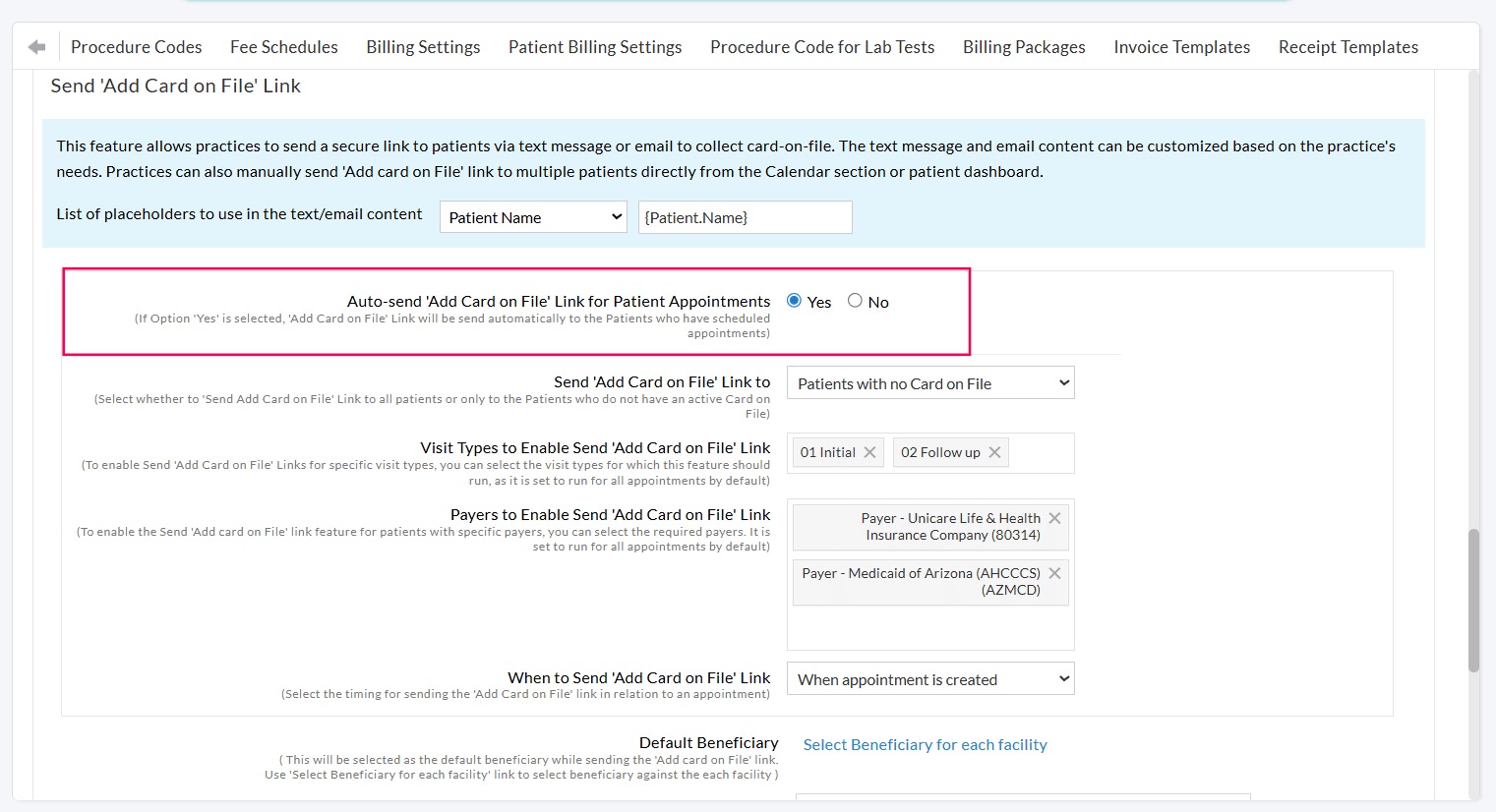
Enable 'Auto-send the Add Card on File Link for Patient Appointments' by selecting 'Yes'. Once enabled, the system automatically sends the link to eligible Patients based on the configured criteria.
Practices can configure the following settings:
- Send the link either to all Patients or only to the Patients who do not have a Card on File.
- Select the Visit Types for which the link should be sent automatically. By default, all Visit Types are included.
- Select the Payers for which the link should be sent automatically. By default, all Payers are included.
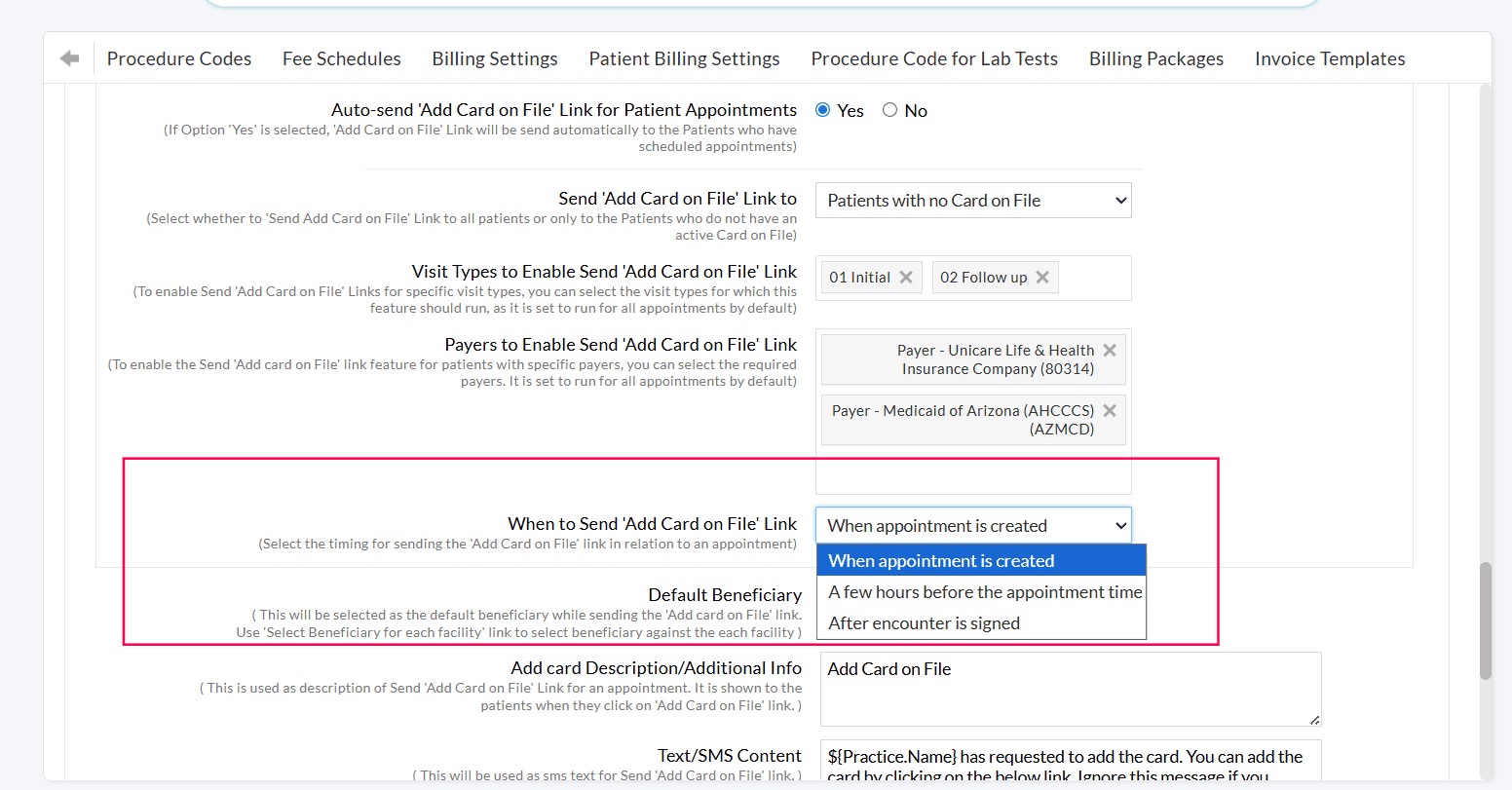
- Define when the link should be sent:
- When the Appointment is created
- A specified number of hours before the Appointment
- After the Encounter is signed
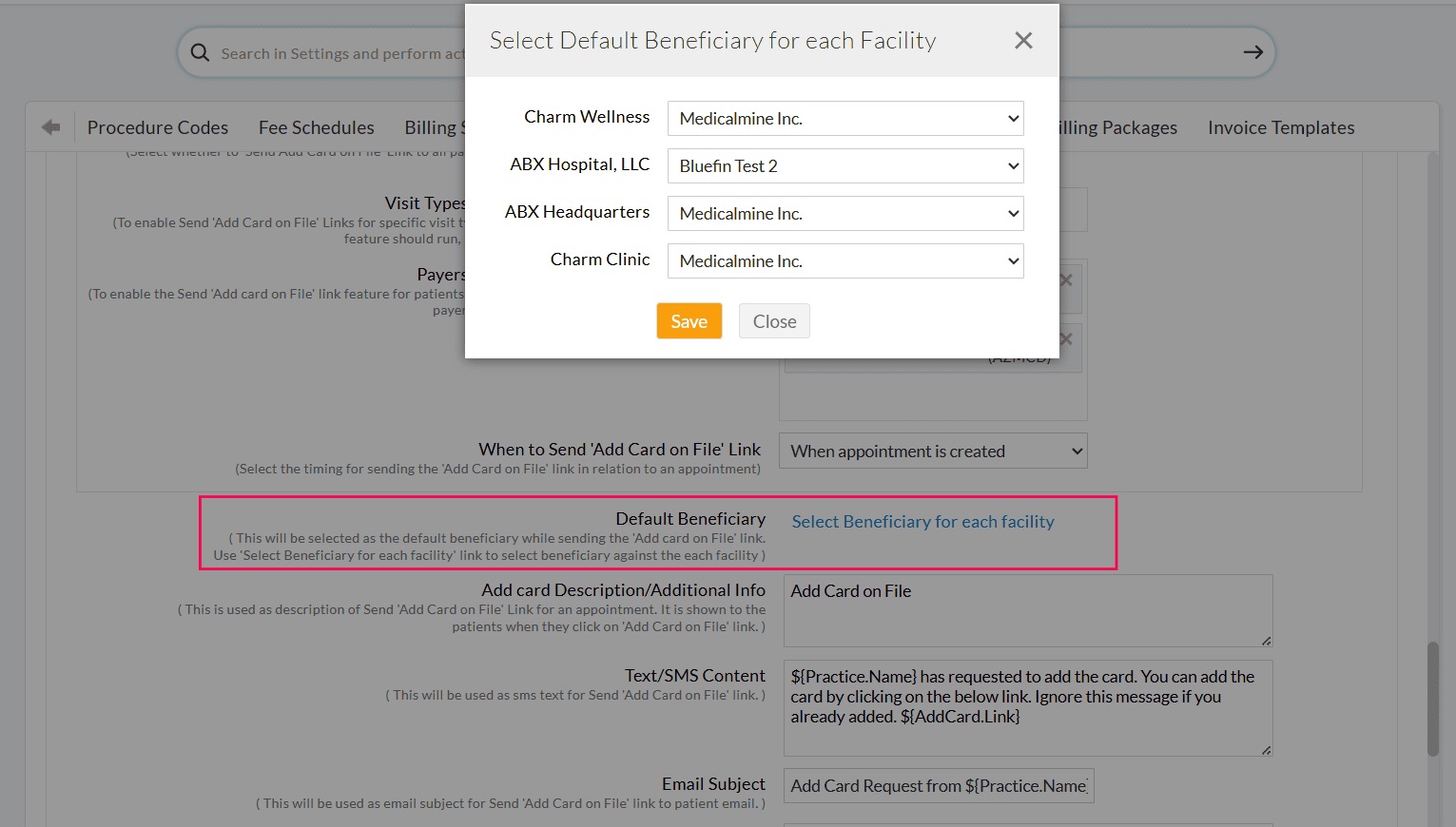
- Configure a default Beneficiary for each Facility.
- Use the 'Select Beneficiary for Each Facility' option to assign Beneficiaries to individual Facilities.
- Add a description or additional information that Patients will see when they access the link.
- Customize the default email and SMS templates used when sending the link.
- Configure the default Patient communication preference (Email, SMS, or both).
- Include Guarantor details, if available.
Bulk Send 'Add Card on File' Link From the Calendar
Providers with the necessary role privileges can send the 'Add Card on File' link to multiple Patients at once.
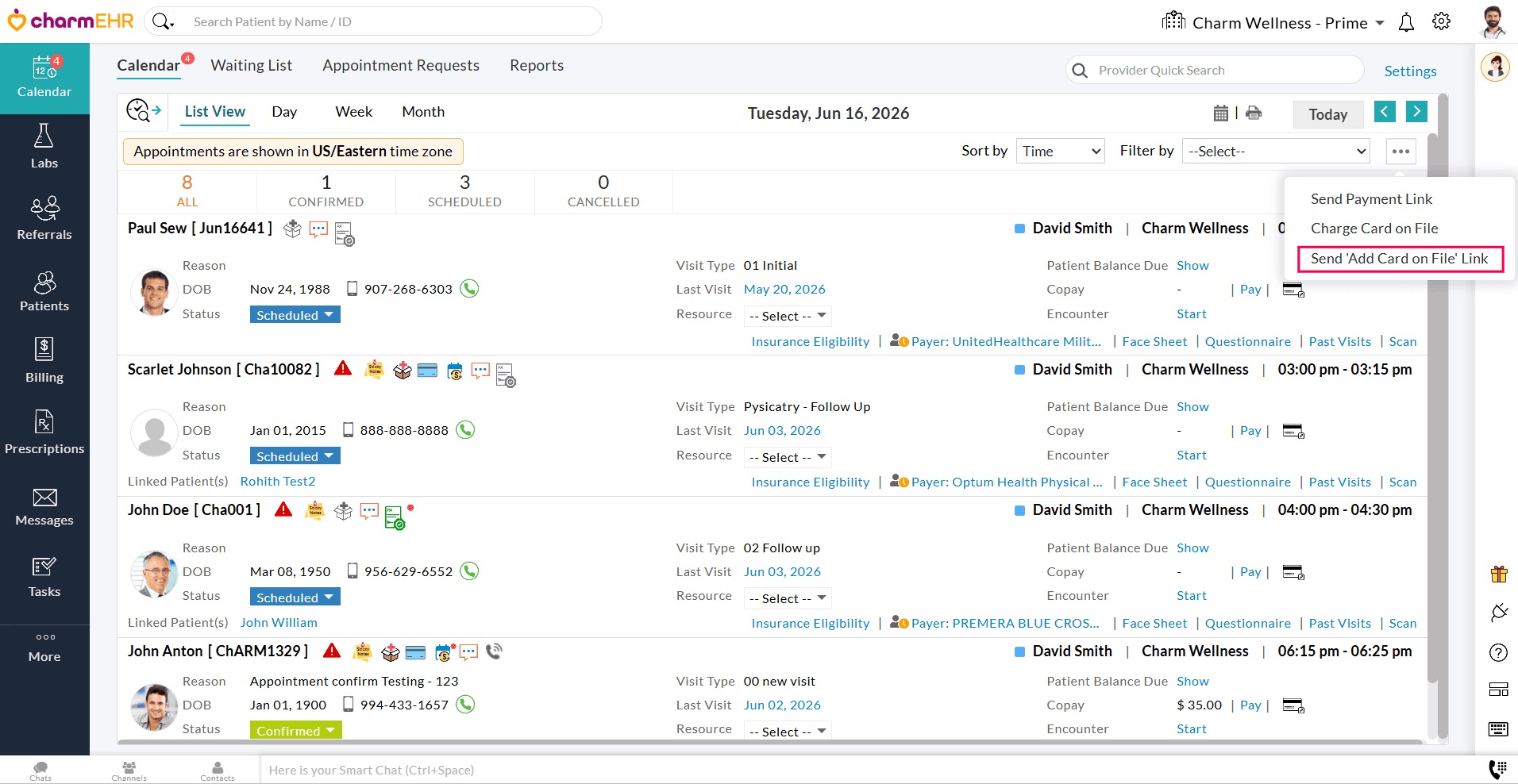
Navigate to 'Calendar > List View > More Options (...) icon' and select 'Send 'Add Card on File' Link'.
A list of Patient Appointments will be displayed. Review the details and schedule to send the link to the required Patients.
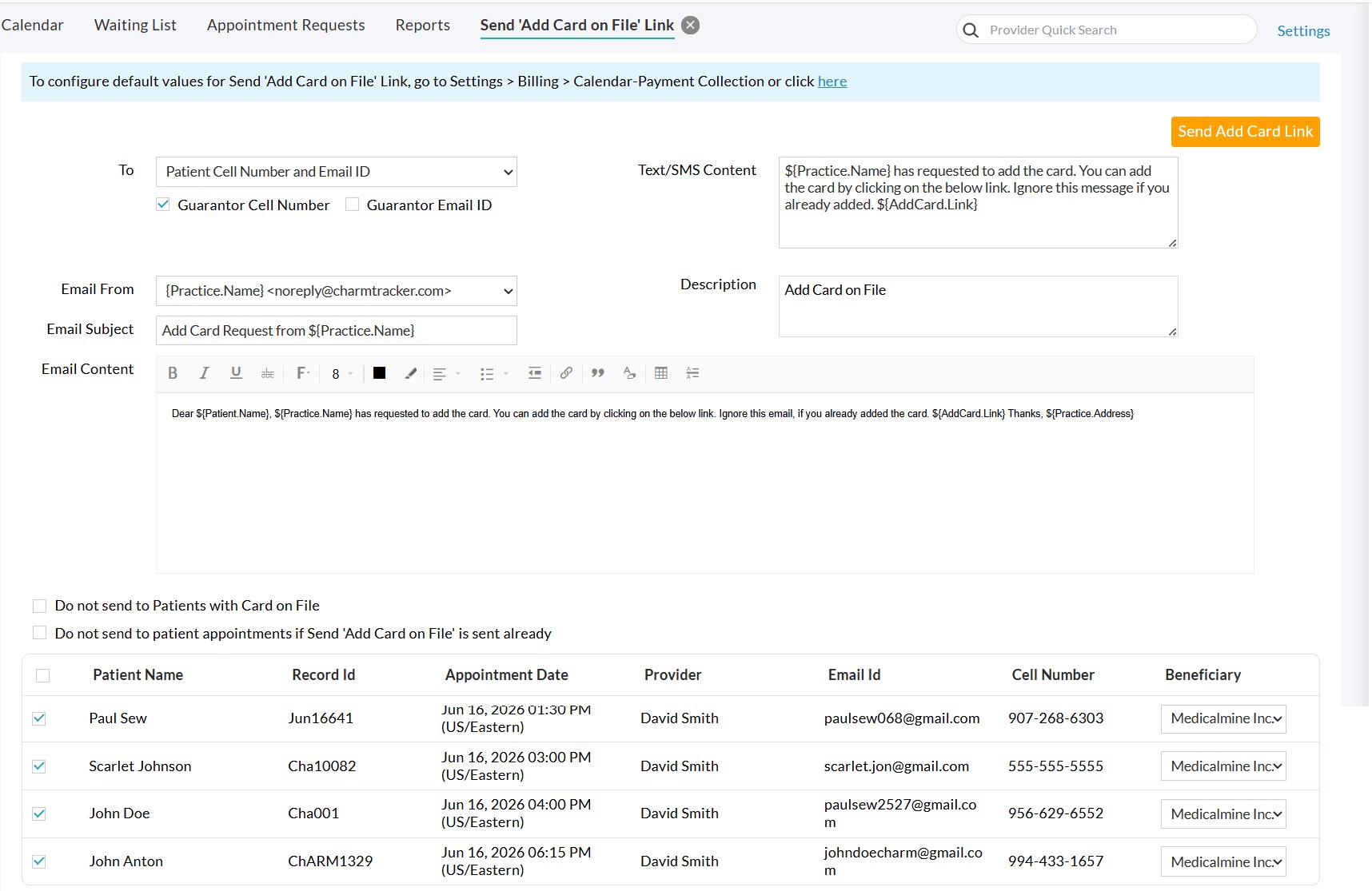
The default Email/SMS content and 'Beneficiary' can be configured under the 'Settings > Billing > Calendar-Payment Collection > Send 'Add Card on File' Link' section.
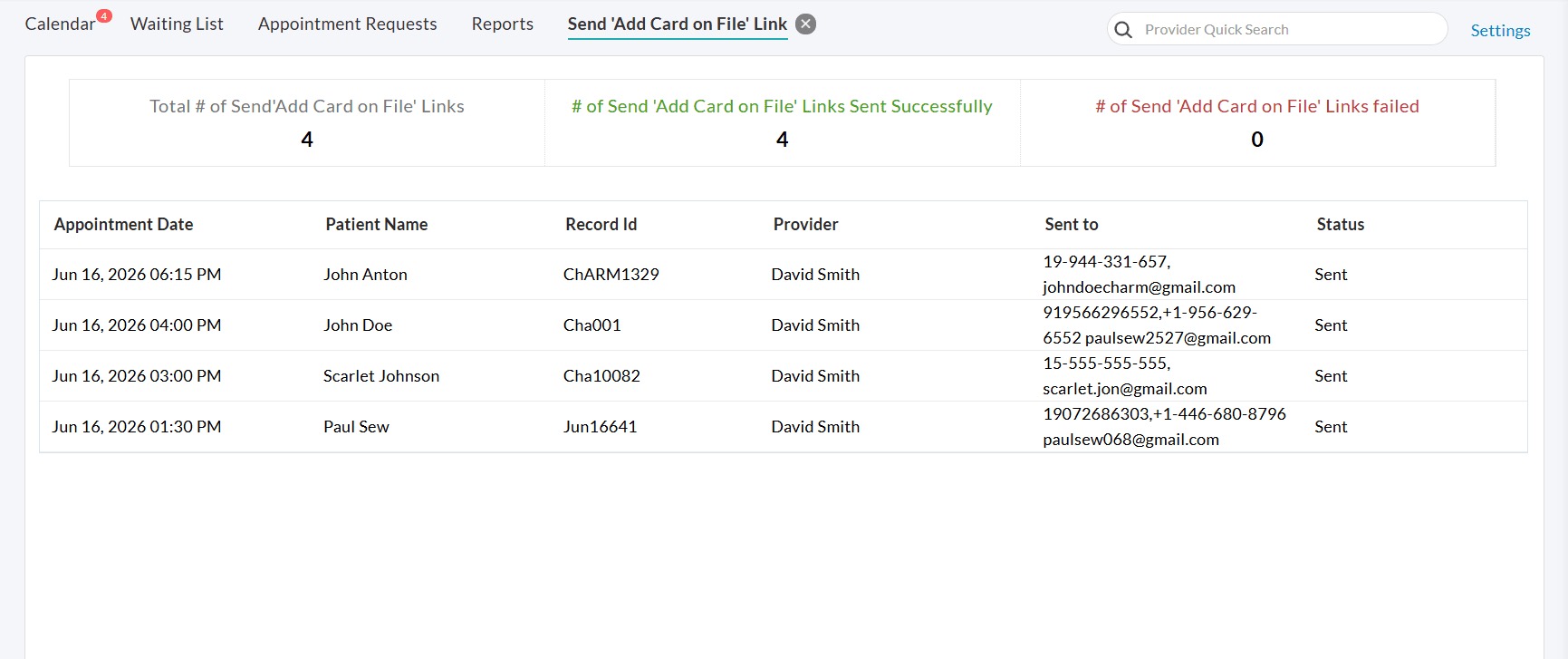
Scheduled notifications and their delivery status can be monitored either on the same page or under the 'Calendar > Reports > Payment Collection History Report' section.
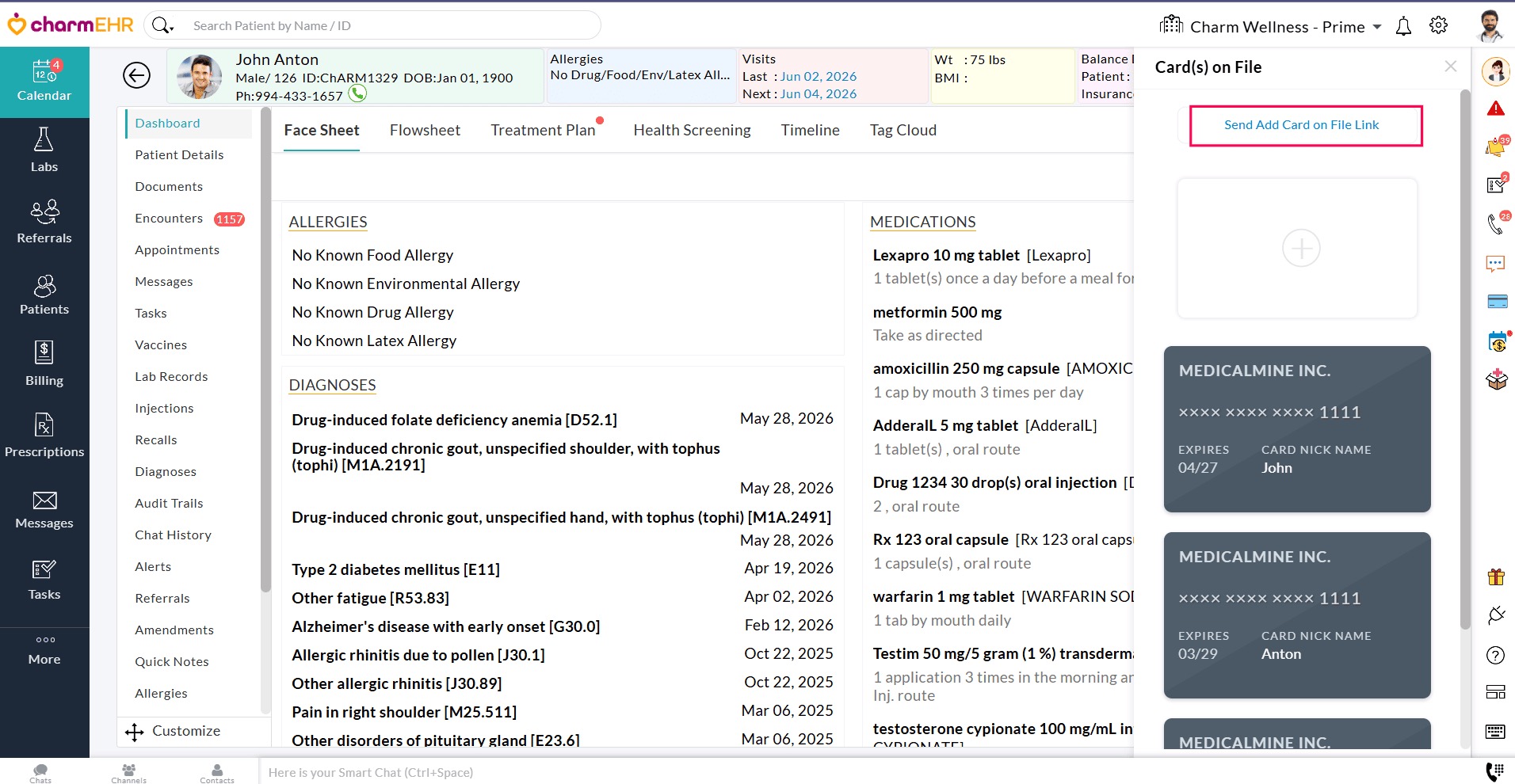
Send 'Add Card on File' Link from the Patient Dashboard
Practices can also send the 'Add Card on File' link directly from an individual Patient's record.
- Navigate to the Patient Dashboard and click on the 'Card' icon on the right pane.
- Click on the 'Send Add Card on File Link' button.
- Choose the delivery method: Patient's Email Address, SMS/Text message, or both.
- Select the Beneficiary.
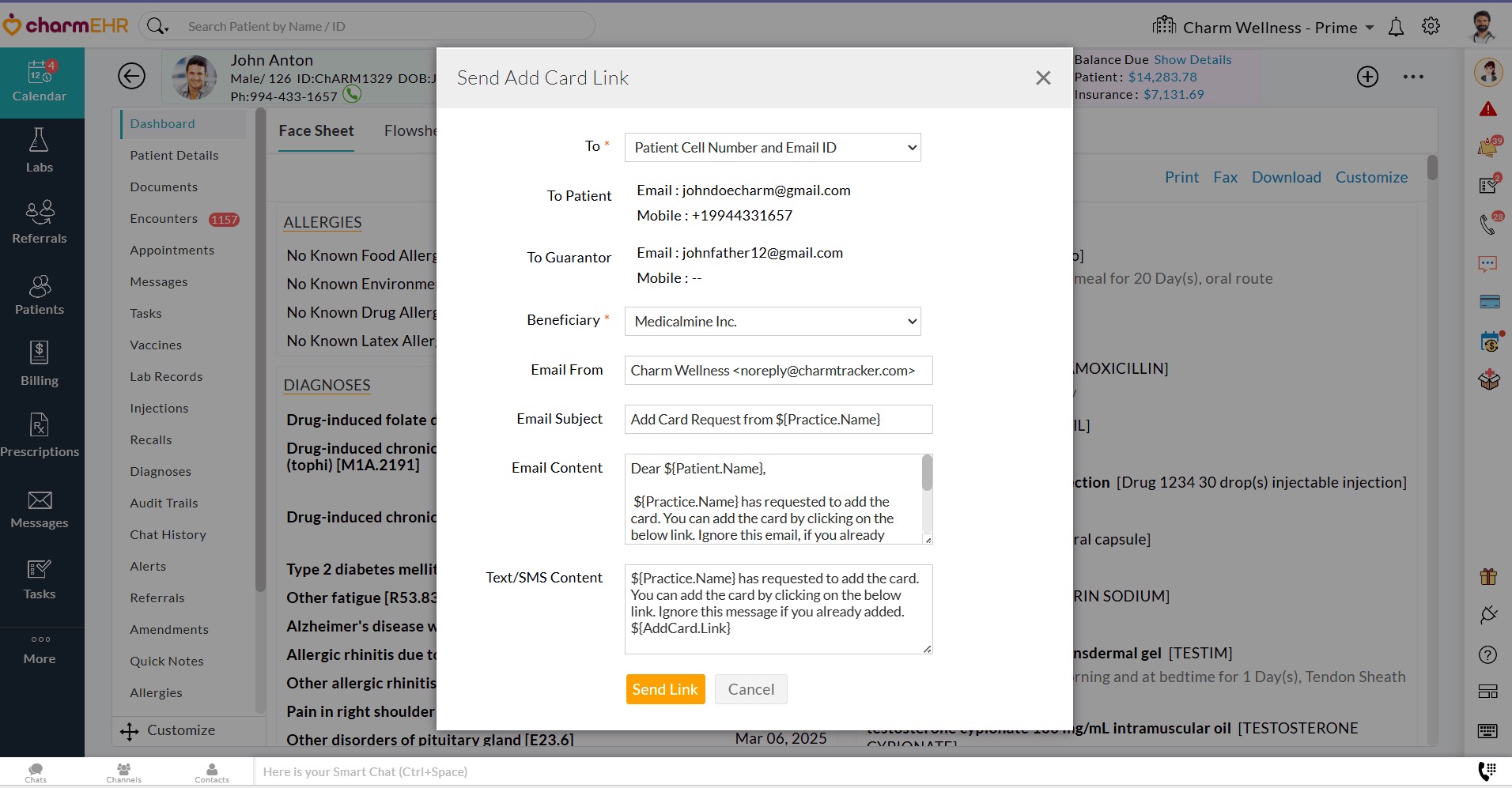
- The default email and SMS content configured under 'Settings > Billing > Calendar-Payment Collection > Send 'Add Card on File' Link' will be populated automatically.
- Click on the 'Send Link' to deliver the card request to the Patient.
This feature provides a convenient way to collect payment information before services are rendered, helping Practices streamline payment collection and reduce manual follow-up.
Role Privileges
Practices can enable or disable the provision to send payment links and charge cards on file to specific user roles. Follow the steps given below to configure the role privileges.
- Navigate to 'Settings > Facility > Roles'

- Create or edit an existing role.

- Under the 'Calendar' section, enable the following privileges for 'Appointment Payment' for specific Providers.
- Send Payment Link: Members can send payment links to the Patients from the Appointment List View.
- Charge Card on File: Members can charge Patients' cards on file from the Calendar section.
- Send 'Add Card on File' Link: Members can send the 'Add Card on File' link to Patients to request and collect Patient card information.
- Click the 'Update' button.
Enhancements to Calendar Reports - Payment Collection History
As part of this enhancement, a new report named 'Payment Collection History' has been included under the 'Calendar > Reports' section.
Payment Collection Report shows a combined list of payment links sent and charged Card on File transactions, either manually or automatically, within a specified date range.
Use the 'Entry Type' filter to view either the 'Payment Link Sent History' or 'Charged Card on Files History' or both.

Click the 'View' option against each entry to view the Appointment details of the respective transaction.
 Type: Payment Link > View
 Type: Charge Card on File > View