Patient Billing Automation
Introduction
The Patient Billing Automation feature is designed to simplify and optimize your Patient Billing workflow by automatically sending Invoices and payment reminders to Patients once their insurance claims have been processed. If your Practice has Secondary Claim Processing enabled, the system will automatically wait until the secondary claims are fully processed before including those Invoices in the automation.
Instead of manually tracking claim completion, preparing statements, and following up for payments, the system intelligently handles these steps for you.
This automation reduces the manual effort required by billers, minimizes delays in sending statements, and ensures timely and consistent communication. It also helps improve Patient collection while reducing the billing workload.
Key Functionalities
- Automatically sends initial Invoice notification to Patients with a secure payment link.
- Sends reminder emails or text messages based on your configured schedule.
- Let you define your billing cycle frequency—on a specific weekday, monthly, or twice a month.
- Allows configuration of reminder frequency.
- Option to continue sending reminders until the Invoice is fully paid.
- Ability to exclude Invoices based on specific criteria such as Patient credits, card on file, recurring profile, small balances, etc.
- Choose preferred communication modes—Email, Text, or PHR.
- Option to send multiple outstanding Invoices of a Patient as a single consolidated statement.
- Provision to track automation progress—including Invoices scheduled, sent, and excluded—from a dedicated dashboard.
- Enabling Patient Billing Automation
- Patient Billing Automation Workflows
- Invoice-level Workflow Configuration
- Patient-level Workflow Configuration
- Excluding Invoices from Automatic Patient Billing
- Tracking the Patient Billing Automation Progress
Note: If RCM is enabled for your Practice, the Patient Billing Automation feature can be configured only in either RCM or CharmHealth EHR.
Enabling Patient Billing Automation
To enable sending Invoices automatically to Patients, navigate to 'Settings > Billing > Patient Billing' and choose 'Yes' for 'Enable Patient Billing Automation'.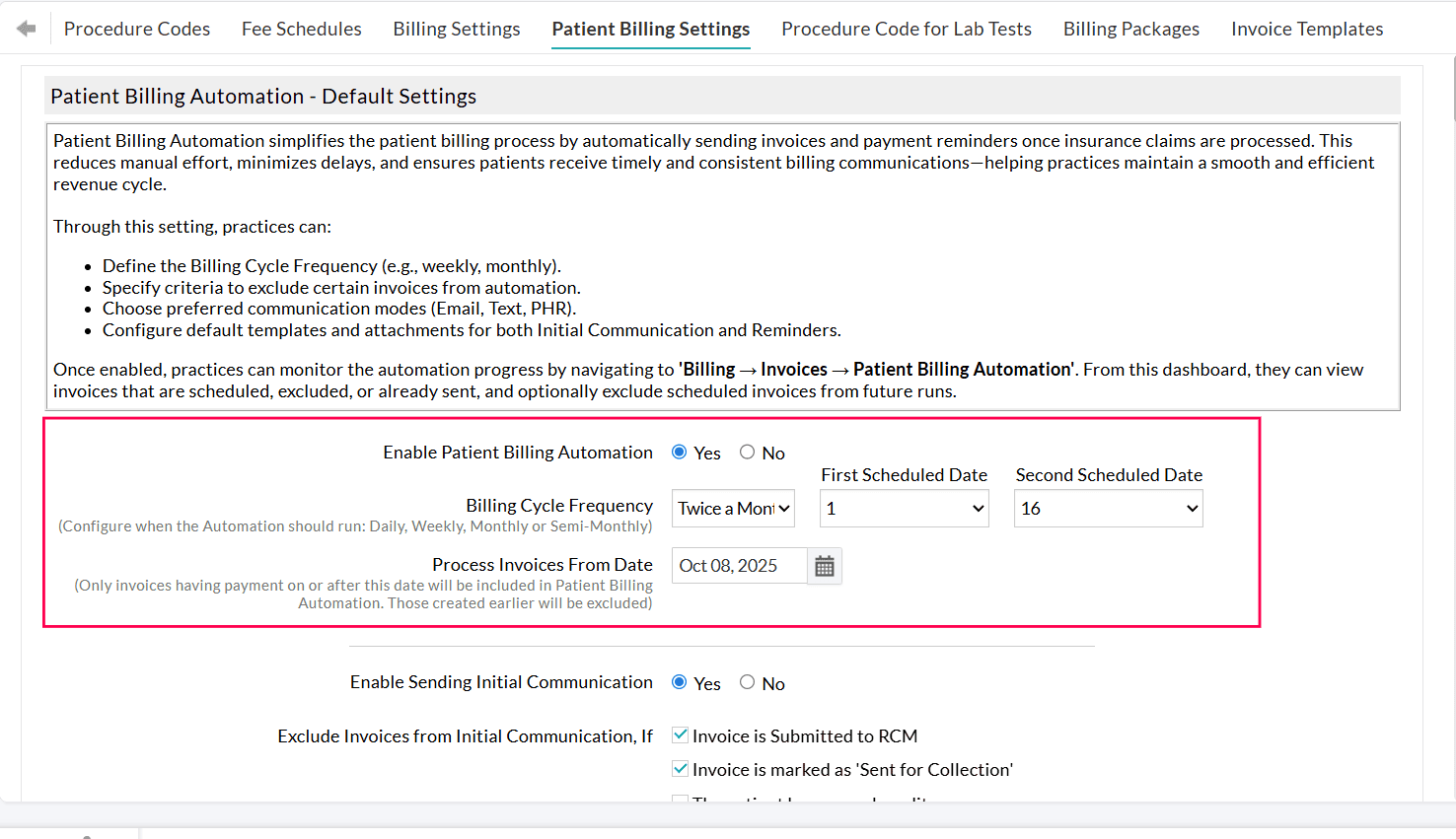
Once enabled, Practices can track the automation status from 'Billing > Invoices > Patient Billing Automation'. This dashboard displays Invoices that are scheduled, excluded, or already sent, and allows Practices to manually exclude specific scheduled Invoices from future runs.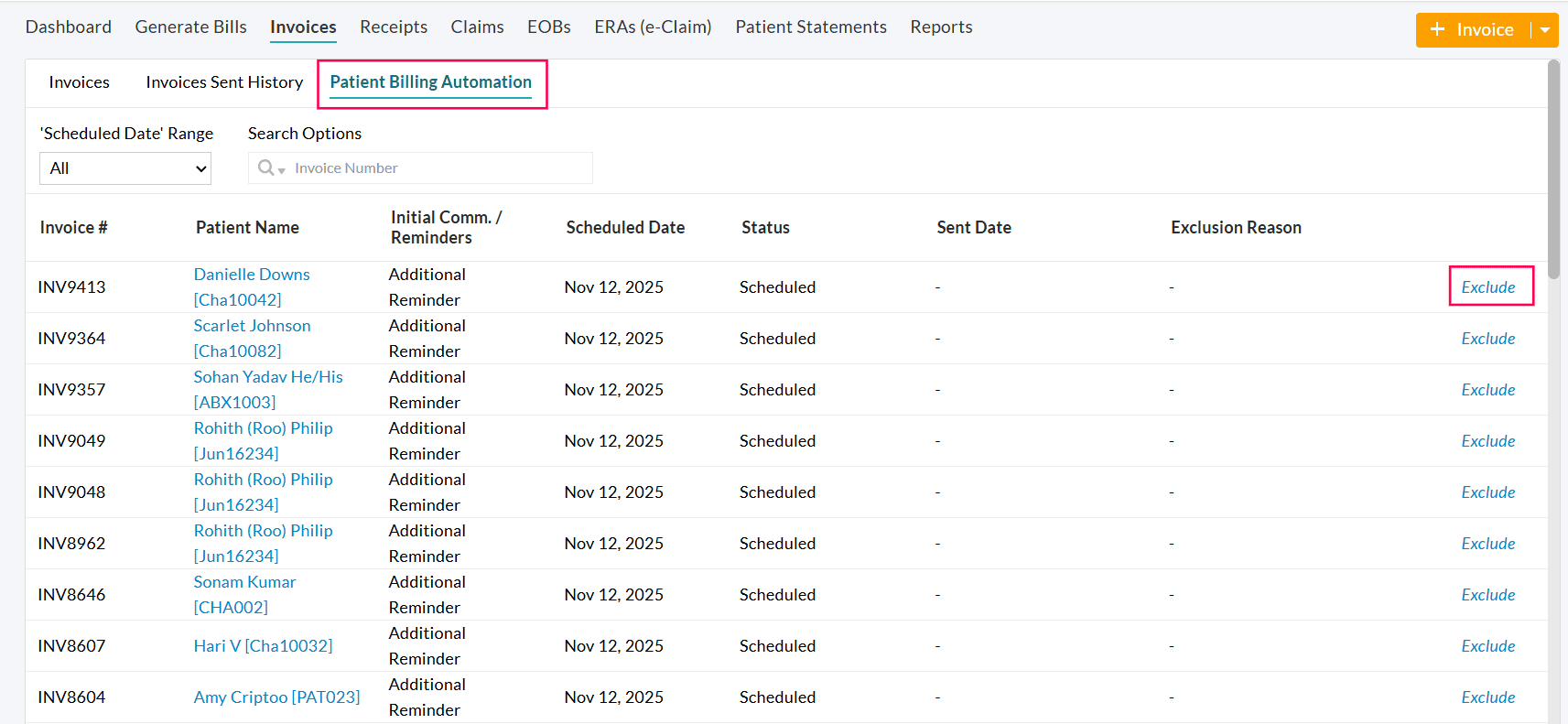
Which Invoices are Included in Patient Billing Automation?
- Invoices for which the Claims are processed and have a PR balance Due are included in the Patient Billing Automation.
- Invoices for which the Secondary Claims are fully processed are included in the automation.
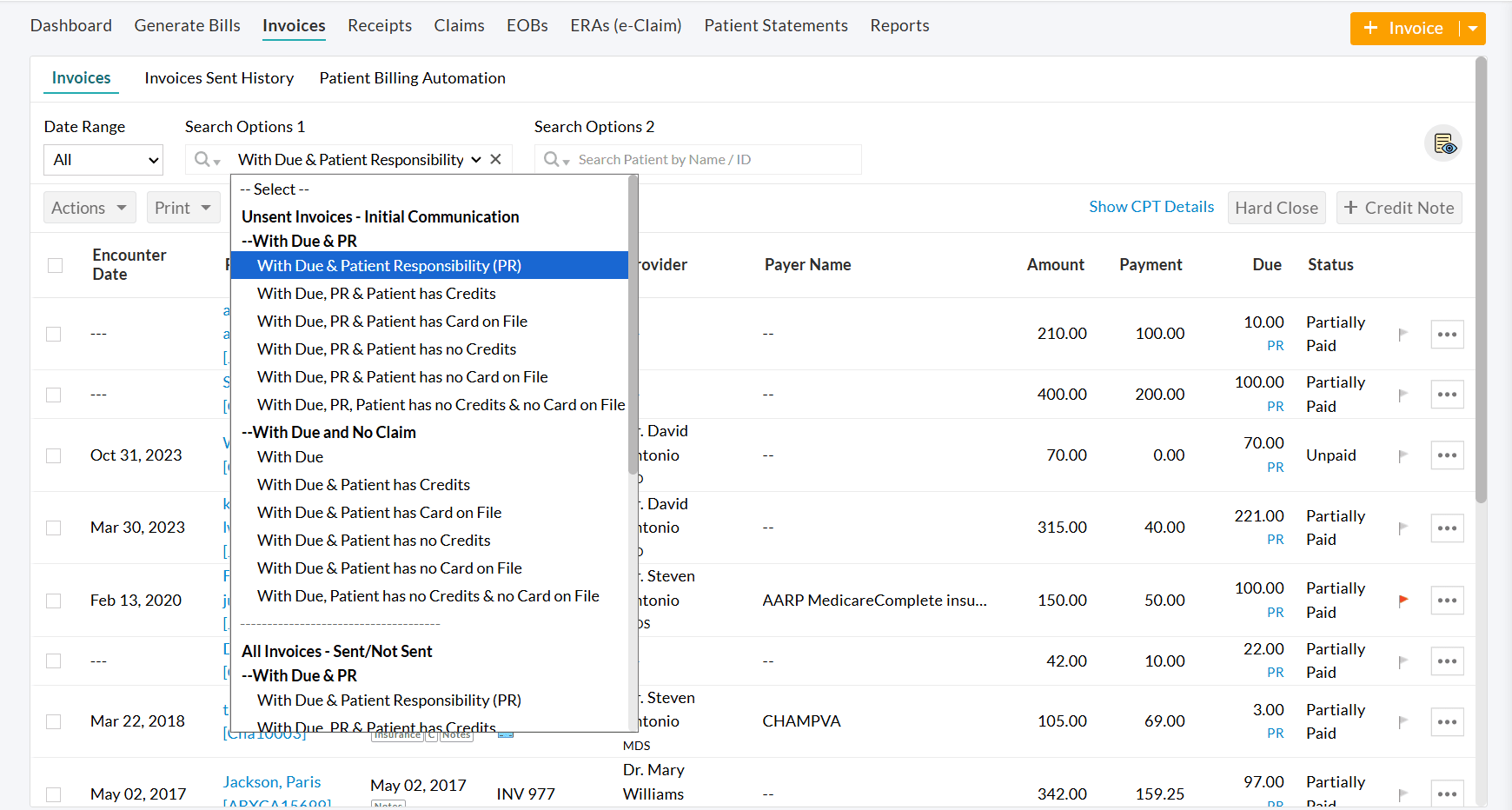
- All Invoices under the filter 'Billing > Invoices > Search Options 1 > Patient Billing - Initial communication > With Due and Patient Responsibility' are automatically considered for initial communication automation.
- All Invoices, except those that fall under any configured exclusion criteria, are processed through automation.
Process Invoice From Date
Set a start date to begin the automation. Only Invoices with payments posted on or after this date will be considered for automation.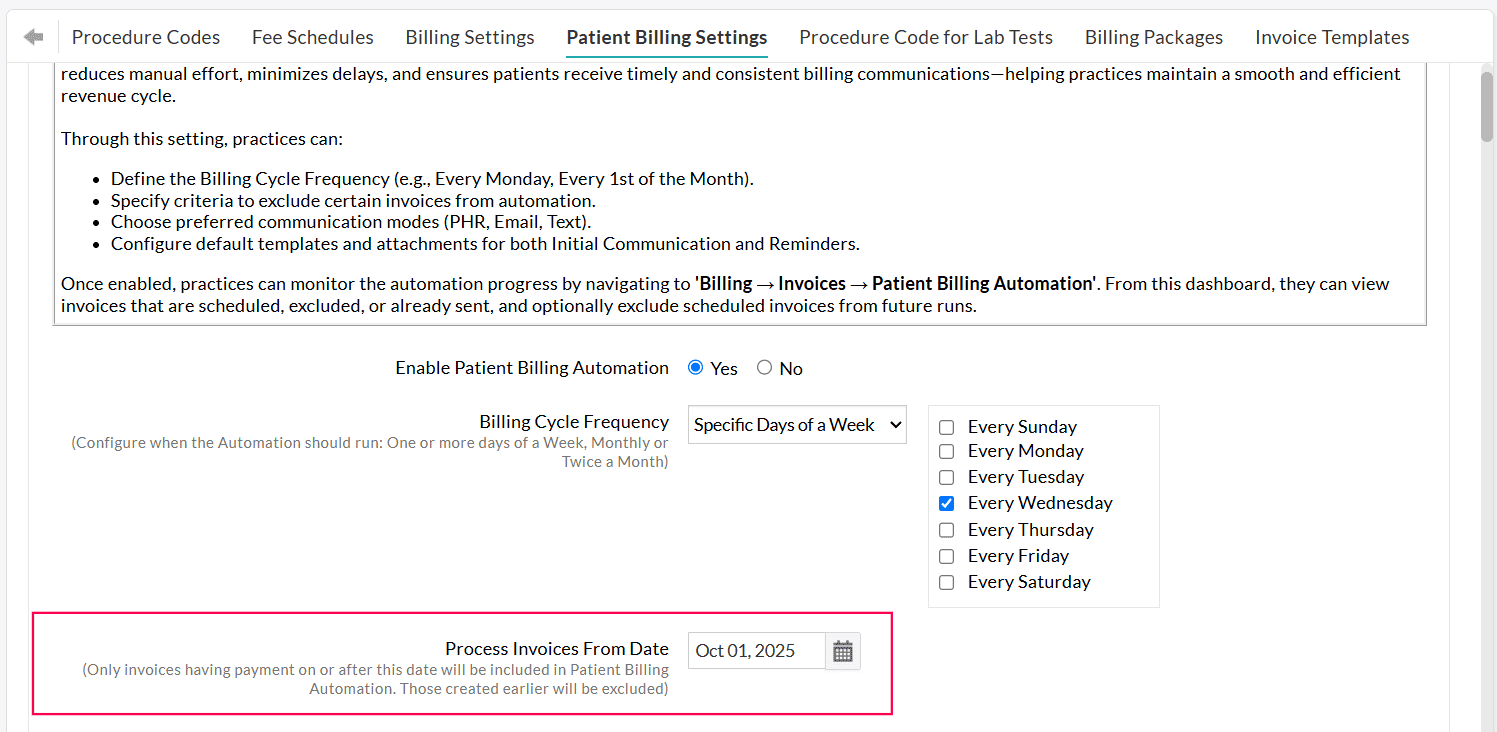
Wait Period Before Including Invoice in Automation
Practices can configure the number of days the system should wait before an Invoice is scheduled for automation.
The Waiting Period will be applicable after the Claim payment is processed for the Invoice.
This helps Practices to:
- Review Claim payments and adjustments (All Invoices scheduled for sending will be listed under the 'Invoices > Patient Billing Automation' section.)
- Handle any special Patient Billing needs of some Patients.
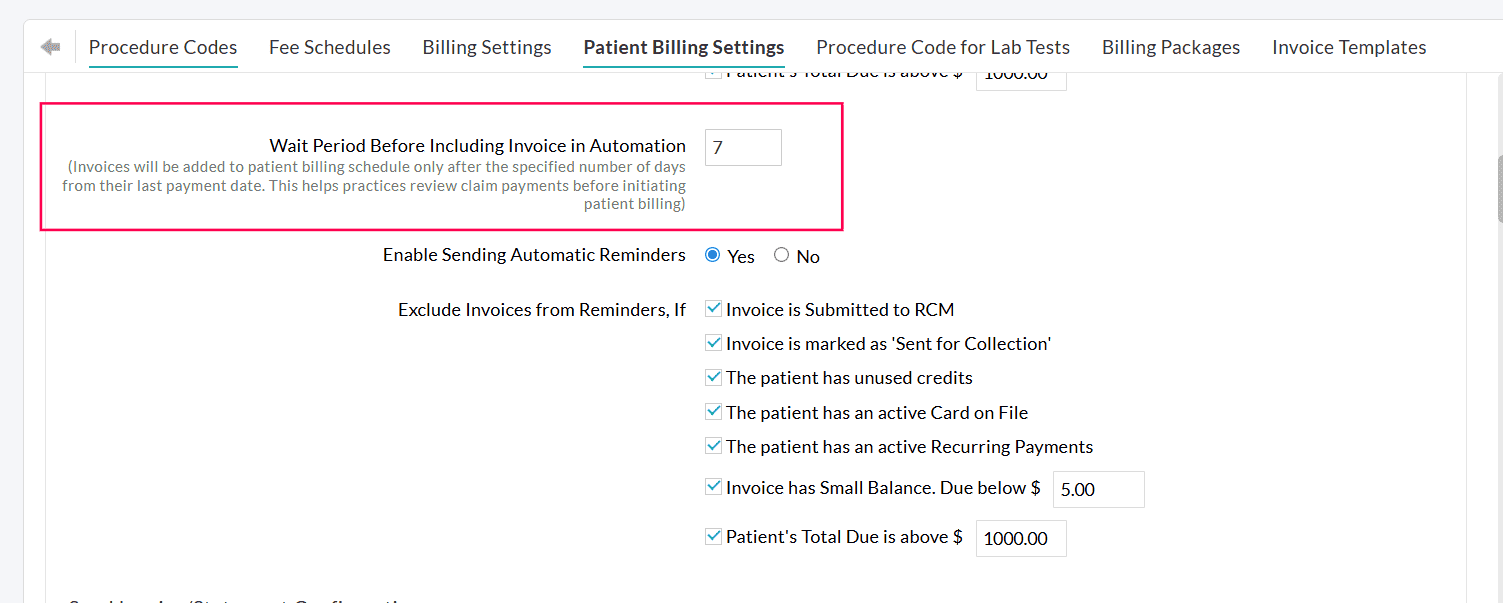
Example:
Configure a Wait Period of 7 days.
- The insurance payment is posted to an Invoice on October 10th.
- The 7-day waiting period begins. The Invoice will not be sent during this time. Practices can review the Invoice payments.
- On October 17th, the waiting period ends. The Invoice will be sent to the Patient automatically on your next scheduled billing cycle.
Note: If the Claim is resubmitted before the wait period ends, the Invoice will be automatically excluded from the automation.
Patient Billing Automation Workflows
Patient Billing Automation offers two distinct billing communication workflows through a new setting: 'How should Patient Invoices be Sent?'.
This gives Practices the flexibility to choose between:
- Managing Invoices and reminders at the individual Invoice level, or
- Sending all outstanding Invoices together as a single consolidated Patient statement at regular intervals.
a. Invoice-level Workflow
Choose the 'Send Invoices with Scheduled Reminders' option to send the Initial Invoices and subsequent reminders on the configured billing and reminder frequencies.
In this workflow, each Invoice is assessed and communicated separately to Patients. Each Invoice follows:
- Initial Communication
- Reminder 1
- Reminder 2
- Reminder 3
- Additional Reminder
This option is best suited for Practices that prefer structured follow-ups, customized messaging at each stage of the billing cycle, and a more proactive collection workflow.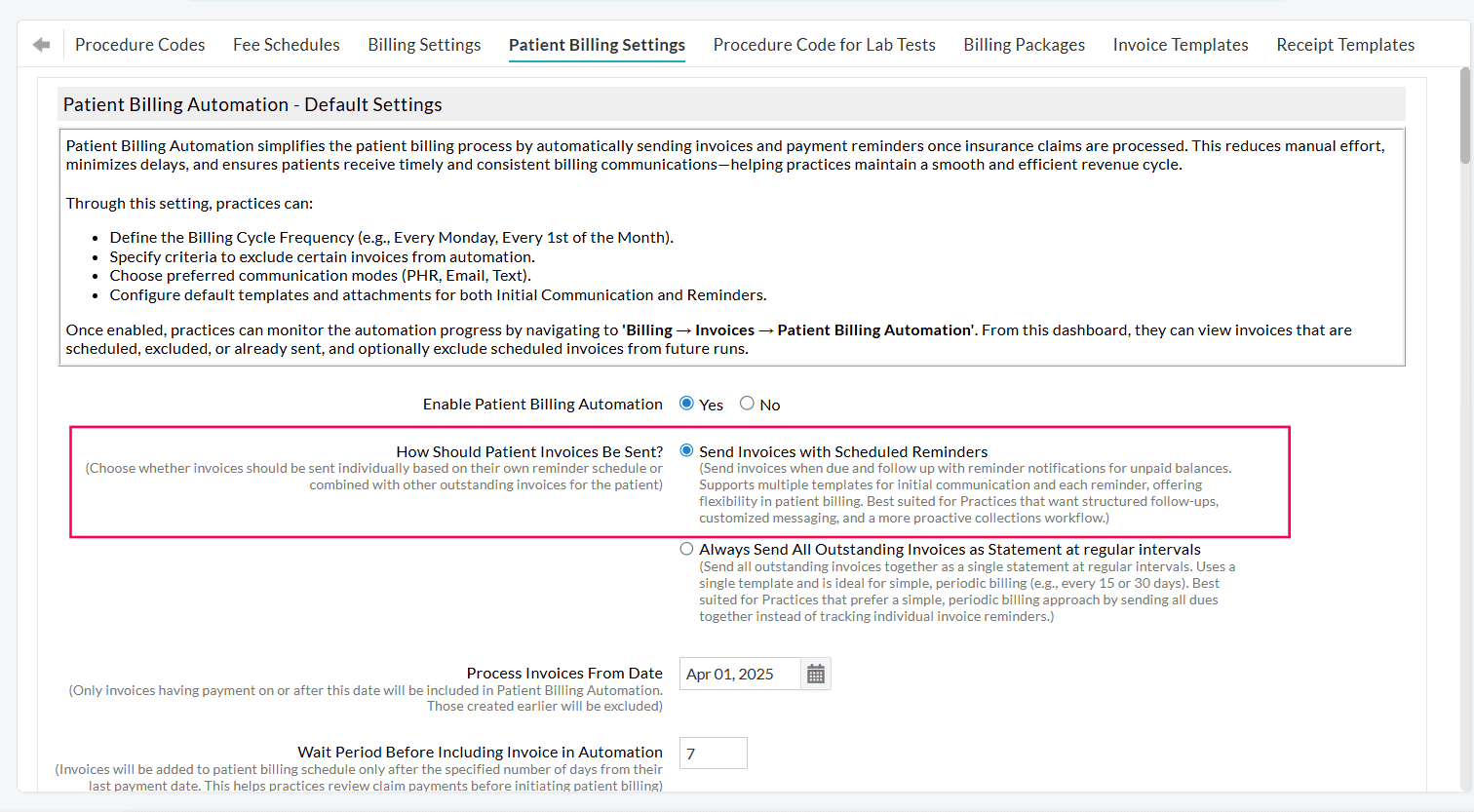
b. Patient-level Workflow
Choose the 'Send All Outstanding Invoices as a Single Statement' option to send all outstanding Invoices together as a single Patient statement at defined regular intervals.
In this workflow:
- All outstanding Invoices for a Patient are consolidated.
- Newly eligible Invoices (Claims that have been processed and the wait period has been met) are automatically included.
- Patients receive a complete summary of their outstanding balance in a single communication, simplifying billing.
This option is best suited for Practices that prefer a simple, periodic billing process by sending all dues together instead of managing individual Invoice reminders.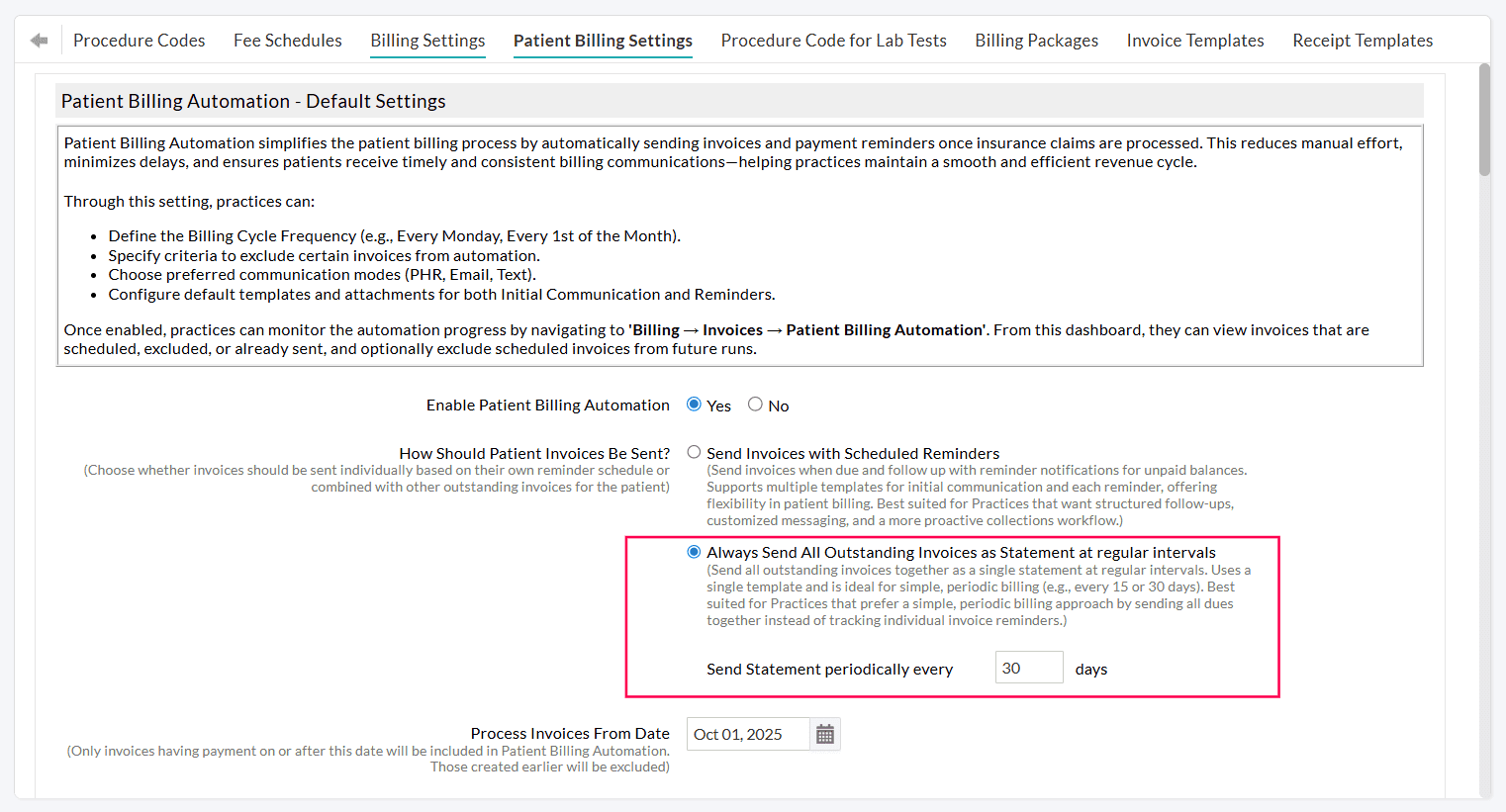
Practices can configure a statement cycle (for example, every 15 or 30 days). The statements are generated and sent periodically at the defined interval and continue until the outstanding balances are fully settled.
Example
Consider a scenario where a 15-day statement cycle is configured.
- April 1: A new invoice (Invoice #1) is sent to the patient.
- April 16: A consolidated statement is sent, including Invoice #1 and all unpaid invoices.
If a new invoice (Invoice #2) becomes eligible within the statement cycle (April 5):
- April 5: A statement is sent including Invoice #2, Invoice #1, and all unpaid invoices. The statement cycle resets from this date.
- April 21 (15 days from April 5): A consolidated statement is sent with all remaining unpaid invoices.
- Subsequent statements continue to be sent at the configured interval until all outstanding balances are fully settled.
This ensures Patients receive an updated summary of their dues without fragmented communication.
Note: To avoid sending statements frequently, set an appropriate statement interval.
Invoice-level Workflow Configuration
Configuring Billing Cycle Frequency
Choose how often Invoices should be sent automatically to the Patients. You can configure the automation to run on a Specific Days of a week, Monthly, or Twice-a-Month schedule based on your Practice’s billing workflow.
- Specific Days of a Week - Select one or more days of the week (e.g., Every Monday, Every Tuesday, Every Wednesday, etc.)
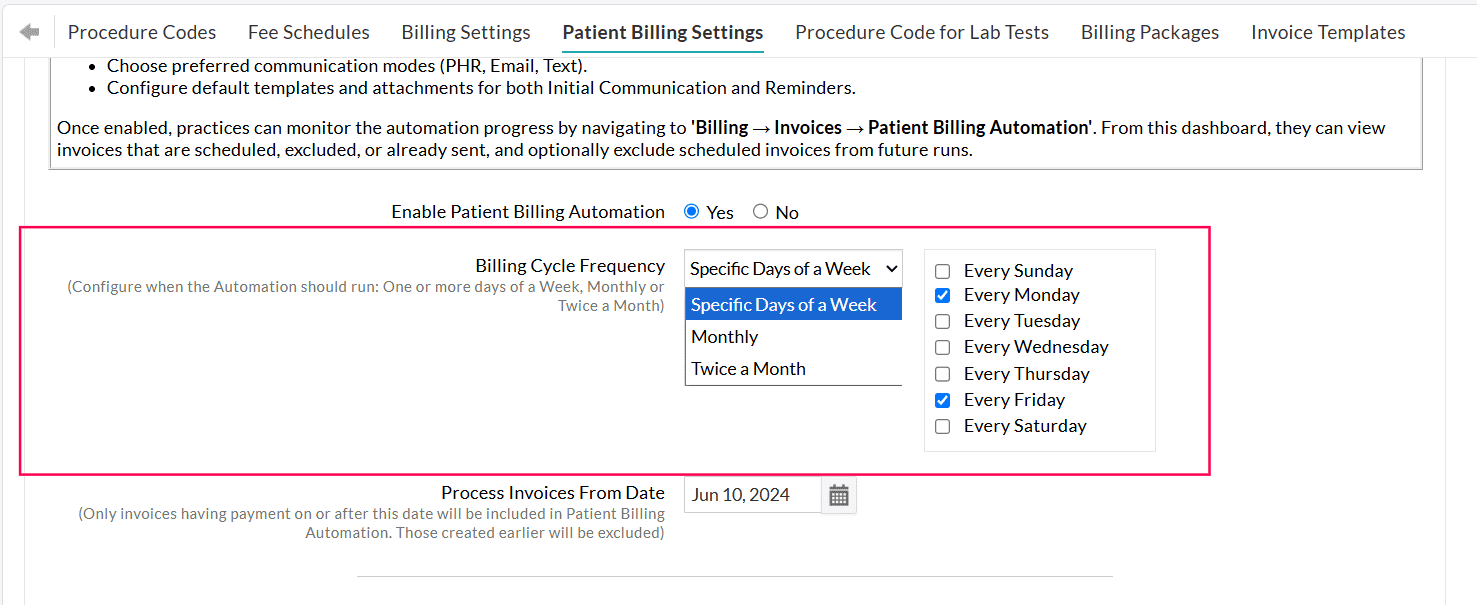
Example: If you select Specific Days of a Week → Every Friday, the system automatically sends all eligible Invoices to Patients every Friday. - Monthly - Select a specific date of the month (e.g., 1st or 15th of every month)
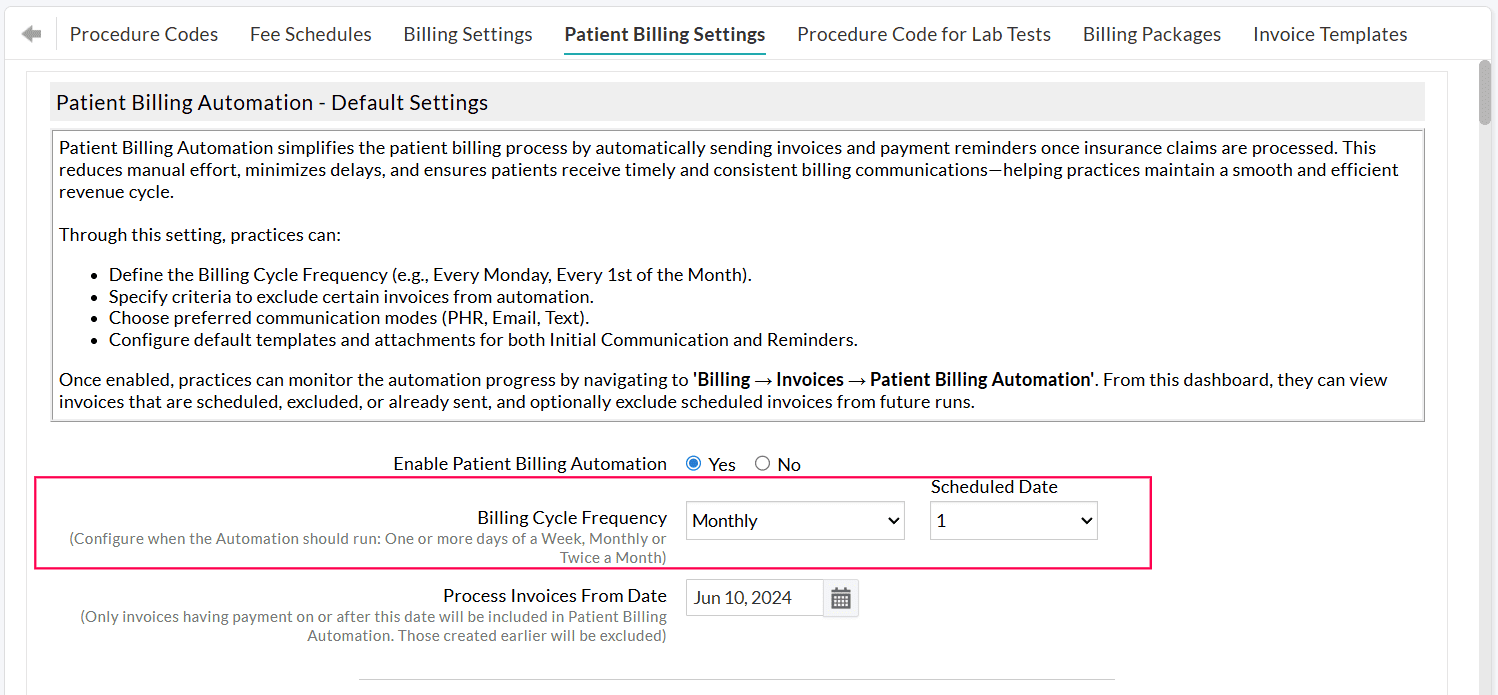
- Twice a Month - Choose two specific dates of every month (e.g., 1st and 16th of every month)
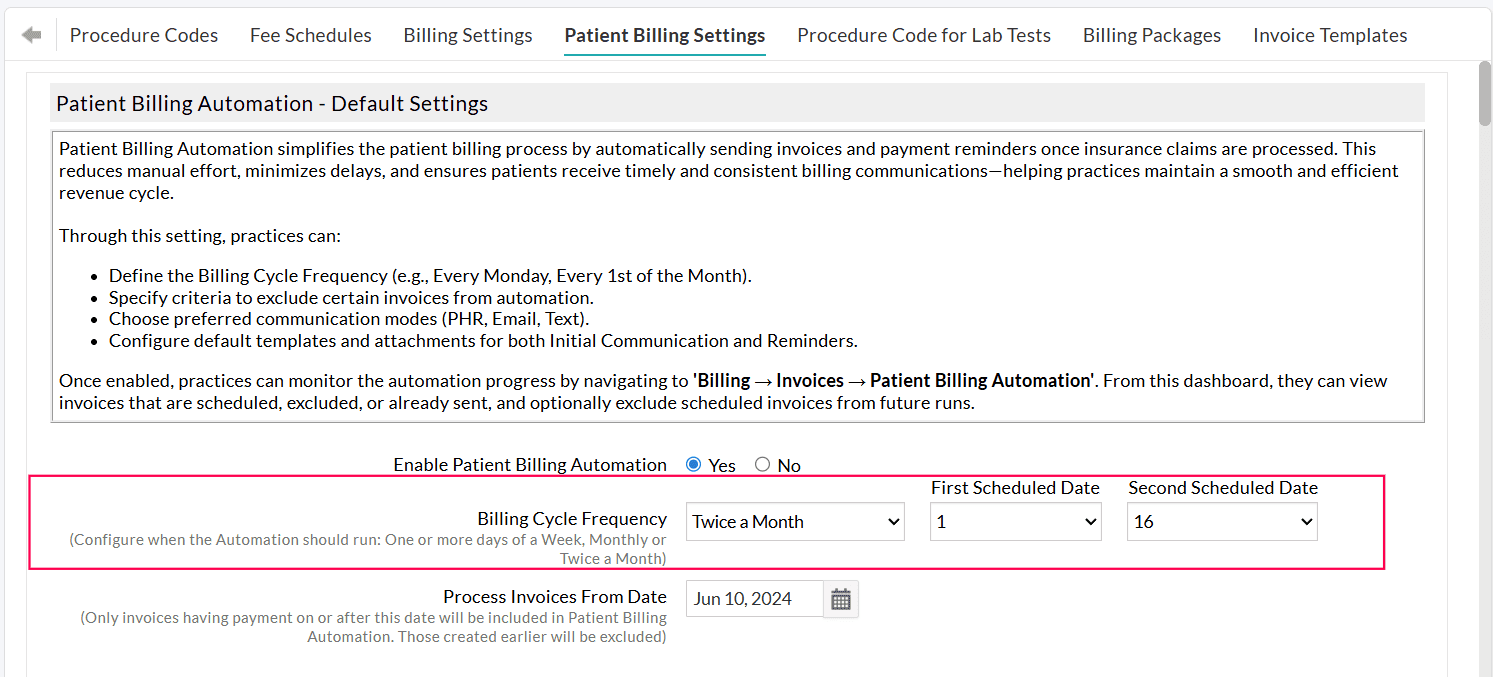
Enabling Automation for 'Initial Communication' and 'Reminders'
Practices can automate sending the first Invoice communication to Patients by navigating to 'Settings > Billing > Patient Billing Settings'.
Choose 'Yes' for 'Enable Sending Invoice Automatically'.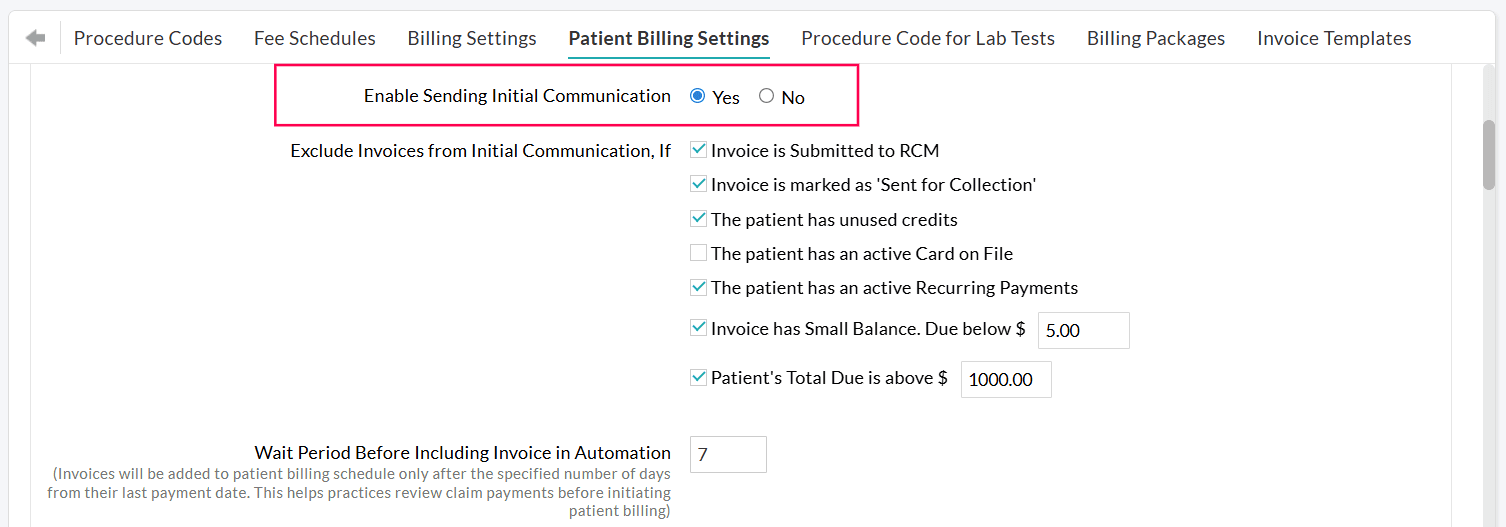
Practices can choose to automate only the initial communication while handling the reminders manually. Alternatively, they can send the initial communication manually and automate the reminders.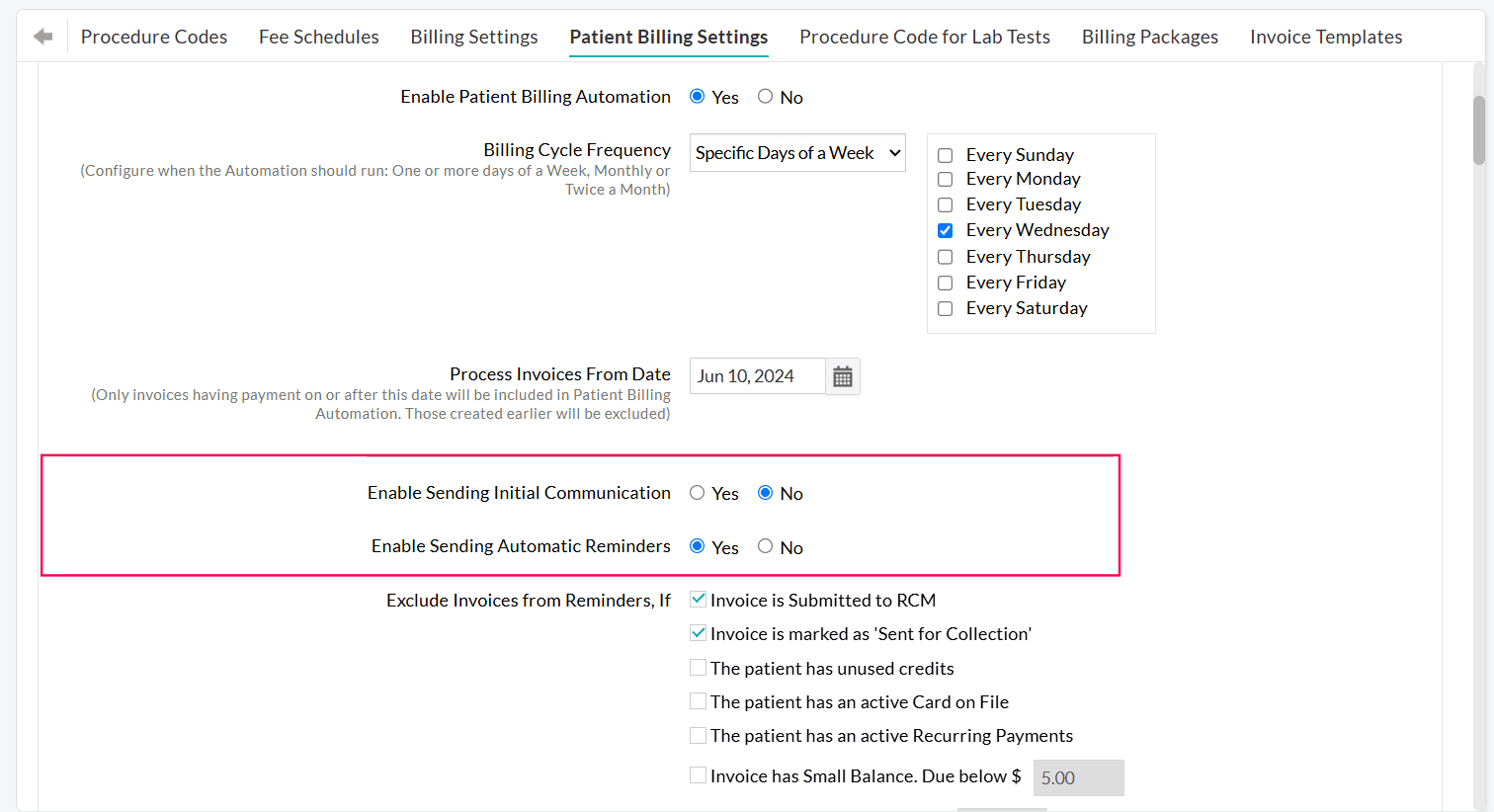
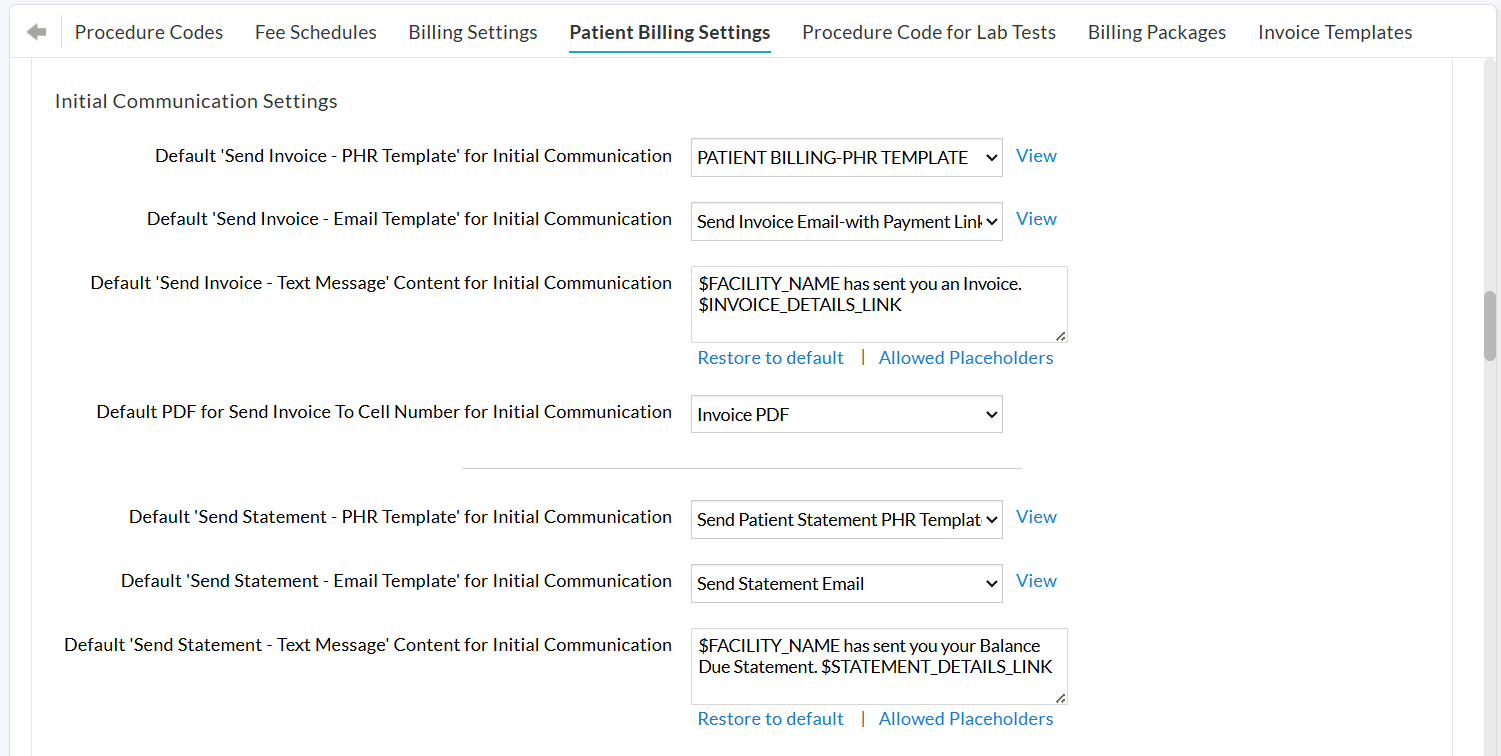
Configuring Initial Communication Settings
- Choose the default communication modes to send Invoices or Statements to Patients, viz., PHR, Email, and Text Message.
- Send Invoices as a Statement when the Patient has multiple Invoices.
If a Patient has more than one outstanding Invoice, you can enable the 'Send as Statement' option to combine and send them as a single statement. - Include 'Payment Link' while sending Invoices.
If the Bluefin Payment Gateway is enabled for your Practice, you can include a payment link in the Invoice message for Patients to make payments and select the default beneficiary for each Facility to which the amount should be credited. - Select default templates for sending Invoices and Statements through different communication modes, viz., PHR, Email, and Text Message (Cell Number).
Configuring Automation for Reminders
After the initial Invoice is sent, you can also automate follow-up reminders to Patients who still have outstanding dues.
Invoices located within 'Billing > Invoices > Search Options 1 > Patient Billing - Reminders' are eligible for sending automated reminders.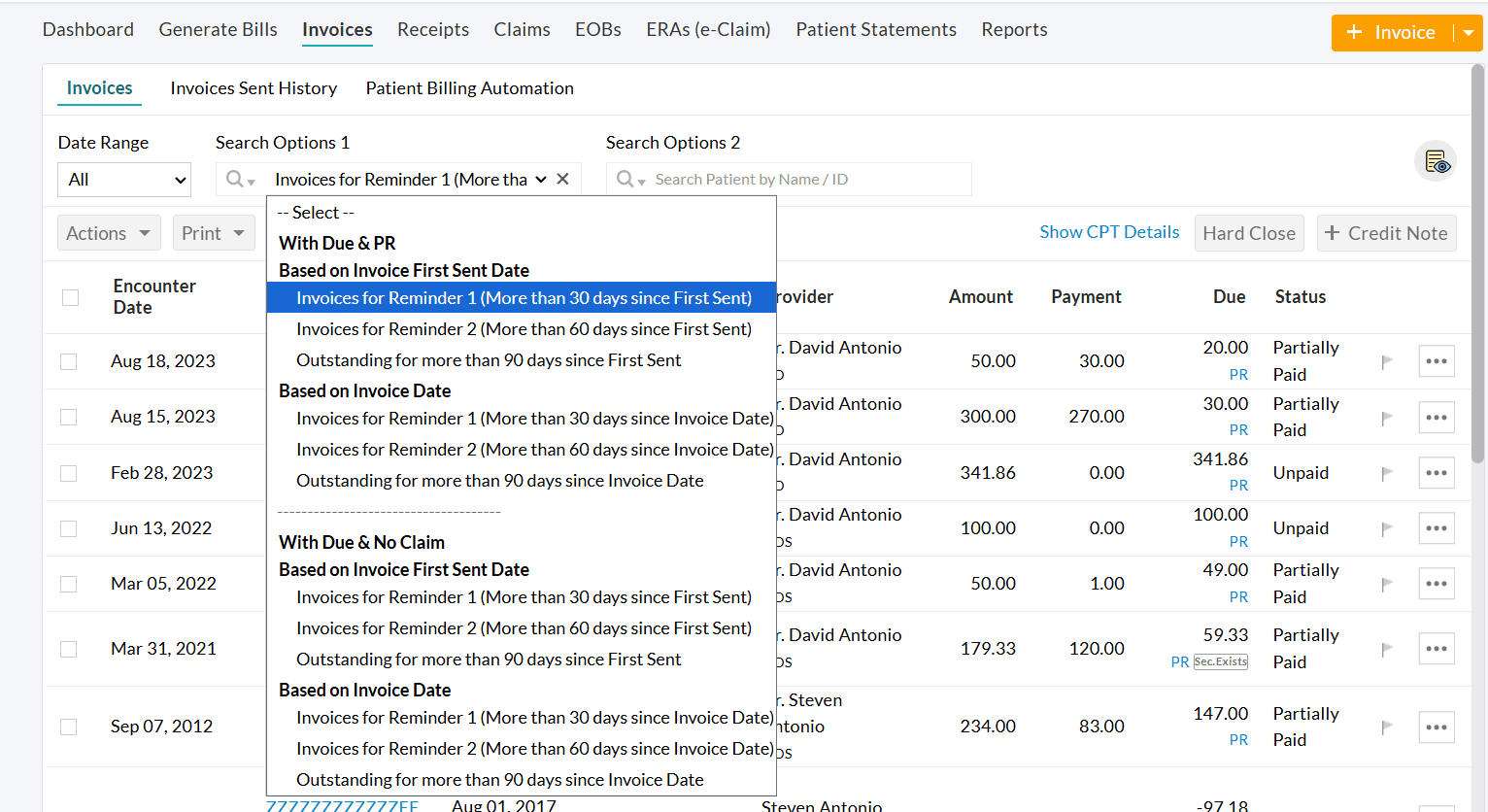
To enable this feature,
- Navigate to 'Settings > Billing > Patient Billing Settings'.
- Choose 'Yes' for 'Enable Sending Automatic reminders to Patients'.
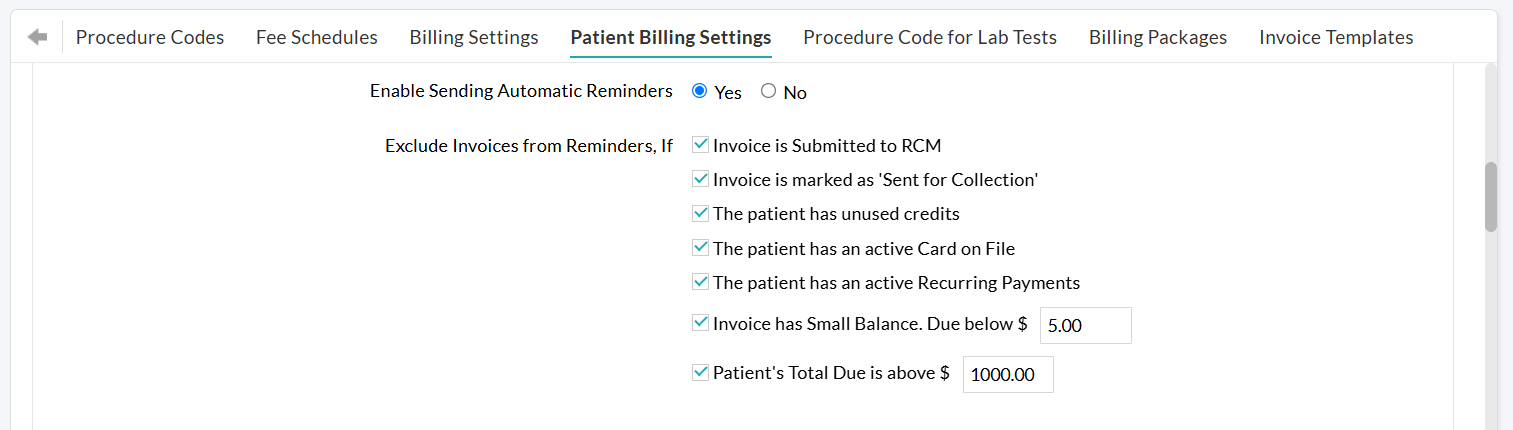
You can configure separate exclusion criteria for reminders, similar to the initial communication.
For example, you can choose not to send reminders for Invoices that are already submitted to RCM, sent for collection, or have small balances, etc.
Configuring Reminder Settings
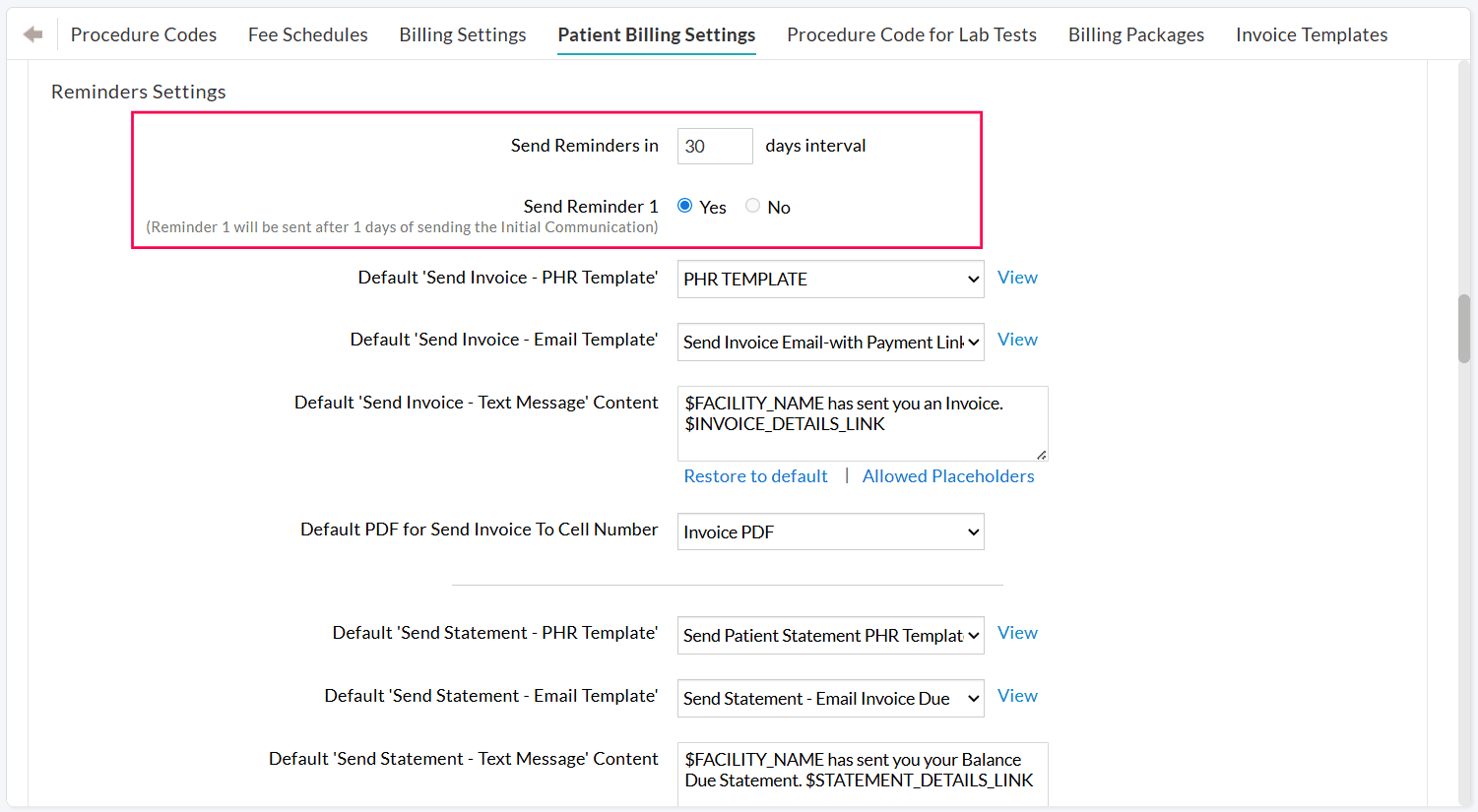
Practices can use this section to define:
- How often should reminders be sent to the Patients
- How many reminders should be sent. You can send up to three reminders for each Invoice after the initial communication.
Example:
If the reminder frequency is set to every 30 days, and the initial Invoice is sent on March 1,
- Reminder 1: Sent on March 31 (30 days after the first Invoice).
- Reminder 2: Sent on April 30 (60 days after the first Invoice and 'Reminder 1' is sent).
- Reminder 3: Sent on May 30 (90 days after the Invoice and 'Reminder 1' and 'Reminder 2' are sent).
Note: The configured reminder frequency and schedule will be applied while sending Invoices from 'Billing > Invoices > Search Options 1 > Patient Billing - Reminders'.
Practices can customize default templates for each reminder ('Reminder 1', 'Reminder 2', and 'Reminder 3') based on the chosen communication mode(s).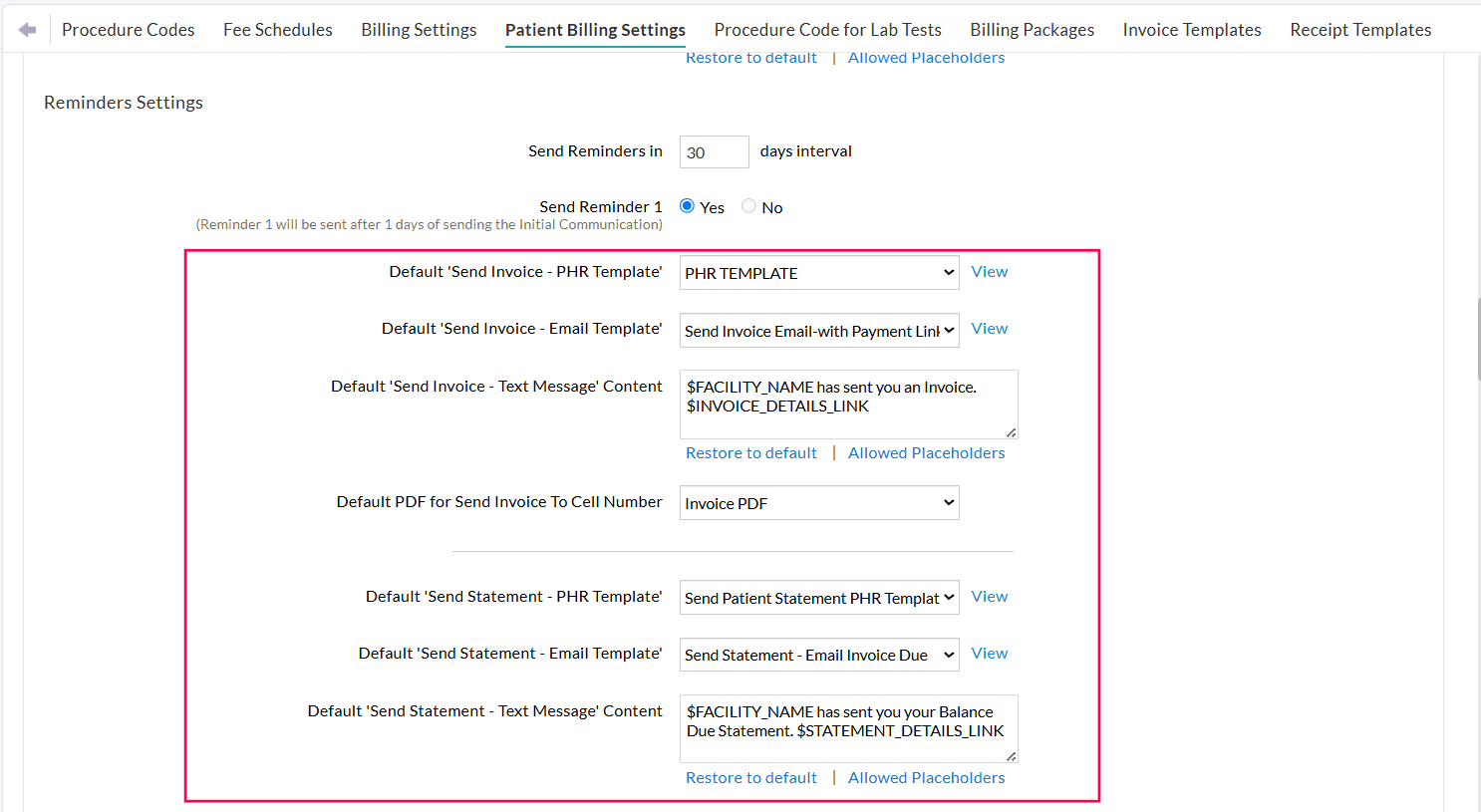
If 'Reminder 3' is enabled, Practices can choose to continue sending reminders to Patients at the configured interval even after the third reminder, as long as the Invoice still has an outstanding balance.
For example, after Reminder 3 is sent, additional reminders will be automatically triggered every 30 days until the Invoice is fully paid.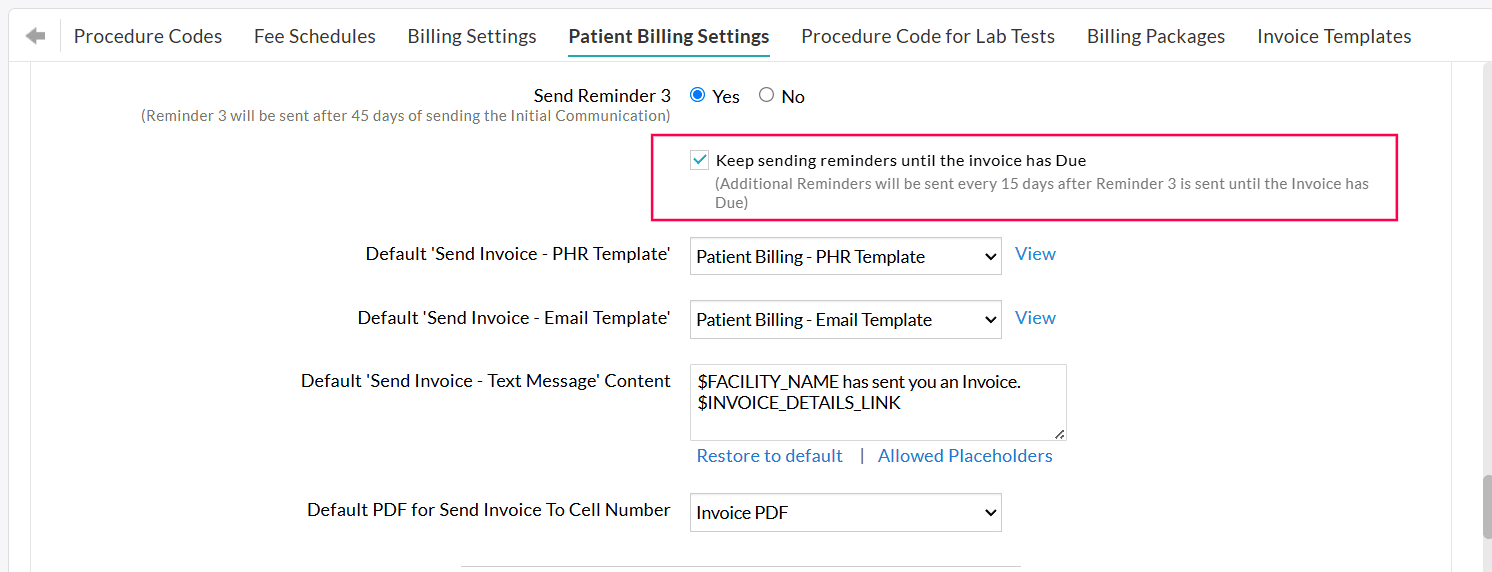
Handling Invoices Not Paid After Three Reminders
Invoices that remain unpaid even after three reminder notifications are listed under 'Billing > Invoices > Search Options 1 > Patient Billing – Reminders > Outstanding for more than 90 days since first sent.'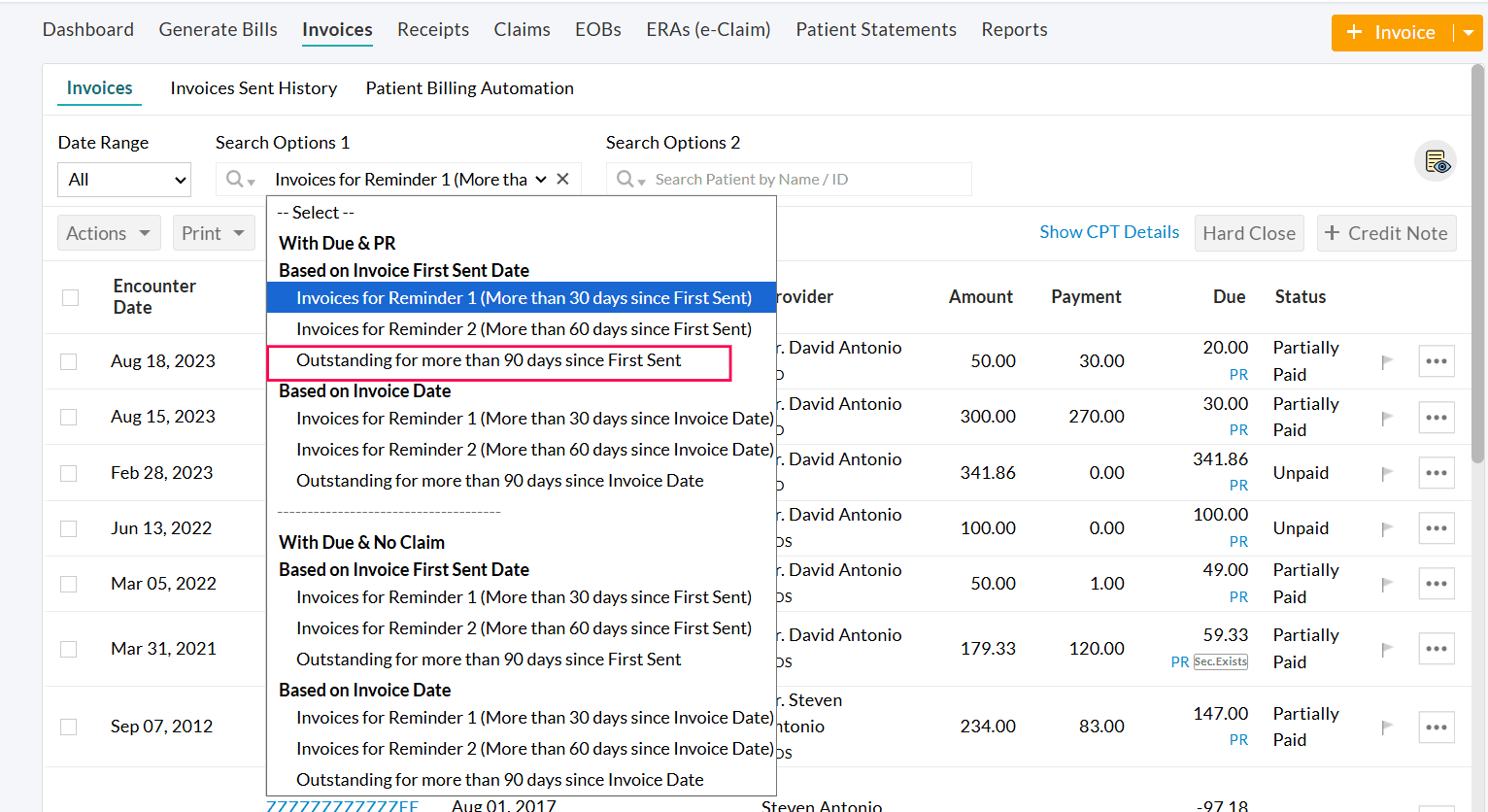
To collect these outstanding balances, Practices can take the following actions based on the Practice policy:
- Send Invoices to Patients by mail.
- Send Invoices to a Collection Agency for further payment follow-up.
- Reach out to Patients directly and offer customized payment plans, allowing them to clear their dues.
Patient-level Workflow Configuration
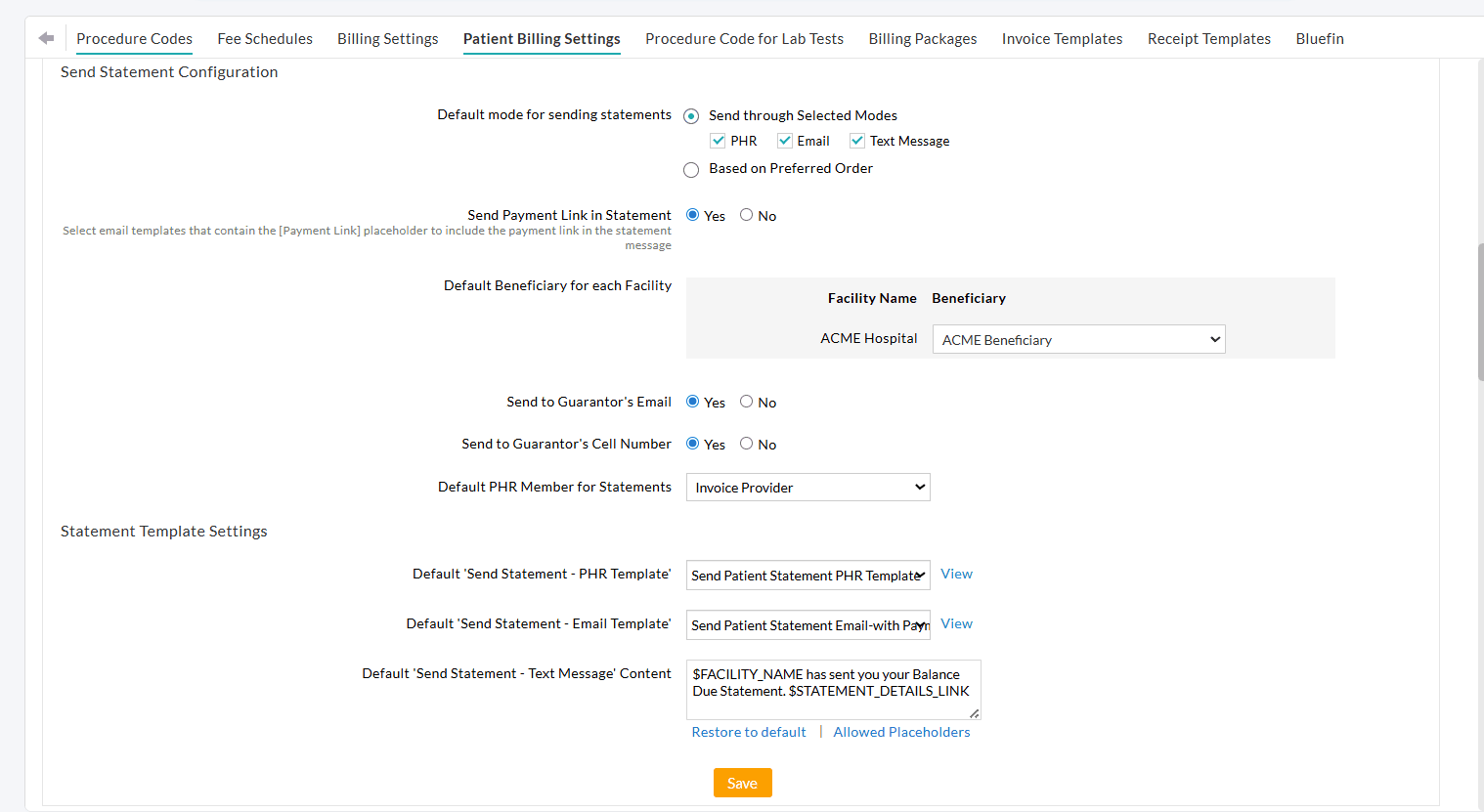
Statement Settings
- Practices can configure separate exclusion criteria for statements.
- Configure the default mode for sending statements. You can send statements through the selected modes or through a preferred order.
- Choose to include the Payment link while sending Statements.
- Select the default Beneficiary for each Facility.
- Send Statement to Guarantor's Email and Cell Number.
- Select the default PHR Member for Statements—Invoice Provider or specific Provider.
- Configure the default Send Statement Templates for PHR, Email, and Text Message.
Excluding Invoices from Automatic Patient Billing
You can exclude initial Invoices, reminders, and consolidated statements from being sent automatically under the following conditions:
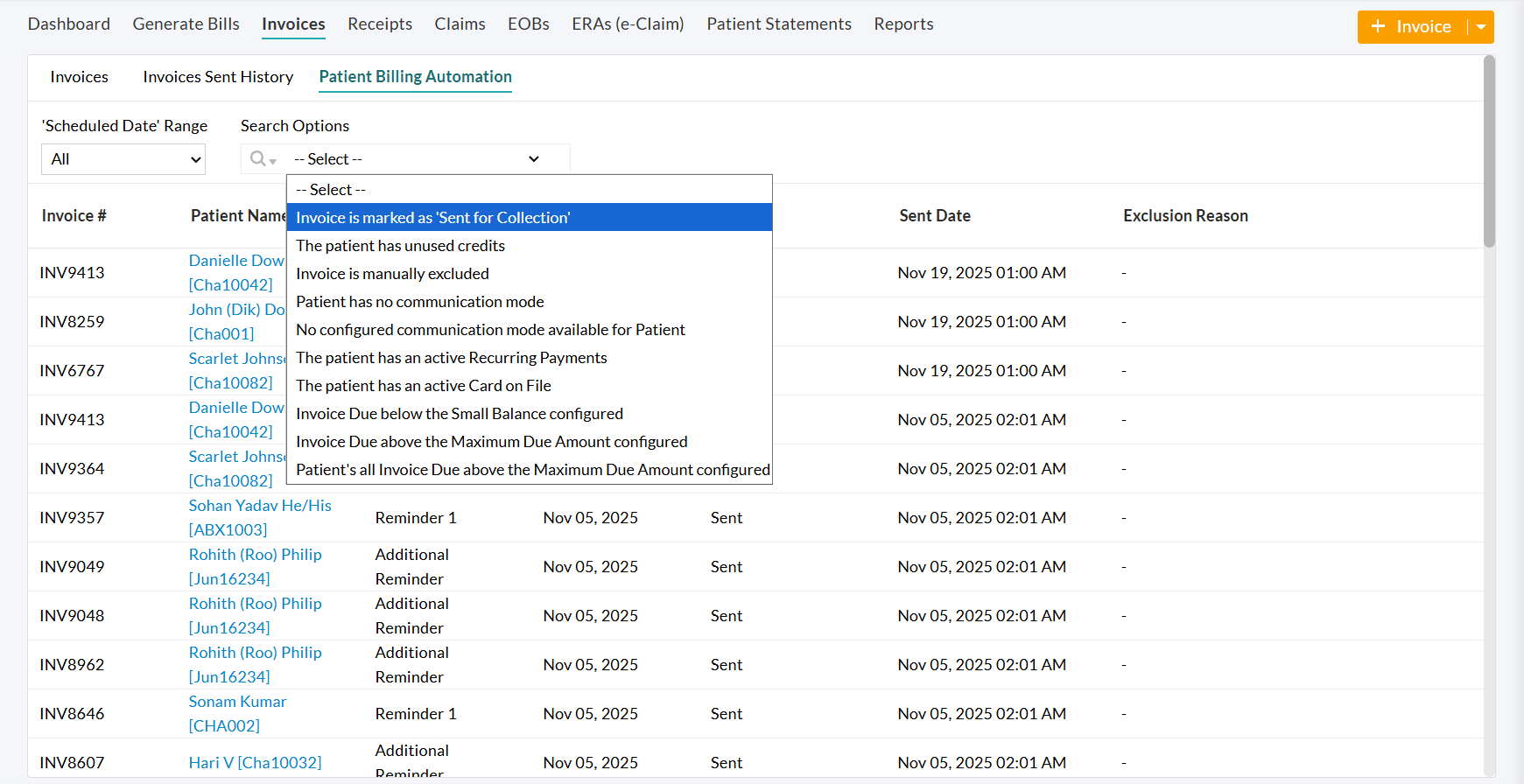
- Invoice is Submitted to RCM: This option is applicable for Practices that use Charm RCM or Charm BillerPro. Invoices submitted to RCM will be excluded from sending to Patients.
- Invoice is marked as 'Sent for Collection': Invoices sent to the collection agency will be excluded from sending to Patients.
- The Patient has unused credits: If the Patient has existing credits in their account, the Practice can apply these credits to clear outstanding Invoices. The Practice can exclude all Invoices of the Patient that have available credits. Once the Practice applies the unused credits to the Invoices, the remaining Invoices will be added to the automation.
- The Patient has an active Card on File: If a Patient has a card on file saved in CharmHealth, and the Practice has obtained consent to charge the Patient’s card, their outstanding dues can be cleared by processing the payment using the saved card. In such cases, Invoices for Patients with an active card on file can be excluded.
- The Patient has an active Recurring Payments: Practices that offer customized payment plans for Patients to settle their outstanding balances in manageable installments can enable this option.
- Invoice has a Small Balance: Invoices with a due below a configured limit (e.g., $5.00) can be excluded.
- Patient's Total Due is above a certain amount: Invoices exceeding a configured amount (e.g., $1,000) can also be excluded. This allows Practices to verify high-value dues before sending them to the Patient.
Note: Practice must review all the excluded Invoices and send them manually if required.
Exclude Invoices from Initial Communication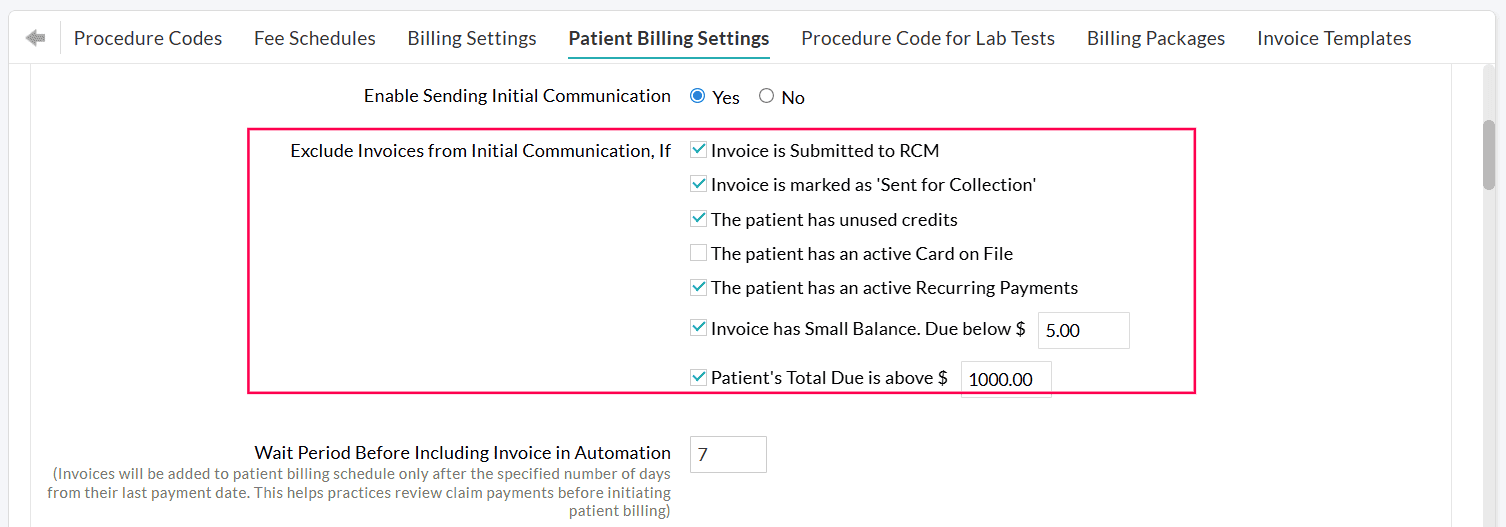
Exclude Invoices from Sending Reminders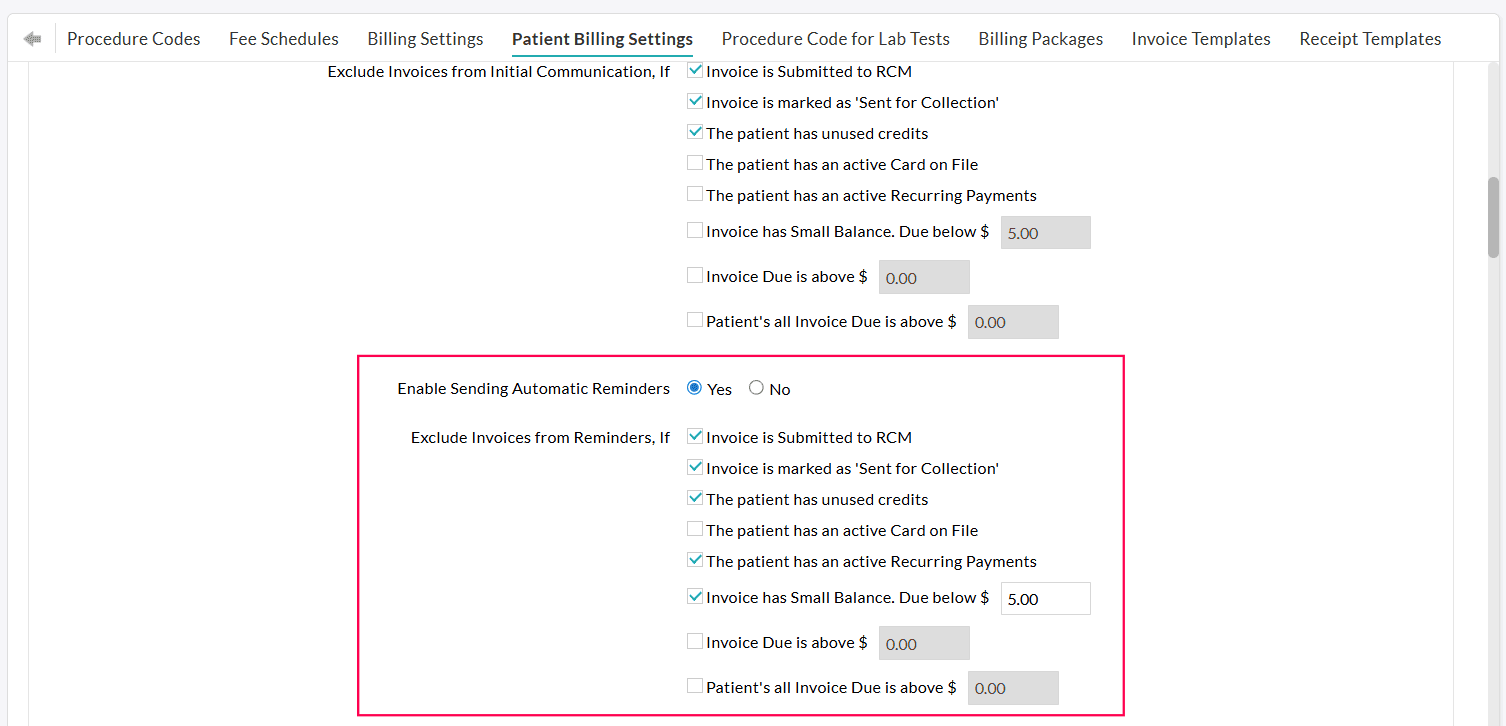
Exclude Invoices from Consolidated Flow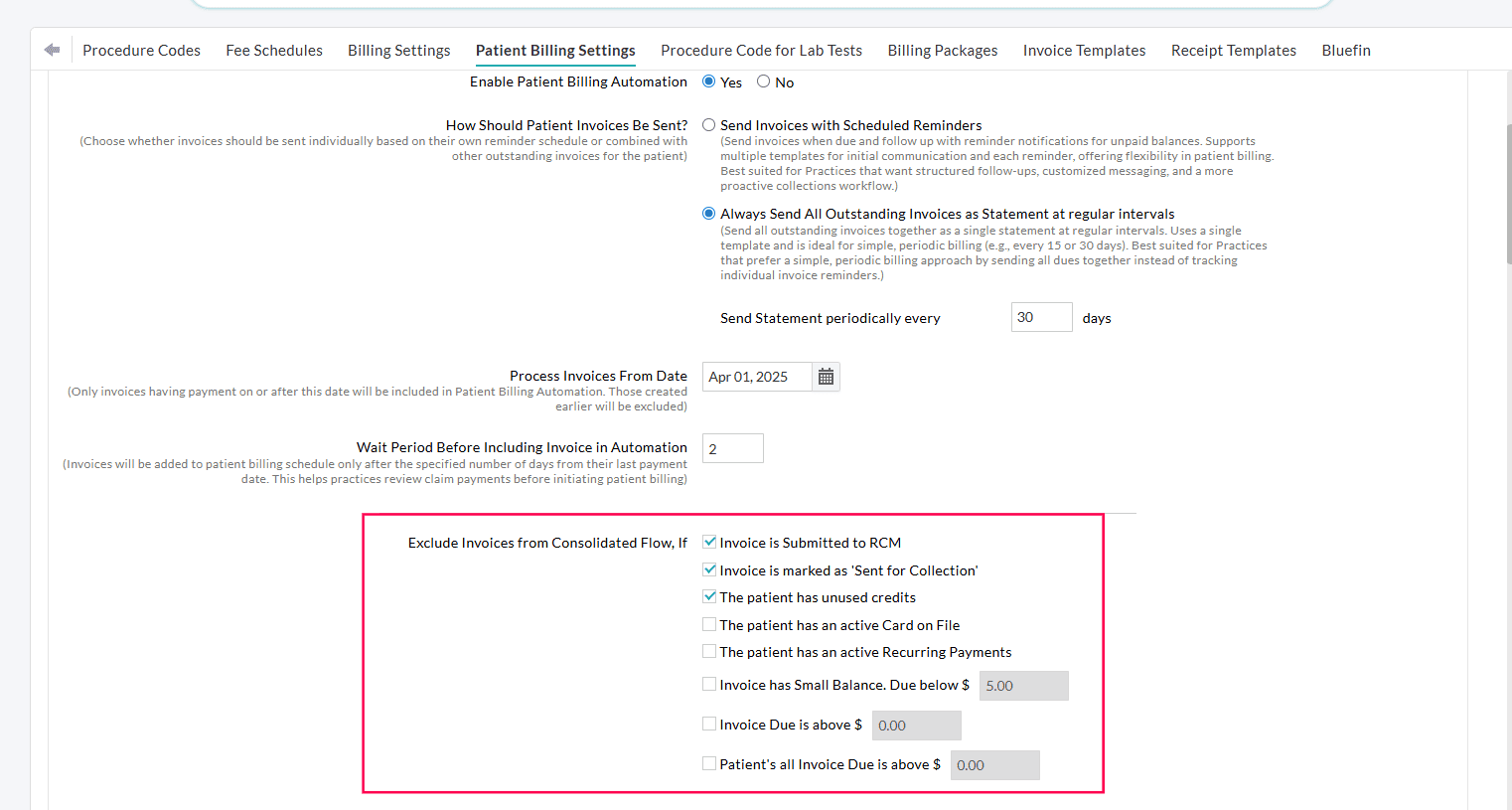
Tracking the Patient Billing Automation Progress
You can monitor and manage all automated billing activities from 'Billing > Invoices > Patient Billing Automation.'
This dashboard offers a clear overview of scheduled, excluded, and send Invoices. Additionally, it enables you to exclude scheduled Invoices from future automation runs manually.
To help you quickly locate specific Invoices, this page includes a custom date-range filter and detailed Search Options.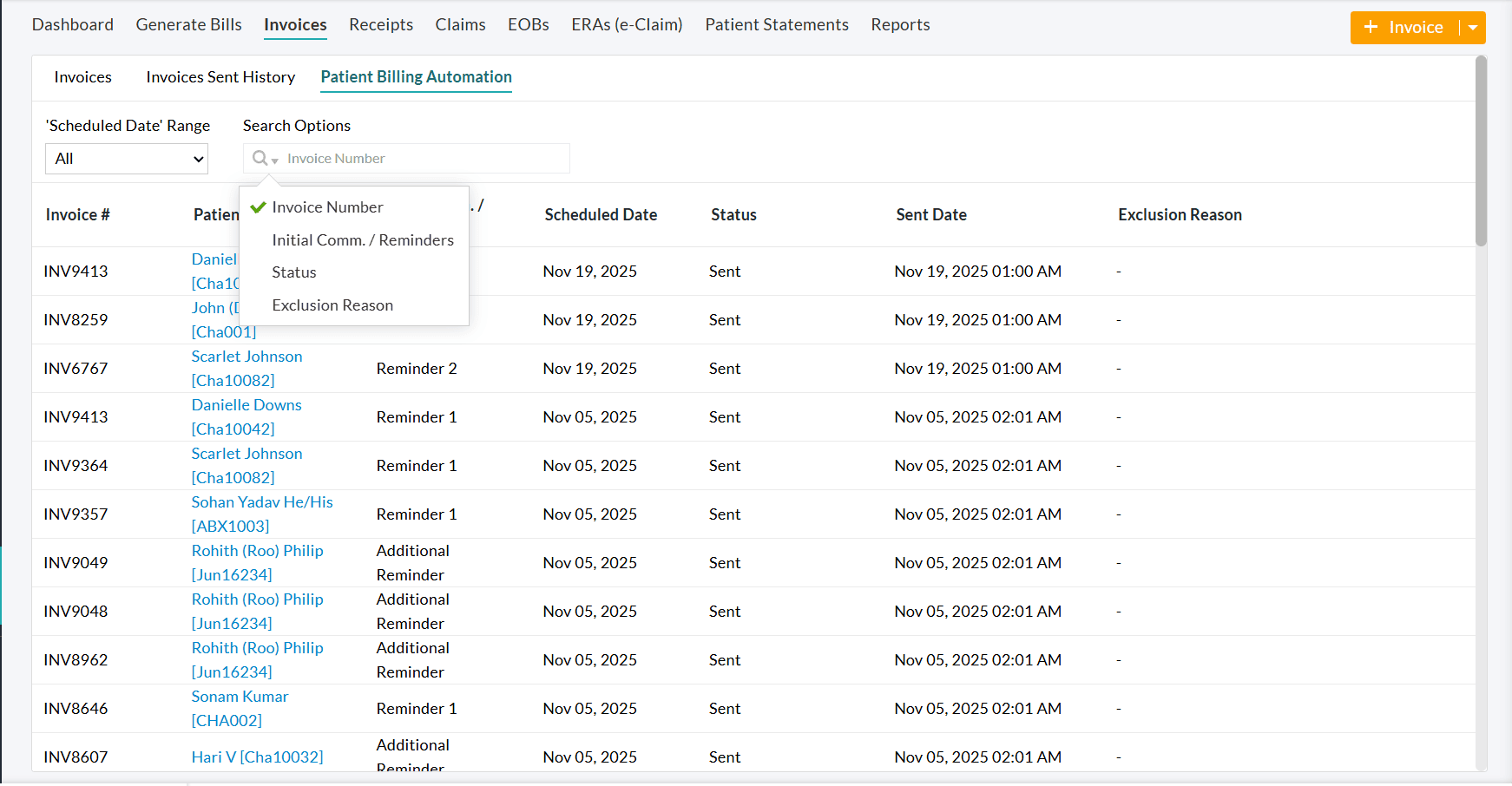
The Search Options include:
- Invoice Number - Find an Invoice using its reference number.
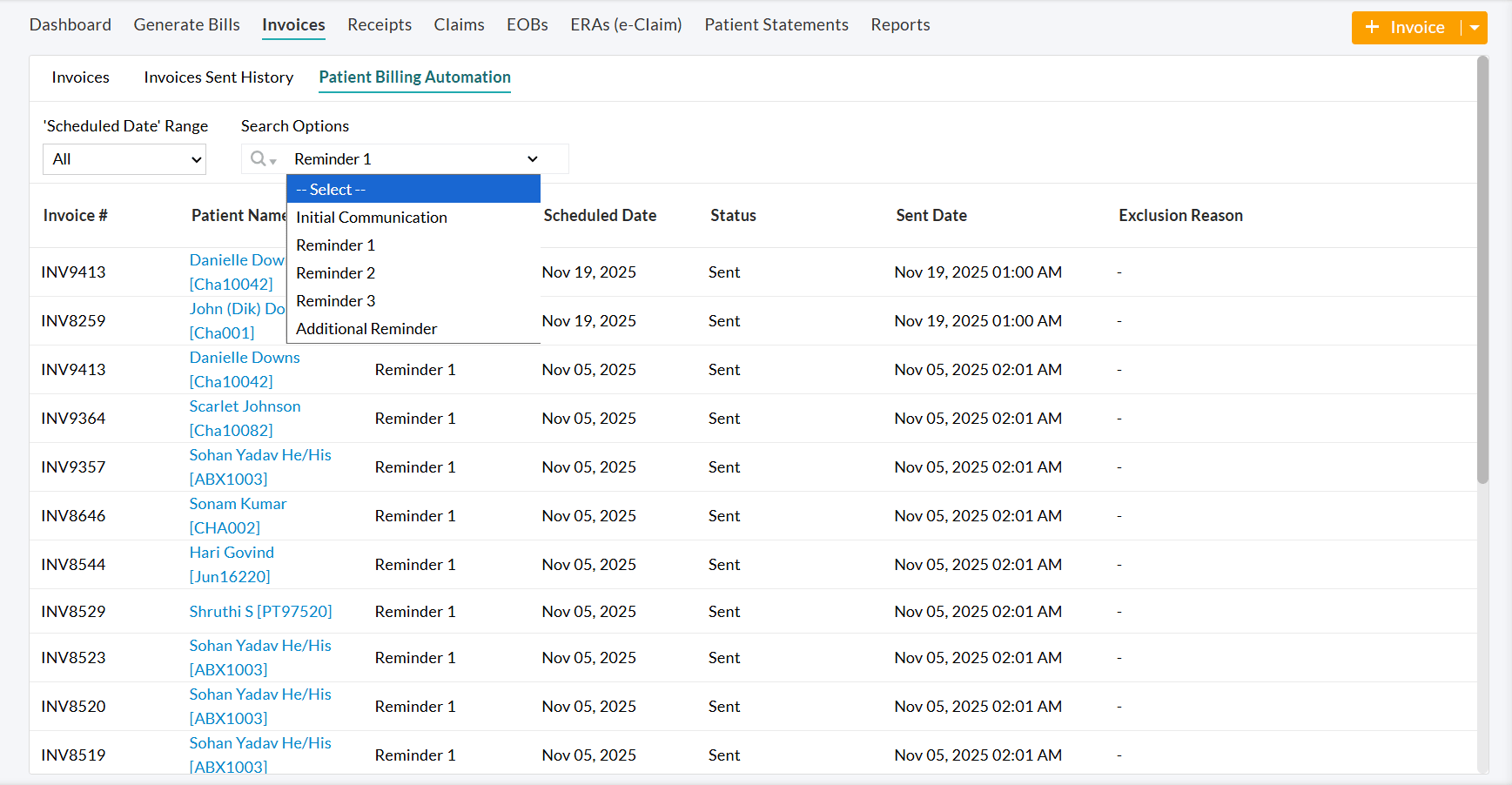
- Initial Communication/Reminders - Search Invoices based on their communication status, such as:
- Initial Communication
- Reminder 1
- Reminder 2
- Reminder 3
- Additional Reminder
- Status - Filter Invoices based on their current automation status.
- Exclusion Reason - View Invoices based on the reasons for their exclusion.