Billing Setup Wizard
The Billing Setup Wizard consolidates all essential billing configurations into a single, easy-to-use view, enabling Practices to manage billing efficiently in CharmHealth. It offers clear visibility into key billing settings and features, allowing Practices to utilize them to their fullest potential.
The key benefits of this feature include:
- Provides a guided, step-by-step flow that brings all essential billing configurations in one place.
- Offers a high-level view of all billing-related settings and features for better control and understanding.
- Streamlines the onboarding for new Practices setting up their billing.
- Helps Practices quickly complete the essential billing setup.
- Displays relevant add-ons and settings based on the selected Practice Type, ensuring an optimized workflow.
Practices can access the Billing Setup Wizard by following the steps below.
- Go to 'Billing & Generate Bills'.
- Click on the 'Setup Wizard' option in the top-right corner.

- Select your Practice Type: Insurance Only, Cash Only, or Insurance and Cash-based Practice.
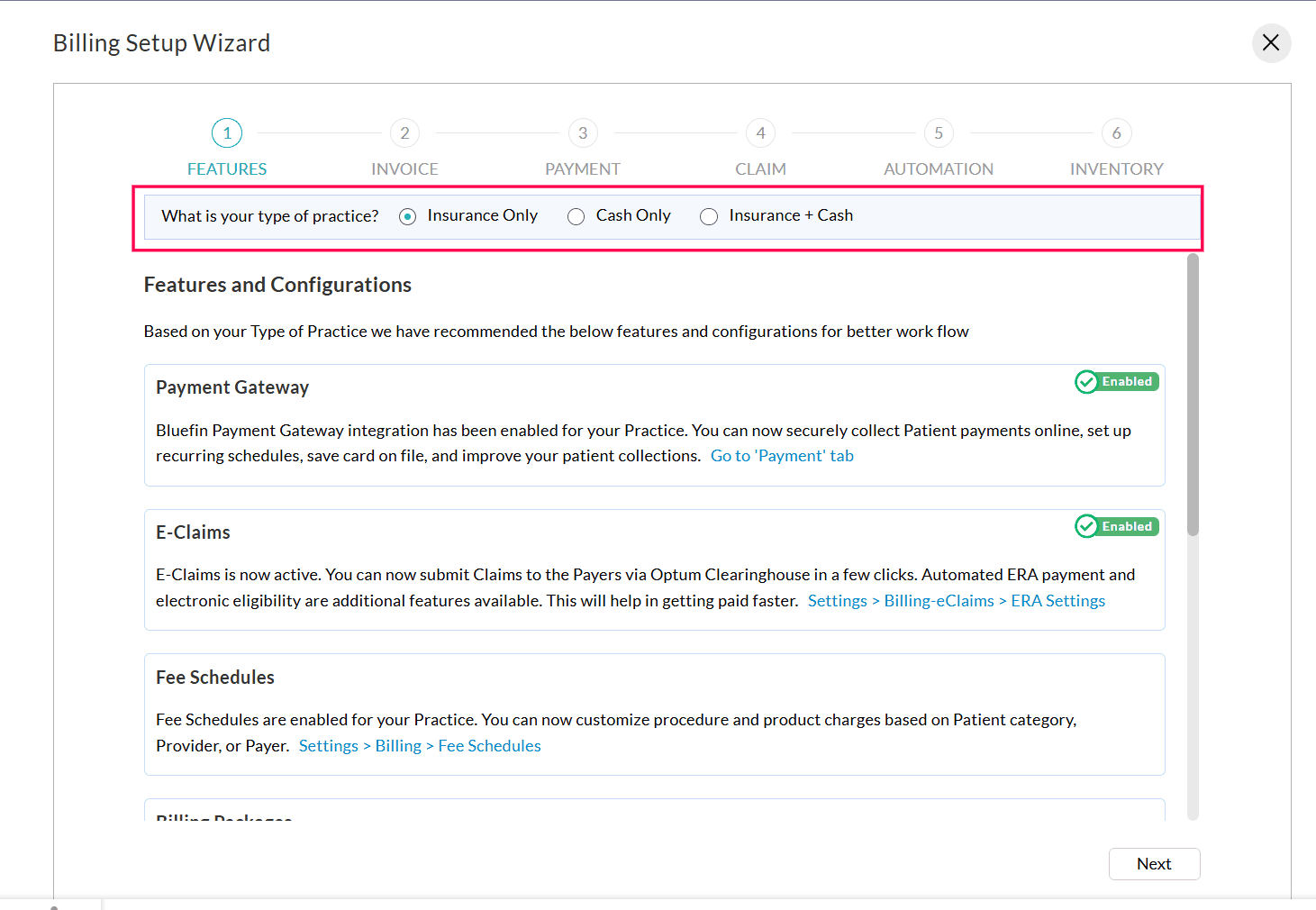
- All applicable configurations and features will be displayed based on the selected Practice type. The features include:
- Click 'Next' to proceed to each section, where you can configure the following.
- Invoice Settings
These settings control Invoice generation, applying patient credits against the Invoice, set default auto-payment options, and decide whether to show additional details and category-wise totals in the Invoice.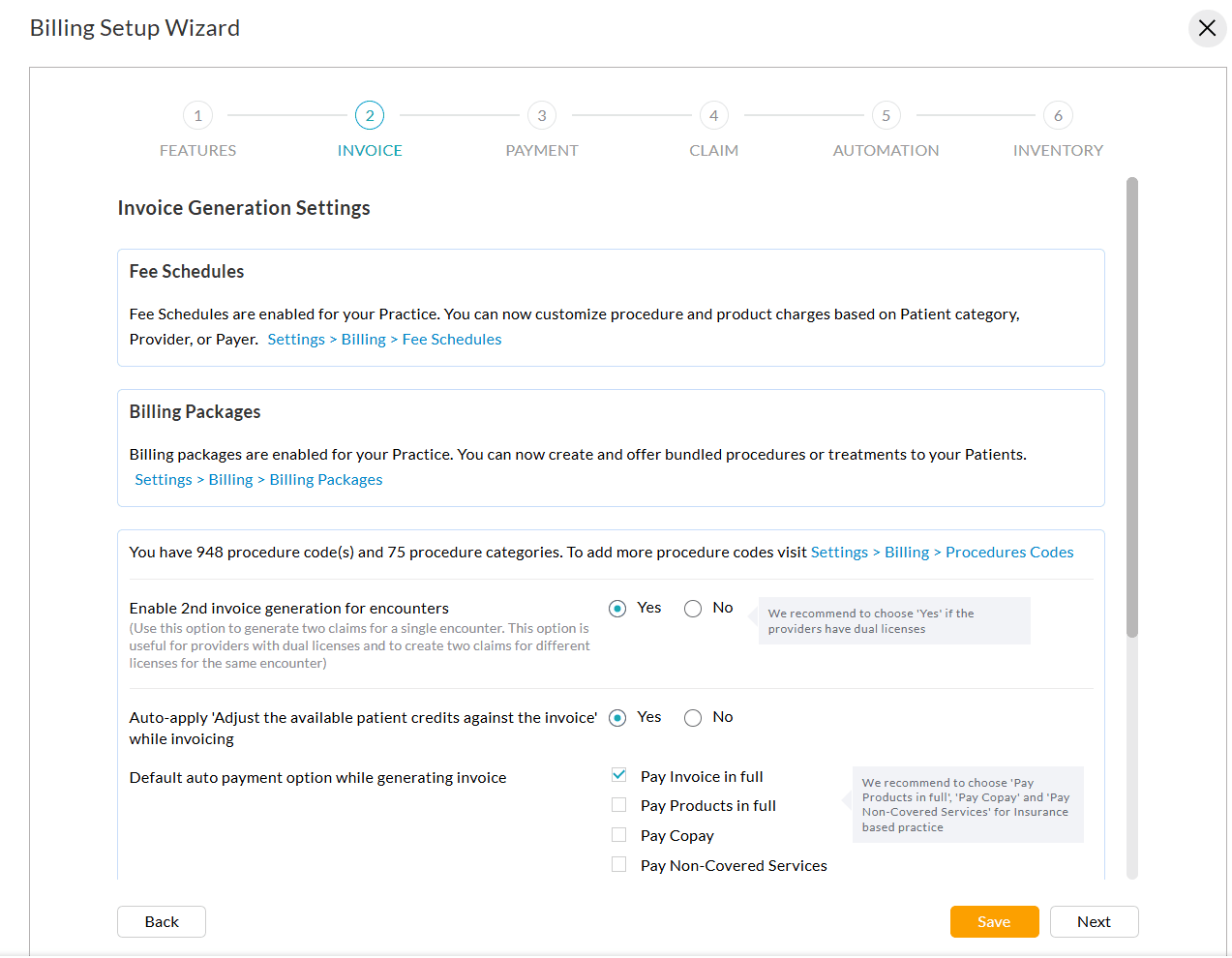
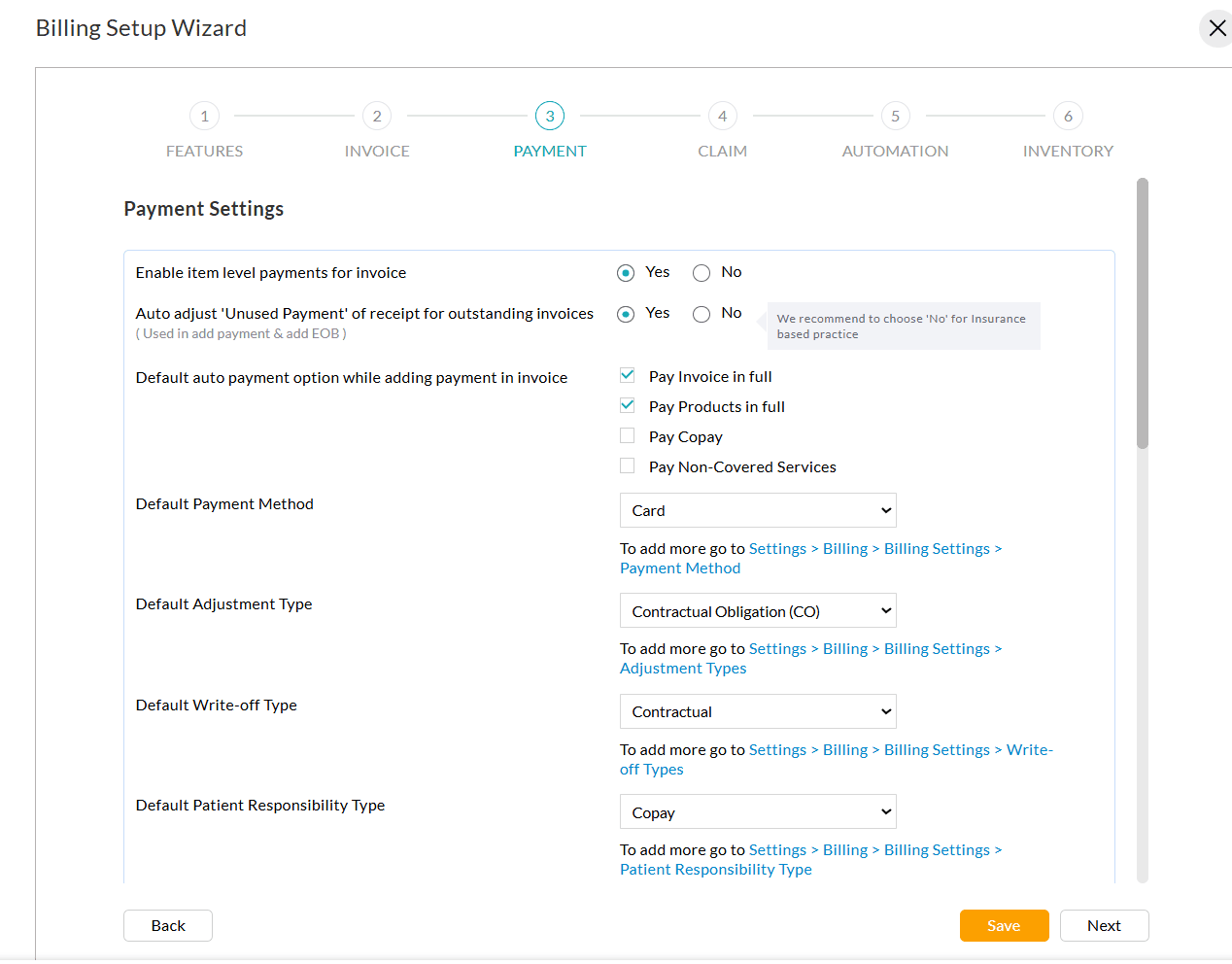
- Payment Settings
Practices can set up key payment preferences, including item-level payments, auto adjustment of unused amounts, default payment options, and payment methods. They can also configure payment gateway settings, view Bluefin-mapped Facilities, enable the card-on-file option, and allow Patients to make partial payments or delete saved cards.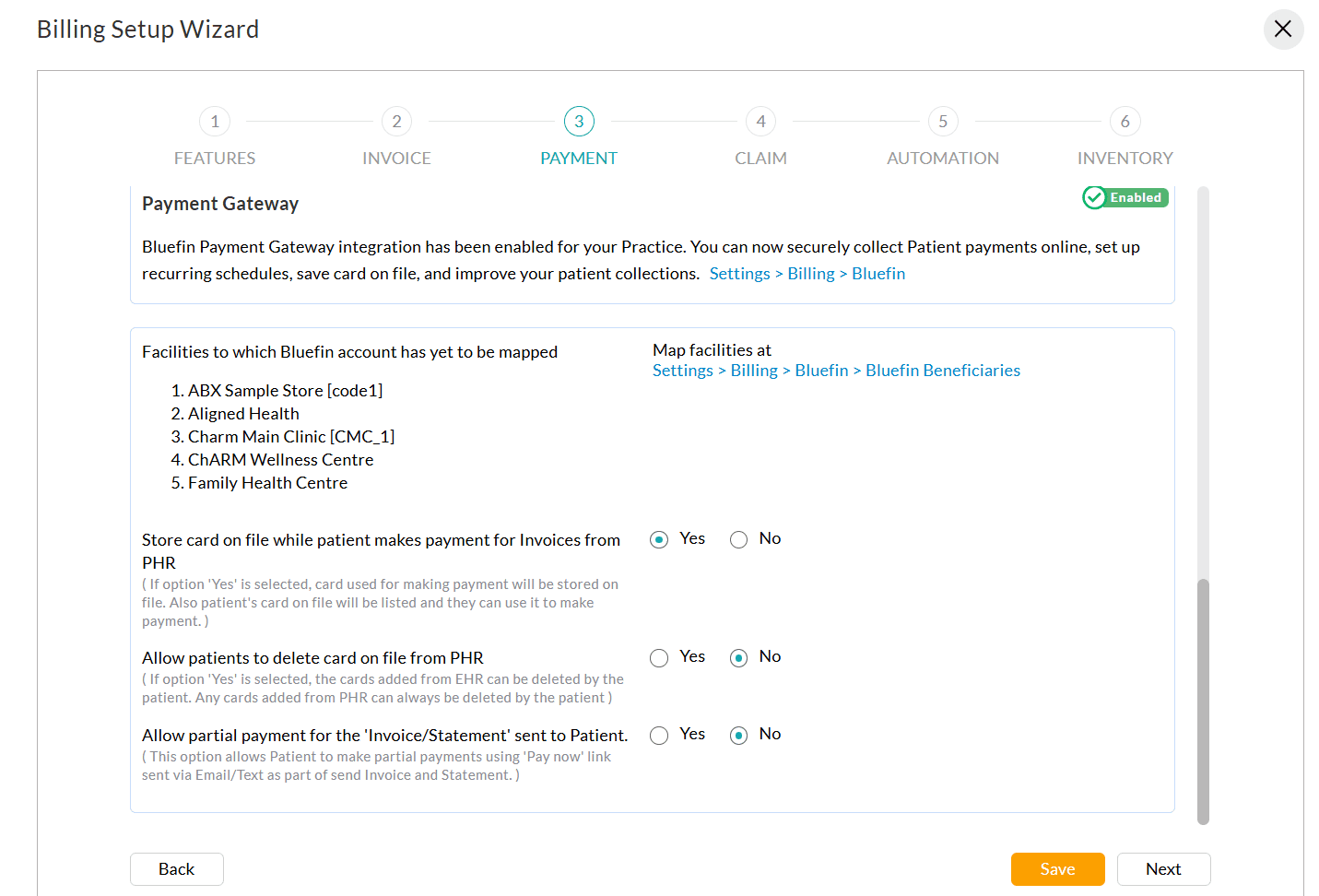
- Claim Settings
In this section, Practices can manage the Payer List, set up key insurance preferences, define default values for Claim Generation, and determine whether to process Secondary Claims before billing Invoices to the Patients.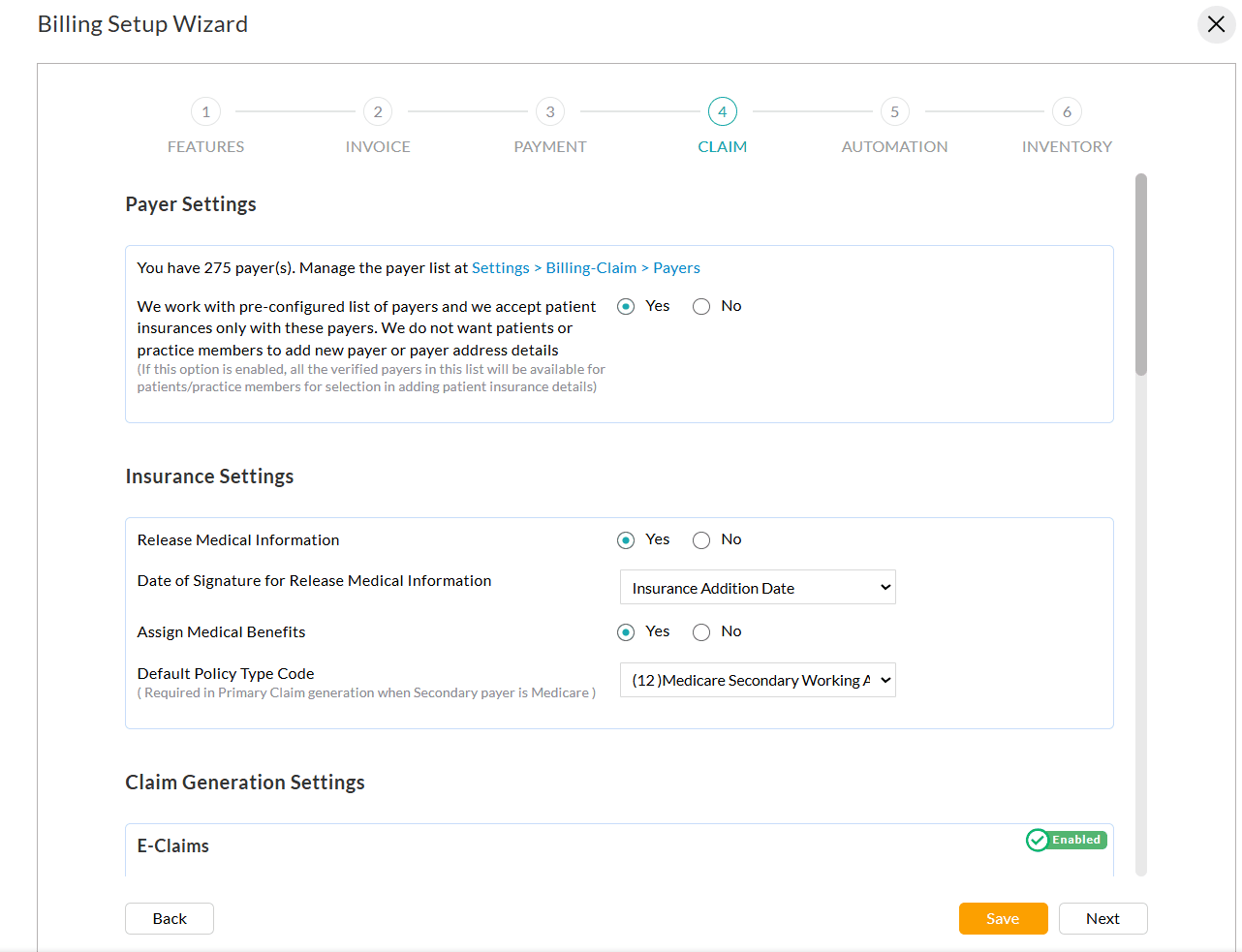
- Automation Settings for Invoices, Receipts, and Claims
Practices can enable automation for generating Invoices and Claims, and sending Receipts to Patients. You can customize the required settings for each automation.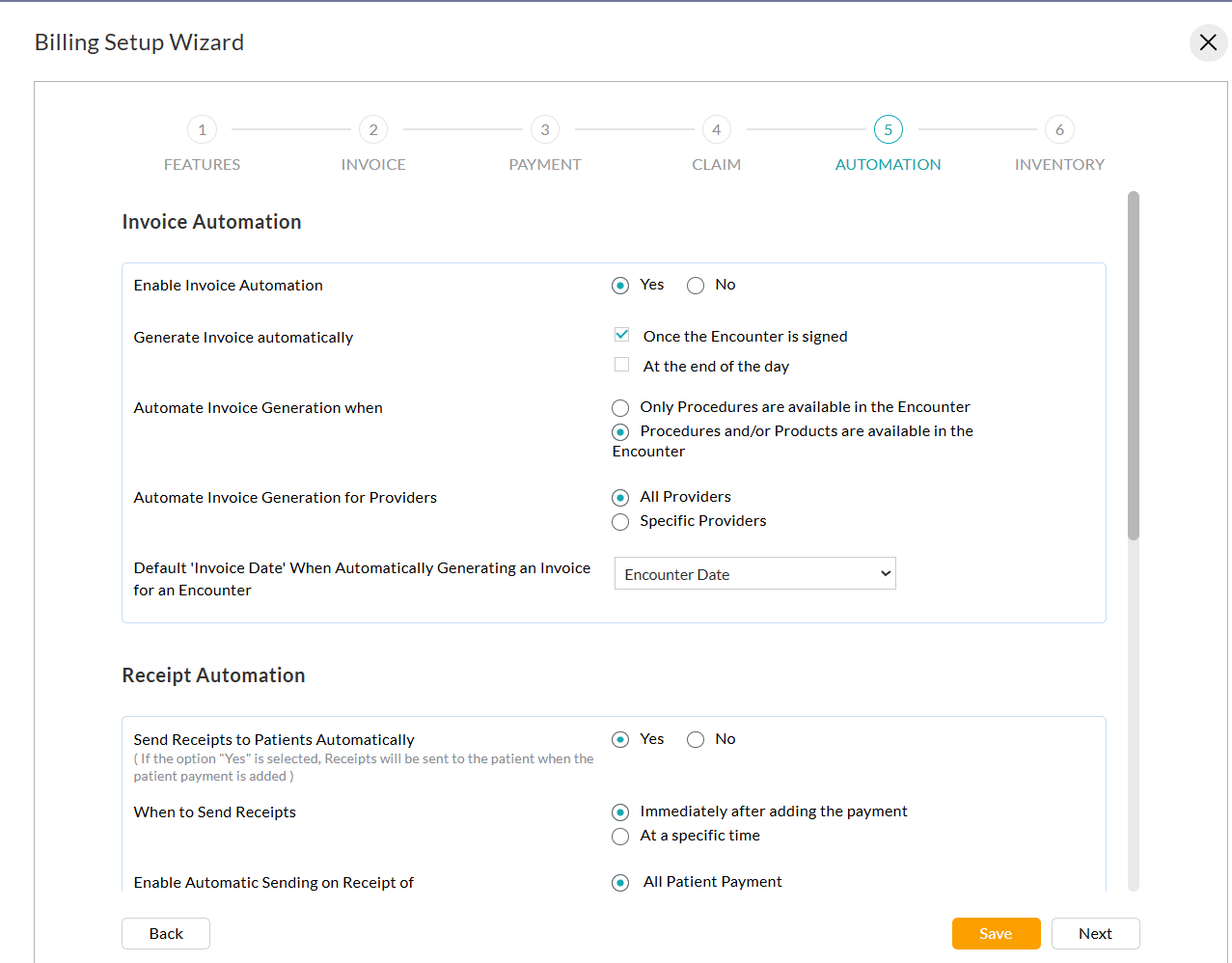
- Inventory Settings
Inventory and E-Commerce settings allow Practices to manage stocks, sell products through PHR, apply taxes, enable advance selling, and configure billing for drugs with NDC/CPT details. These options streamline inventory control, product sales, and tax handling within Invoices.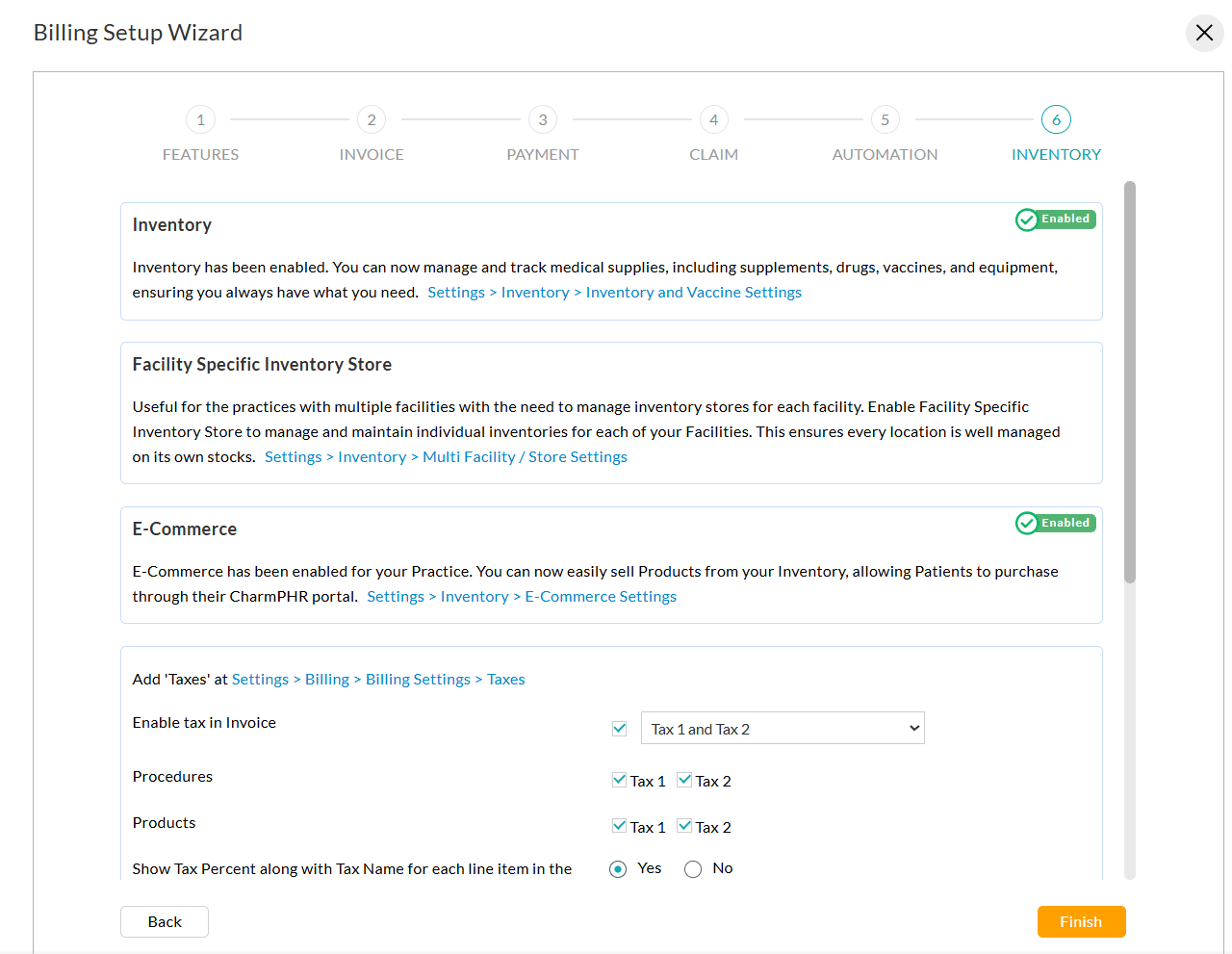
For more detailed configuration, follow the navigation paths provided within each section.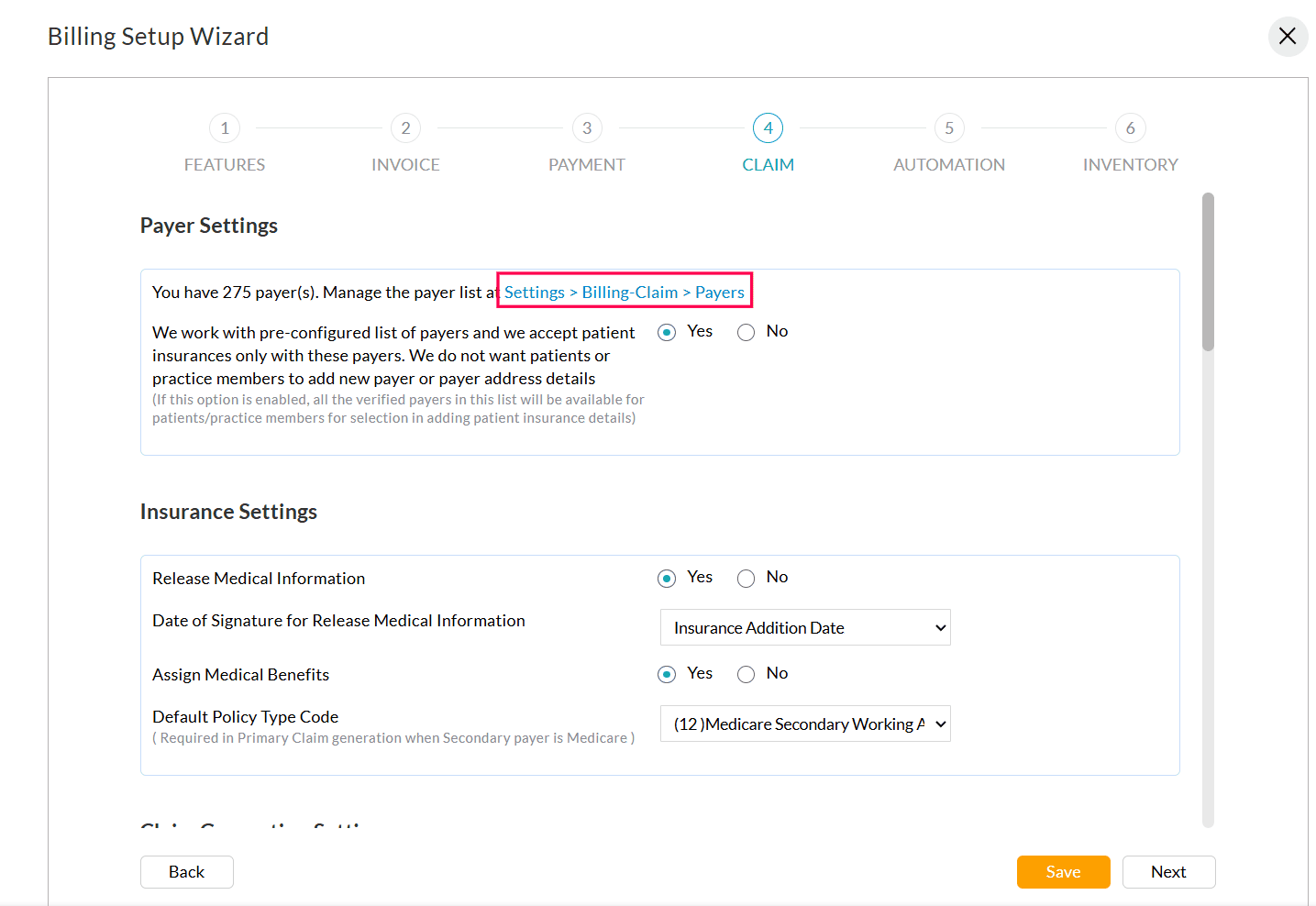
- Invoice Settings